
For coders, the keyboard is more than a tool—it’s an extension of thought. Every keystroke translates logic into language, and the quality of that interaction can influence focus, speed, and even fatigue over long coding sessions. Two dominant technologies dominate the market: mechanical and membrane keyboards. While both serve the same basic function, their underlying mechanisms create vastly different experiences. The choice between them isn’t just about preference; it’s about how efficiently and comfortably you can write, debug, and maintain code over hours or days.
Understanding the core differences—actuation method, tactile feedback, durability, noise, and ergonomics—is essential for making an informed decision. This article breaks down each factor with practical insights, real-world usage scenarios, and expert-backed analysis to help developers determine which keyboard type best supports their workflow.
How Mechanical and Membrane Keyboards Work
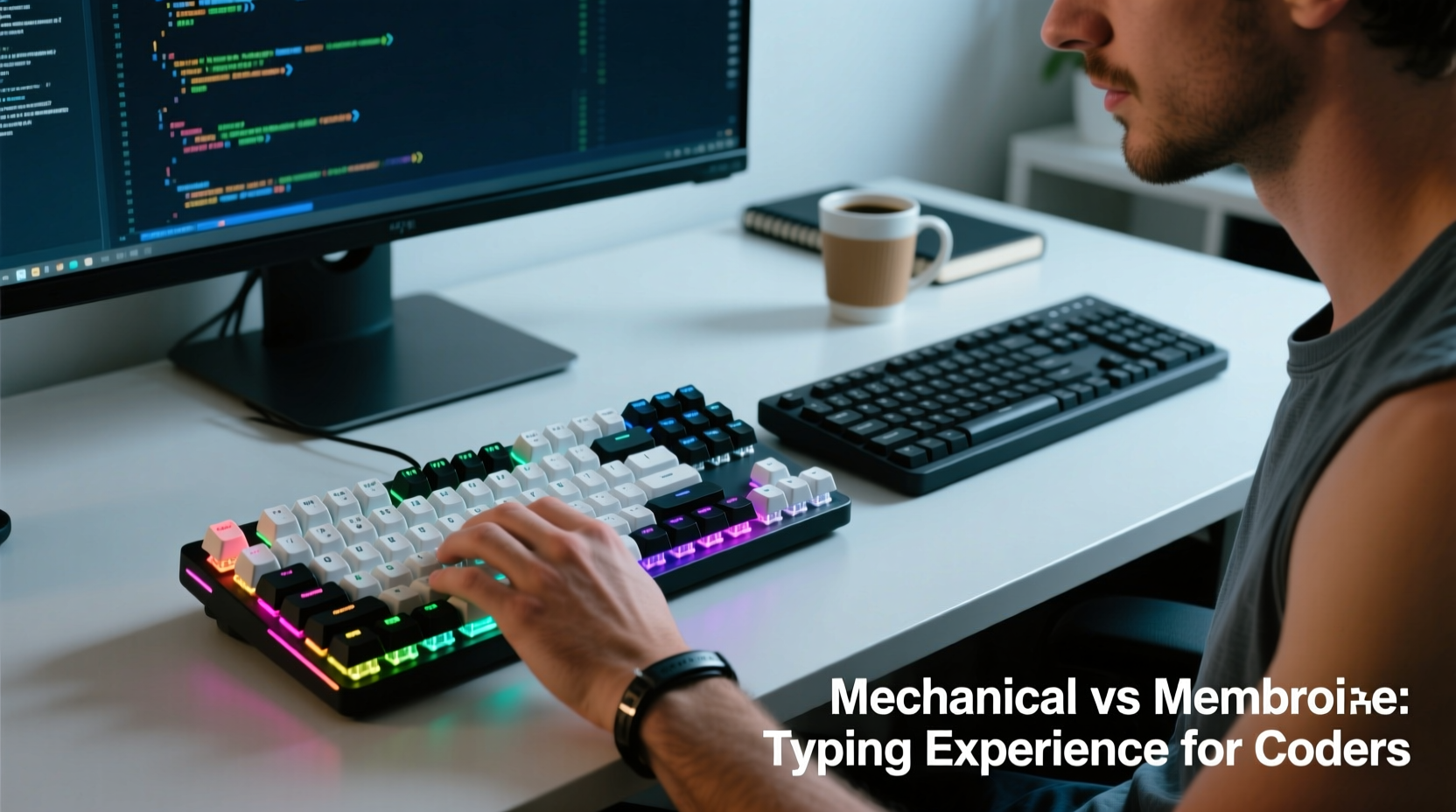
The fundamental distinction lies in how keys register input. Mechanical keyboards use individual mechanical switches beneath each keycap. Each switch contains a spring and metal contacts that complete a circuit when pressed. Different switch types—linear, tactile, or clicky—alter the feel and sound of typing. This design allows for precise actuation points, consistent responsiveness, and greater customizability.
In contrast, membrane keyboards rely on a layered rubber or silicone sheet with conductive traces. When a key is pressed, the top layer makes contact with the bottom layer, closing a circuit. Because the entire surface is connected, these keyboards lack per-key precision. The result is a mushier feel, less feedback, and often inconsistent actuation depth across the board.
From an engineering standpoint, mechanical switches offer superior signal clarity and longevity. Most are rated for 50 million keystrokes or more, while membrane keyboards typically max out around 5–10 million. For coders who spend 6–10 hours daily at the keyboard, that difference translates into years of reliable service—or premature degradation.
Typing Experience: Feedback, Speed, and Accuracy
The typing experience is where the divide becomes most apparent. Coders need accuracy above all—mistyped variables, missing semicolons, or accidental deletions disrupt flow and introduce bugs. Mechanical keyboards excel here because of their tactile response. A well-chosen switch provides clear physical confirmation when a keystroke registers, reducing the need to look down or second-guess inputs.
Take tactile switches like Cherry MX Brown or Gateron T1. They provide a slight bump mid-press, signaling actuation without excessive noise. Linear switches such as Red or Silent Red offer smooth travel ideal for fast typists who prefer minimal resistance. Clicky variants like Blue or Green add audible feedback, which some find satisfying but others consider distracting in shared environments.
Membrane keyboards, by comparison, require full depression to register input. Without distinct tactile cues, users often over-press or under-press keys, leading to missed characters or double-taps. Over time, this inconsistency increases cognitive load, forcing the brain to compensate for unreliable hardware.
“After switching from a standard laptop membrane keyboard to a mechanical one with tactile switches, my typing error rate dropped noticeably. I now trust my fingers more than my eyes.” — David Lin, Senior Backend Developer at DevStack Labs
Comparison Table: Key Differences for Coders
| Feature | Mechanical Keyboard | Membrane Keyboard |
|---|---|---|
| Actuation Method | Individual mechanical switch per key | Rubber dome or silicone layer |
| Tactile Feedback | High (varies by switch type) | Low to none |
| Typing Accuracy | Excellent due to precise actuation | Moderate; requires full key press |
| Durability | 50M+ keystrokes average | 5M–10M keystrokes |
| Noise Level | Varies (clicky > tactile > linear) | Generally quiet |
| Customization | High (switches, keycaps, firmware) | Very limited |
| Price Range | $70–$250+ | $15–$50 |
| Ease of Maintenance | Easy (removable keycaps) | Difficult (sealed design) |
Real-World Example: A Developer’s Transition
Jamie Chen, a frontend engineer working remotely from Vancouver, spent three years using a budget membrane keyboard bundled with her desktop. She noticed increasing wrist fatigue and frequent typos during late-night debugging sessions. After researching ergonomic solutions, she invested in a tenkeyless mechanical keyboard with Gateron Brown switches.
Within two weeks, Jamie reported fewer errors in variable naming and improved endurance during extended coding marathons. “I didn’t realize how much energy I was wasting pressing harder than necessary,” she said. “Now I type faster with less effort. It’s like upgrading from dial-up to broadband—same task, completely different experience.”
Her productivity metrics, tracked via a time-monitoring app, showed a 12% increase in lines of code written per hour, with a 30% reduction in backspace usage. While correlation doesn’t imply causation, the subjective improvement in comfort and confidence was undeniable.
Ergonomics and Long-Term Comfort
Coders often overlook ergonomics until discomfort sets in. Repetitive strain injuries (RSIs), carpal tunnel syndrome, and shoulder tension are common among developers who spend years typing on suboptimal hardware. Mechanical keyboards support better ergonomics through several avenues:
- Lower actuation force: Many mechanical switches require only 45–50 grams of pressure, reducing finger fatigue.
- Shorter travel distance: Some models offer 3.5mm travel vs. 4mm+ on membranes, minimizing movement per keystroke.
- Consistent key response: Uniform actuation across all keys prevents awkward adjustments mid-session.
- Programmable layouts: Enable remapping of frequently used keys (e.g., brackets, escape) to reduce hand stretching.
Additionally, mechanical keyboards are often available in split, ortholinear, or low-profile designs that promote natural hand alignment. While membrane options rarely offer such flexibility, high-end mechanical boards integrate seamlessly with ergonomic setups, including tented stands and vertical mice.
Step-by-Step Guide to Choosing Your Ideal Coding Keyboard
Selecting the right keyboard shouldn’t be guesswork. Follow this structured approach to ensure compatibility with your coding habits and environment:
- Assess your workspace: Is noise a concern? If you work in a shared office or with roommates, avoid loud clicky switches. Opt for tactile browns or silent reds instead.
- Test switch types: Purchase a switch tester kit (available online for ~$20) to compare linear, tactile, and clicky variants firsthand.
- Choose form factor: Full-size (100%), TKL (80%), 75%, or 60%. Smaller layouts save desk space and reduce mouse reach, beneficial for dual-monitor setups.
- Consider build quality: Look for aluminum frames, PBT keycaps (resistant to shine), and detachable USB-C cables for longevity.
- Check software support: Boards with QMK or VIA firmware allow deep customization—ideal for remapping Vim shortcuts or macro commands.
- Budget accordingly: Entry-level mechanical keyboards start around $70. Avoid ultra-cheap clones with poor switch quality.
- Try before committing: Visit electronics stores or attend tech meetups to test models in person if possible.
Frequently Asked Questions
Are mechanical keyboards worth it for programming?
Yes, especially for those who code daily. The improved accuracy, reduced fatigue, and long-term durability justify the higher upfront cost. Once accustomed to tactile feedback, many developers find it difficult to return to membrane keyboards.
Can membrane keyboards still be good for coding?
They can suffice for light or occasional use, particularly if budget is tight. However, they lack the precision and responsiveness needed for intensive development. High-end laptops with excellent scissor-switch membranes (like older MacBooks) may bridge the gap slightly, but still fall short of true mechanical performance.
Do mechanical keyboards cause more noise and disturb coworkers?
It depends on the switch. Clicky switches (e.g., Blue) are loud and disruptive in quiet environments. Tactile or linear switches, especially damped or silent versions, operate quietly enough for most shared spaces. Using O-rings or foam padding inside the case can further reduce sound.
Actionable Checklist Before Buying
- ✅ Determine acceptable noise level for your environment
- ✅ Decide on preferred switch type (tactile recommended for balanced feedback)
- ✅ Choose size based on desk space and mouse usage frequency
- ✅ Verify compatibility with your OS (Windows/macOS/Linux)
- ✅ Check availability of spare keycaps and replacement switches
- ✅ Read user reviews focusing on long-term reliability
- ✅ Consider warranty and customer support
“The right keyboard doesn’t make you a better coder overnight, but it removes friction between idea and execution. That subtle advantage compounds over thousands of lines.” — Dr. Lena Patel, Human-Computer Interaction Researcher, MIT Media Lab
Final Verdict: Why Mechanical Wins for Serious Coders
While membrane keyboards remain cheaper and quieter, their limitations in feedback, consistency, and lifespan make them ill-suited for professional coding workflows. Mechanical keyboards deliver measurable advantages: faster typing with fewer errors, enhanced tactile awareness, and superior durability. These benefits directly translate into increased efficiency, reduced mental fatigue, and long-term physical comfort.
Investing in a quality mechanical keyboard is akin to upgrading your IDE or adopting version control—it’s not merely aesthetic, but functional. For developers committed to writing clean, efficient code over sustained periods, the mechanical advantage is clear.




 浙公网安备
33010002000092号
浙公网安备
33010002000092号 浙B2-20120091-4
Comments
No comments yet. Why don't you start the discussion?