
Nothing disrupts communication like a message that won’t send or one you never receive. Whether you're using iMessage, SMS, WhatsApp, or another platform, messaging failures can be frustrating—especially when they occur at critical moments. The good news is that most issues have clear, logical causes and equally straightforward fixes. Understanding the root of the problem—be it network-related, software-based, or account-specific—can save time and restore reliable communication quickly.
Common Causes of Messaging Failures
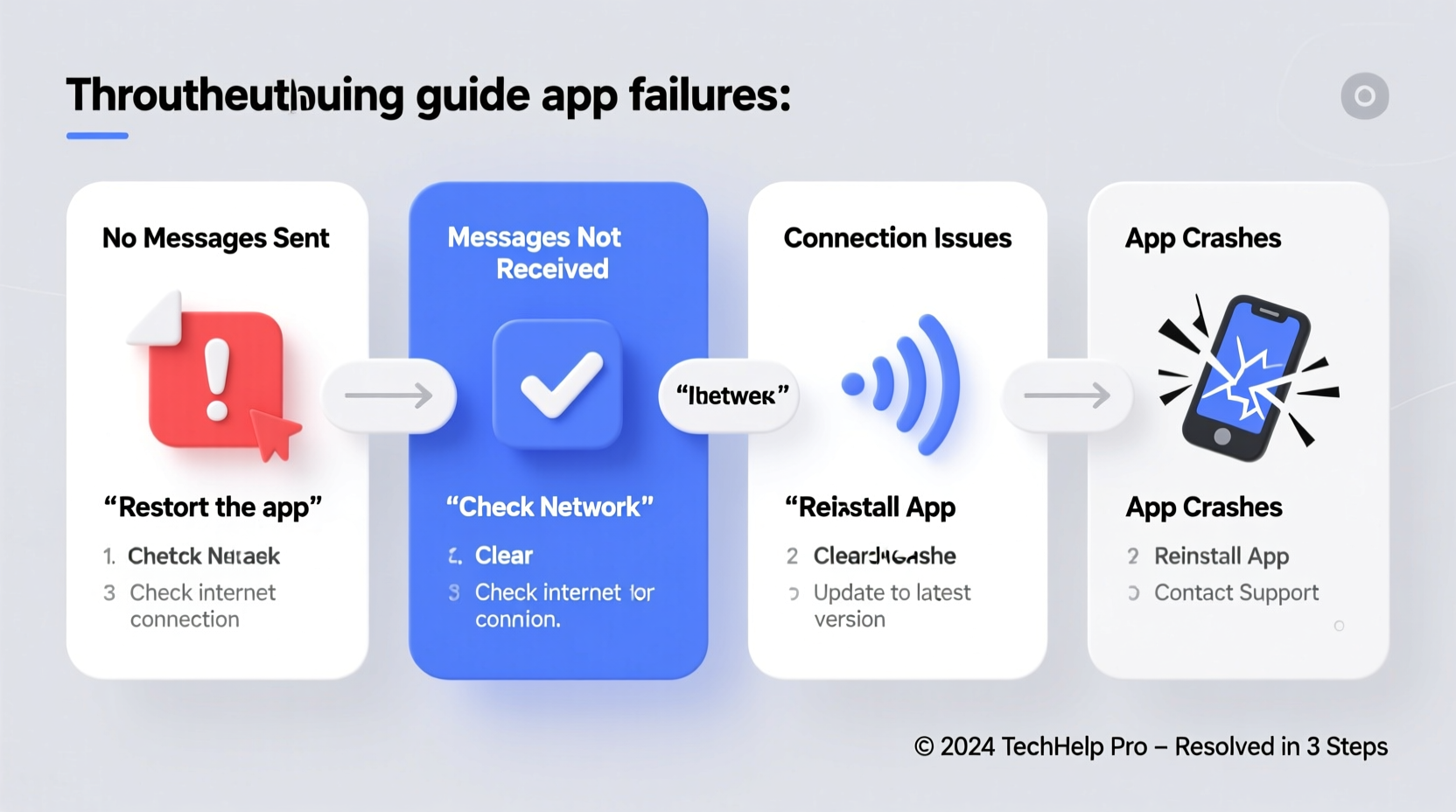
Messaging problems rarely stem from a single source. Instead, they’re often the result of overlapping factors involving connectivity, device settings, app performance, or carrier limitations. Identifying the category of failure helps narrow down solutions efficiently.
- Network connectivity: Weak or unstable Wi-Fi or cellular signal prevents messages from transmitting.
- Incorrect message settings: iMessage or RCS may be disabled, or default SMS settings misconfigured.
- Outdated software: Older OS or app versions may lack support for current messaging protocols.
- Carrier restrictions: Some plans limit MMS or international texting; others block shortcodes.
- App glitches: Temporary bugs in messaging apps can halt delivery or receipt.
- Blocked contacts: Accidentally blocked numbers prevent two-way communication.
Step-by-Step Troubleshooting Guide
Follow this structured approach to diagnose and resolve messaging issues systematically. Start with basic checks before moving to advanced solutions.
- Verify network connection: Ensure your device has active Wi-Fi or cellular data. Test by loading a webpage.
- Check signal strength: Poor reception, especially in basements or rural areas, affects SMS/MMS delivery.
- Restart the device: A reboot clears temporary memory glitches that may interfere with messaging services.
- Update the operating system: Install pending updates for iOS or Android to patch known bugs.
- Update the messaging app: Go to the App Store (iOS) or Google Play (Android) and ensure your app is current.
- Toggle airplane mode: Turn Airplane Mode on for 10 seconds, then off. This resets network interfaces.
- Re-enable messaging services: For iMessage, go to Settings > Messages and toggle iMessage off and on.
- Reset network settings: As a last resort, reset network settings (Settings > General > Reset > Reset Network Settings on iOS; Settings > System > Reset options on Android).
For iMessage Users: Special Considerations
iMessage relies on Apple’s ecosystem and requires both sender and receiver to have compatible devices and internet access. If blue bubbles turn green, the message defaults to SMS, which may fail if cellular service is poor.
- Ensure you’re signed into iCloud with the same Apple ID used for iMessage.
- Check that “Send as SMS” is enabled in Settings > Messages.
- Verify your phone number and email are correctly listed under Send & Receive.
“Over 70% of iMessage delivery issues stem from incorrect Apple ID associations or disabled data routing. Always confirm your identity settings first.” — David Lin, Senior Mobile Support Analyst at AppleCare
Do’s and Don’ts When Fixing Message Delivery Problems
| Do | Don't |
|---|---|
| Restart your phone regularly to clear background processes. | Ignore software update notifications—these often include critical messaging patches. |
| Double-check recipient contact details for typos. | Assume the other person is blocking you without verifying your own settings first. |
| Use alternative apps (e.g., WhatsApp, Signal) to test if the issue is app-specific. | Delete and reinstall the Messages app on iOS—it cannot be uninstalled and reinstallation won’t help. |
| Contact your carrier if MMS consistently fails—they may need to configure APN settings. | Factory reset your phone without backing up data or exhausting simpler fixes. |
Real-World Example: Resolving Persistent iMessage Failures
Samantha, a freelance designer in Portland, couldn’t send messages to her client for two days. Her iPhone showed sent status, but the client reported nothing received. Initial troubleshooting—restarting the phone and toggling iMessage—failed. She checked her Apple ID and discovered she was logged in with an old email no longer linked to her account. After signing out and back in with her primary Apple ID, iMessage synced correctly within minutes. The root cause wasn’t network or hardware, but identity misalignment in Apple’s ecosystem.
This case highlights how easy it is to overlook account-level details when focusing solely on connectivity or app behavior. Always verify digital identity settings when using cloud-dependent services.
Essential Checklist for Immediate Action
Keep this checklist handy whenever messages fail to send or arrive:
- ✅ Confirm Wi-Fi or cellular data is active and stable.
- ✅ Check that Do Not Disturb or Focus modes aren’t silencing alerts.
- ✅ Verify the recipient’s number is correct and not blocked.
- ✅ Look for a red exclamation mark or “Not Delivered” label in the message thread.
- ✅ Toggle iMessage/RCS and SMS settings off and on.
- ✅ Test with a different contact to isolate the issue.
- ✅ Try sending via another app (e.g., WhatsApp) to determine if the problem is universal or app-specific.
- ✅ Contact your carrier to confirm MMS settings and plan allowances.
Frequently Asked Questions
Why do my texts say “Sent as Text Message” instead of iMessage?
This appears when iMessage is unavailable—either because the recipient isn’t using an Apple device, iMessage is turned off on their end, or your device lacks internet connectivity. The message defaults to standard SMS, which uses your carrier’s network and may incur charges if not included in your plan.
Why are MMS (picture messages) not coming through?
MMS requires mobile data and proper APN (Access Point Name) settings. Even with Wi-Fi, some carriers require cellular data to route multimedia messages. Contact your provider to confirm MMS is enabled on your plan and request APN configuration if needed.
Can a full message inbox prevent new messages from arriving?
On older Android devices or phones with limited storage, a full message database can delay or block incoming messages. Regularly archive or delete old conversations, especially those with large media files, to maintain optimal performance.
Advanced Fixes for Persistent Issues
If basic troubleshooting doesn’t resolve the issue, consider these deeper interventions:
- Check Date & Time settings: Incorrect time zones or manual time entries can disrupt message synchronization. Enable “Set Automatically” in Date & Time settings.
- Sign out of iMessage and re-verify: Go to Settings > Messages > Send & Receive, tap your Apple ID, and sign out. Restart the phone, then sign back in.
- Test SIM card: Remove and reinsert the SIM. If problems persist, try a different SIM or contact your carrier for a replacement.
- Restore from backup: If all else fails, back up your phone and perform a factory reset. Restore from a recent backup to eliminate deep-seated software corruption.
Conclusion: Regain Control Over Your Messaging Experience
Messaging is a cornerstone of modern communication, and disruptions shouldn’t go unresolved. Most sending and receiving issues stem from simple, fixable causes—often related to connectivity, settings, or minor software hiccups. By following a methodical approach, from checking network status to verifying account credentials, you can restore functionality in minutes. Don’t accept broken messaging as normal. Equip yourself with the knowledge to diagnose, act, and communicate reliably every time.




 浙公网安备
33010002000092号
浙公网安备
33010002000092号 浙B2-20120091-4
Comments
No comments yet. Why don't you start the discussion?