
If you’ve noticed that your messages aren’t appearing on your iPhone, iPad, or Mac—even though iCloud sync is turned on—you’re not alone. Many Apple users experience delays or complete failures in message syncing, disrupting communication and leaving important texts stranded on a single device. This issue can stem from a range of causes, from minor connectivity glitches to deeper account-level problems. The good news: in most cases, it’s fixable without losing any data.
iCloud Messages is designed to keep your conversations consistent across all your Apple devices by storing them securely in the cloud. When it works, you can start a text on your phone and finish it on your laptop. But when sync fails, it creates confusion and frustration—especially if you rely on multiple devices throughout the day.
Why Messages Get Stuck Syncing with iCloud
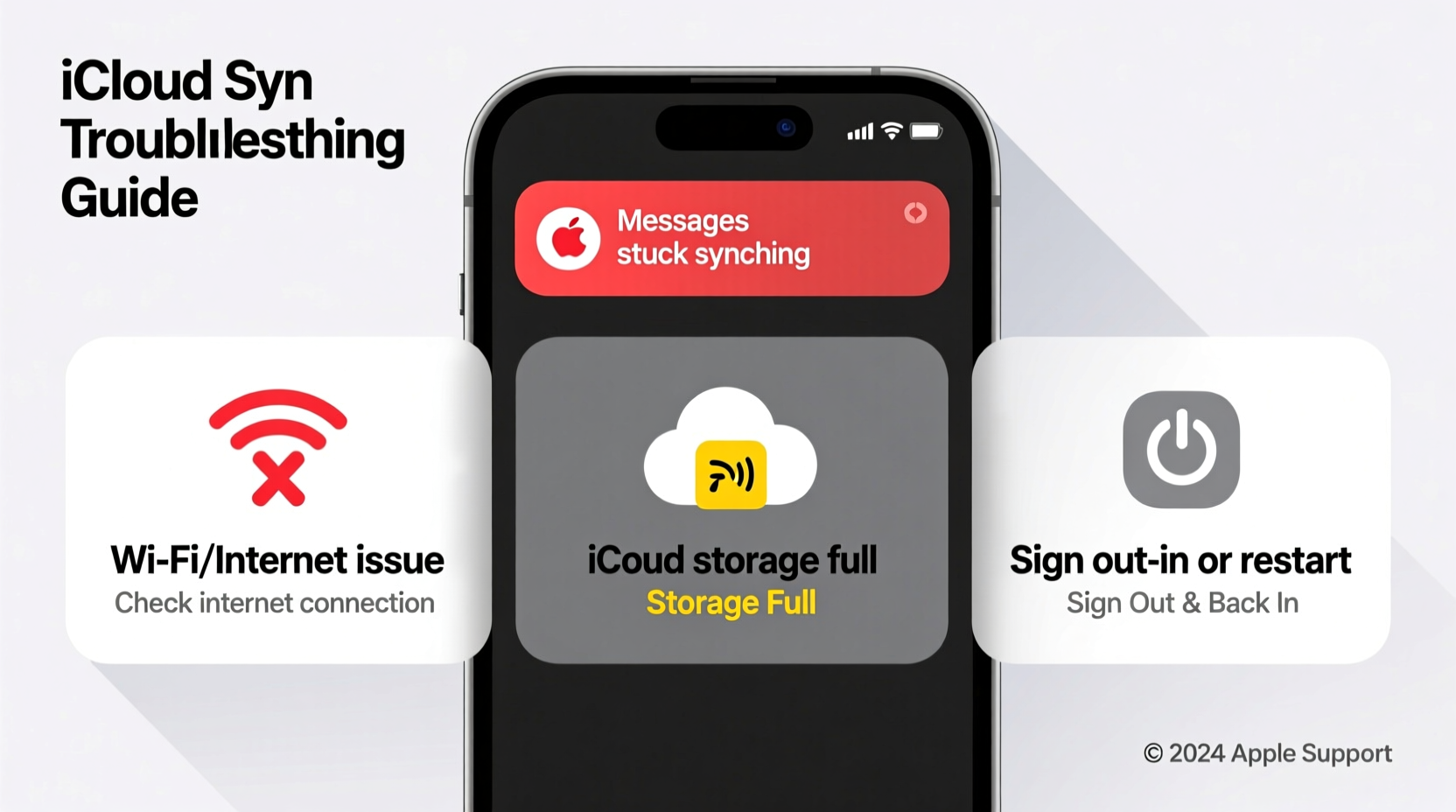
Synchronization issues don’t happen randomly. Behind the scenes, several factors can interrupt the seamless flow of data between your devices and iCloud servers. Understanding these root causes is the first step toward resolution.
- Unstable internet connection: Both Wi-Fi and cellular networks must be stable for iCloud to push and pull message data.
- Outdated software: Older versions of iOS, iPadOS, or macOS may have bugs that interfere with iCloud sync.
- Insufficient iCloud storage: If your iCloud drive is full, new messages cannot be uploaded or synced.
- iCloud account sign-in issues: Being signed out, having two-factor authentication problems, or using multiple Apple IDs can break continuity.
- Sync settings misconfigured: Messages in iCloud might be disabled on one device, breaking the chain.
- Server-side delays: Rarely, Apple’s own iCloud servers experience temporary outages.
“iCloud Message sync relies on a perfect alignment of network stability, correct settings, and sufficient storage. A single missing piece halts the entire process.” — Lisa Tran, Senior Support Analyst at AppleCare
Step-by-Step Guide to Fix iCloud Message Sync Issues
Follow this structured troubleshooting sequence to restore message syncing across your devices. Start with basic checks and progress to more advanced solutions only if needed.
- Verify Internet Connectivity
Ensure each device is connected to a reliable Wi-Fi network. Test by loading a website or using another iCloud feature like Notes. - Check iCloud Storage
Go to Settings > [Your Name] > iCloud > Manage Storage. If your plan is full, upgrade or delete unnecessary backups. - Confirm Messages in iCloud Is Enabled
Navigate to Settings > Messages and toggle on “iCloud Messages.” On Mac, go to Messages > Preferences > Accounts. - Restart All Devices
Reboot your iPhone, iPad, and Mac. This clears temporary system hiccups affecting background processes. - Sign Out and Back Into iCloud
In Settings > [Your Name], tap Sign Out (keep data on device), then sign back in. Re-enable Messages in iCloud. - Update Software
Install the latest version of iOS, iPadOS, or macOS. Go to Settings > General > Software Update. - Reset Network Settings (iOS)
If sync fails consistently on one device, try Settings > General > Transfer or Reset iPhone > Reset > Reset Network Settings. - Wait for Sync Completion
After re-enabling iCloud Messages, allow up to 24 hours for full synchronization, especially if you have years of messages.
Do’s and Don’ts When Troubleshooting iCloud Sync
| Action | Do | Don't |
|---|---|---|
| Enabling Messages in iCloud | Enable it on all devices simultaneously | Turn it on only on one device and expect others to follow |
| Storage Management | Delete old backups or upgrade to 50GB+ plan | Ignore low-storage warnings |
| Software Updates | Apply updates as soon as they’re available | Delay updates for months—security and sync patches matter |
| Account Management | Use the same Apple ID across all devices | Mix personal and work Apple IDs without merging |
| Waiting for Sync | Allow 12–48 hours after major changes | Assume failure after 10 minutes and disable again |
Real Example: How Sarah Fixed Her Sync Issue After Days of Frustration
Sarah, a freelance designer from Portland, couldn’t access client messages on her iPad despite seeing them on her iPhone. She toggled iCloud Messages off and on multiple times, but the sync never completed. After reading online forums, she realized her iCloud storage was full—she had been backing up three devices daily without reviewing what was saved.
She went to Settings > iCloud > Manage Storage and deleted an old iPhone backup from two years ago, freeing up 18GB. Then, she turned off Messages in iCloud, waited five minutes, and re-enabled it. Within 30 minutes, her iPad began downloading the full message history. By the next morning, all devices were in sync. The key wasn’t a complex fix—it was identifying the storage bottleneck.
Frequently Asked Questions
Will turning off Messages in iCloud delete my messages?
No—but only if you choose “Keep on My Device” when disabling the feature. Your messages will remain on that device but won’t sync going forward. Once re-enabled, iCloud will attempt to merge existing local messages with the cloud archive.
How long should iCloud message sync take?
It varies. For light users, sync completes in under an hour. Heavy users with thousands of messages and media may need up to 48 hours. Ensure devices remain charged, connected to Wi-Fi, and unlocked periodically during the process.
Can I use iMessage without iCloud sync?
Yes. You can disable Messages in iCloud and still send and receive iMessages. However, conversations will stay isolated to each device, and you’ll lose cross-device continuity.
When to Contact Apple Support
If you’ve followed every step above and messages still fail to sync, it may be time to escalate. Persistent sync failures after multiple restarts, correct settings, and adequate storage suggest deeper account or server-side issues. Apple Support can check backend logs and verify whether your iCloud account is properly enrolled in the Messages sync service.
Contact Apple through the Apple Support website or use the Apple Support app. Be ready to provide details: which devices are affected, when the problem started, and what troubleshooting steps you’ve already taken.
Conclusion: Regain Control of Your Message Sync Today
Stuck messages disrupt productivity and peace of mind. The fix often lies in overlooked basics: a spotty Wi-Fi signal, a full iCloud drive, or a forgotten software update. By methodically verifying your settings, managing storage, and ensuring consistency across devices, you can restore seamless message syncing—and enjoy the full benefit of Apple’s ecosystem.
Don’t let fragmented conversations control your day. Take action now: check your iCloud storage, confirm Messages sync is enabled everywhere, and give your devices a fresh restart. Most issues resolve within hours, not days. Share your experience below—your solution might help someone else finally get their messages back in order.




 浙公网安备
33010002000092号
浙公网安备
33010002000092号 浙B2-20120091-4
Comments
No comments yet. Why don't you start the discussion?