
When Facebook Messenger fails to send messages, it disrupts communication with friends, family, or colleagues. The issue can stem from network problems, app glitches, outdated software, or account restrictions. While frustrating, most cases are fixable with systematic troubleshooting. This guide walks through practical, tested solutions to restore your messaging functionality—no guesswork, just results.
Check Your Internet Connection
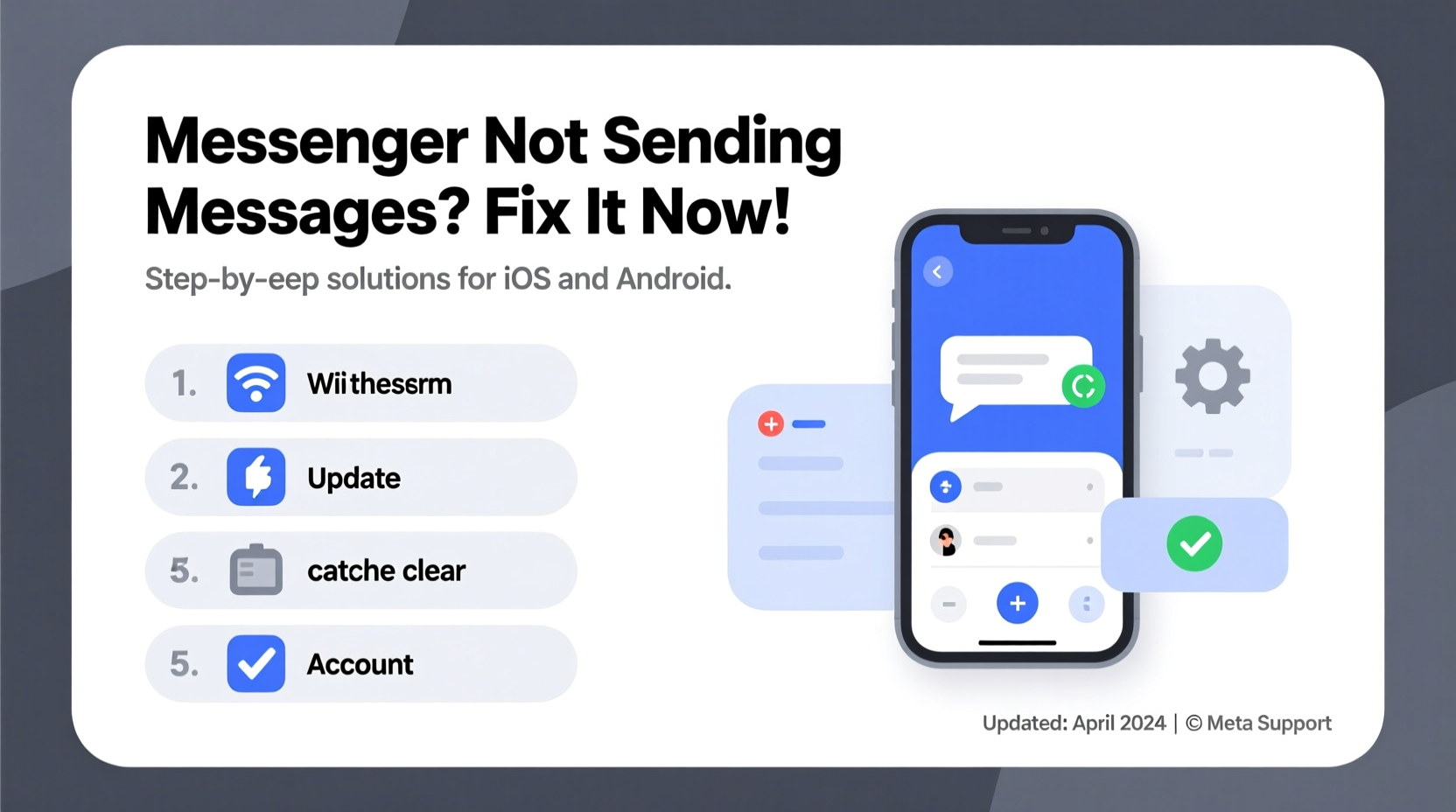
A stable internet connection is essential for Messenger to function. If messages remain stuck with a clock icon or “Not Delivered” status, start by verifying your network.
Switch between Wi-Fi and mobile data to test if one performs better. To confirm connectivity:
- Open a browser and load a website like google.com.
- Use a speed test tool (e.g., Speedtest.net) to check upload speeds—messaging requires minimal bandwidth, but poor signal strength can cause delays.
- Restart your router if using Wi-Fi. Unplug it for 30 seconds, then power it back on.
Restart the Messenger App and Device
One of the fastest ways to resolve app freezes or background process failures is restarting. Force-close Messenger and relaunch it.
On Android:
- Go to Settings > Apps > Facebook Messenger.
- Select “Force Stop,” then reopen the app.
On iPhone:
- Swipe up from the bottom (or double-click Home button) to access open apps.
- Swipe Messenger away to close it, then relaunch.
If the problem persists, restart your phone. A full reboot clears cached processes that may interfere with app performance.
Update Messenger and Operating System
Outdated apps are common culprits behind sending failures. Developers release updates to patch bugs, improve stability, and enhance compatibility.
Check for updates:
- Android: Open Google Play Store, search “Messenger,” and tap “Update” if available.
- iOS: Go to App Store > Updates and look for Messenger.
Equally important is keeping your device’s operating system current. An outdated OS may lack support for newer app features or security protocols required by Messenger.
“Over 60% of app-related issues are resolved simply by updating to the latest version.” — Tech Support Team, Meta Help Center
Clear Cache and Data (Android Only)
Corrupted cache files can prevent Messenger from functioning correctly. Clearing them often restores normal behavior without deleting your account or conversations.
To clear cache:
- Navigate to Settings > Apps > Messenger.
- Select “Storage,” then tap “Clear Cache.”
- Reopen the app and attempt to send a message.
If the issue continues, proceed to “Clear Data.” Note: This will log you out and remove local media and chat history stored on the device (cloud backups remain intact).
Reinstall Messenger
When standard fixes fail, a fresh installation can eliminate deep-seated glitches. Uninstalling removes all local data, including corrupted files that may not clear via standard methods.
Steps:
- Delete the Messenger app from your device.
- Restart your phone.
- Download and install Messenger again from the official app store.
- Log in and test message delivery.
This method is especially effective after major OS updates or if the app has been malfunctioning for days.
Verify Account and Message Requests
Sometimes, messages aren’t truly failing to send—they’re being filtered. If you're messaging someone who isn't your friend or has restricted settings, your message may go to “Message Requests” instead of their inbox.
To check:
- Open Messenger and tap your profile picture.
- Go to Privacy > Messages.
- Ensure “Allow Message Requests” is enabled.
Recipients may also have blocked you or reported spam. In such cases, no error appears—you simply won’t see a delivery confirmation. There's no way to bypass this restriction; communication must be re-established outside the app if necessary.
Disable Battery Saver and Background Restrictions
Aggressive battery optimization can prevent Messenger from running in the background, halting message delivery and syncing.
On Android:
- Go to Settings > Apps > Messenger > Battery.
- Select “Unrestricted” to allow background activity.
On iPhone:
- Settings > General > Background App Refresh.
- Ensure Messenger is enabled.
Also disable battery saver mode temporarily to test if it’s interfering with app performance.
Troubleshooting Checklist
Follow this step-by-step checklist to methodically resolve sending issues:
| Step | Action | Status |
|---|---|---|
| 1 | Test internet connection (Wi-Fi/mobile data) | ☐ |
| 2 | Restart Messenger app | ☐ |
| 3 | Restart your phone | ☐ |
| 4 | Update Messenger app | ☐ |
| 5 | Update device OS | ☐ |
| 6 | Clear app cache (Android) | ☐ |
| 7 | Reinstall Messenger | ☐ |
| 8 | Check message request settings | ☐ |
| 9 | Disable battery saver/background limits | ☐ |
Real-World Example: Maria’s Messaging Breakdown
Maria relied on Messenger to coordinate her freelance design projects. One morning, she noticed clients weren’t receiving her updates. Messages showed as sent but had no delivery checkmarks.
She first checked her Wi-Fi—other apps worked fine. Then she force-closed Messenger with no improvement. After reading online, she discovered her Android phone had recently installed a system update that reset app permissions.
She navigated to Settings > Apps > Messenger > Permissions and re-enabled access to network and storage. She also unchecked “Optimize battery usage” for Messenger. Within minutes, messages began sending normally. Her issue wasn’t with the app itself, but with post-update permission changes.
Common Mistakes That Worsen the Problem
Avoid these counterproductive actions when troubleshooting:
- Spamming the send button: Repeatedly tapping send doesn’t help and may overload the app.
- Ignoring OS updates: Older systems may not support current app encryption or APIs.
- Using third-party Messenger mods: Unauthorized versions like “FMWhatsApp” violate terms and often block message delivery.
- Assuming it’s the recipient’s fault: Always verify your own setup first before concluding the other person has an issue.
FAQ
Why do my messages show a clock but never send?
The clock indicates pending delivery due to poor connectivity or app suspension. Check your internet, restart the app, and ensure background activity is allowed. If messages remain stuck, reinstall Messenger.
Can I recover unsent messages after clearing app data?
No. Messages drafted but not sent are lost when you clear data or uninstall. Always copy important drafts before performing resets.
Does logging out of Messenger affect message delivery?
Yes. You cannot send or receive messages while logged out. Ensure you’re signed in and connected. Auto-login issues after updates are common—re-enter credentials manually if needed.
Conclusion: Restore Communication Quickly
Messenger not sending messages is a common but solvable issue. Most fixes require only a few minutes—checking your connection, restarting the app, or updating software. More persistent problems may need cache clearing or a reinstall, but these steps are straightforward and effective.
Don’t let technical glitches silence your conversations. Apply these solutions in order, and you’ll likely regain full functionality quickly. If all else fails, contact Meta Support directly through the Help Center within the app.




 浙公网安备
33010002000092号
浙公网安备
33010002000092号 浙B2-20120091-4
Comments
No comments yet. Why don't you start the discussion?