
Facebook Messenger is one of the most widely used messaging platforms globally, connecting millions daily for personal and professional conversations. However, when messages fail to send, it disrupts communication and creates frustration. If you're experiencing persistent \"Messenger not sending\" errors, you're not alone. This guide provides a comprehensive breakdown of root causes and actionable fixes to resolve message delivery problems—fast and effectively.
Understanding Common Causes of Message Failures
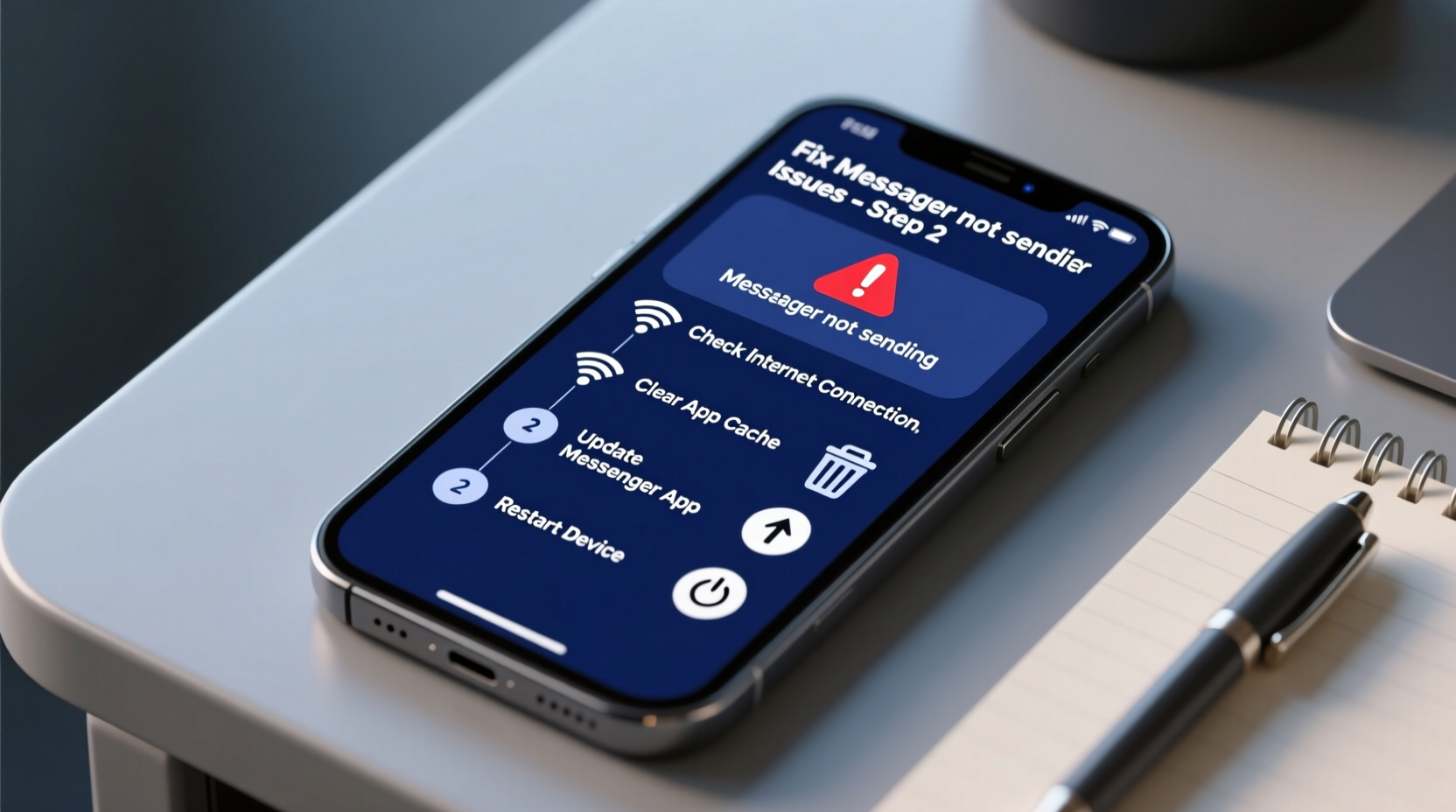
Messenger message failures rarely stem from a single issue. Instead, they result from a combination of network, app, device, or account-level problems. Identifying the underlying cause is the first step toward resolution.
- Poor internet connectivity: Unstable Wi-Fi or weak cellular data prevents messages from uploading.
- Outdated app version: Older versions may have bugs that interfere with message transmission.
- Server outages: Facebook’s servers occasionally experience downtime, affecting global users.
- Blocked contacts or restricted accounts: You may be blocked by the recipient or have limited permissions due to policy violations.
- Corrupted cache: Accumulated app data can lead to glitches in sending or receiving messages.
Step-by-Step Troubleshooting Guide
Follow this logical sequence to diagnose and fix message-sending issues efficiently. Start with basic checks and progress to advanced solutions only if needed.
- Check Internet Connection
Ensure your device is connected to a stable network. Test by opening a website or using another app. If on Wi-Fi, try switching to mobile data or vice versa. - Verify Recipient Status
Confirm the person hasn’t deactivated their account, blocked you, or disabled message requests. Send a test message to another contact to isolate the issue. - Force-Close and Reopen Messenger
Close the app completely and relaunch it. On iOS, swipe up from the app switcher. On Android, go to Settings > Apps > Messenger > Force Stop. - Clear App Cache (Android)
Navigate to Settings > Apps > Messenger > Storage > Clear Cache. This removes temporary files without deleting your messages. - Update the Messenger App
Visit the App Store (iOS) or Google Play Store (Android) and ensure you’re running the latest version. - Reinstall Messenger
If issues persist, uninstall and reinstall the app. This replaces any corrupted installation files. - Log Out and Back In
Go to Messenger Settings > Account > Log Out. Then log in again to refresh your session.
Do’s and Don’ts When Fixing Messenger Issues
| Do’s | Don’ts |
|---|---|
| Test sending a message after each fix step | Ignore error messages like “Not Delivered” or “Tap to Try Again” |
| Use Messenger via browser as a temporary alternative | Send multiple duplicate messages rapidly—this can trigger spam filters |
| Check Facebook’s official status page for outages | Delete your account thinking it will solve the problem |
| Disable battery saver mode—it can restrict background app activity | Assume the issue is always on your end; verify recipient-side factors |
Real-World Example: Resolving a Persistent Sending Failure
Samantha, a small business owner, relied on Messenger to coordinate client orders. One morning, her messages started failing with a red exclamation mark. She tried resending, but nothing went through. Initially assuming poor signal, she moved closer to her router—no change.
Following the troubleshooting steps, she restarted her phone, which didn’t help. She then checked her internet by loading Facebook in a browser—working fine. Next, she opened Messenger on desktop and successfully sent a message. This revealed the issue was isolated to her mobile app.
She uninstalled and reinstalled the app, logged back in, and instantly regained full functionality. The root cause? A corrupted update that disrupted background processes. Her case highlights the importance of testing across devices and not overlooking app-specific faults.
“Many Messenger issues are not network-related but stem from local app corruption. A clean reinstall often restores full functionality.” — Jordan Lee, Mobile Application Support Specialist
Advanced Fixes for Stubborn Message Problems
When standard methods fail, consider deeper system or account-level adjustments.
Switch Between Wi-Fi and Data
Some networks block specific ports used by Messenger. Temporarily disabling Wi-Fi and using LTE/5G can bypass such restrictions. Conversely, if mobile data is throttled, switch to a reliable Wi-Fi network.
Disable VPN or Firewall Temporarily
Security apps or virtual private networks may interfere with Messenger’s connection. Turn them off briefly to test if messages send. If successful, adjust settings to whitelist Messenger.
Check Date and Time Settings
Incorrect device time can break secure connections. Ensure “Set Automatically” is enabled in your device’s date and time settings.
Use Messenger Lite or Web Version
If the main app continues to fail, use messenger.com in your browser or install Messenger Lite—a lightweight version optimized for low-end devices and unstable networks.
Frequently Asked Questions
Why do my messages show a checkmark but not “Seen”?
A single checkmark means the message was sent and received by Facebook’s server. Two checkmarks indicate delivery to the recipient’s device. “Seen” appears only when they open the chat. Lack of “Seen” doesn’t mean a technical issue—it could simply mean they haven’t viewed it yet.
Can I recover unsent messages after fixing the issue?
No. Messages that failed to send and were not resent are lost. Always double-tap unsent messages with a red exclamation mark to retry before closing the app.
Does blocking someone affect my ability to send messages elsewhere?
No. Blocking a user only affects communication with that individual. If you can’t send to multiple people, the issue is likely technical, not social.
Final Checklist: Restore Messenger Functionality
- ✅ Confirm internet connection is stable
- ✅ Restart your device
- ✅ Update Messenger to the latest version
- ✅ Clear app cache (Android) or offload app (iOS)
- ✅ Test sending to a different contact
- ✅ Try Messenger via web browser
- ✅ Reinstall the app if necessary
- ✅ Verify no account restrictions via Facebook Settings
Conclusion: Stay Connected Without Interruption
Messenger message failures are common but rarely permanent. With methodical troubleshooting, most issues can be resolved within minutes. The key is to approach the problem systematically—starting with connectivity, progressing through app health, and verifying account integrity. By applying the strategies outlined here, you regain control over your digital conversations and minimize future disruptions.




 浙公网安备
33010002000092号
浙公网安备
33010002000092号 浙B2-20120091-4
Comments
No comments yet. Why don't you start the discussion?