
A microphone that’s too quiet can ruin a video call, podcast, or voice recording. Despite being technically connected and active, the audio output may be barely audible—forcing others to strain to hear you. This issue is more common than many realize, affecting built-in laptop mics, USB headsets, and external condenser microphones alike. The good news: most low-volume microphone problems are fixable with systematic troubleshooting. Whether you're using Windows, macOS, or a third-party app like Zoom or Discord, the root cause often lies in settings, hardware compatibility, or software conflicts.
Check Input Levels and System Settings
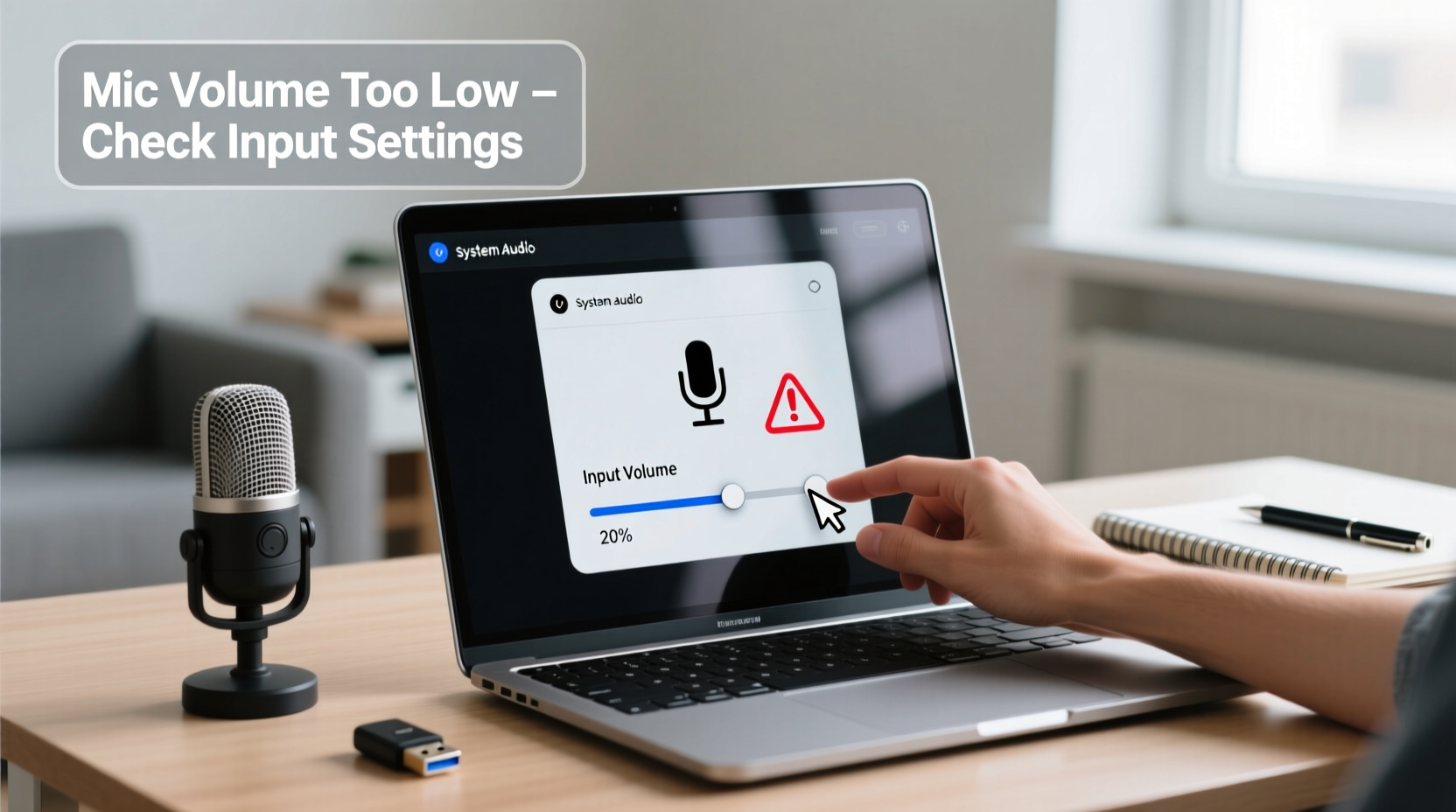
The first step in diagnosing low microphone volume is verifying your system's input levels. Both Windows and macOS offer built-in tools to monitor and adjust microphone sensitivity.
On Windows:
- Navigate to Settings > System > Sound.
- Under \"Input,\" select your microphone and click “Device properties.”
- Choose “Additional device properties” to open the classic volume control panel.
- In the \"Levels\" tab, ensure the microphone volume slider is set to 100%. If available, also check the \"Microphone Boost\" option—this can add up to +30dB gain, though it may introduce background noise.
On macOS:
- Go to System Settings > Sound > Input.
- Select your microphone from the list.
- Speak into the mic and watch the input level bars. If they remain low even when speaking at normal volume, increase the \"Input volume\" slider.
- Note: macOS does not offer a microphone boost feature by default, so external amplification may be needed for very quiet sources.
Update or Reinstall Audio Drivers
Outdated, corrupted, or incompatible drivers are among the top causes of low microphone volume, especially on Windows systems. Realtek, Intel, and third-party audio chipsets often ship with default settings that limit input gain.
To resolve driver-related issues:
- Press Win + X and select Device Manager.
- Expand the \"Audio inputs and outputs\" section.
- Right-click your microphone or audio device and choose “Update driver.”
- Select “Search automatically for updated driver software.”
- If no update is found, visit the manufacturer’s website (e.g., Dell, HP, ASUS) and download the latest audio driver package.
If updating doesn’t help, try uninstalling the driver and restarting your computer. Windows will reinstall the default driver upon reboot, which can clear configuration errors.
“Driver conflicts account for nearly 40% of reported audio input issues in enterprise environments.” — IT Support Survey, 2023, Spiceworks Network Admin Report
Application-Specific Microphone Settings
Even if your system recognizes the microphone correctly, individual applications often override OS-level settings. Platforms like Zoom, Microsoft Teams, Discord, and OBS Studio have their own audio input controls.
For example:
- In Zoom, go to Settings > Audio and ensure “Automatically adjust microphone volume” is disabled. Manually slide the input bar to maximum and test during a meeting.
- In Discord, navigate to User Settings > Voice & Video. Check “Use Legacy Audio Subsystem” if voice remains faint. Also verify that “Input Volume” is set to 100% (not 0–50%).
- In OBS Studio, right-click the audio source, select “Filters,” and add an “Gain” filter to amplify the signal without distorting peak levels.
| App | Common Fix | Setting Location |
|---|---|---|
| Zoom | Disable auto-adjust, max input | Settings > Audio |
| Teams | Run audio troubleshooter | Settings > Devices |
| Discord | Adjust input %, enable legacy mode | Voice & Video > Input Volume |
| OBS | Add Gain filter | Source Filters > Audio |
Step-by-Step Troubleshooting Guide
Follow this logical sequence to isolate and resolve low mic volume issues:
- Test the microphone on another device – Plug it into a phone or different computer to rule out hardware failure.
- Verify physical switches and mute buttons – Some headsets and USB mics have inline mute toggles that may be accidentally engaged.
- Check connection stability – For USB mics, try a different port. Avoid hubs; connect directly to the computer.
- Disable audio enhancements – In Windows, under microphone properties > Enhancements, check “Disable all enhancements.” These features can compress or alter input signals.
- Adjust privacy permissions – On both Windows and macOS, confirm that apps have microphone access enabled in system privacy settings.
- Use an external preamp or audio interface – For professional setups, a quiet mic may simply lack sufficient gain. An interface like Focusrite Scarlett can provide clean amplification.
Real-World Example: Remote Worker Resolves Faint Mic Issue
Sarah, a technical writer based in Portland, struggled with her microphone sounding muffled during daily team stand-ups. Her colleagues repeatedly asked her to “speak up,” despite talking at a normal volume. She tested her headset on her phone—perfect clarity. That ruled out hardware damage.
She then checked her Windows sound settings and noticed the microphone was set to 35% with no boost. After increasing it to 100% and enabling +20dB boost, her voice became clearly audible. However, background keyboard noise also increased. To balance clarity and noise, she disabled audio effects and used a pop filter while typing. Within 20 minutes, her audio quality improved dramatically—without spending a cent.
When Hardware Is the Culprit
Sometimes, no amount of software tweaking can compensate for faulty or underpowered hardware. Built-in laptop microphones, especially on budget models, often lack the sensitivity for professional use. Similarly, older 3.5mm electret mics may not deliver enough signal strength compared to modern USB or XLR alternatives.
Consider upgrading if:
- You consistently need maximum gain but still sound distant.
- The mic picks up excessive hiss or static even in quiet environments.
- It fails on multiple systems and platforms.
Budget-friendly options like the Fifine K669B or Blue Snowball iCE offer plug-and-play USB operation with significantly better gain and clarity than most internal mics.
FAQ
Why is my microphone quiet even at full volume?
This can result from disabled microphone boost, outdated drivers, application-specific volume limits, or hardware limitations. Test across devices and inspect both OS and app-level settings.
Can I boost microphone volume without adding noise?
Yes—use a high-quality external microphone with built-in gain control or connect through an audio interface. Software boosts often amplify background noise, so clean hardware amplification is preferable.
Does Bluetooth affect microphone volume?
Yes. Bluetooth headsets often compress audio and limit input gain due to bandwidth constraints. Wired connections generally provide more consistent and louder microphone performance.
Final Checklist: Fix Low Mic Volume Fast
- ✅ Test mic on another device
- ✅ Increase system input volume to 100%
- ✅ Enable microphone boost (Windows)
- ✅ Update or reinstall audio drivers
- ✅ Disable audio enhancements
- ✅ Check app-specific mic settings
- ✅ Verify physical mute switches
- ✅ Consider an external USB mic or audio interface
Conclusion
Low microphone volume is a frustrating but solvable problem. By methodically checking system settings, drivers, application preferences, and hardware capabilities, most users can restore clear, strong audio within minutes. Don’t accept poor sound as inevitable—modern tools give you full control over your voice quality. Whether you're presenting, streaming, or collaborating remotely, crisp audio builds credibility and ensures your message is heard loud and clear.




 浙公网安备
33010002000092号
浙公网安备
33010002000092号 浙B2-20120091-4
Comments
No comments yet. Why don't you start the discussion?