
If the Microsoft Store fails to open, apps won’t download, or updates stall unexpectedly, you’re not alone. Millions of Windows users encounter glitches with the Microsoft Store each year—ranging from slow loading times to complete crashes. While frustrating, most issues are resolvable without a system reset or professional help. This guide delivers tested solutions that go beyond surface-level fixes, targeting root causes like corrupted cache, service interruptions, and permission errors.
Common Symptoms of Microsoft Store Issues
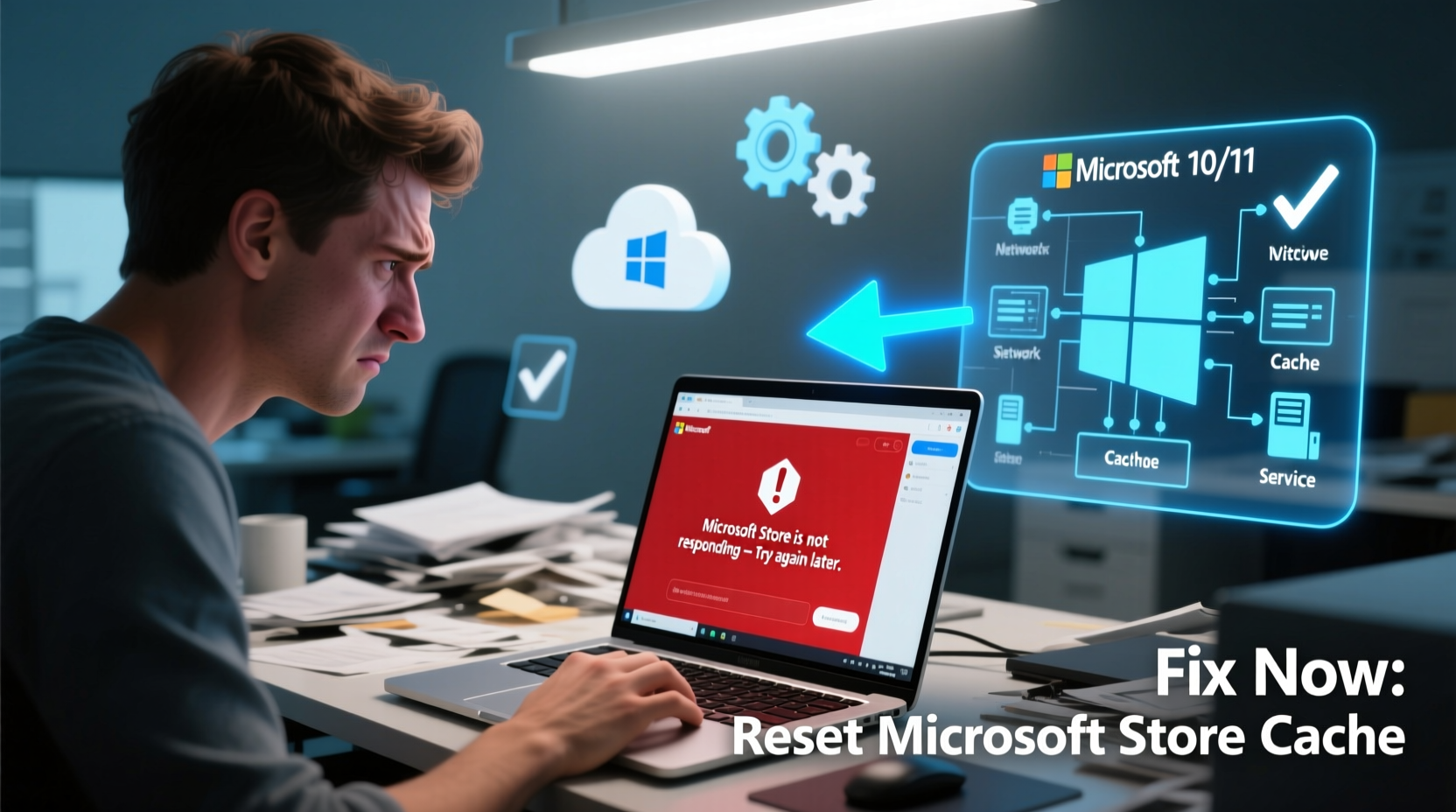
Before diving into fixes, identify your specific problem. The Microsoft Store may exhibit one or more of the following:
- Store fails to launch or opens as a blank/white screen
- Apps won’t install, update, or download
- Error codes like 0x80131500, 0x80072EE2, or 0xC00D4A60
- Sign-in loops or repeated authentication prompts
- Slow performance or constant buffering
These symptoms often stem from network misconfigurations, outdated components, or corrupted app data. The good news: most can be resolved in under 20 minutes with the right steps.
Step-by-Step Troubleshooting Guide
Follow this logical sequence to isolate and fix the issue efficiently. Start with basic checks and progress to advanced resets only if needed.
- Check Your Internet Connection
The Store relies on stable connectivity. Test by opening a website. If other sites load but the Store doesn’t, the issue is likely local. - Restart Your Computer
A reboot clears temporary glitches. Save work and restart—even if you’ve done so recently. - Verify Date and Time Settings
Incorrect time zones or dates disrupt Store authentication. Go to Settings > Time & Language and ensure “Set time automatically” is enabled. - Run the Windows Store Apps Troubleshooter
Windows includes a built-in diagnostic tool. Navigate to Settings > System > Troubleshoot > Other troubleshooters, then run “Windows Store Apps.” - Clear Microsoft Store Cache
Corrupted cache is a leading cause of loading failures. Press Win + R, typewsreset.exe, and hit Enter. A black window will appear briefly, then the Store will reopen automatically.
Re-register the Microsoft Store (Advanced Fix)
If clearing the cache fails, re-registering the app via PowerShell can resolve deep-level corruption. Use caution—this command affects system apps.
- Right-click the Start button and select Windows Terminal (Admin) or PowerShell (Admin).
- Paste this command and press Enter:
Get-AppXPackage -AllUsers | Foreach {Add-AppxPackage -DisableDevelopmentMode -Register \"$($_.InstallLocation)\\AppXManifest.xml\"} - Wait for the process to complete (may take several minutes).
- Restart your PC and test the Store.
“The Microsoft Store runs on Universal Windows Platform (UWP) architecture. When its registration breaks, re-registration restores core functionality without reinstalling Windows.” — David Lin, Senior Systems Engineer at Contoso IT Solutions
Fix Network and Proxy Conflicts
Corporate networks, firewalls, or misconfigured proxy settings often block Store traffic. Even home users with third-party antivirus tools may experience interference.
Disable Proxy Temporarily
- Press Win + I to open Settings.
- Go to Network & Internet > Proxy.
- Under “Manual proxy setup,” toggle off “Use a proxy server.”
- Try opening the Store again.
Reset Network Stack
If proxy changes don’t help, reset network components:
- Open Command Prompt as Administrator.
- Run these commands in order:
netsh winsock reset
netsh int ip reset
ipconfig /release
ipconfig /renew
ipconfig /flushdns - Restart your computer.
Account and Permission Fixes
Sometimes, the issue isn’t with the Store itself—but with your Microsoft account or local permissions.
Re-sign Into Your Microsoft Account
- Go to Settings > Accounts > Your info.
- Click “Sign in with a Microsoft account instead” if using a local account.
- Or, sign out and back into your current Microsoft account.
Check Family Safety & Restrictions
Parental controls or organizational policies may restrict Store access. Visit Microsoft Family Safety online to verify no blocks are active.
Grant Full Permissions to the Store Folder
In rare cases, file system permissions prevent the Store from functioning.
- Navigate to
C:\\Program Files\\WindowsApps. - Right-click the folder > Properties > Security > Advanced.
- Ensure your user account has “Full control.” (Note: This folder is hidden by default—enable “Hidden items” in File Explorer.)
| Issue | Quick Fix | When to Use |
|---|---|---|
| Store won’t open | Run wsreset.exe |
First response to blank screens or crashes |
| Apps fail to install | Re-register Store via PowerShell | After failed downloads or error codes |
| Slow or unresponsive | Clear DNS and reset network | On new networks or after router changes |
| Authentication loops | Re-sign into Microsoft account | After password changes or sync issues |
Mini Case Study: Resolving Persistent Store Failures in a Corporate Environment
A mid-sized accounting firm reported that employees couldn’t install tax software updates from the Microsoft Store. Initial attempts to clear cache and restart failed. IT discovered the company’s firewall was blocking *.store.core.windows.net domains—critical for Store operations. After adding exceptions and resetting WinHTTP settings via netsh winhttp reset proxy, access was restored within 10 minutes. The root cause wasn’t user error, but an over-aggressive security policy. This highlights why network-level diagnostics matter—even when symptoms appear app-specific.
Essential Maintenance Checklist
Prevent future issues with routine maintenance. Perform this checklist monthly:
- ✅ Run Windows Update and install all pending patches
- ✅ Clear Microsoft Store cache using
wsreset.exe - ✅ Verify your Microsoft account is synced and in good standing
- ✅ Check for conflicting security software
- ✅ Reset network settings if switching between office and home Wi-Fi
- ✅ Monitor for unusual error messages during app installations
Frequently Asked Questions
Why does the Microsoft Store keep showing error code 0x80131500?
This typically indicates a certificate validation failure. It occurs when system time is incorrect, internet security software interferes, or cached credentials are corrupt. Clear the cache with wsreset.exe, ensure correct date/time, and temporarily disable antivirus tools to resolve.
Can I reinstall the Microsoft Store manually?
Not directly—but you can re-register it using PowerShell. Complete removal isn’t recommended, as the Store is a core Windows component. Re-registration restores it safely without affecting other system functions.
Does disabling S mode affect Microsoft Store access?
No—S mode actually limits what apps you can install, but doesn’t break the Store. However, switching out of S mode may require re-authentication and could temporarily disrupt Store syncing until the system stabilizes.
Conclusion: Restore Functionality and Stay Ahead of Issues
The Microsoft Store is essential for accessing modern Windows apps, updates, and utilities. When it fails, productivity stalls. By methodically addressing cache problems, network conflicts, account issues, and system permissions, you regain control without drastic measures. Most fixes take less than 15 minutes and don’t require technical expertise. The key is consistency: treat the Store like any critical software by maintaining updates and monitoring for early warning signs.
wsreset.exe today and ensure your system is up to date. Share this guide with colleagues who struggle with the Store—it could save them hours of frustration.




 浙公网安备
33010002000092号
浙公网安备
33010002000092号 浙B2-20120091-4
Comments
No comments yet. Why don't you start the discussion?