
Minecraft’s multiplayer mode brings players together in shared worlds, whether on official servers, private realms, or custom networks. When it stops working, the experience grinds to a halt. Players encounter error messages like “Unable to connect to world,” “Connection timed out,” or simply infinite loading screens. These issues stem from network misconfigurations, firewall restrictions, outdated software, or server-side problems. This guide provides a structured approach to diagnosing and fixing multiplayer connectivity issues across Java and Bedrock editions.
1. Verify Your Internet Connection
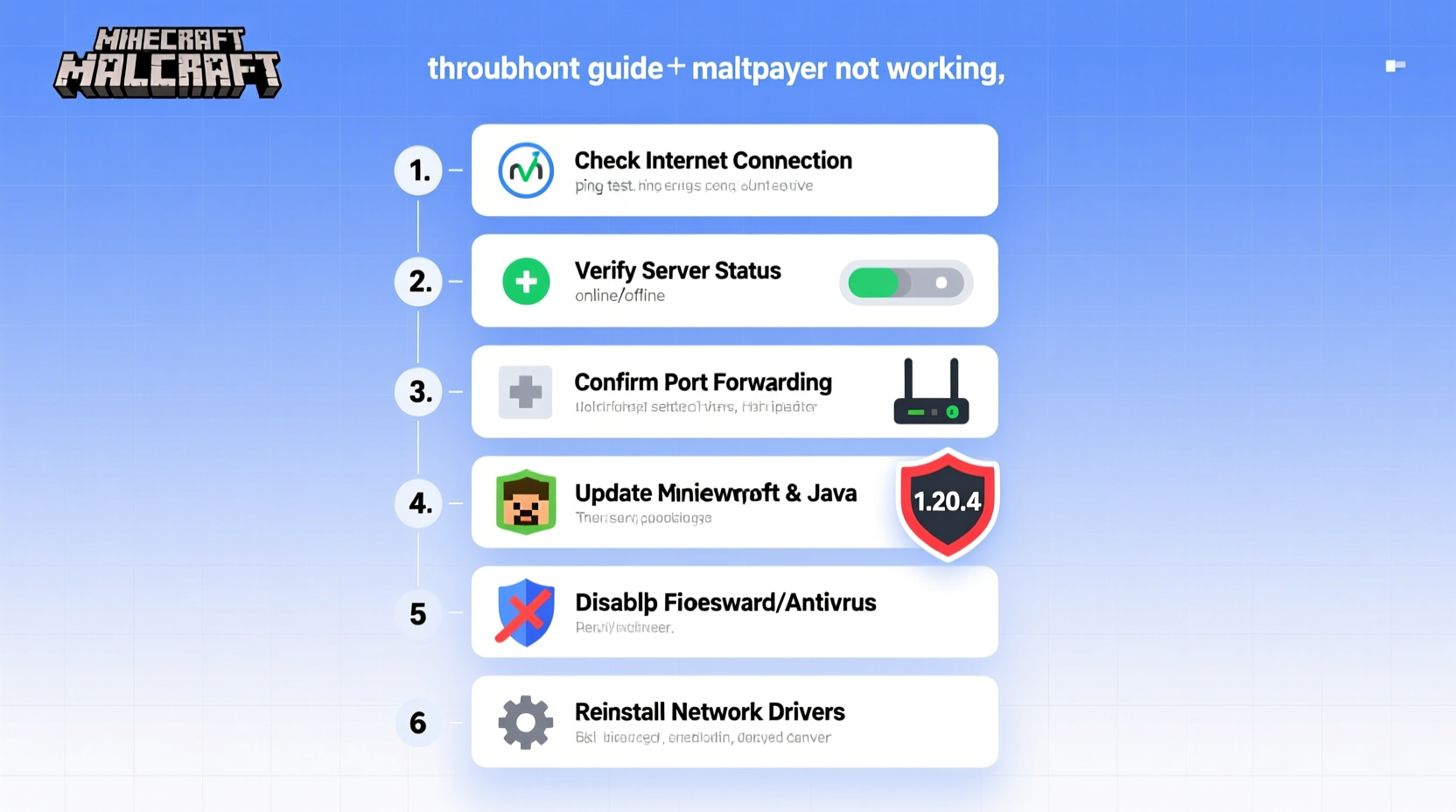
A stable internet connection is the foundation of smooth multiplayer gameplay. Even minor disruptions can prevent successful logins or cause disconnections during play.
Start by testing your connection using another device or application. Open a web browser and load several websites to confirm general internet access. Then, measure your bandwidth:
- Download speed: Minimum 3 Mbps recommended for stable gameplay.
- Upload speed: At least 1 Mbps helps maintain consistent communication with servers.
- Ping (latency): Below 100 ms is ideal; above 150 ms may cause lag.
If you're on Wi-Fi, consider switching to a wired Ethernet connection. Wireless signals are more prone to interference and packet loss, especially in crowded networks or through walls. Wired connections provide lower latency and higher reliability—critical for real-time gameplay.
2. Check Server Status and Compatibility
Not all multiplayer issues originate from your device. The problem may lie with the server itself.
For official Mojang servers (like Realms) or popular public servers (Hypixel, Mineplex), check real-time status updates:
- Minecraft Help Center – Official service status page.
- Dedicated server websites often have status dashboards (e.g., Hypixel’s Twitter or status.hypixel.net).
If the server is down, wait until maintenance concludes. No local fix will resolve an offline host.
Additionally, ensure version compatibility:
| Issue | Java Edition | Bedrock Edition |
|---|---|---|
| Version Mismatch | All players must use same major version (e.g., 1.20.4) | Auto-updates usually handle this, but manual update may be needed |
| Cross-Platform Play | Not supported | Supported between Xbox, PlayStation, Switch, mobile, Windows |
| Modded Servers | Requires matching mods and modloader (Forge/Fabric) | Rare; mostly add-on based |
“Over 60% of reported ‘multiplayer not working’ cases are due to mismatched game versions or temporary server downtime.” — Mojang Support Incident Report, Q2 2024
3. Configure Firewall and Antivirus Settings
Your computer’s security software may block Minecraft’s network access, preventing it from reaching multiplayer servers.
Windows Defender Firewall, third-party antivirus tools (like Norton or McAfee), or parental controls can silently drop outgoing/incoming packets. To resolve this:
- Open Windows Security or your antivirus dashboard.
- Navigate to Firewall & Network Protection.
- Select “Allow an app through firewall.”
- Click “Change settings” and look for javaw.exe (Java Edition) or Minecraft.exe (Bedrock/Windows Store).
- Ensure both Private and Public boxes are checked.
- If not listed, click “Allow another app” and browse to the executable.
For Java Edition, the typical path is:
C:\\Program Files (x86)\\Minecraft Launcher\\runtime\\java-runtime-alpha\\windows-x64\\java-runtime-alpha\\bin\\javaw.exe
After adding the exception, restart Minecraft and test multiplayer again.
4. Port Forwarding and NAT Type Fixes
If you’re hosting a server or joining peer-to-peer games (especially on consoles), your NAT type can block incoming connections.
NAT (Network Address Translation) determines how devices communicate over the internet. Strict NAT types prevent direct connections, causing join failures.
To improve NAT type:
- Restart your router to refresh IP assignment.
- Enable UPnP (Universal Plug and Play) in router settings—this allows apps like Minecraft to automatically open required ports.
- If UPnP fails, manually forward these ports:
| Platform | Port | Protocol |
|---|---|---|
| Java Server | 25565 | TCP |
| Bedrock Server | 19132 | UDP |
| General Game Traffic | 3074 | UDP/TCP (Xbox Live) |
Access your router via its IP (usually 192.168.1.1 or 192.168.0.1), log in, and navigate to Port Forwarding under Advanced Settings. Create a new rule using your PC’s local IP address and the appropriate port.
Mini Case Study: Alex’s Local Server Issue
Alex set up a Minecraft Java server at home for friends but couldn’t get anyone to connect. He confirmed the server was running and shared his public IP, yet players received “Connection refused.” After checking, he found his router wasn’t forwarding port 25565. Once he enabled UPnP and verified the port was open using canyouseeme.org, friends joined without issue. The fix took less than 10 minutes but required understanding of basic networking.
5. Update Software and Reinstall Components
Outdated software is a frequent culprit behind multiplayer failures. This includes the game itself, operating system, network drivers, and launcher.
Follow this checklist to ensure everything is current:
🔧 Software Update Checklist
- ✅ Update Minecraft to the latest version via the launcher.
- ✅ Install the newest graphics and network drivers (visit manufacturer website).
- ✅ Update Windows/macOS to the latest stable build.
- ✅ Reinstall the Minecraft Launcher if launching fails repeatedly.
- ✅ For Java Edition: Ensure you’re using the correct Java version (JRE 17+ for 1.18+).
If updates don’t help, try reinstalling Minecraft entirely. Back up your saves first (saves/ folder), then uninstall and download a fresh copy from minecraft.net.
Common Error Messages and Solutions
Understanding specific error codes speeds up diagnosis:
| Error Message | Most Likely Cause | Solution |
|---|---|---|
| “Unable to connect to world” | Server offline or firewall blocking | Check server status; allow Minecraft in firewall |
| “Timed out” | High latency or packet loss | Switch to Ethernet; restart router |
| “Invalid session” | Logged out of Microsoft/Mojang account | Relogin via launcher |
| “Disconnected” upon joining | Version mismatch or mod conflict | Verify versions; remove incompatible mods |
FAQ
Why can’t my friend join my Minecraft world?
If playing locally (LAN), ensure both devices are on the same network and that visibility is enabled. For hosted servers, confirm port forwarding, firewall permissions, and that the server is running. Also verify cross-play settings on consoles.
Does a VPN affect Minecraft multiplayer?
Yes. Some servers block known VPN IP ranges. Additionally, routing traffic through distant servers increases ping and may trigger anti-cheat systems. Disable the VPN when playing online.
Can I play multiplayer without an internet connection?
No. Multiplayer requires network connectivity to synchronize player actions. However, split-screen or LAN play on local networks counts as multiplayer and only needs a local connection (no internet required in some cases).
Final Steps and Prevention
After applying fixes, test connectivity methodically. Start with a single-player world, then attempt joining a public server. Gradually reintroduce complexity—mods, plugins, custom servers—only after stability is confirmed.
To prevent future issues:
- Keep automatic updates enabled for Minecraft and your OS.
- Use a dedicated user account for gaming to avoid permission conflicts.
- Regularly clear DNS cache (
ipconfig /flushdnson Windows). - Monitor router health and firmware updates.




 浙公网安备
33010002000092号
浙公网安备
33010002000092号 浙B2-20120091-4
Comments
No comments yet. Why don't you start the discussion?