
If you've ever settled in for a relaxing evening with Netflix, only to be interrupted by endless buffering wheels, you're not alone. Buffering disrupts viewing, wastes time, and can make streaming feel more frustrating than fun. While Netflix is optimized for smooth playback, many factors—some within your control, others less so—can interfere with performance. Understanding why buffering happens and how to fix it quickly turns a broken experience into seamless entertainment.
Why Netflix Buffers: The Core Causes
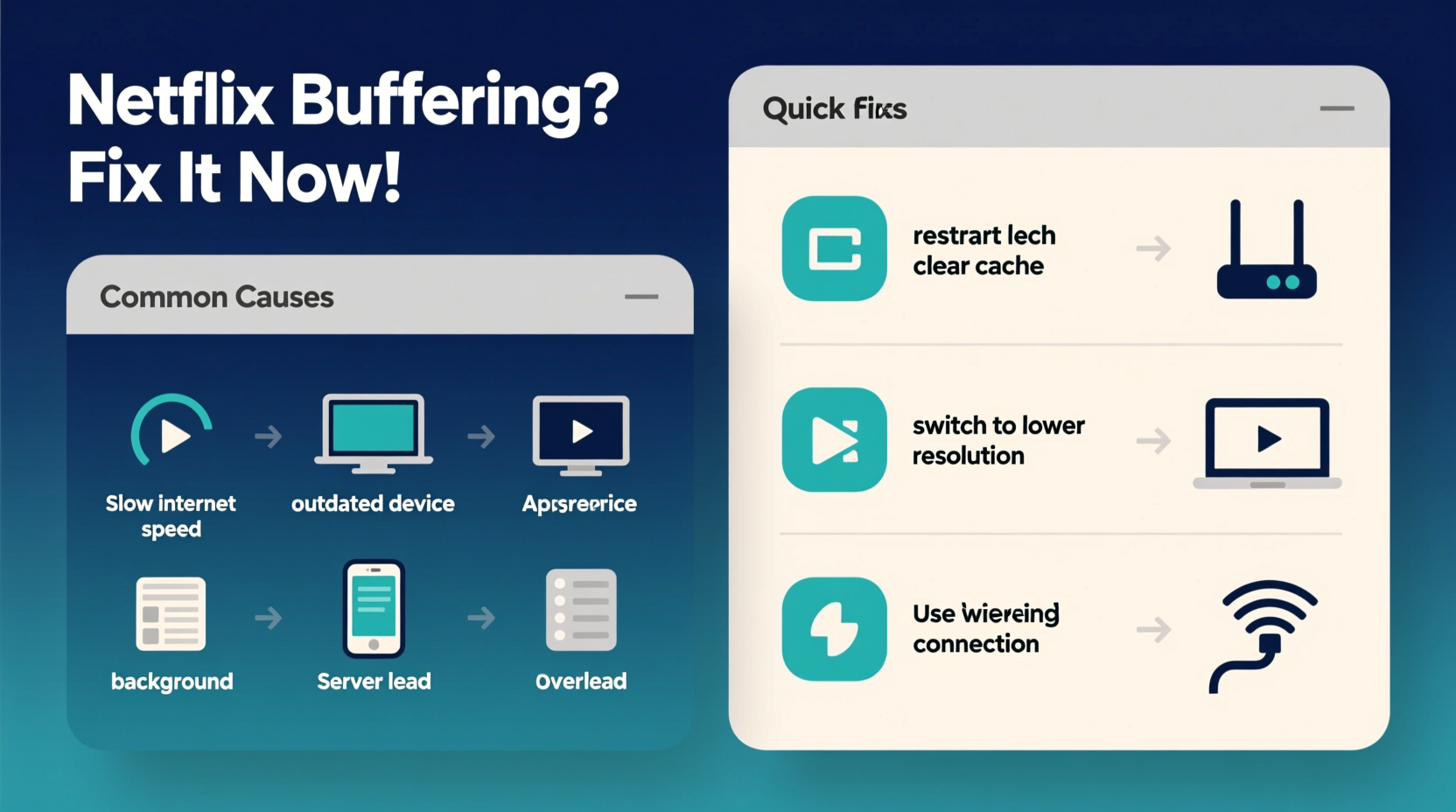
Buffering occurs when your device temporarily downloads part of a video before playing it. When your internet connection can't keep up with the data demands of high-quality streaming, the buffer runs out, causing playback to pause. Several technical and environmental factors contribute to this slowdown.
- Slow or unstable internet speed: High-definition (HD) and 4K content require consistent bandwidth. If your connection drops below Netflix’s recommended speeds, buffering becomes inevitable.
- Network congestion: Multiple devices using the same network simultaneously—like smartphones, tablets, smart TVs, or game consoles—can saturate available bandwidth.
- Wi-Fi signal interference: Physical obstructions (walls, furniture), distance from the router, or competing signals (microwaves, cordless phones) weaken Wi-Fi strength.
- Outdated hardware: Older routers, modems, or streaming devices may struggle to handle modern streaming protocols efficiently.
- Server-side issues: Though rare, Netflix itself may experience temporary server load or maintenance delays.
- Data caps or throttling: Some ISPs limit bandwidth after a certain usage threshold, especially during peak hours.
“Streaming quality is only as strong as your weakest link—whether that’s your router, ISP plan, or in-wall wiring.” — Jordan Lee, Network Infrastructure Consultant
Quick Fixes to Stop Netflix Buffering Immediately
You don’t need advanced tech skills to resolve most buffering issues. Start with these practical, immediate actions that often restore smooth playback in minutes.
1. Reboot Your Equipment
Power cycle your modem, router, and streaming device (smart TV, Roku, Fire Stick, etc.). Unplug them for 30 seconds, then plug back in. This clears memory caches and re-establishes fresh connections.
2. Check Your Internet Speed
Visit a site like speedtest.net on a device connected to the same network as your Netflix player. Compare results to Netflix’s minimum requirements:
| Video Quality | Minimum Speed | Recommended Speed |
|---|---|---|
| Standard Definition (SD) | 3 Mbps | 5 Mbps |
| High Definition (HD) | 5 Mbps | 10 Mbps |
| Ultra HD (4K) | 15 Mbps | 25 Mbps |
If your speed falls short, consider upgrading your plan or reducing network load.
3. Switch to a Wired Connection
Wi-Fi is convenient but inherently less stable than Ethernet. Connect your smart TV, gaming console, or streaming box directly to the router via an Ethernet cable. You’ll see fewer dropouts and higher sustained speeds.
4. Reduce Bandwidth Usage Elsewhere
Pause large downloads, cloud backups, or video calls on other devices. Even automatic updates on phones or laptops consume significant bandwidth in the background.
5. Lower Netflix Video Quality
Temporarily reduce streaming resolution in your Netflix settings:
- Log into Netflix via a web browser.
- Go to Account > Playback Settings.
- Select “Low” or “Medium” instead of “High.”
This reduces data demand and minimizes buffering, especially on slower connections.
Step-by-Step Guide to Optimize Your Streaming Setup
For long-term reliability, follow this structured approach to improve your home network for uninterrupted Netflix viewing.
- Evaluate your internet plan: Confirm your current download speed matches your household’s streaming needs. Families with multiple screens should aim for at least 100 Mbps.
- Position your router centrally: Place it in an open area, elevated and away from metal objects or thick walls. Avoid basements or enclosed cabinets.
- Upgrade outdated equipment: Routers older than 3–4 years may not support modern standards like Wi-Fi 5 (802.11ac) or Wi-Fi 6. Consider replacing them.
- Use a Wi-Fi extender or mesh system: For large homes, mesh networks (like Google Nest Wifi or Eero) eliminate dead zones and ensure consistent coverage.
- Enable Quality of Service (QoS): In your router settings, prioritize traffic to your streaming device. This ensures Netflix gets bandwidth priority over less critical tasks.
- Update firmware and apps: Keep your router, TV, and Netflix app updated. Manufacturers often release performance improvements and bug fixes.
Real Example: Fixing Chronic Buffering in a Two-Story Home
Mark, a remote worker and avid streamer in Austin, Texas, experienced constant Netflix buffering every evening despite having a 100 Mbps plan. His router was in the basement, while his living room TV was on the second floor—two floors and three walls away. Wi-Fi signal strength was weak, hovering around 2 bars.
He followed a few key steps: relocated the router to the main floor, purchased a mesh Wi-Fi system, and connected his TV via Ethernet. He also changed his Netflix playback setting to “Auto” instead of “High.” The result? No more buffering—even during family movie nights with multiple devices running.
His case highlights that hardware placement and connection type often matter more than raw internet speed.
Do’s and Don’ts When Dealing With Netflix Buffering
| Do | Don’t |
|---|---|
| Restart your router regularly | Assume the problem is always with Netflix |
| Test speed on the same device used for streaming | Ignore background downloads or updates |
| Use wired connections when possible | Place your router near appliances that cause interference |
| Monitor data usage if you have a cap | Stream 4K on a 10 Mbps connection |
| Keep your streaming app updated | Use outdated or unsupported devices |
Frequently Asked Questions
Why does Netflix keep buffering even with fast internet?
Even with high-speed internet, poor Wi-Fi signal, network congestion from other devices, or an overloaded router can disrupt streaming. Also, if your device is far from the router or behind thick walls, signal degradation can occur. Test with a wired connection to isolate the issue.
Can my Netflix account cause buffering?
No. Buffering is almost always related to network or device performance, not your Netflix subscription tier. However, changing your playback settings under Account > Playback Settings can help reduce data usage and prevent interruptions.
Does pausing Netflix help reduce buffering?
Yes. Letting the video buffer fully before resuming playback gives it time to download more of the content ahead. Pause for 30–60 seconds, especially on slower connections, to allow the buffer to build.
Conclusion: Take Control of Your Streaming Experience
Netflix buffering doesn’t have to be a regular annoyance. By identifying the root cause—whether it’s your Wi-Fi layout, internet speed, or device setup—you can implement targeted solutions that deliver instant improvement. Simple actions like rebooting your router, switching to Ethernet, or adjusting video quality often make all the difference. For lasting results, invest in better networking hardware and optimize your home setup for reliable performance.
Streaming should be effortless. Apply these fixes today and reclaim your binge-watching peace of mind.




 浙公网安备
33010002000092号
浙公网安备
33010002000092号 浙B2-20120091-4
Comments
No comments yet. Why don't you start the discussion?