
If you're trying to stream your favorite show and Netflix isn't loading, buffering endlessly, or crashing unexpectedly, you're not alone. Millions of users encounter streaming disruptions daily—some due to widespread outages, others from device-specific glitches. Before assuming the worst, it's essential to determine whether the issue lies with Netflix’s servers or your own setup. This guide walks through how to check the current Netflix status, identify common causes, and apply proven fixes across devices.
Check Netflix Server Status First
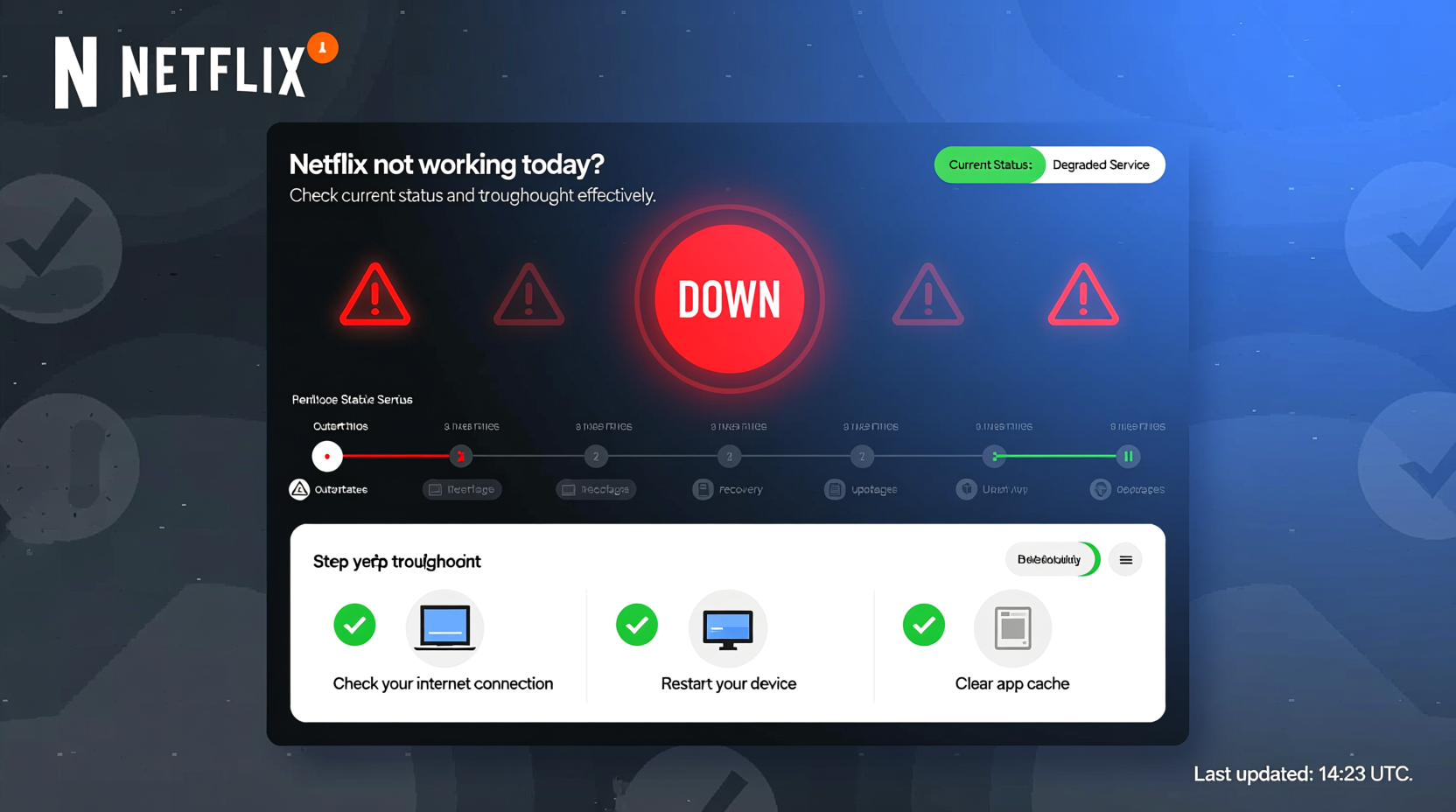
When Netflix fails to load, the first step is verifying whether the problem affects only your connection or a broader audience. Netflix rarely experiences prolonged global outages, but regional server hiccups do occur—especially during peak viewing hours or after major content drops.
Several real-time outage tracking platforms monitor Netflix service health globally:
- Downdetector.com – Aggregates user reports by location and graphs outage trends in real time.
- Outage.Report – Provides crowd-sourced data on service interruptions.
- Netflix’s official X (Twitter) account (@NetflixSupport) – Posts updates about ongoing technical issues.
If hundreds or thousands of users report problems around the same time, especially concentrated in your region, the issue is likely on Netflix’s end. In such cases, no amount of local troubleshooting will restore service until their engineers resolve the backend fault.
Common Causes of Netflix Disruptions
Not all playback failures stem from server outages. Often, the root cause is closer to home. Understanding these categories helps narrow down solutions faster:
- Internet connectivity issues – Slow speeds, unstable Wi-Fi, or router congestion prevent smooth streaming.
- Device-specific bugs – Apps may freeze, crash, or fail to update properly on smart TVs, phones, or tablets.
- Outdated app or firmware – Older versions may lack compatibility with Netflix’s latest security or streaming protocols.
- Account or login errors – Session timeouts, payment lapses, or simultaneous stream limits can block access.
- Cache and data corruption – Accumulated temporary files within the app can degrade performance over time.
Real Example: The Midnight Buffering Spiral
Sarah settled in for a late-night binge of her favorite thriller series. But instead of suspense, she faced endless spinning wheels. Her phone showed full bars, yet Netflix stalled at 1%. She restarted the app—no change. Then she checked Downdetector and saw over 2,000 reports in her metro area. A regional CDN (Content Delivery Network) node was under strain. Within two hours, Netflix resolved it automatically. Sarah didn’t waste time resetting her router or reinstalling apps because she first confirmed it wasn’t her fault.
Step-by-Step Troubleshooting Guide
Follow this sequence to systematically eliminate potential issues:
- Verify Internet Connection
Open a browser and load a video-heavy site like YouTube. If videos buffer or stutter there too, the problem is your network—not Netflix. - Test Speed
Run a speed test via fast.com (Netflix’s own tool). Minimum requirements:- Standard Definition: 3 Mbps
- HD: 5 Mbps
- Ultra HD/4K: 15 Mbps
- Restart Your Router
Unplug the power cable, wait 60 seconds, then plug back in. This clears DNS congestion and resets IP allocation. - Reboot Your Streaming Device
Whether it’s a Fire Stick, Roku, iPhone, or Samsung TV, restart it completely. Many glitches resolve after a fresh boot. - Clear Netflix App Cache (Mobile & Smart TVs)
On Android: Settings > Apps > Netflix > Storage > Clear Cache.
On iOS: Offload and reinstall the app (Settings > General > iPhone Storage > Netflix > Offload App).
On Smart TVs: Navigate to app settings and select “Clear cache” or “Reinstall.” - Update the Netflix App
Visit your device’s app store and ensure Netflix is up to date. Outdated apps often fail authentication or lack critical patches. - Sign Out and Back In
Go to Account Settings within the Netflix app and sign out. Restart the app and log in again. This refreshes session tokens. - Try Another Device
Attempt playback on a different gadget using the same network. If it works, the original device needs repair or reset.
Do’s and Don’ts When Netflix Fails
| Do | Don’t |
|---|---|
| Check Downdetector before troubleshooting | Assume the issue is always your internet |
| Use Ethernet over Wi-Fi for stability | Ignore pending system updates on your TV or tablet |
| Limit active streams if hitting account caps | Enter incorrect passwords repeatedly (can lock your account) |
| Clear cache monthly as preventive maintenance | Factory reset your device without trying simpler steps first |
“Over 70% of ‘Netflix not working’ complaints we see are resolved by checking server status and restarting the router. Most people skip the basics and jump to extreme measures.” — Mark Tran, Senior ISP Support Analyst at ConnectFirst Networks
Frequently Asked Questions
Why does Netflix say “We’re having trouble playing this title right now”?
This error usually points to a temporary licensing or content delivery glitch. Try the following: close the app, restart your device, ensure your internet is stable, and attempt playback again. If the message persists, the title might be temporarily unavailable due to regional restrictions or backend processing delays.
Can my Netflix account get locked if I try logging in too many times?
Yes. After several failed login attempts, Netflix may temporarily restrict access to prevent unauthorized entry. Wait 15–30 minutes, then retry with the correct credentials. Use the “Forgot Password” option if unsure.
Does restarting my modem really help with streaming issues?
Absolutely. Modems and routers accumulate memory leaks and fragmented connections over time. A reboot clears active sessions, refreshes your public IP (if dynamic), and re-establishes optimal routing paths to streaming servers.
Proactive Maintenance Checklist
Prevent future disruptions with regular upkeep:
- ✅ Check for app updates weekly
- ✅ Reboot your router every 7–10 days
- ✅ Monitor your bandwidth usage (especially with multiple users)
- ✅ Store login details securely to avoid repeated sign-in attempts
- ✅ Use wired connections for 4K streaming whenever possible
- ✅ Disable auto-play on kids' profiles to reduce accidental stream consumption
When to Contact Support
If you’ve completed all troubleshooting steps and Netflix still won’t work, contact support with specific details:
- The exact error code (e.g., UI-800-3, M7111-5059)
- Your device model and operating system
- Whether the issue occurs across multiple networks
- Screenshots of any error messages (if applicable)
Visit help.netflix.com for live chat or call options. Netflix support typically responds within 24 hours for non-urgent cases.
Conclusion
Streaming hiccups are frustrating, but most Netflix issues today aren’t permanent or complex. By starting with a server status check and methodically working through connectivity, device, and account layers, you regain control quickly. Don’t waste hours guessing—follow the logic of modern troubleshooting: verify the scope, isolate the cause, apply targeted fixes. With these habits, downtime shrinks dramatically, and your viewing experience stays seamless.




 浙公网安备
33010002000092号
浙公网安备
33010002000092号 浙B2-20120091-4
Comments
No comments yet. Why don't you start the discussion?