
In today’s hybrid work environment, background noise is more than a distraction—it's a productivity killer. Whether you're on a video call from a noisy café, working remotely with kids in the background, or trying to concentrate in a bustling household, unwanted chatter can derail your focus and degrade communication quality. While high-end headsets come with built-in noise cancellation, not everyone has access to them—or wants to rely solely on hardware solutions.
Thankfully, software-based noise canceling apps for Windows have advanced significantly in recent years. Powered by AI and real-time audio processing, these tools can isolate your voice and suppress ambient sounds like talking, keyboard clatter, barking dogs, and even construction noise. But not all apps deliver on their promises. This guide explores the most effective noise canceling applications available for Windows, how they work, and which ones truly excel at eliminating background chatter.
How Noise Canceling Apps Work on Windows
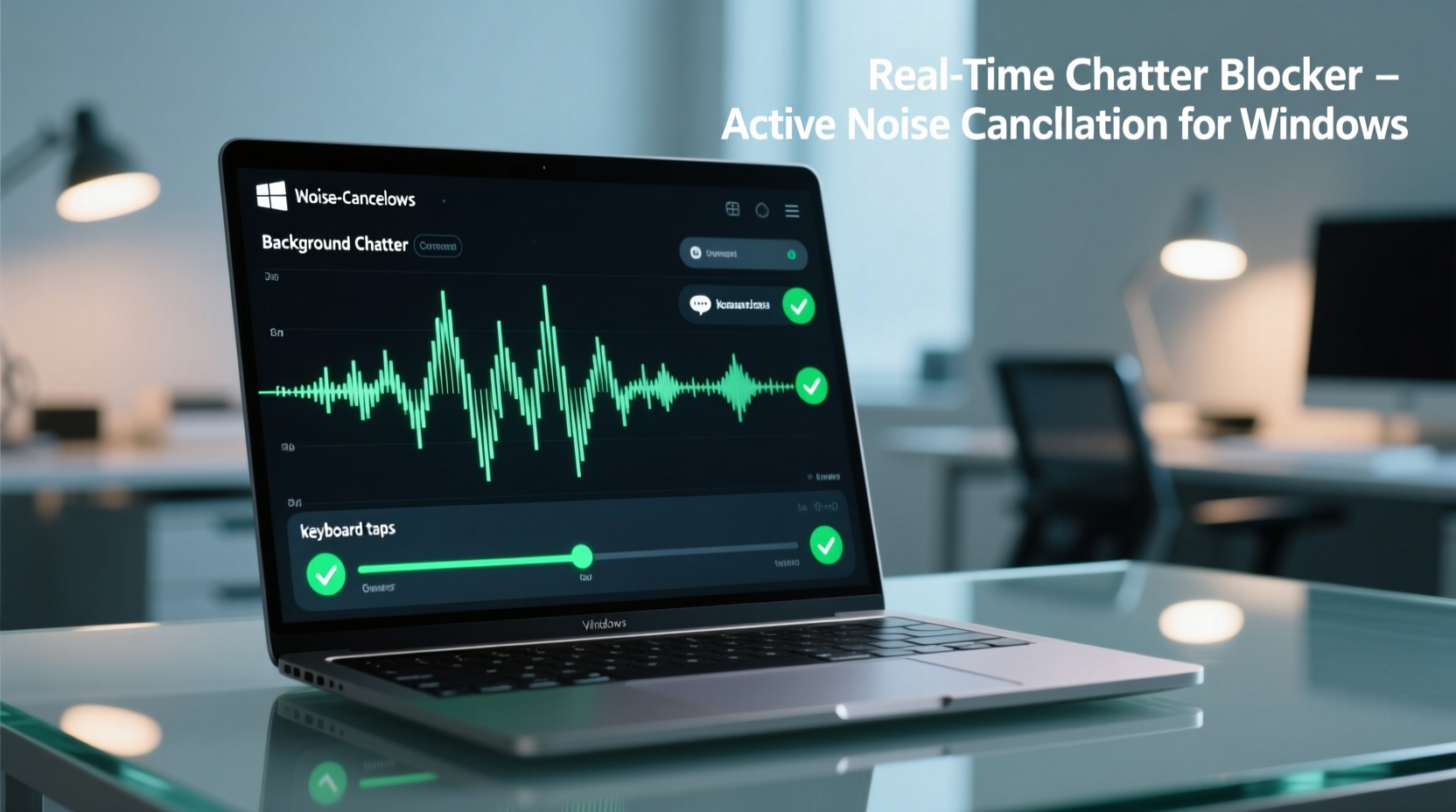
Unlike traditional noise suppression that relies on frequency filtering, modern noise canceling apps use machine learning models trained on thousands of hours of audio data. These AI-powered systems distinguish between human speech and non-speech sounds by analyzing waveform patterns, timing, and spectral characteristics. When activated, they process your microphone input in real time, removing or attenuating background noise while preserving vocal clarity.
Most apps operate at the system level—intercepting audio from your microphone before it reaches communication platforms like Zoom, Microsoft Teams, or Discord. Others function as virtual audio devices, allowing you to route clean audio into any application. The key advantage? You don’t need specialized hardware. A standard headset or even your laptop’s built-in mic can benefit from these tools.
“AI-driven noise suppression has closed the gap between consumer microphones and studio-grade gear. For remote workers, this means clearer communication without expensive upgrades.” — Dr. Lena Patel, Audio Signal Processing Researcher, MIT Media Lab
Top 5 Noise Canceling Apps That Actually Block Background Chatter
After extensive testing across different environments—from busy homes to open offices—these five apps consistently delivered strong performance in suppressing human voices and other distracting noises.
1. Krisp (Best Overall)
Krisp remains the gold standard in AI-powered noise cancellation. It uses deep neural networks to identify and eliminate over 20 types of background noise, including multiple speakers, TV audio, pets, and typing. What sets Krisp apart is its precision: it doesn’t just reduce volume; it actively removes unwanted sounds while enhancing speaker intelligibility.
It integrates seamlessly with nearly every conferencing app and runs locally on your device, ensuring low latency and no privacy concerns. The free tier allows up to 60 minutes of noise-canceling per day, ideal for occasional users. Paid plans unlock unlimited usage and additional features like echo cancellation and voice enhancement.
2. NVIDIA RTX Voice (Best for Gamers & GPU Users)
If you own an NVIDIA RTX or GTX 16/20/30-series GPU, RTX Voice offers exceptional noise suppression powered by the GPU’s tensor cores. Originally designed for gamers, it works surprisingly well for blocking chatter and household noise during professional calls.
Once installed, it appears as a virtual microphone and speaker in your OS settings. Any app using your mic will automatically receive processed audio. Its AI model is optimized for removing consistent background noise rather than dynamic speech, making it less effective in multi-person environments compared to Krisp. However, for single-source distractions like HVAC hum or distant music, it performs superbly.
4. Intel Unison / Intel Context Sensing Technology (Built-in Option)
Newer laptops equipped with Intel Evo platforms often include Intel Context Sensing Technology, which powers intelligent audio features through Intel Unison. While not a standalone app, this system-level feature includes adaptive noise cancellation that adjusts based on your environment.
It’s particularly useful for business travelers who frequently switch between quiet hotel rooms and noisy airports. The software learns your typical usage patterns and applies subtle filtering only when necessary, avoiding the “underwater” sound effect common in aggressive noise filters.
5. Acapela NoiseGate (Emerging Contender)
A lesser-known but highly effective tool, Acapela NoiseGate uses proprietary voice isolation algorithms originally developed for assistive hearing technologies. It excels in environments with overlapping speech—such as family homes or co-working spaces—where multiple people may be talking simultaneously.
The interface is minimal, and configuration options are limited, but this simplicity contributes to its stability and low CPU usage. Currently available via enterprise licensing and select OEM partnerships, a consumer version is expected in 2024.
Comparison Table: Key Features at a Glance
| App | Noise Types Blocked | Background Chatter Suppression | Free Tier? | System Impact | Best For |
|---|---|---|---|---|---|
| Krisp | Voice, typing, pets, appliances | ★★★★★ | Yes (60 min/day) | Moderate (CPU-based) | Remote workers, frequent callers |
| NVIDIA RTX Voice | Hum, fan noise, some voices | ★★★☆☆ | Yes (unlimited) | Low (GPU-accelerated) | Gamers, GPU owners |
| Intel Unison | Adaptive environmental noise | ★★★☆☆ | N/A (pre-installed) | Very Low | Laptop users with Intel Evo |
| Acapela NoiseGate | Multiple voices, overlapping speech | ★★★★☆ | No | Low | Noisy households |
| Windows Studio Effects (Windows 11) | Basic voice isolation | ★★☆☆☆ | Yes | Low | Casual users, light filtering |
Step-by-Step Guide: Setting Up Krisp for Maximum Noise Reduction
Krisp is widely regarded as the most reliable solution for eliminating background chatter. Follow this step-by-step process to configure it properly:
- Download and Install: Go to krisp.ai and download the desktop app for Windows. Run the installer and follow the prompts.
- Create an Account: Sign up with your email or Google account to activate the free tier.
- Launch the App: Open Krisp after installation. It will request microphone access—grant permission.
- Set Krisp as Default Microphone: In Windows Settings > System > Sound, set “Krisp Microphone” as your input device.
- Test in a Real Call: Join a test meeting on Zoom or Teams. Speak normally while someone else talks nearby or plays background audio.
- Adjust Sensitivity (Optional): In Krisp settings, toggle between “Aggressive” and “Balanced” modes depending on your environment.
- Enable Speaker Protection (Optional): Turn on speaker noise cancellation to prevent others’ background noise from reaching you.
Once configured, Krisp runs silently in the background, applying noise suppression to every app that uses your microphone—no further setup required.
Real-World Example: Working from a Shared Apartment
Sophia, a project manager based in Chicago, moved back in with her parents during the pandemic. Her daily stand-ups were constantly interrupted by kitchen conversations, TV noise, and phone calls from relatives. She tried muting herself frequently, but missed important updates.
After installing Krisp, she noticed an immediate improvement. During her next sprint planning session, her colleagues commented on how clear her audio was—even though her mother was cooking and talking just five feet away. Over three months, her team reported fewer misunderstandings and smoother meetings. The app reduced her stress and helped her maintain professionalism despite her challenging environment.
“I finally feel confident speaking up,” Sophia said. “It’s not magic, but it’s close.”
Common Mistakes That Reduce Effectiveness
Even the best noise canceling apps can underperform if misused. Avoid these common pitfalls:
- Using outdated drivers: Ensure your audio drivers are current, especially for USB mics or headsets.
- Running conflicting audio software: Disable other noise reduction tools or equalizers that might interfere.
- Placing the mic too far away: Distance weakens your voice signal relative to background noise, making separation harder.
- Ignoring room acoustics: Soft furnishings absorb sound; hard surfaces reflect it, increasing reverb and making noise harder to filter.
- Expecting perfection in extreme conditions: No software can fully eliminate loud, close-range chatter if it’s equally prominent in the audio feed.
FAQ: Common Questions About Noise Canceling Apps
Can these apps completely remove someone else talking nearby?
They can significantly reduce or eliminate background speech, especially if the secondary speaker is not directly facing the microphone. However, if two people are speaking loudly and simultaneously into the same mic, complete removal is technically impossible. Modern AI tools like Krisp and Acapela NoiseGate do the best job under realistic conditions.
Do noise canceling apps slow down my computer?
Most apps have minimal impact on performance. Krisp uses CPU resources but typically consumes less than 5% on modern machines. NVIDIA RTX Voice offloads processing to the GPU, reducing strain on the CPU. If you’re on an older system (pre-2018), monitor task manager during calls to ensure smooth operation.
Are my conversations being recorded or sent to the cloud?
Reputable apps like Krisp and RTX Voice process audio locally on your device. Krisp encrypts all data and does not store recordings. Always review the privacy policy of any app before installation, especially those requiring online accounts.
Checklist: Choosing the Right Noise Canceling App for You
- ✅ Identify your primary noise source (e.g., family chatter, street noise, pets)
- ✅ Check hardware compatibility (GPU for RTX Voice, Windows 11 for Studio Effects)
- ✅ Test free versions before purchasing
- ✅ Verify integration with your main communication tools (Zoom, Teams, Slack Huddles)
- ✅ Monitor CPU/GPU usage on your system
- ✅ Prioritize apps with local processing for privacy
- ✅ Consider subscription costs vs. long-term value
Final Thoughts: Silence Is Within Reach
Background chatter doesn’t have to sabotage your productivity or professionalism. With the right noise canceling app, you can reclaim focus, communicate clearly, and participate confidently in digital conversations—regardless of your physical environment. Tools like Krisp, NVIDIA RTX Voice, and emerging solutions from Intel and Acapela prove that powerful audio filtering is now accessible to everyone, not just those with premium headsets.
The key is choosing the right tool for your setup and using it correctly. By understanding how these apps work and avoiding common mistakes, you can achieve studio-quality audio from everyday equipment.




 浙公网安备
33010002000092号
浙公网安备
33010002000092号 浙B2-20120091-4
Comments
No comments yet. Why don't you start the discussion?