
Notepad is one of the most basic yet essential tools in Windows, used daily by millions for quick notes, code snippets, and text editing. Despite its simplicity, users occasionally face the frustrating “Notepad not responding” error. This freeze can interrupt workflow, especially when unsaved changes are at risk. While it may seem trivial, repeated unresponsiveness can signal deeper system or software issues. Understanding the root causes and knowing how to fix them quickly ensures minimal disruption.
Common Causes of Notepad Freezing
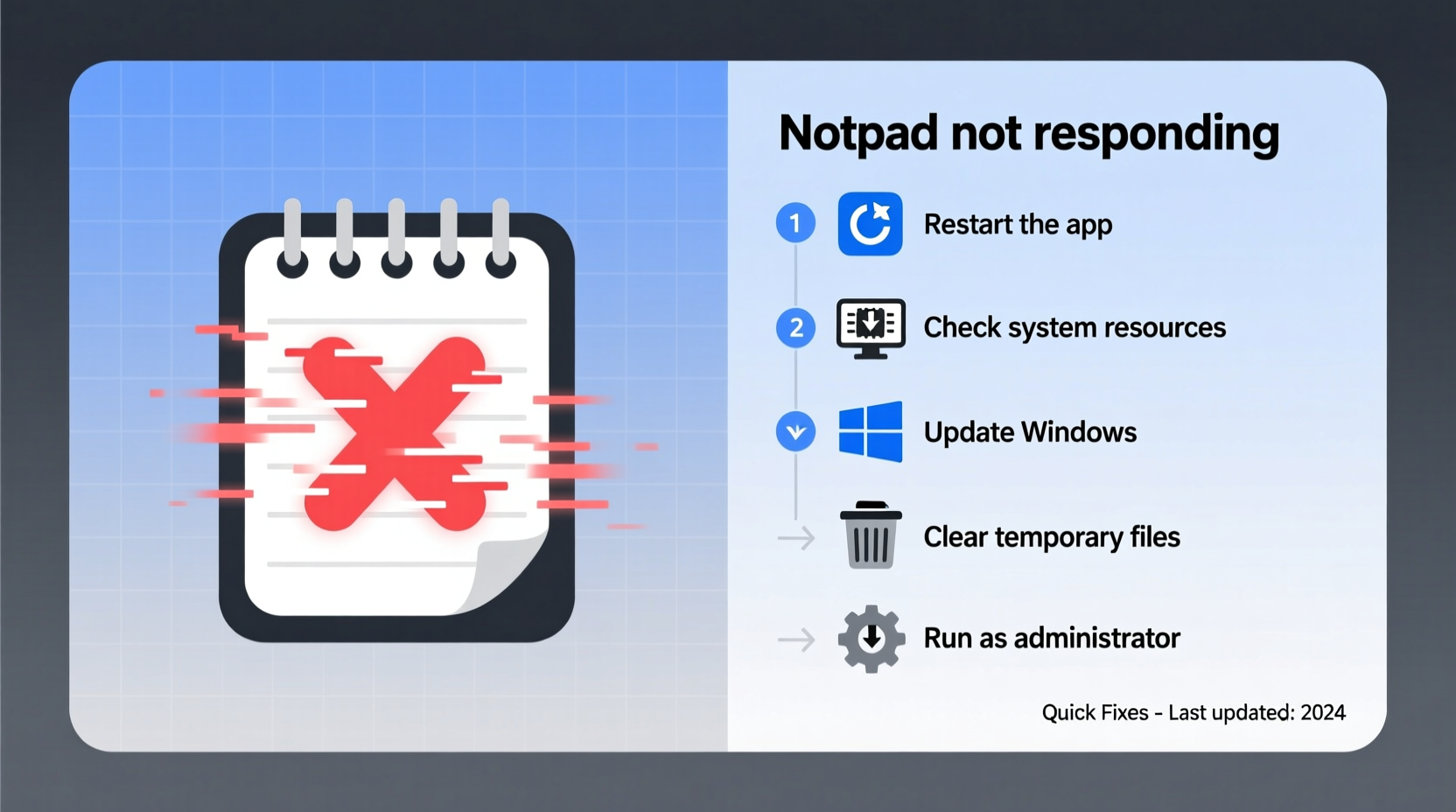
Notepad’s lightweight design means it rarely crashes under normal conditions. When it does become unresponsive, the cause usually lies outside the app itself. Identifying these triggers is the first step toward a permanent solution.
- Large file sizes: Opening files exceeding several megabytes can overwhelm Notepad’s memory handling, especially on older systems.
- Corrupted system files: Damaged Windows system files, including those related to the user interface or input processing, can interfere with Notepad’s operation.
- Outdated Windows version: Running an obsolete build may introduce compatibility bugs affecting core applications like Notepad.
- Third-party software interference: Antivirus programs, clipboard managers, or background utilities might conflict with Notepad during file access or rendering.
- Font or encoding issues: Files with unusual character encodings (e.g., UTF-16 with BOM) or custom fonts may cause rendering delays or hangs.
- Hardware limitations: Low RAM or high CPU usage from other processes can starve Notepad of resources needed to remain responsive.
Step-by-Step Guide to Fix Notepad Responsiveness
When Notepad stops responding, follow this structured troubleshooting process to diagnose and resolve the issue efficiently.
- Close and restart Notepad: Press Ctrl+Shift+Esc to open Task Manager, locate “Notepad” under Processes, right-click, and select “End task.” Reopen Notepad from the Start menu.
- Check file size: If you're opening a large file (over 5 MB), consider splitting it or using a more robust editor like Notepad++.
- Run System File Checker (SFC): Open Command Prompt as Administrator and type
sfc /scannow. This scans and repairs corrupted system files that could affect Notepad. - Update Windows: Go to Settings > Update & Security > Windows Update and install any pending updates. Microsoft often patches known bugs in system apps.
- Disable conflicting software: Temporarily disable antivirus, clipboard history tools, or third-party shell extensions to test for conflicts.
- Reset Notepad settings: Clear registry entries related to window position and font preferences. Navigate to
HKEY_CURRENT_USER\\Software\\Microsoft\\Notepadin Registry Editor and delete the key (backup first). - Test in Safe Mode: Boot into Safe Mode with Networking and open Notepad. If it works normally, a background application is likely causing the issue.
Do’s and Don’ts When Troubleshooting Notepad
| Do | Don’t |
|---|---|
| Save files regularly while editing | Open multi-megabyte logs directly in Notepad |
| Use Task Manager to end frozen instances | Ignore recurring system warnings or update notifications |
| Keep Windows updated | Modify system files without backing up the registry |
| Use alternative editors for heavy-duty tasks | Assume hardware failure without testing software first |
Real-World Example: Recovering From a Frozen Notepad Session
A junior developer at a tech startup reported frequent Notepad crashes while reviewing server log files. The logs were over 20 MB each, generated hourly by backend services. Each time he opened one, Notepad would freeze within seconds. Initially, he assumed his PC was failing. After investigation, the IT team discovered that Notepad wasn’t designed to handle such large files efficiently. They recommended switching to Notepad++ and setting up automated log rotation to limit file size. Within a day, productivity improved significantly. This case illustrates how misuse of a simple tool can mimic software failure, but proper alternatives and practices resolve the issue permanently.
Expert Insight on System App Stability
“Even basic applications like Notepad rely on underlying OS health. A single corrupted DLL or outdated driver can ripple into seemingly minor apps freezing. Regular maintenance isn’t optional—it’s foundational.” — Daniel Reeves, Senior Systems Engineer at WinOps Solutions
Troubleshooting Checklist
Use this checklist to quickly address and prevent Notepad responsiveness issues:
- ✅ Restart Notepad via Task Manager if frozen
- ✅ Verify the file size is under 5 MB
- ✅ Run
sfc /scannowin elevated Command Prompt - ✅ Install all available Windows updates
- ✅ Disable non-essential background apps temporarily
- ✅ Backup and reset Notepad registry settings if problems persist
- ✅ Switch to a more capable text editor for large or complex files
- ✅ Monitor overall system performance (CPU, RAM usage)
Frequently Asked Questions
Why does Notepad freeze when I open certain files?
Notepad uses a simple text rendering engine that struggles with very large files or those containing special Unicode characters. Files over a few megabytes can exhaust available memory, leading to unresponsiveness. Consider using a dedicated text editor like Notepad++, Sublime Text, or VS Code for better performance.
Can malware cause Notepad to stop working?
Yes. Some malware disguises itself as system processes or injects code into legitimate apps, including Notepad. If Notepad behaves unusually—such as launching automatically or failing to open even small files—run a full system scan using Windows Defender or another trusted antivirus tool.
Is there a way to recover unsaved Notepad content after a crash?
Unfortunately, Notepad does not have an auto-recovery feature. Once closed without saving, the content is lost. To protect against this, develop the habit of saving early and often. Alternatively, use a third-party tool with autosave capabilities or switch to a modern editor that supports session recovery.
Prevent Future Issues With Proactive Maintenance
Prevention is more effective than repeated troubleshooting. Implement these habits to keep Notepad—and your entire system—running smoothly:
- Schedule weekly system scans: Run
sfc /scannowandDism /Online /Cleanup-Image /RestoreHealthregularly to maintain system integrity. - Limit Notepad to small tasks: Reserve it for quick notes, short scripts, or configuration edits under 1 MB.
- Monitor resource usage: Use Task Manager to check for high memory or CPU consumption before opening multiple applications.
- Keep backups of critical text files: Store important notes in cloud-synced folders or version-controlled repositories.
Conclusion: Take Control of Your Workflow
The “Notepad not responding” error is more than a minor annoyance—it’s a signal that your system environment may need attention. Whether due to oversized files, outdated software, or hidden conflicts, the solutions are within reach. By applying the fixes outlined here, you regain control over a fundamental tool and improve overall system reliability. Don’t wait for the next freeze. Audit your current setup, adopt better editing habits, and ensure your operating system stays updated. Small steps today prevent major disruptions tomorrow.
sfc /scannow today. Share your experience or tips in the comments to help others facing the same issue!




 浙公网安备
33010002000092号
浙公网安备
33010002000092号 浙B2-20120091-4
Comments
No comments yet. Why don't you start the discussion?