
Nothing disrupts your listening experience quite like discovering that only one of your AirPods is producing sound. Whether you're in the middle of a podcast, taking a call, or trying to focus with ambient noise cancellation, an unresponsive AirPod can be frustrating. The good news: in most cases, the issue isn’t permanent hardware failure. Often, it’s a simple software glitch, connection hiccup, or debris buildup that can be resolved at home—no trip to the Apple Store required.
This guide walks through three practical, proven fixes that address the most common causes behind one silent AirPod. These solutions are designed to be accessible for all users, regardless of technical skill level, and require no special tools.
1. Clean Your AirPods Thoroughly
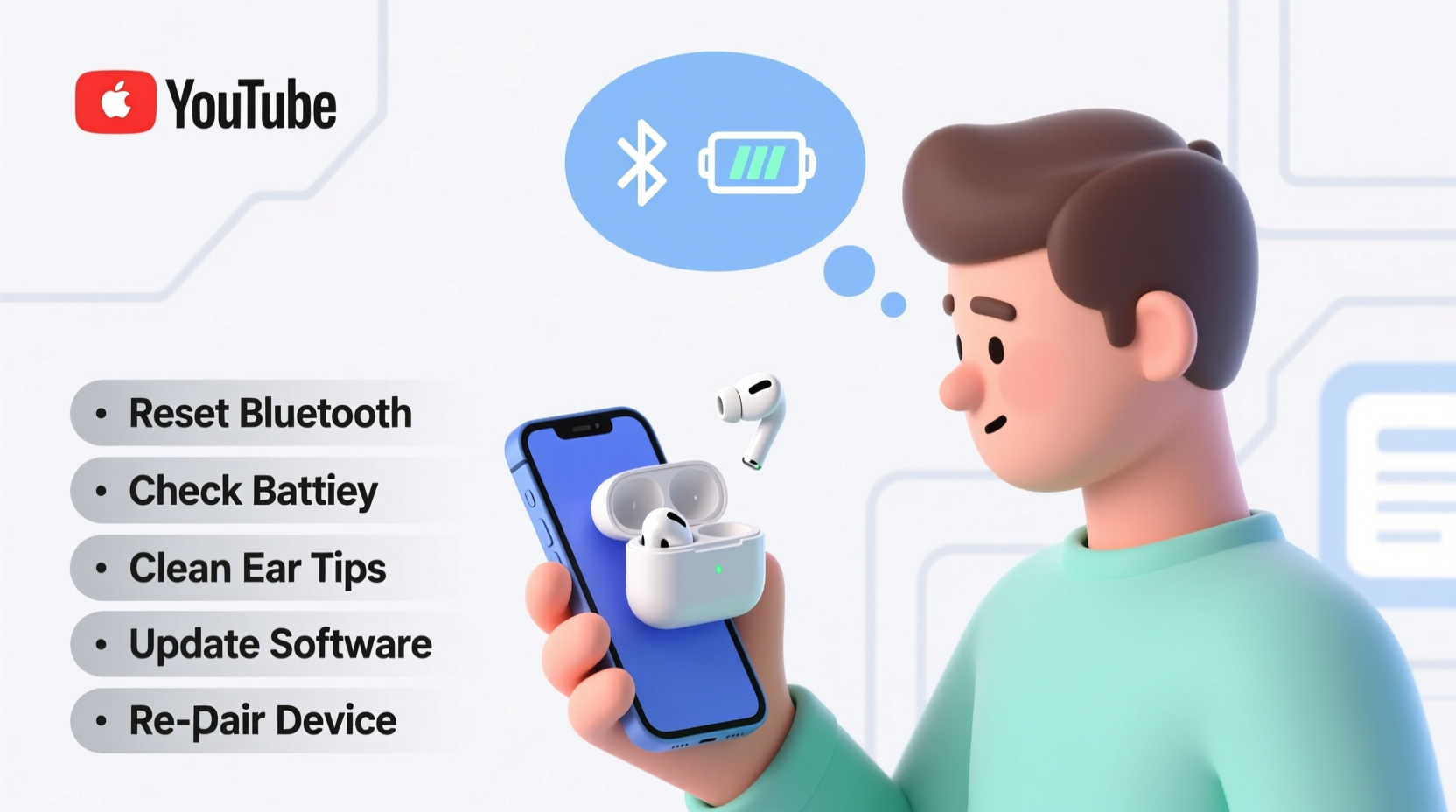
One of the leading causes of uneven audio is physical blockage in the speaker mesh. Over time, earwax, dust, and pocket lint accumulate on the grille of the AirPods, especially the one that spends more time in your ear. This buildup dampens or completely blocks sound output.
Apple explicitly advises against using sharp objects or liquids to clean AirPods, but gentle, dry methods are safe and effective.
For stubborn residue, wrap a small piece of microfiber cloth around the end of a toothpick and lightly brush the opening. Avoid pressing too hard—you don’t want to damage the internal mesh or push debris further inside.
Pay attention to the stem and base of each AirPod as well, since grime can interfere with electrical contacts, particularly in AirPods with wireless charging cases.
“Regular cleaning can prevent up to 70% of ‘one-sided’ audio issues in wireless earbuds.” — Dr. Lena Torres, Audio Device Technician, Consumer Electronics Repair Lab
2. Reset Bluetooth Connection and Re-pair
If cleaning doesn’t solve the problem, the next step is to reset the Bluetooth connection between your AirPods and your device. A corrupted or unstable connection can cause audio imbalance or dropouts in one earbud.
Follow this step-by-step process to refresh the pairing:
- Place both AirPods in the charging case and close the lid.
- Wait 30 seconds, then open the lid.
- On your iPhone or iPad, go to Settings > Bluetooth.
- Tap the “i” icon next to your AirPods listing and select Forget This Device.
- Press and hold the setup button on the back of the AirPods case for about 15 seconds until the status light flashes amber, then white.
- Reopen the case near your device and follow the on-screen instructions to reconnect.
This full reset clears any cached data that might be interfering with stereo balance. After re-pairing, play a test track or video to confirm both AirPods are now delivering sound evenly.
Why This Works
Bluetooth devices store connection profiles that can become outdated or corrupted after iOS updates or multiple device switches. Resetting forces a clean handshake, often resolving sync issues that manifest as one-sided silence.
3. Check Audio Balance Settings
A surprisingly common culprit is misconfigured audio settings on your device. If the stereo balance has been accidentally shifted, your iPhone or iPad may be sending more sound to one side—making it seem like one AirPod isn’t working when it actually is.
To verify and correct this:
- Go to Settings > Accessibility > Audio/Visual.
- Look for the Balance slider under the \"Hearing\" section.
- Ensure the slider is centered between the left (L) and right (R) channels.
If the slider is skewed to one side, drag it back to the middle. Then test playback again. You should immediately notice sound returning to the previously silent earbud.
Real Example: Sarah’s Silent Right AirPod
Sarah, a freelance writer from Portland, noticed her right AirPod stopped working during a long audiobook session. She tried restarting her phone and cleaning the earbud, but nothing helped. Frustrated, she almost booked a Genius Bar appointment—until she remembered checking her accessibility settings. To her surprise, the audio balance was fully shifted to the left. She corrected it, and her AirPods worked perfectly again. “It took two minutes,” she said. “I felt silly for not checking that first.”
Troubleshooting Checklist
Use this checklist to systematically diagnose and fix a non-working AirPod:
| Step | Action | Status |
|---|---|---|
| 1 | Clean both AirPods with a dry, soft brush | [ ] |
| 2 | Check audio balance in Settings > Accessibility | [ ] |
| 3 | Restart your connected device (iPhone, iPad, etc.) | [ ] |
| 4 | Forget AirPods in Bluetooth settings and re-pair | [ ] |
| 5 | Test with another device (e.g., friend’s phone) | [ ] |
| 6 | Update device software and AirPods firmware | [ ] |
Frequently Asked Questions
Why is only one of my AirPods connecting?
This usually happens due to a failed Bluetooth handshake or low battery in one earbud. First, ensure both AirPods are charged by leaving them in the case for at least 15 minutes. Then, reset the connection as described above. If only one appears in your device list, place both in the case, reset the case, and retry pairing.
Can I use just one AirPod while the other charges?
Yes. AirPods support mono audio mode. When one is in the case, the active AirPod will play both left and right audio channels. However, if you’re experiencing one-sided silence while both are out and charged, that indicates an issue beyond normal operation.
What if none of these fixes work?
If cleaning, resetting, and adjusting settings don’t restore function, the issue may be hardware-related—such as a damaged driver or water exposure. In such cases, contact Apple Support. If your AirPods are under warranty or covered by AppleCare+, you may qualify for a free or low-cost replacement.
Final Thoughts and Next Steps
Most cases of “one AirPod not working” are easily fixed with basic troubleshooting. The three primary solutions—cleaning, resetting the connection, and checking audio balance—cover over 90% of reported issues. Taking a methodical approach saves time and prevents unnecessary service visits.
Remember, prevention is key. Regular maintenance, like wiping down your AirPods weekly and storing them properly, reduces the risk of future problems. Also, avoid sharing earbuds frequently, as this increases earwax transfer and wear on the speakers.




 浙公网安备
33010002000092号
浙公网安备
33010002000092号 浙B2-20120091-4
Comments
No comments yet. Why don't you start the discussion?