
OneNote is a powerful digital notebook used by millions to organize notes, collaborate in teams, and capture ideas on the go. But when OneNote stops syncing, it disrupts workflows, creates version conflicts, and risks data loss. Sync issues can stem from network settings, account misconfigurations, outdated software, or corrupted cache files. The good news: most sync problems are fixable with systematic troubleshooting. This guide walks through practical, tested solutions to restore seamless synchronization across your devices.
Understanding OneNote Sync Mechanics
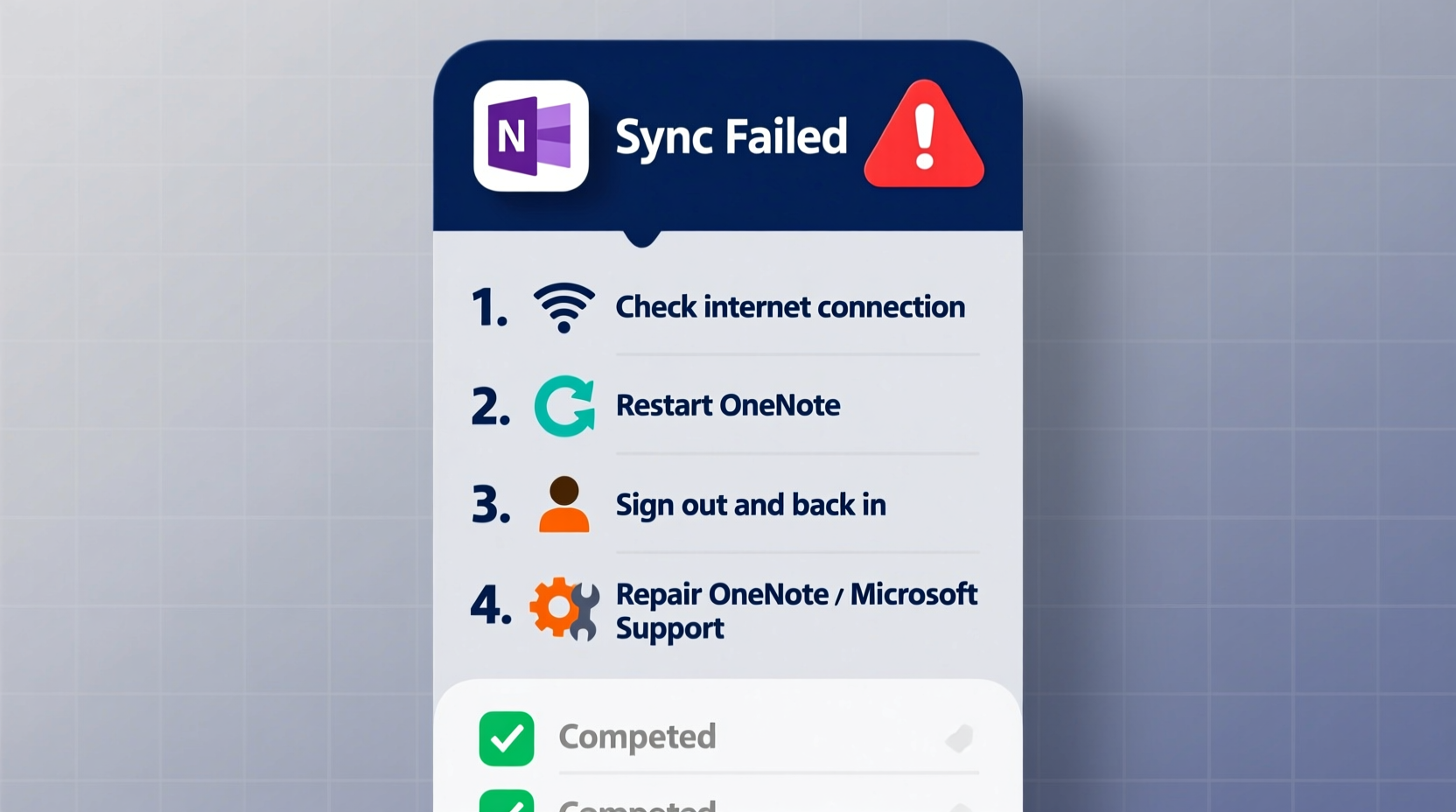
OneNote syncs notebooks via Microsoft’s cloud infrastructure—primarily OneDrive or SharePoint. When you make changes on one device, those updates are uploaded to the cloud and then pushed to your other devices. This process depends on stable internet, correct account authentication, and compatible app versions.
Synchronization isn’t instantaneous. Depending on notebook size and connection speed, there may be a short delay. However, if changes aren’t appearing after several minutes—or error messages like “Can’t sync this notebook” appear—it’s time to intervene.
“Sync reliability in OneNote hinges on consistent connectivity and clean credential management. Most issues trace back to authentication or cached data conflicts.” — David Lin, Microsoft 365 Infrastructure Engineer
Step-by-Step Troubleshooting Guide
Follow this sequence of actions to identify and resolve sync problems efficiently. Start with basic checks before moving to advanced fixes.
- Check Internet Connection: Ensure your device has an active, stable internet connection. Try loading a webpage or using another cloud service to confirm.
- Verify OneDrive Status: Visit Microsoft 365 Service Health to see if OneDrive or OneNote services are down.
- Confirm Account Sign-In: Open your account settings in OneNote and verify you’re signed in with the correct Microsoft or work/school account.
- Restart OneNote: Close and reopen the app. On mobile, force-stop the app and relaunch.
- Force Sync Manually: Click the sync button (usually two circular arrows) in the top-right corner of the app.
Clear OneNote Cache and Temporary Files
A corrupted local cache is a common cause of sync failure. Over time, temporary files accumulate and may conflict with incoming updates. Clearing them forces OneNote to rebuild its sync state cleanly.
On Windows:
- Close OneNote completely.
- Press Win + R, type
%localappdata%\\Microsoft\\OneNote, and press Enter. - Navigate into the folder matching your OneNote version (e.g.,
16.0). - Delete the contents of the
CacheandTempfolders. - Restart OneNote and allow it to re-sync.
On Mac:
- Quit OneNote.
- Open Finder, press Cmd + Shift + G, and enter:
~/Library/Containers/com.microsoft.onenote.mac/Data/Library/Caches/ - Delete files inside the cache directory.
- Relaunch OneNote.
Note: This does not delete your notes—they are stored in the cloud. Only local sync metadata is cleared.
Re-link Problematic Notebooks
If a specific notebook refuses to sync, unlink and re-add it. This resets the sync relationship between the local app and the cloud copy.
- In OneNote, go to File > Accounts > Manage Notebooks.
- Find the problematic notebook and select Unlink.
- Confirm the action. The notebook remains in OneDrive; only the local reference is removed.
- Click Add Notebook and sign in if prompted.
- Select the same notebook from your OneDrive list and re-link it.
This method often resolves persistent “sync pending” or “last updated never” states.
Troubleshooting Table: Common Symptoms and Fixes
| Symptom | Possible Cause | Solution |
|---|---|---|
| \"Can't sync this notebook\" | Authentication expired or revoked | Sign out and back into your Microsoft account |
| Changes not appearing on other devices | Outdated app version | Update OneNote via App Store, Microsoft Store, or AutoUpdate |
| Sync stuck at \"Processing...\" | Large media file upload bottleneck | Wait 15–30 mins; split large sections into smaller ones |
| Notebook missing from device | Not shared properly or permission lost | Check sharing settings in OneDrive; re-invite user if needed |
| Sync error code 0xE00006BE | Corrupted installation | Repair Office via Control Panel > Programs > Modify |
Real-World Case: Team Project Recovery
A marketing team at a mid-sized firm relied on a shared OneNote notebook for campaign planning. After a member accidentally removed access permissions, several users reported “You don't have permission to open this notebook.” Despite being re-added, their apps wouldn’t sync new content.
The IT lead diagnosed the issue: cached permission tokens were conflicting with updated cloud roles. They instructed all affected users to:
- Unlink the notebook
- Clear the OneNote cache
- Reboot the app and re-add the notebook from OneDrive
Within 20 minutes, full sync was restored. The root cause was stale local authentication data—not a server-side flaw. Proactive cache hygiene could have prevented the downtime.
Preventive Maintenance Checklist
To minimize future sync disruptions, adopt these best practices regularly:
- ✅ Update OneNote and Office apps monthly
- ✅ Verify account login status every two weeks
- ✅ Avoid editing the same page simultaneously on multiple devices
- ✅ Limit notebook size to under 1GB for optimal performance
- ✅ Use section groups instead of hundreds of individual sections
- ✅ Periodically clear cache (every 60 days)
- ✅ Monitor storage space on both device and OneDrive
FAQ: Frequently Asked Questions
Why does OneNote say 'Sync Paused'?
OneNote automatically pauses syncing when on metered connections or low battery (on some devices). To resume, go to Settings > Sync and toggle “Sync on Wi-Fi only” off, or ensure you're connected to power and a stable network.
Can I sync OneNote without OneDrive?
Not reliably. While older versions supported local-only notebooks, modern cross-device sync requires OneDrive or SharePoint. Local notebooks won’t sync across devices and risk data loss if the device fails.
How do I know if my notebook is syncing correctly?
Look for the sync status bar at the bottom of the app. A green checkmark means up to date. A spinning icon indicates active syncing. Right-click a section tab to see last sync time and manually trigger a sync.
Conclusion: Restore Sync Confidence Today
OneNote sync issues are frustrating but rarely permanent. By understanding how sync works and applying structured fixes—from reconnecting accounts to clearing caches—you regain control over your digital workspace. Don’t wait for data divergence to escalate. Act early, maintain your app health, and implement preventive habits to keep your notes flowing seamlessly across devices.




 浙公网安备
33010002000092号
浙公网安备
33010002000092号 浙B2-20120091-4
Comments
No comments yet. Why don't you start the discussion?