
If your PC frequently drops its internet connection, you're not alone. Millions of users experience intermittent connectivity that disrupts work, streaming, gaming, and video calls. While frustrating, these issues are often fixable with targeted troubleshooting. The root cause could lie in hardware, software, network configuration, or external interference. Understanding the underlying reasons—and how to address them—can restore reliability and save hours of downtime.
Common Causes of Internet Disconnections
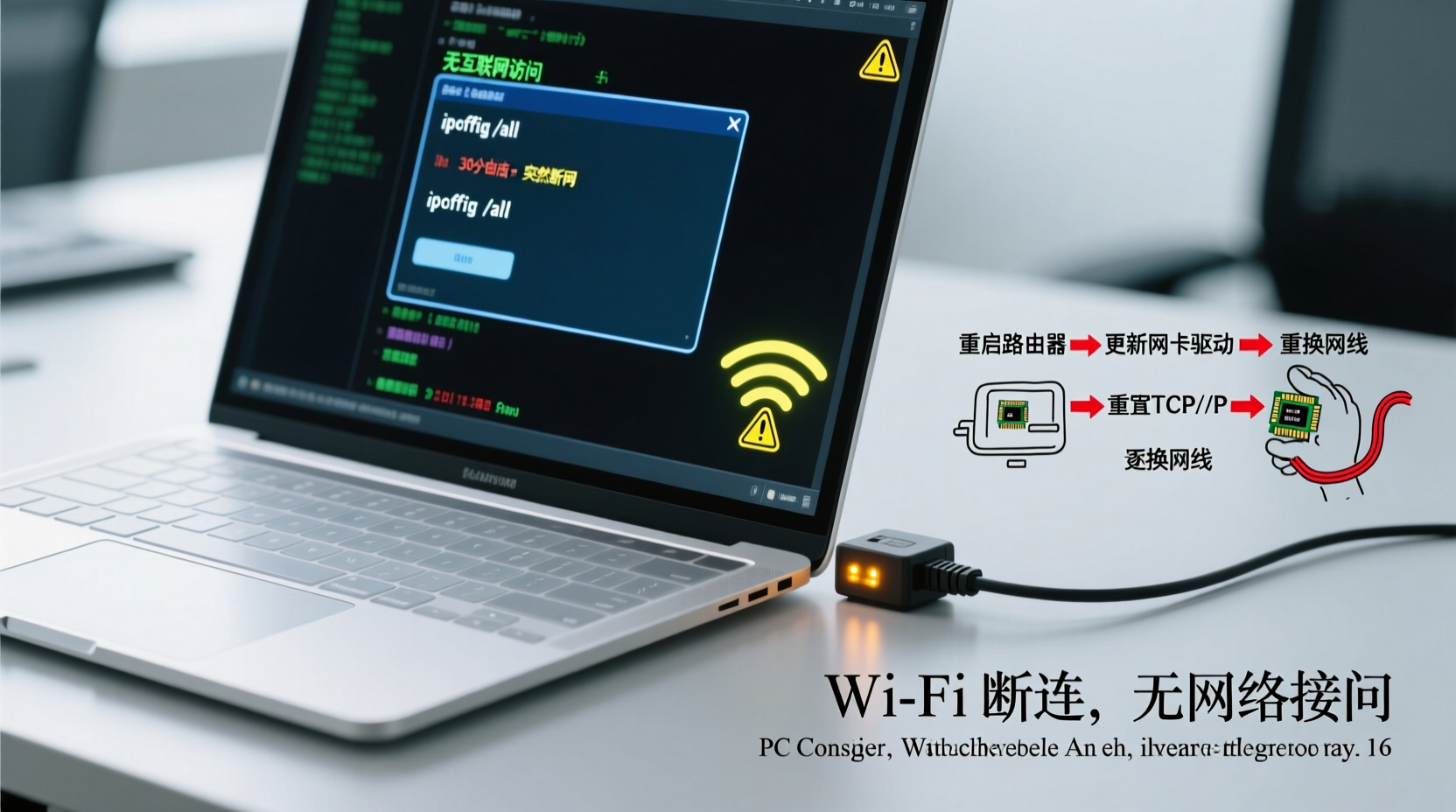
Before jumping into fixes, it's essential to identify what might be triggering the instability. Some causes are simple to resolve; others require deeper investigation.
- Outdated or corrupt network drivers: Drivers act as communication bridges between your operating system and network adapter. When outdated or damaged, they can fail to maintain a stable link.
- Wi-Fi interference: Nearby electronics, thick walls, or competing networks on the same channel can degrade signal quality.
- Router or modem issues: Overheating, firmware bugs, or hardware failure in networking equipment can cause periodic dropouts.
- Power-saving settings: Windows may disable the network adapter to conserve power, especially on laptops.
- DNS or IP conflicts: Incorrect configurations or duplicate IP addresses on the network can interrupt connectivity.
- Faulty cables or ports: Damaged Ethernet cables or loose connections can lead to intermittent wired failures.
- ISP outages or throttling: Your internet service provider may have regional issues or bandwidth limitations affecting stability.
Step-by-Step Troubleshooting Guide
Follow this logical sequence to isolate and resolve the issue efficiently.
- Restart your router and modem. Unplug both for 30 seconds, then power them back on. This clears temporary glitches and renews your IP lease.
- Check other devices. If only your PC disconnects, the problem is likely local. If all devices struggle, the issue may be with your router or ISP.
- Test with a wired connection. Connect via Ethernet. If the wired link is stable, the issue is likely Wi-Fi-related (e.g., signal strength or adapter problems).
- Update your network driver. Go to Device Manager > Network Adapters, right-click your adapter, and select \"Update driver.\" Alternatively, visit the manufacturer’s website for the latest version.
- Disable power-saving for the network adapter. In Device Manager, right-click the adapter > Properties > Power Management, and uncheck \"Allow the computer to turn off this device.\"
- Flush DNS and renew IP. Open Command Prompt as administrator and run:
ipconfig /flushdns
ipconfig /release
ipconfig /renew
netsh winsock reset - Change Wi-Fi channel. Log into your router’s admin panel and switch to a less congested 2.4GHz or 5GHz channel using tools like Wi-Fi Analyzer.
Do’s and Don’ts: Network Stability Best Practices
| Do | Don't |
|---|---|
| Place your router centrally, away from metal objects and appliances | Place the router near microwaves, cordless phones, or thick concrete walls |
| Update router firmware regularly | Ignore firmware update notifications |
| Use WPA3 or WPA2 encryption for security | Use outdated WEP encryption or no password |
| Set a static IP for critical devices if needed | Manually assign IPs without checking DHCP range |
| Monitor bandwidth-heavy applications (e.g., cloud backups) | Run multiple large downloads simultaneously without oversight |
Real-World Example: Office Connectivity Crisis
A small marketing firm in Austin reported daily midday internet outages affecting Zoom meetings and file uploads. All devices disconnected simultaneously, pointing to network-wide issues. Initial checks ruled out ISP problems. Upon inspection, the IT consultant discovered the office microwave was on the same 2.4GHz band as the Wi-Fi router—causing interference during lunch breaks. By switching the router to a 5GHz band and relocating it farther from the kitchen, the disconnections stopped completely. This case highlights how environmental factors, often overlooked, can severely impact connectivity.
“Over 30% of Wi-Fi issues I see stem from avoidable interference or misconfigured power settings—not hardware failure.” — Jordan Lee, Senior Network Technician at NetSecure Solutions
Advanced Fixes for Persistent Problems
When basic steps don’t resolve the issue, consider these deeper interventions.
Reset Network Settings in Windows
Windows stores network configurations that can become corrupted. Resetting them can help:
- Go to Settings > Network & Internet > Status.
- Scroll down and click “Network reset.”
- Confirm the action. This removes and reinstalls all network adapters and sets components back to default.
Adjust Router QoS (Quality of Service) Settings
If multiple devices compete for bandwidth, prioritize traffic for critical applications (e.g., video conferencing). Most modern routers allow you to assign priority by device or application in the admin interface.
Replace Aging Hardware
If your router is more than 3–5 years old, it may lack support for modern standards like MU-MIMO or beamforming. Upgrading to a Wi-Fi 6 router can dramatically improve stability and speed, especially in dense environments.
Use a USB Wi-Fi Adapter (for desktops or faulty built-in cards)
If your internal wireless card is failing, an external USB adapter offers a cost-effective alternative. Choose one with dual-band support and strong antenna reception.
FAQ: Common Questions About PC Internet Disconnections
Why does my PC lose internet every few minutes?
This is often due to a weak Wi-Fi signal, outdated drivers, or aggressive power management settings disabling the network adapter. Begin by updating drivers and disabling power-saving features for the adapter.
Can a virus cause internet disconnections?
While rare, malware can hijack network settings or flood the connection with background traffic. Run a full system scan using trusted antivirus software to rule this out.
Should I use automatic IP or set a static one?
For most home users, automatic (DHCP) is best. Use static IPs only for specific needs like hosting a server or avoiding IP conflicts in complex networks.
Conclusion: Take Control of Your Connection
Internet disconnections don’t have to be a constant annoyance. With methodical troubleshooting, you can pinpoint whether the issue lies in your PC, router, environment, or ISP. Many fixes are free and take just minutes—like updating drivers or adjusting settings. Others, like upgrading hardware, offer long-term gains in performance and reliability. The key is persistence and attention to detail. A stable internet connection isn’t a luxury; it’s a necessity in today’s digital world.




 浙公网安备
33010002000092号
浙公网安备
33010002000092号 浙B2-20120091-4
Comments
No comments yet. Why don't you start the discussion?