
It’s a familiar frustration: you click a link expecting to view a webpage, only to have a PDF file suddenly open in your Chrome browser. Sometimes it downloads silently; other times, it launches full-screen without warning. While Chrome’s built-in PDF viewer is fast and convenient, uncontrolled automatic openings can disrupt workflow, consume bandwidth, or expose sensitive documents unintentionally. The good news is that these behaviors are not permanent—they’re settings, and they can be fixed.
This guide walks through the root causes of automatic PDF openings in Chrome and provides actionable solutions to regain control. Whether you're a casual user annoyed by pop-up PDFs or an IT professional managing multiple devices, the following strategies will help you customize how PDFs behave in your browser.
Why Chrome Opens PDFs Automatically
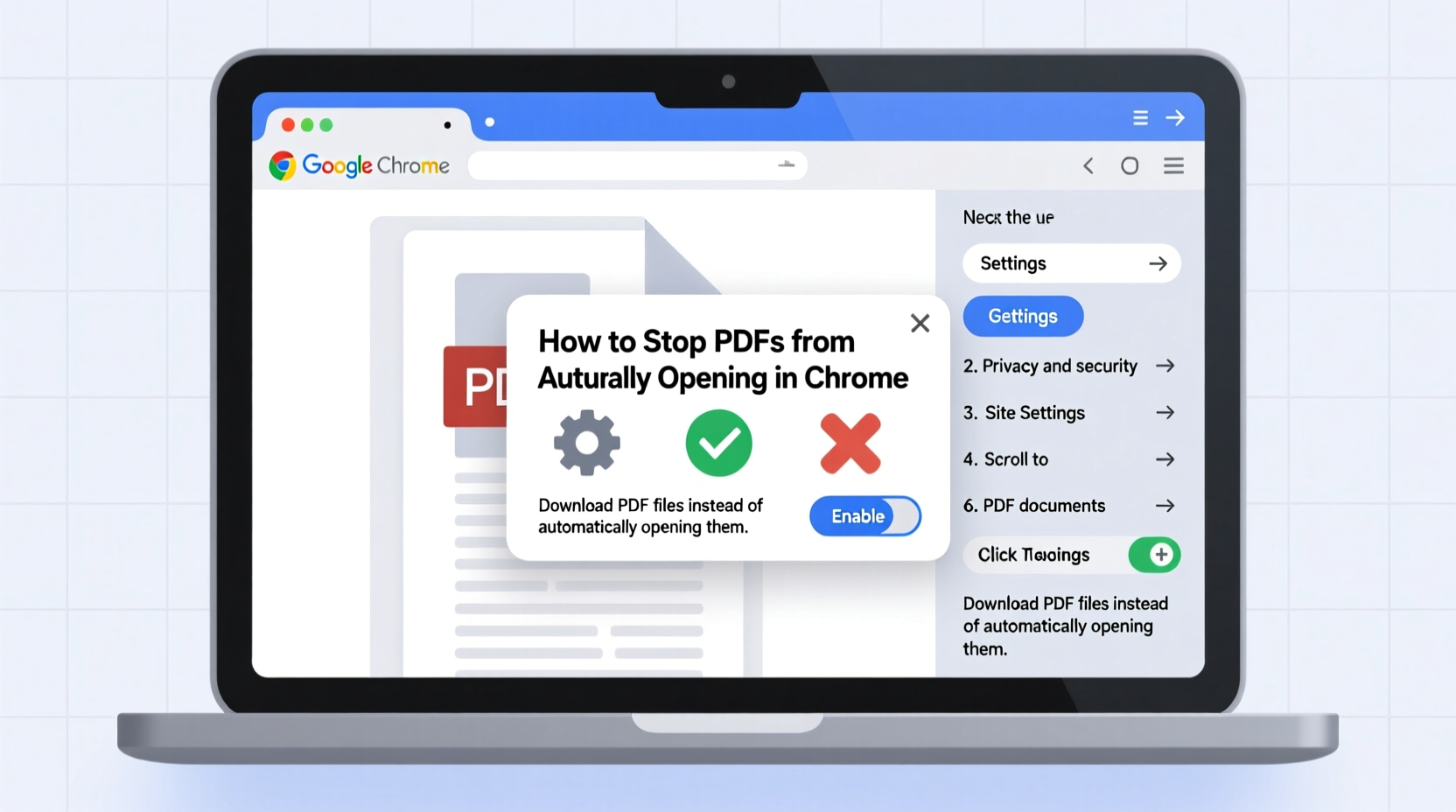
Chrome includes a native PDF viewer called PDFium, which allows users to view PDF files directly within the browser without downloading external software. This feature improves speed and security but operates under default settings that may not suit every user.
The automatic opening behavior typically stems from one of three sources:
- Browser Settings: Chrome is configured by default to “Open PDFs in Chrome” rather than download them.
- Website Behavior: Some sites use JavaScript or server headers to force inline display of PDFs.
- Extensions or Policies: Enterprise environments or third-party tools may enforce automatic viewing via group policies or add-ons.
Understanding where the trigger originates is key to applying the right fix.
Step-by-Step Guide to Disable Automatic PDF Opening
Follow this sequence to take back control of how PDFs are handled in Google Chrome.
- Open Chrome Settings: Click the three-dot menu in the top-right corner and select “Settings.”
- Navigate to Privacy and Security: Scroll down and click “Privacy and security” in the sidebar.
- Select Site Settings: Under “Privacy and security,” click “Site Settings.”
- Find PDF Documents: Scroll down to the bottom of the list and locate “PDF documents.”
- Change the Default Action: Toggle off “Open PDFs in Chrome automatically (recommended).”
Once disabled, Chrome will no longer render PDFs inline. Instead, when you click a PDF link, the file will begin downloading immediately, allowing you to decide whether to open it later using your preferred application.
“Disabling automatic PDF rendering reduces attack surface and gives users agency over document handling.” — Sarah Lin, Browser Security Analyst at CyberShield Labs
Advanced Fixes for Persistent Issues
Sometimes, even after changing settings, PDFs continue to open automatically. This often happens due to cached configurations, conflicting extensions, or enforced organizational policies.
Clear Chrome's Content Settings for PDFs
If individual sites keep forcing PDF display, reset their permissions:
- Go to
chrome://settings/content/pdfDocuments - Under “Sites that can always show PDFs,” review the list.
- Remove any domains listed here by clicking the trash icon next to them.
This ensures no specific site has been granted persistent permission to bypass your global setting.
Check for Conflicting Extensions
Some extensions, such as PDF converters or annotation tools, reactivate PDF viewing despite user preferences. To test:
- Type
chrome://extensionsin the address bar. - Disable all extensions temporarily.
- Test a PDF link. If it no longer opens automatically, re-enable extensions one by one to identify the culprit.
Verify Group Policy or Admin Overrides (Windows & Organizations)
In managed environments (schools, businesses), administrators may enforce PDF behavior through Group Policy or Chrome Browser Cloud Management. Check if policies are overriding your choices:
- Type
chrome://policyin the address bar. - Click “Reload policies.”
- Look for entries related to
DefaultPDFViewerSettingorAutoOpenPdfEnabled.
If policies are active, contact your IT department—you won’t be able to override them locally.
Do’s and Don’ts: Best Practices for Managing PDF Behavior
| Do | Don’t |
|---|---|
| Regularly audit site permissions for PDF handling | Assume settings changes apply instantly across all tabs |
| Use incognito mode to test PDF behavior without cache interference | Ignore updates that may reset default behaviors |
| Set up alternative PDF readers like Adobe Acrobat or Foxit as default apps | Allow unknown extensions access to handle PDFs |
| Back up important Chrome settings before making bulk changes | Click on suspicious PDF links without verifying source |
Real Example: A Remote Worker Regains Control
Jamal, a freelance consultant based in Denver, began experiencing constant disruptions during client research. Every time he clicked a government report link, a full-page PDF would launch in Chrome, freezing his screen for several seconds. He had disabled automatic opening weeks earlier but saw no change.
After reviewing chrome://settings/content/pdfDocuments, he discovered that data.gov was whitelisted—likely added months ago during a prior project. Removing it stopped the forced openings immediately. He also disabled a PDF merger extension he no longer used, which had been silently re-enabling preview functions.
“I didn’t realize one trusted site could override my entire preference,” Jamal said. “Now I check permissions monthly.”
Frequently Asked Questions
Why do some PDFs still open even after I turned off the setting?
This usually occurs because a specific website has been granted exception status in Chrome’s PDF permissions. Visit chrome://settings/content/pdfDocuments and remove any allowed sites. Also, ensure no extensions are interfering.
Can I choose which app opens downloaded PDFs?
Yes. After disabling in-browser viewing, Chrome will download the file. On Windows, right-click the PDF > “Open with” > choose your preferred app and check “Always use this app.” On macOS, use “Get Info” and set the default under “Open with.”
Is it safer to disable automatic PDF opening?
Generally, yes. While Chrome’s PDF viewer is sandboxed, reducing automatic execution limits exposure to potential zero-day exploits. Downloading first allows you to scan files with antivirus tools before opening.
Final Checklist: Stop Unwanted PDF Openings
- ✅ Disable “Open PDFs in Chrome” under Site Settings
- ✅ Remove any allowed sites from PDF permissions list
- ✅ Disable or remove unnecessary PDF-related extensions
- ✅ Verify no enterprise policies are forcing auto-open behavior
- ✅ Test changes using a new tab or incognito window
- ✅ Set a default external PDF reader on your operating system
Conclusion
Automatic PDF openings in Chrome aren’t inevitable—they’re a configuration choice, not a requirement. With a few precise adjustments, you can transform an intrusive experience into a controlled, intentional workflow. Whether you're protecting privacy, conserving bandwidth, or simply reducing distractions, taking charge of how documents load is a small change with significant impact.




 浙公网安备
33010002000092号
浙公网安备
33010002000092号 浙B2-20120091-4
Comments
No comments yet. Why don't you start the discussion?