
Smartphones are essential to daily life—used for communication, work, navigation, and entertainment. When your phone stops responding or behaves unexpectedly, it can disrupt your entire routine. While some issues require professional repair, many common problems can be resolved quickly at home. Understanding the most frequent causes and knowing how to respond can save time, money, and frustration. This guide covers practical, step-by-step solutions to bring your device back to life.
1. Phone Won’t Turn On: First Steps to Try
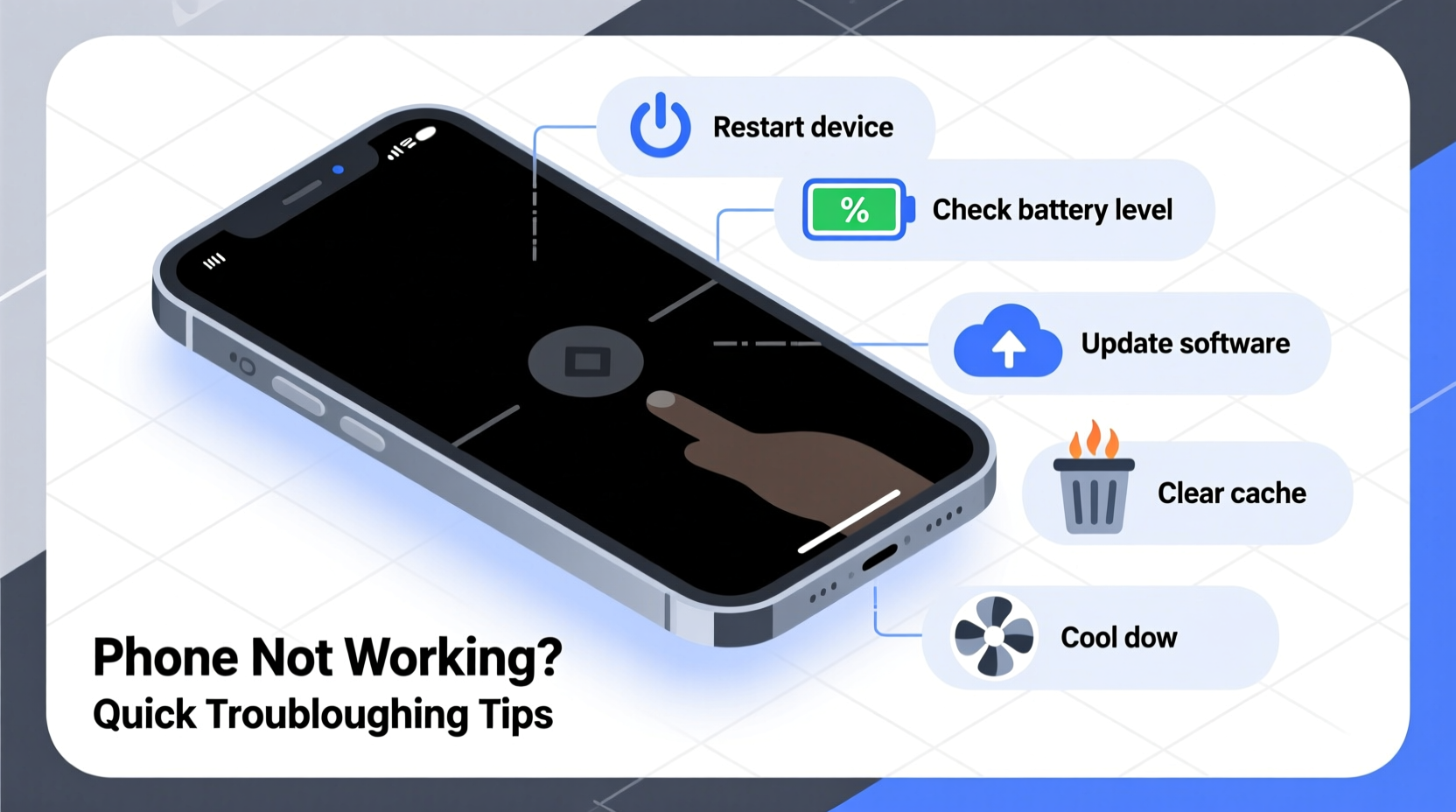
One of the most alarming phone issues is when it simply won’t power on. Before assuming the worst, rule out simple causes. Start by checking if the phone is charged. Plug it into a known-working charger and wall outlet for at least 15–30 minutes. If there’s still no response, try a different cable or adapter—faulty chargers are a leading cause of perceived “dead” phones.
If the screen remains black but the device vibrates or shows a faint glow when charging, the battery may be deeply drained. Let it charge for up to an hour before attempting to restart. For iPhones, press and hold the side button and either volume button until the Apple logo appears. On Android devices, hold the power button for 15–20 seconds to force a reboot.
2. Frozen or Unresponsive Screen
A frozen screen—where taps and swipes do nothing—is often caused by software overload or a misbehaving app. The quickest fix is a forced restart, which clears temporary memory without erasing data.
iOS Devices:
- iPhone 8 and later: Press and release the Volume Up button, then the Volume Down button, then press and hold the Side button until the Apple logo appears.
- iPhone 7/7 Plus: Hold the Volume Down and Power buttons together for 10 seconds.
- iPhone 6s and earlier: Hold Home and Power buttons simultaneously.
Android Devices:
Most models require holding the Power button for 10–15 seconds. Some Samsung phones allow a forced restart by pressing and holding Power + Volume Down.
“Over 60% of ‘unresponsive’ phone cases we see in diagnostics resolve with a simple force restart.” — Raj Mehta, Senior Technician at MobileFix Labs
3. Rapid Battery Drain: Causes and Fixes
Battery life deteriorating faster than usual is a widespread issue. Background apps, location services, and outdated software can all contribute. Begin by checking battery usage in Settings. On both iOS and Android, this section shows which apps consume the most power.
Common culprits include social media apps running location tracking, email syncing too frequently, or display brightness set too high. Adjust these settings accordingly:
- Reduce screen timeout to 30 seconds.
- Disable background app refresh for non-essential apps.
- Turn off Bluetooth, Wi-Fi, and GPS when not in use.
- Enable battery saver mode during low-power situations.
If battery drain persists despite optimization, consider recalibrating the battery. Fully discharge the phone until it shuts down, then charge it uninterrupted to 100%. Repeat once a month to help the system accurately report battery levels.
4. Charging Problems and Port Issues
When your phone isn’t charging, inspect the physical components first. Dust, lint, or debris in the charging port can prevent proper connection. Use a dry toothbrush or compressed air to gently clean the port. Avoid metal tools, which could damage internal contacts.
Next, test with a different cable and power source. Many third-party cables fail internally while appearing intact. A damaged cable is often the real issue—not the phone or charger.
| Symptom | Possible Cause | Solution |
|---|---|---|
| Charging starts then stops | Loose connection or dirty port | Clean port and use a snug-fitting cable |
| No charging indication | Dead battery or faulty adapter | Test with another charger; check outlet |
| Phone heats up while charging | Poor-quality charger or case blocking heat | Remove case; use original charger |
5. No Sound or Poor Audio Quality
If calls are muffled, music has no sound, or the speakerphone isn’t working, start by checking volume settings. Ensure the device isn’t on silent and that media volume is turned up. Test sound through headphones to isolate whether the issue is with the internal speaker or software.
For speakers blocked by dust, use a soft brush or gently blow into the speaker grills. Avoid using sharp objects. If audio works through headphones but not the built-in speaker, the speaker itself may be damaged. However, software glitches can also mute specific functions.
On iPhones, check if “Change with Buttons” is enabled under Sounds & Haptics. On Android, ensure Do Not Disturb isn’t silencing media. Restarting the device often resolves temporary audio driver errors.
Mini Case Study: Resolving a 'Dead' Android Phone
Sarah left her Android phone in her car overnight during winter. The next morning, it wouldn’t turn on. Assuming the battery was dead, she plugged it in—no response. After reading online about temperature-related shutdowns, she brought the phone indoors to warm up for 30 minutes. Once at room temperature, she connected it to a charger. The battery indicator appeared after 10 minutes, and a forced restart brought the phone back to life. The issue wasn’t hardware failure, but exposure to extreme cold, which temporarily disabled lithium-ion batteries.
This example highlights how environmental factors can mimic serious malfunctions. Always consider external conditions before concluding your phone is broken.
Troubleshooting Checklist: Quick Actions to Try First
Before seeking repairs, run through this checklist. Most common issues are resolved within minutes using these steps:
- Charge the phone for at least 30 minutes using a known-good cable and adapter.
- Force restart the device (method varies by model).
- Check for visible debris in charging port or speaker openings.
- Turn off and on Airplane Mode to reset network connections.
- Update the operating system and apps to the latest version.
- Boot into Safe Mode (Android) or DFU Mode (iPhone) to diagnose software conflicts.
- Inspect for physical damage or liquid exposure signs.
Frequently Asked Questions
Why does my phone show it’s charging but the battery percentage doesn’t increase?
This often happens when using a low-power USB port (like on a computer) or a damaged cable. The input current is too weak to charge effectively. Try a wall outlet with a high-amperage adapter. Also, check if the battery is extremely hot or cold—lithium batteries pause charging outside safe temperature ranges.
My phone turns on but gets stuck on the logo screen. What should I do?
This usually indicates a software crash during boot. Perform a forced restart. If unsuccessful, boot into recovery mode and choose “Restart” or “Reboot System.” On Android, this is typically done by holding Power + Volume Up. On iPhone, connect to a computer and use Finder or iTunes to restore.
Can water damage be fixed at home?
No effective home remedy exists for water damage. Do not use rice—it’s outdated and ineffective. Instead, power off the device immediately, dry the exterior, and take it to a professional. Modern phones often have water detection indicators that technicians can read to assess exposure.
Conclusion: Stay Calm and Troubleshoot Logically
When your phone stops working, panic rarely helps. Most issues stem from minor software glitches, depleted batteries, or simple connectivity problems—all fixable with methodical troubleshooting. By understanding the most common failure points and having a clear action plan, you regain control quickly. Save this guide for future reference, and share it with friends who’ve ever stared at a black screen wondering what went wrong.




 浙公网安备
33010002000092号
浙公网安备
33010002000092号 浙B2-20120091-4
Comments
No comments yet. Why don't you start the discussion?