
There’s nothing more frustrating than trying to watch a video in landscape mode or use a navigation app while driving, only to find your phone screen refuses to rotate. Whether you're using an iPhone or an Android device, the auto-rotate feature is essential for a seamless mobile experience. When it stops working, it can disrupt everything from media consumption to productivity. The good news: most rotation issues are fixable with simple troubleshooting steps—no need for repairs or replacements. This guide walks you through proven methods to restore auto-rotation on both iOS and Android devices.
Understanding Auto-Rotate: How It Works
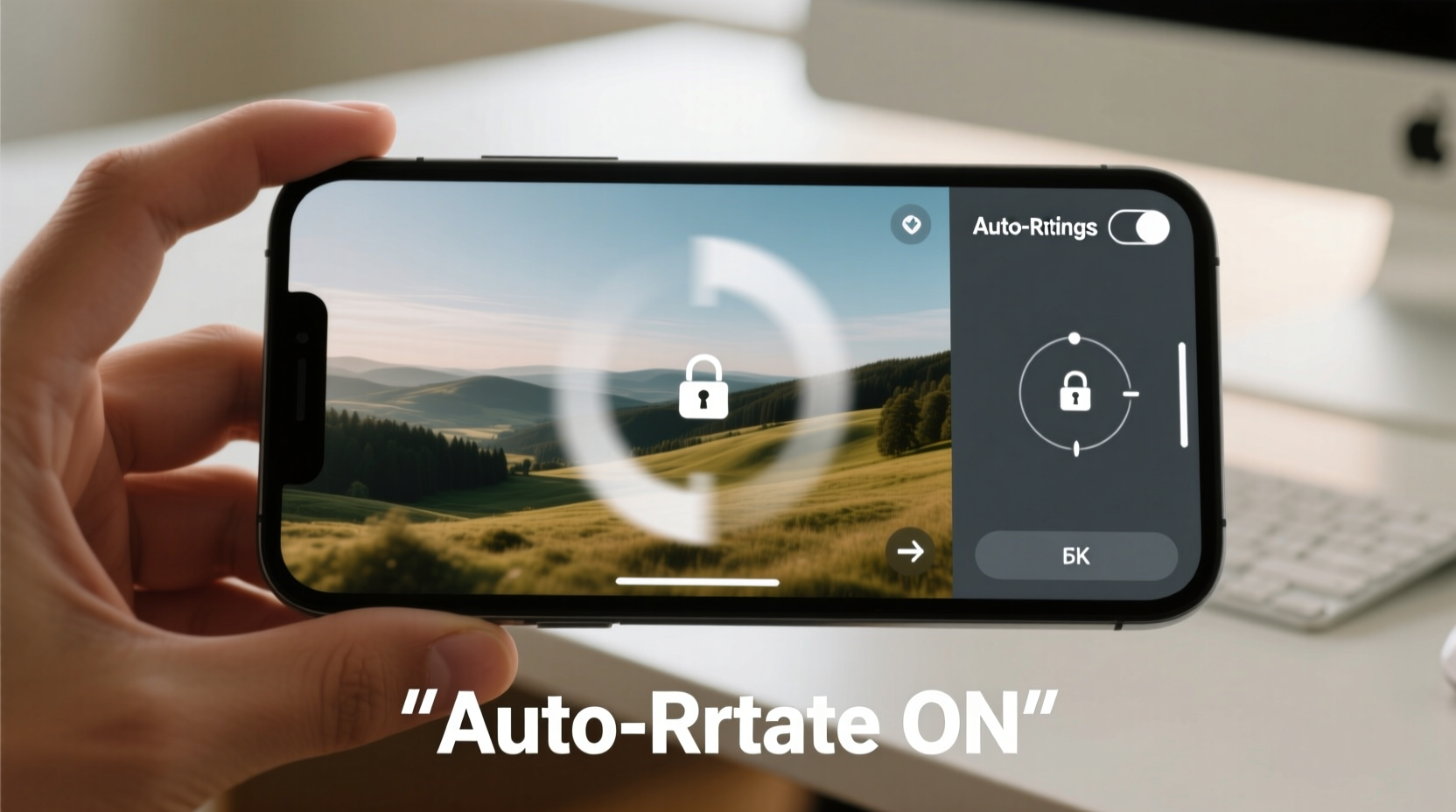
Auto-rotate relies on your phone’s built-in sensors—specifically the accelerometer and gyroscope—to detect orientation changes. When you tilt your device sideways, these sensors signal the operating system to reorient the display accordingly. If any part of this chain fails—the sensor, software setting, or app compatibility—the screen won’t rotate as expected.
Common causes include accidental toggling of rotation lock, software glitches after updates, third-party apps interfering with sensor data, or rare hardware malfunctions. Most cases stem from user settings or minor software bugs, making them easy to resolve with targeted fixes.
iPhone: Fixing Screen Rotation Issues
iOS devices come with a straightforward control for managing screen orientation. However, confusion often arises between Control Center settings and physical restrictions like Guided Access.
Step-by-Step Guide to Restore Rotation on iPhone
- Check Rotation Lock: Swipe down from the top-right corner (iPhone X and later) or up from the bottom (older models) to open Control Center. Look for the lock-with-circular-arrow icon. If it's highlighted in red, rotation is locked. Tap it to disable.
- Restart Your Device: A quick reboot clears temporary glitches. Press and hold the side button and either volume button until the power slider appears. Slide to power off, wait 30 seconds, then turn back on.
- Check for Software Updates: Go to Settings > General > Software Update. Install any pending updates, as Apple frequently patches sensor-related bugs in new iOS versions.
- Disable Guided Access: If enabled, Guided Access locks screen orientation. Go to Settings > Accessibility > Guided Access and toggle it off. Also ensure it isn’t active by triple-clicking the side button and ending the session.
- Reset All Settings: As a last resort, go to Settings > General > Transfer or Reset iPhone > Reset > Reset All Settings. This won’t erase data but will clear network, display, and privacy settings.
Android: Troubleshooting Auto-Rotate Problems
Android offers greater flexibility—and complexity—when it comes to screen rotation. Different manufacturers (Samsung, Google Pixel, OnePlus, etc.) implement their own interface layers, so menu paths may vary slightly. However, the core functionality remains consistent across devices.
Common Fixes for Android Devices
- Enable Auto-Rotate in Quick Settings: Swipe down twice to expand the notification panel. Look for the “Auto-rotate” tile. Tap it to activate. If missing, long-press the panel, tap “Edit,” and add the tile for easier access.
- Check App-Specific Behavior: Some apps (like messaging or email) lock orientation by design. Test rotation in YouTube, Chrome, or Camera to confirm the issue isn’t app-limited.
- Calibrate the Gyroscope: Download a free sensor calibration app from the Play Store (e.g., \"Sensor Kinetics\" or \"G-Sensor Calibration\"). Follow instructions to recalibrate motion sensors.
- Clear Cache Partition: On many Android phones, clearing the cache partition resolves system-level hiccups. Power off, then press and hold Power + Volume Up (varies by brand) to enter recovery mode. Select “Wipe Cache Partition” using volume keys and confirm with the power button.
- Update Apps and OS: Outdated apps or Android versions can cause conflicts. Check Settings > System > System Update and update all apps via Google Play Store.
“Over 80% of reported screen rotation issues on Android are resolved simply by enabling the correct toggle in Quick Settings.” — David Lin, Mobile Support Analyst at TechAid Solutions
Do’s and Don’ts: Best Practices for Maintaining Auto-Rotate Functionality
| Do’s | Don’ts |
|---|---|
| Regularly restart your phone to prevent sensor lag | Ignore software updates that may contain sensor fixes |
| Use trusted apps to calibrate sensors when needed | Install unknown 'performance booster' apps that interfere with system processes |
| Test rotation in multiple apps to isolate the problem | Assume hardware failure without checking basic settings first |
| Keep your phone away from strong magnetic fields (e.g., car mounts with magnets) | Place your phone near speakers or magnetic accessories that disrupt sensor accuracy |
Mini Case Study: Resolving a Persistent Rotation Issue
Samantha, a freelance videographer, relied on her Samsung Galaxy S22 for reviewing footage on set. After updating to One UI 6, she noticed the screen no longer rotated when editing videos in landscape. She checked the auto-rotate toggle—it was on. Restarting didn’t help. Frustrated, she nearly scheduled a service appointment.
Instead, she tested rotation in the default Camera app and found it worked there. That pointed to an app-specific conflict. She realized she had recently installed a screen filter app to reduce blue light during night shoots. Uninstalling it immediately restored full rotation functionality across all apps. The lesson? Third-party apps can silently override system behaviors—even those unrelated to their primary function.
FAQ: Common Questions About Screen Rotation
Why does my screen rotate sometimes but not others?
This usually indicates an app-specific restriction. Many social media and productivity apps lock orientation to portrait for usability. Test in native apps like Camera or YouTube to verify system-wide function.
Can a cracked screen affect auto-rotate?
Not directly. A cracked screen impacts touch response or display quality, not motion sensors. However, severe physical damage could dislodge internal components. If basic fixes fail and symptoms persist, professional inspection may be needed.
Does dark mode or battery saver affect screen rotation?
No. These features operate independently of sensor functions. However, aggressive battery-saving modes may throttle background processes, including sensor polling. Try disabling battery optimization for system UI apps under Settings > Apps > Special Access > Battery Optimization.
Checklist: Quick Fix Routine for Non-Rotating Screens
- ✅ Check if rotation lock is enabled (iPhone Control Center / Android Quick Settings)
- ✅ Restart the device to refresh sensor connections
- ✅ Test rotation in multiple apps (Camera, YouTube, Browser)
- ✅ Ensure OS and apps are up to date
- ✅ Disable any screen-filtering or accessibility apps temporarily
- ✅ Calibrate sensors using a trusted tool (especially on Android)
- ✅ Reset settings if all else fails (avoid factory reset unless necessary)
Conclusion: Regain Control of Your Display
A non-rotating screen doesn’t mean your phone is broken—it’s usually a small setting or temporary glitch standing in the way. By methodically checking controls, testing functionality, and eliminating interference from apps or updates, you can restore smooth auto-rotation on both iPhone and Android devices. These fixes take minutes but can save hours of frustration. Don’t let a frozen portrait mode limit your mobile experience. Apply these solutions today and enjoy a fully responsive, dynamic display no matter how you hold your phone.




 浙公网安备
33010002000092号
浙公网安备
33010002000092号 浙B2-20120091-4
Comments
No comments yet. Why don't you start the discussion?