
Modern smart TVs from LG and Samsung offer advanced multitasking features designed to enhance viewing flexibility. Two of the most talked-about options are Picture-in-Picture (PiP) and Split Screen. While both allow users to view multiple sources simultaneously, they function differently and serve distinct use cases. For viewers who frequently juggle live TV, streaming apps, gaming, or video calls, understanding the strengths and limitations of each can significantly improve their daily experience.
This article breaks down how PiP and Split Screen work on LG and Samsung TVs, compares their practical applications, and helps you decide which feature better suits your multitasking needs.
Understanding PiP and Split Screen: Core Differences
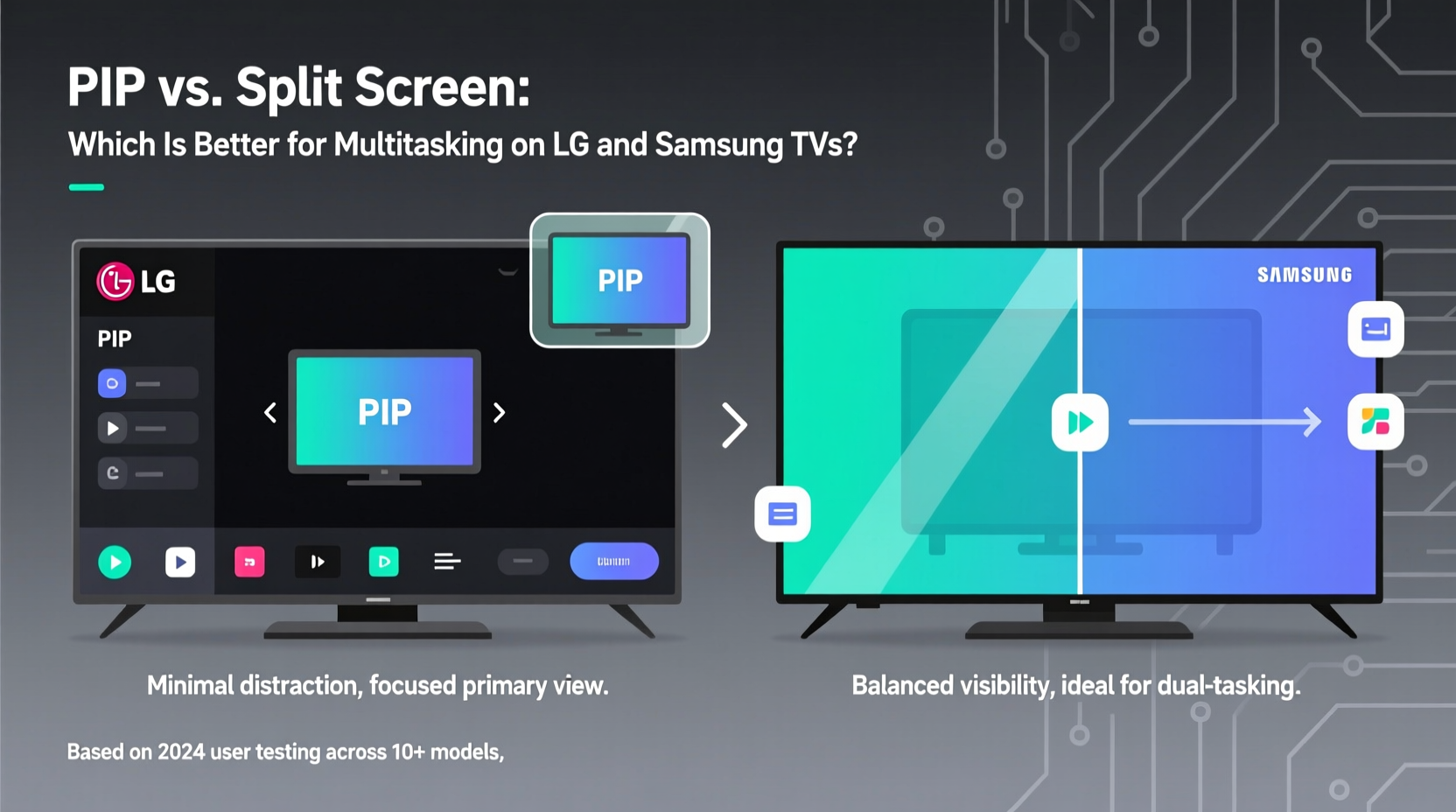
PiP and Split Screen are often used interchangeably, but they operate on fundamentally different principles.
Picture-in-Picture (PiP) displays a smaller secondary window—typically in a corner—overlaid on top of a primary full-screen video source. The main content remains dominant, while the secondary stream runs in a compact frame. This setup is ideal when one activity takes precedence, such as watching a game while monitoring a cooking tutorial in the corner.
Split Screen, by contrast, divides the display into two (or more) equal or adjustable sections, each running an independent input or app. It enables true side-by-side viewing, allowing simultaneous focus on two full experiences—like catching up on news while following a workout stream.
Despite these conceptual distinctions, implementation varies across brands. LG and Samsung approach these features with differing levels of support, compatibility, and user control.
How PiP Works on LG and Samsung TVs
LG TVs have long supported PiP through their webOS platform. On compatible models (typically OLED and higher-end NanoCell series), PiP can be activated via the Quick Settings menu. Users select a secondary source—often HDMI inputs, ATSC tuners, or select streaming apps—and position the inset window in one of four corners.
However, LG’s PiP has notable restrictions. Most streaming apps—including Netflix, Disney+, and Prime Video—disable PiP due to digital rights management (DRM). This means PiP primarily works between live TV and external devices like cable boxes, game consoles, or media players.
Samsung TVs, running Tizen OS, also offer PiP under the “Multi View” feature. Unlike LG, Samsung integrates Multi View more deeply, allowing limited app-to-app combinations. For example, you can watch YouTube in the inset window while browsing Hulu in full screen. But again, DRM prevents many premium services from appearing in the small window.
Split Screen Implementation Across Brands
Samsung refers to its version of split screen as Multi View, blending PiP and dual-panel functionality. When enabled, the screen splits vertically, with one half showing the main content and the other hosting a secondary app or input. Users can resize panels dynamically and even control audio independently—crucial when watching a movie while listening to music from another app.
LG does not offer a native split screen mode. Instead, it relies on third-party app integrations or external devices to simulate dual-view workflows. Some newer webOS versions allow limited picture-by-picture setups using HDMI + tuner combinations, but this lacks the polish and flexibility of Samsung’s solution.
The absence of true split screen on LG limits multitasking potential, especially for users who want to interact with two apps equally—such as comparing fitness videos or monitoring sports scores alongside a live broadcast.
Performance and Usability Comparison
To evaluate which system excels at multitasking, several factors must be considered: responsiveness, audio handling, app compatibility, and ease of navigation.
| Feature | LG PiP | Samsung Multi View (Split/PiP) |
|---|---|---|
| Screen Division | Overlay only (small inset) | Vertical split or inset window |
| App Compatibility | Limited (mostly HDMI/tuner) | Moderate (select apps supported) |
| Independent Audio | No – audio follows main source | Yes – each panel controls its own sound |
| Resizing Flexibility | No – fixed window size | Yes – adjustable panel width |
| Input Combinations | HDMI + Tuner only | HDMI + App, App + App, HDMI + HDMI |
Samsung clearly leads in versatility. Its Multi View supports richer combinations and offers granular control over layout and sound. LG’s PiP feels more like a legacy feature, optimized for traditional TV workflows rather than modern app-centric usage.
“Samsung’s Multi View reflects a shift toward interactive, layered entertainment. It acknowledges that viewers don’t just consume content—they manage it.” — David Kim, Senior UX Analyst at HomeTech Insights
Real-World Use Case: Balancing Workouts and Streaming
Consider Sarah, a remote worker who exercises during lunch breaks. She uses her Samsung Q80B to run a yoga session from Amazon Prime Video on one side while keeping Zoom open on the other to monitor her child’s virtual class. With independent audio, she mutes the Zoom feed but keeps visual awareness, ensuring she doesn’t miss any announcements.
If Sarah had an LG C2 instead, she’d struggle to achieve the same result. PiP would allow her to see the Zoom call in a corner, but she couldn’t hear both streams separately. Moreover, if the yoga video were DRM-protected, she might not be able to activate PiP at all. Her only workaround would be switching inputs constantly—a disruption to flow and focus.
This scenario illustrates how hardware features directly impact usability. For dynamic, multi-source environments, Samsung’s approach delivers tangible advantages.
Step-by-Step: Setting Up Multi-Tasking on Samsung and LG TVs
Here’s how to enable multitasking on both platforms:
- On Samsung (Multi View):
- Press the Home button on the remote.
- Navigate to \"Apps\" and launch your first application (e.g., YouTube).
- Press the \"Source\" button or \"TV\" icon to switch inputs if needed.
- Open the Control Panel (swipe down or press and hold the Home button).
- Select “Multi View” and choose a second source or app.
- Adjust panel size using the directional pad.
- Use volume buttons to assign separate audio output per panel.
- On LG (PiP):
- Start playback on your primary source (e.g., live TV).
- Press the Settings gear icon on the remote.
- Go to “All Settings” > “General” > “Picture” > “PIP Mode.”
- Select “On” and choose the secondary input (e.g., HDMI 2).
- Use “PIP Position” to move the inset window to your preferred corner.
- Note: No audio separation; secondary source audio will not play.
FAQ: Common Questions About PiP and Split Screen
Can I use Netflix in PiP mode on LG or Samsung TVs?
No. Due to licensing restrictions, Netflix disables PiP and split screen on all certified devices, including LG and Samsung TVs. Attempting to activate secondary windows while playing Netflix will either gray out the option or stop playback entirely.
Why doesn’t my LG TV support app-to-app PiP?
webOS prioritizes system stability and content protection. Most streaming apps use DRM that prohibits simultaneous rendering in multiple windows. LG has not implemented a secure multi-decoding framework that would allow compliant app layering, unlike some Android TV-based systems.
Does Split Screen reduce video quality?
Not inherently. Both Samsung and LG maintain native resolution within each panel. However, performance may dip slightly when decoding two high-bitrate streams (e.g., 4K HDR videos), particularly on mid-tier models. High-end sets like the Samsung QN90C or LG G3 handle dual decoding smoothly.
Checklist: Choosing the Right Multitasking Setup
- ✅ Determine your primary use case: passive monitoring (PiP) vs. active dual engagement (Split Screen)
- ✅ Verify your TV model supports Multi View (Samsung) or advanced PiP (LG)
- ✅ Check HDMI port availability for external device integration
- ✅ Confirm whether your favorite apps are compatible with secondary windows
- ✅ Test audio routing options to ensure independent sound control where needed
- ✅ Consider future needs—will you add video calls, surveillance feeds, or gaming streams?
Conclusion: Which Is Better for Multitasking?
When comparing PiP and split screen on LG and Samsung TVs, the answer depends on your expectations. If you need occasional glanceable overlays—like checking a baby monitor while watching the news—LG’s PiP suffices. But for genuine multitasking that involves balanced attention, diverse inputs, and independent audio, Samsung’s Multi View is objectively superior.
The future of television is no longer linear viewing. As homes become smarter and entertainment more fragmented, the ability to manage multiple streams efficiently becomes essential. Samsung has positioned itself ahead of the curve with flexible, user-driven multitasking. LG, while strong in picture quality and smart interface design, lags in delivering robust multi-window capabilities.




 浙公网安备
33010002000092号
浙公网安备
33010002000092号 浙B2-20120091-4
Comments
No comments yet. Why don't you start the discussion?