
After upgrading to macOS 15, many users have reported that third-party plugins—especially those used in browsers, audio software, design tools, or productivity apps—are failing to load or function correctly. This isn't random; it's a direct result of Apple’s continued push toward enhanced security, stricter app sandboxing, and the deprecation of legacy technologies like 32-bit code and NPAPI support. While these changes improve system stability and user safety, they can leave essential plugins stranded. Understanding the underlying reasons and applying targeted solutions is key to restoring full functionality.
Why Plugins Fail on macOS 15
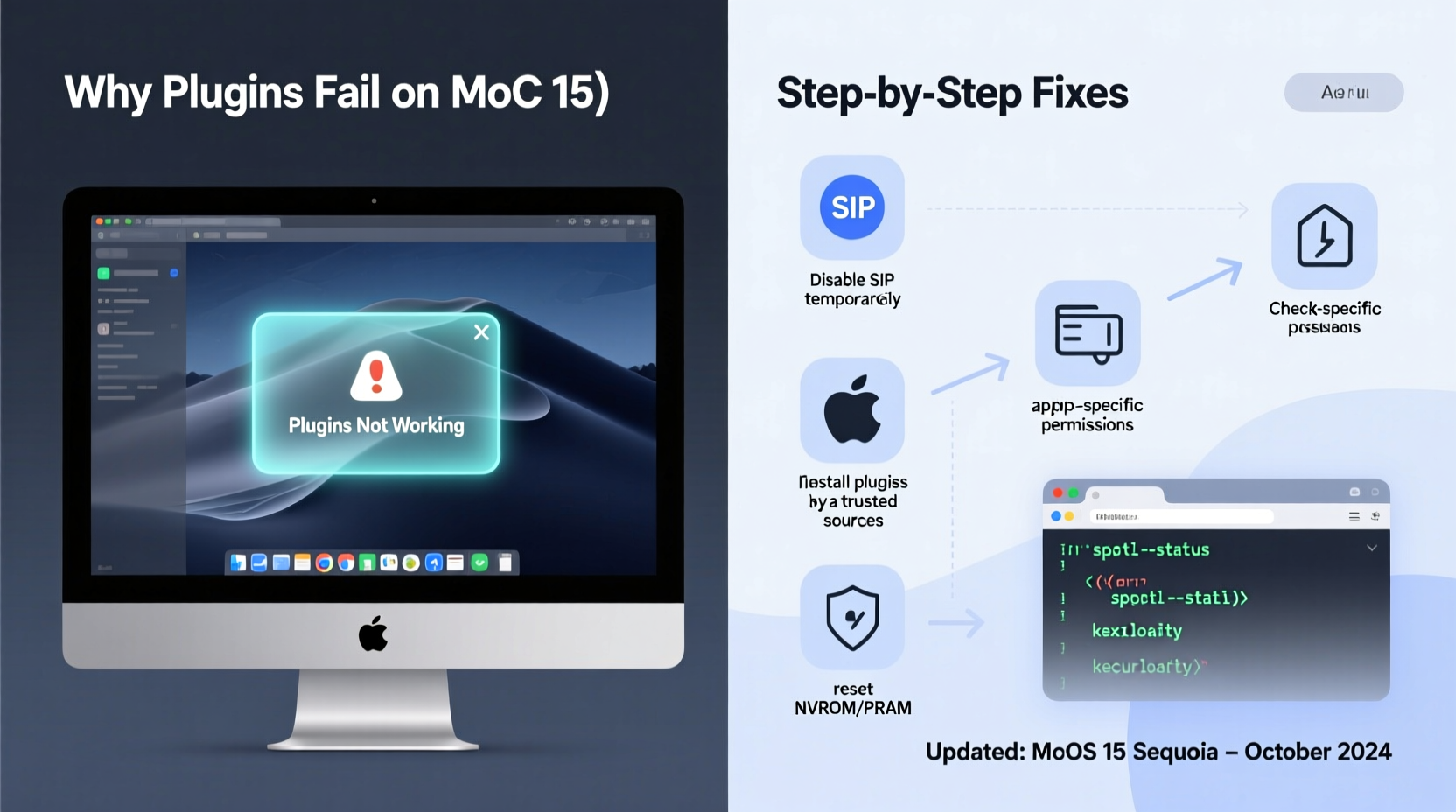
Apple has been systematically tightening its control over what runs on macOS. With each major release, deprecated frameworks are removed, new gatekeeper rules are enforced, and system-level permissions become more restrictive. macOS 15 continues this trend with deeper integration of hardened runtime protections and expanded use of System Integrity Protection (SIP). As a result, plugins relying on older architectures or unsigned code may no longer execute—even if they worked perfectly on macOS 14.
Common technical reasons include:
- Removal of Rosetta 2 emulation for certain legacy binaries: Some plugins compiled for PowerPC or early Intel architectures fail even under translation layers.
- Tighter Notarization requirements: Any plugin not notarized by Apple may be blocked at launch.
- App Translocation interference: Apps downloaded from the web may run in a sandboxed read-only environment, preventing plugins from writing necessary configuration files.
- Gatekeeper blocking unsigned components: Third-party plugins without valid developer certificates are automatically quarantined.
- Sandboxed applications restricting access: Host apps like Safari, Logic Pro, or Adobe Creative Cloud now limit plugin access to system resources unless explicitly permitted.
Step-by-Step Fix: Restore Plugin Functionality
If your plugins aren’t loading, follow this structured troubleshooting process. Start with basic checks and escalate only when needed.
- Verify plugin compatibility: Visit the developer’s official site or support forum to confirm whether the plugin supports macOS 15. Look for version numbers labeled “macOS 15 compatible” or “Sonoma/Ventura+.”
- Update host application: Outdated apps often can’t load newer plugins—or vice versa. Update your DAW, browser, or design suite to the latest version via App Store or vendor website.
- Reinstall the plugin: Remove the existing plugin from
/Library/Audio/Plug-Ins,~/Library/Application Support, or browser extensions folder, then install the most recent version. - Bypass Gatekeeper temporarily: Right-click the app/plugin installer and select “Open” to manually allow execution. This bypasses automatic quarantine blocks.
- Check System Settings > Privacy & Security: If you see a message saying “[App] was blocked from loading,” click “Allow Anyway” to override the restriction.
- Disable App Translocation: Move the host app from Downloads or temporary folders into
/Applications. Running apps from untrusted directories triggers translocation, which isolates them from plugins. - Run First Aid in Disk Utility: Corrupted permissions or file system errors can prevent plugins from being accessed. Use Disk Utility to repair disk permissions.
Do’s and Don’ts When Troubleshooting Plugin Issues
| Do | Don’t |
|---|---|
| Download plugins only from official vendors or trusted marketplaces | Install .dmg files from forums or third-party mirrors |
| Keep backups of working plugin configurations | Delete old versions before confirming new ones work |
Use Terminal to verify plugin architecture: file /path/to/plugin.bundle |
Assume all .bundle files are compatible regardless of build |
| Enable logging in host apps to trace plugin load failures | Ignore error messages during startup—they often pinpoint the issue |
| Contact developer support with log output | Patch binaries manually using hex editors or code injection tools |
Real-World Example: Audio Producer Loses VST Access
Jamal, a music producer in Oakland, upgraded his MacBook Pro to macOS 15 overnight. The next morning, Logic Pro failed to load his favorite reverb and saturation plugins—both critical to his signature sound. He checked the plug-in manager and saw red X marks next to both entries. After spending two hours reinstalling, he discovered the vendor had released a macOS 15-compatible update two weeks prior, but Jamal hadn’t received notification because he’d disabled auto-updates.
He downloaded the new version, moved Logic Pro into the Applications folder (it had been running from a ZIP extract), and manually approved the plugin in System Settings. Within minutes, both plugins loaded successfully. His mistake wasn’t technical—it was procedural: skipping updates and running apps from untrusted locations.
“With macOS 15, Apple isn’t just updating features—it’s redefining trust boundaries. If a plugin hasn’t been updated in over a year, assume it won’t work until the developer adapts.” — Dr. Lena Torres, Senior Systems Engineer at MacTech Labs
Essential Checklist: Regain Plugin Access on macOS 15
- ✅ Confirm plugin vendor supports macOS 15
- ✅ Update host application to latest version
- ✅ Reinstall plugin from official source
- ✅ Move host app to /Applications folder
- ✅ Approve blocked components in Privacy & Security settings
- ✅ Check Console.app for plugin-related error logs
- ✅ Verify plugin uses 64-bit architecture and hardened runtime
- ✅ Disable conflicting extensions or security software temporarily
Frequently Asked Questions
Can I still use 32-bit plugins on macOS 15?
No. Apple officially dropped support for 32-bit applications starting with macOS 10.15 Catalina. macOS 15 does not include any compatibility layer for 32-bit code. You must upgrade to 64-bit versions provided by the developer or switch to alternative tools.
Why does Safari say my browser extension is “damaged”?
This typically occurs when an extension lacks proper code signing or notarization. Even if the file isn’t corrupted, macOS flags it as potentially unsafe. To resolve, download the extension directly from the developer’s secure site, not through third-party aggregators. Then right-click and choose “Open” to bypass quarantine.
My antivirus software disabled a plugin—is that normal?
Yes. Some security tools flag unsigned plugins as potential threats. If you trust the source, temporarily disable real-time scanning during installation, then re-enable it afterward. Consider adding the plugin directory to your antivirus whitelist once verified.
Conclusion: Take Control of Your Workflow
Plugin failures on macOS 15 are rarely irreversible. Most stem from predictable compatibility gaps, not system flaws. By staying proactive—keeping software updated, installing only signed and notarized components, and understanding Apple’s evolving security model—you can maintain a stable, functional setup. Don’t wait for crises; audit your plugins now. Reach out to developers about future compatibility, back up working configurations, and document your workflow dependencies. Technology evolves fast, but informed users adapt faster.




 浙公网安备
33010002000092号
浙公网安备
33010002000092号 浙B2-20120091-4
Comments
No comments yet. Why don't you start the discussion?