
Remote work has redefined how professionals approach productivity. With digital tools evolving rapidly, one upgrade stands out for boosting efficiency: adding a second display. But as flexibility becomes paramount, a critical question emerges—should you invest in a portable monitor or stick with a traditional second screen setup? The answer depends on your workflow, mobility needs, and long-term goals.
Dual-screen setups are no longer exclusive to office desks. Whether you're coding, designing, managing spreadsheets, or attending back-to-back video calls, having more screen real estate reduces clutter and streamlines multitasking. However, not all second screens are created equal. Understanding the differences between portable monitors and conventional external displays is essential to making an informed decision that aligns with your remote work lifestyle.
The Productivity Power of Dual Screens
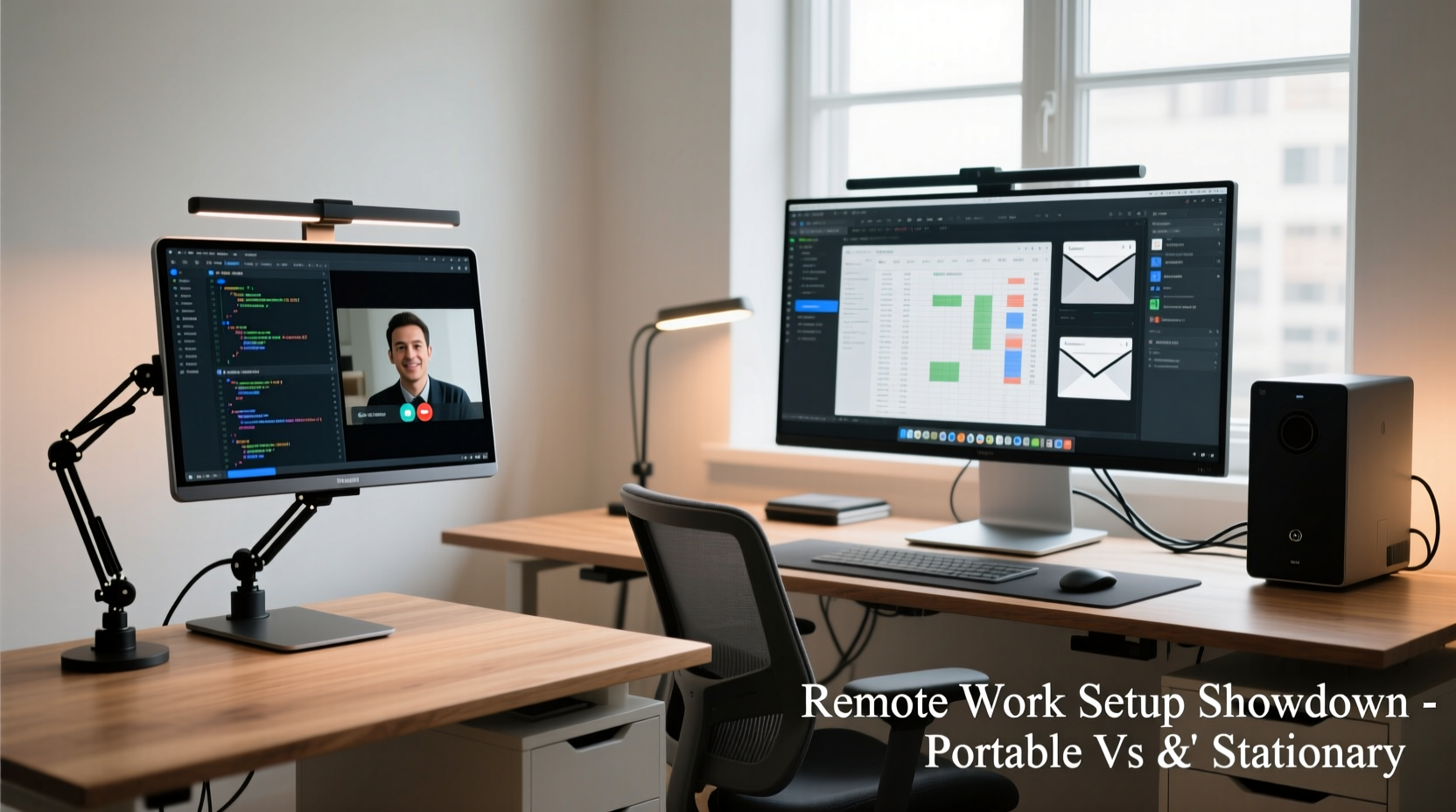
Multiple studies confirm that using two monitors increases productivity by up to 30%. A report from the University of Utah found that users completed tasks faster and made fewer errors when working across dual displays. This advantage stems from reduced window-switching, improved focus, and better spatial organization of digital tools.
For remote workers, this means keeping email open on one screen while drafting documents on the other, monitoring analytics during client calls, or reviewing code alongside documentation. The cognitive load decreases significantly when information doesn’t require constant tab cycling.
However, the benefit hinges on implementation. A poorly configured second screen can lead to ergonomic strain, inconsistent color accuracy, or technical bottlenecks. That’s why choosing the right type of secondary display—portable or fixed—is so crucial.
Portable Monitors: Flexibility Meets Functionality
Portable monitors have surged in popularity among digital nomads, freelancers, and hybrid workers who value mobility. These lightweight panels (typically 13–16 inches) connect via USB-C or HDMI and often run on battery power, allowing them to be used anywhere—from airport lounges to coffee shops.
Modern portable models support high resolutions (up to 4K), touch input, HDR, and anti-glare coatings. Brands like ASUS, Lenovo, and Dell offer slim designs weighing under 2 pounds, making them easy to pack into laptop bags.
Their plug-and-play nature makes setup fast. Most models draw power directly from the host laptop, eliminating the need for separate chargers. Some even double as tablet displays when paired with styluses, appealing to designers and illustrators on the move.
Yet, portability comes at a cost. Smaller screen size limits multitasking potential compared to larger desktop monitors. Built-in speakers are usually absent or low-quality, and adjustable stands are rare—often requiring third-party accessories for optimal ergonomics.
Traditional Second Screen Setups: Stability and Performance
A conventional second screen typically refers to a standalone monitor (24 inches or larger) connected to a laptop or desktop system. These displays range from basic HD panels to ultra-wide 49-inch curved screens designed for immersive workflows.
Advantages include higher brightness, superior color calibration, better contrast ratios, and extensive adjustability (height, tilt, swivel). They’re ideal for graphic design, video editing, data analysis, and any task requiring visual precision.
Because they remain stationary, these monitors integrate seamlessly into dedicated home offices. When paired with docking stations, they enable one-cable connections that charge your laptop, transfer data, and extend the display simultaneously.
“Having a stable, large-format second screen reduces eye strain and improves workflow continuity—especially for knowledge workers handling complex projects.” — Dr. Linda Tran, Human Factors Researcher at MIT Media Lab
On the downside, traditional monitors lack mobility. Moving them frequently risks damage, and their reliance on wall power and additional cables diminishes spontaneity. For someone constantly switching locations, lugging around a bulky monitor defeats the purpose of remote flexibility.
Comparison: Portable Monitor vs Fixed Second Screen
| Feature | Portable Monitor | Traditional Second Screen |
|---|---|---|
| Portability | High – lightweight, compact, battery-powered options available | Low – requires separate transport, AC power, and cabling |
| Screen Size | 13–17 inches | 24–49+ inches |
| Resolution & Color Accuracy | Up to 4K; good for general use, variable calibration | Frequently 4K or ultrawide; professional-grade IPS/OLED panels |
| Ease of Setup | Plug-and-play via USB-C/HDMI; minimal configuration | May require driver installation, dock setup, or multiple cables |
| Ergonomics | Limited adjustability; often needs risers or stands | Full adjustability (height, pivot, tilt); compatible with arms |
| Cost | $150–$400 | $200–$1,500+ |
| Battery Life | Some models have internal batteries (3–5 hours) | No battery – always requires outlet |
| Best For | Nomadic workers, travelers, occasional dual-screen use | Home offices, creative professionals, full-time multitaskers |
Real-World Use Case: Sarah, Freelance UX Designer
Sarah splits her time between co-working spaces, client sites, and her apartment. She uses a MacBook Pro as her primary machine but struggled with limited screen space when prototyping in Figma and referencing user feedback simultaneously.
She initially bought a 27-inch IPS monitor for her apartment but found it impractical to carry. After testing several options, she invested in a 15.6-inch portable monitor with 1080p resolution and touch capability. Now, she connects it via USB-C wherever she works.
While the smaller size means she can't view both prototype and research notes side-by-side at full scale, she uses zoom and window tiling effectively. The ability to take her dual-screen setup to client meetings has also improved collaboration. “It’s not perfect,” she admits, “but it gives me consistency across environments.”
In contrast, her colleague Mark, who works remotely for a animation studio, relies on a dual 32-inch 4K monitor setup at home. His work demands pixel-level accuracy and vast canvas space. Portability isn’t a priority—stability and color fidelity are. For him, a portable monitor would hinder rather than help.
How to Choose Based on Your Work Style
Selecting between a portable monitor and a traditional second screen should reflect your daily routine, job requirements, and workspace dynamics. Consider the following checklist before deciding:
✅ Decision-Making Checklist
- Do you travel frequently? If yes, prioritize portability, weight, and battery support.
- Is visual precision critical? Designers, editors, and developers benefit from larger, color-accurate panels.
- Do you have a permanent workspace? A fixed desk favors larger screens with ergonomic mounts.
- What’s your budget? Portable monitors are generally cheaper, but premium models approach desktop monitor prices.
- Are you using a low-power device? Some laptops may struggle to drive dual displays efficiently—check GPU and thermal limits.
If you're uncertain, start with a portable monitor. It offers versatility without locking you into a single location. You can always add a larger fixed screen later and use both depending on context.
Optimizing Either Setup for Maximum Impact
Regardless of which path you choose, proper configuration amplifies benefits. Follow this step-by-step guide to get the most out of your second display:
- Position Correctly: Align the top of the secondary screen with your primary monitor. Avoid placing it too low, which strains the neck.
- Extend, Don’t Mirror: In display settings, select “Extend” mode to expand your desktop, not duplicate it.
- Assign Roles: Dedicate one screen to communication apps (Slack, Zoom, email) and the other to core tasks (writing, coding, design).
- Use Keyboard Shortcuts: Master shortcuts like Win + Left/Right Arrow (Windows) or Cmd + Option + Arrow (Mac) to move windows instantly.
- Calibrate Colors: Use built-in calibration tools or third-party software to ensure consistent color representation across screens.
- Manage Cables: Use cable organizers or magnetic clasps to reduce clutter and prevent accidental disconnections.
Frequently Asked Questions
Can I use both a portable and a traditional monitor?
Absolutely. Many modern laptops and docking stations support multiple external displays. You can use a large fixed monitor at home and a portable one on the road, or even combine both when presenting or doing intensive multitasking.
Will a second screen drain my laptop battery faster?
Yes, especially if driving a high-resolution external display. Expect up to 20–30% reduced battery life. When using a portable monitor, consider connecting your laptop to power to maintain performance and avoid rapid discharge.
Are there wireless second screen options?
Yes, technologies like Miracast or AirPlay allow wireless screen extension, but they introduce latency and compression issues. Wired connections (USB-C, HDMI) remain the gold standard for reliability and speed.
Final Recommendation: Match Tool to Task
There is no universal winner in the portable monitor versus traditional second screen debate. Each serves distinct needs within the spectrum of remote work.
If your days involve changing locations, client visits, or shared workspaces, a portable monitor enhances continuity and adaptability. It brings your optimized environment wherever you go, preserving workflow habits without sacrificing convenience.
If you operate primarily from a fixed location and engage in visually demanding or detail-intensive tasks, a traditional second screen delivers unmatched clarity, comfort, and scalability. The investment pays off through sustained focus and reduced fatigue over long sessions.
The smartest approach blends both strategies over time. Begin with what suits your current rhythm. As your role evolves, so can your toolkit. Technology should serve your work—not dictate it.




 浙公网安备
33010002000092号
浙公网安备
33010002000092号 浙B2-20120091-4
Comments
No comments yet. Why don't you start the discussion?