
As remote and hybrid work models become the norm, professionals are redefining what it means to have a functional workspace. No longer confined to desks, many now rely on portable tech to stay productive while traveling, working from cafes, or rotating between home and office. Two devices frequently considered for mobile productivity are portable monitors and tablets. Both offer mobility, but they serve fundamentally different roles. Choosing between them—or deciding whether to use both—can significantly impact your efficiency, workflow quality, and comfort.
This article breaks down the strengths and limitations of each device, evaluates their real-world applications, and helps you determine which option delivers superior productivity gains based on your specific work style and needs.
Understanding the Core Differences
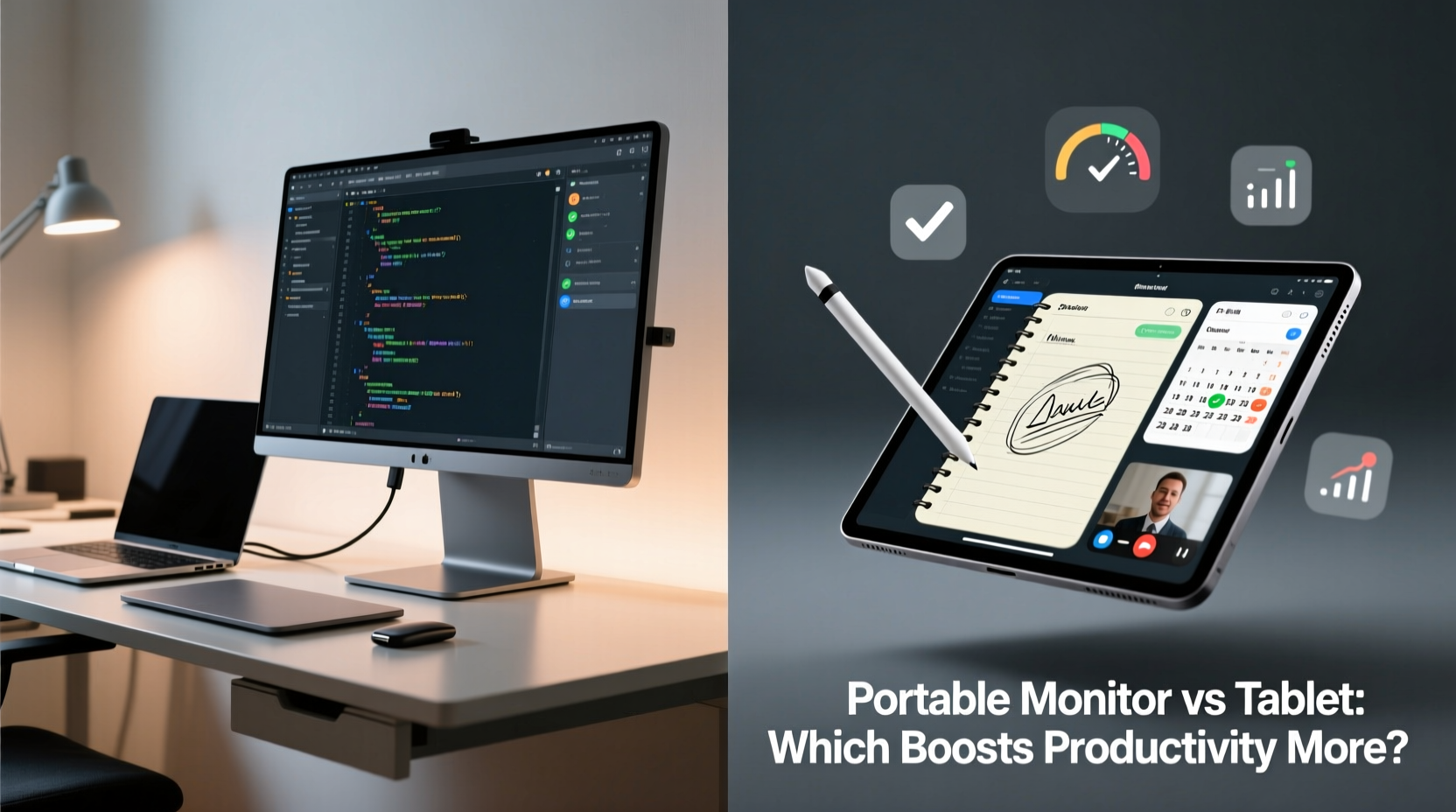
At first glance, portable monitors and tablets may seem interchangeable—they’re both slim, lightweight screens that can be used away from a traditional desk. However, their underlying functionality diverges sharply.
- Portable Monitors: These are external displays designed to extend or mirror the screen of a laptop, smartphone, or desktop computer. They lack built-in processing power and require a host device to function. Their primary purpose is to increase screen real estate.
- Tablets: Standalone computing devices with their own operating systems (iOS, Android, or Windows), processors, storage, and apps. Tablets can function independently and often support stylus input, touch-first interfaces, and mobile apps optimized for creativity or note-taking.
The key distinction lies in autonomy versus augmentation. A tablet operates as a self-contained workstation; a portable monitor acts as a productivity enhancer for an existing device.
“Adding a second screen can reduce task-switching time by up to 30%, directly boosting focus and throughput.” — Dr. Lena Torres, Human-Computer Interaction Researcher at MIT Media Lab
Productivity Benefits: A Side-by-Side Comparison
To assess which device enhances productivity more, we must examine several critical factors: multitasking capability, ergonomics, software compatibility, portability, and versatility across work types.
| Feature | Portable Monitor | Tablet |
|---|---|---|
| Multitasking Efficiency | High – Enables true dual-screen workflows (e.g., email on one side, document editing on the other) | Moderate – Split-screen apps available but limited by smaller interface and OS constraints |
| Ergonomic Flexibility | High – Can position screen at eye level, reducing neck strain during long sessions | Low to Moderate – Often used flat on a table or held, leading to poor posture over time |
| Input Precision | High – Works with full keyboard and mouse setups for accurate control | Variable – Touch and stylus useful for design, less so for data entry or coding |
| Software Compatibility | Full access to desktop applications via connected laptop or PC | Limited to mobile-optimized versions; some professional tools unavailable |
| Battery Life | Typically 2–4 hours; requires external power for extended use | Average 8–12 hours, ideal for all-day unplugged work |
| Portability & Weight | Light (1–2 lbs), but often requires additional cables and power bank | Extremely portable; most weigh under 1.5 lbs with no extra accessories needed |
| Cost (Entry-Level) | $150–$300 | $200–$500 (more for Pro models) |
The data suggests that while tablets excel in battery life and standalone usability, portable monitors outperform in enabling high-efficiency desktop-style workflows in mobile environments.
When a Portable Monitor Boosts Productivity More
For knowledge workers whose tasks involve heavy multitasking—such as developers, financial analysts, writers, or project managers—screen real estate is a critical asset. Research from the University of Utah found that users with dual monitors were 30% faster at completing common office tasks than those using a single screen.
A portable monitor allows these professionals to replicate their office setup almost anywhere. Imagine reviewing a spreadsheet on your laptop while analyzing market trends on the secondary screen, or coding on one side while referencing documentation on the other. The reduction in window-switching alone can save minutes per hour—accumulating into meaningful time savings over weeks.
Additionally, modern portable monitors support high resolutions (up to 4K), color accuracy for design work, and touchscreen options. When paired with a compact mechanical keyboard and travel mouse, they form a near-desktop experience in hotel rooms, co-working spaces, or airport lounges.
Scenarios Where Tablets Shine for Mobility and Creativity
While portable monitors enhance productivity through extension, tablets boost it through transformation. For creative professionals—illustrators, architects, educators, or field researchers—a tablet isn’t just a screen; it’s a dynamic tool for capturing ideas in real time.
With pressure-sensitive styluses like the Apple Pencil or Samsung S Pen, tablets enable natural sketching, markup, and handwritten note-taking. Apps like Notability, GoodNotes, or Adobe Fresco turn a tablet into a digital notebook, whiteboard, or storyboard canvas. This immediacy supports cognitive engagement and idea retention far better than typing.
“I conduct client workshops in coffee shops using my iPad. Being able to sketch concepts live builds rapport and clarity faster than any slide deck.” — Marcus Reed, UX Consultant and Design Sprint Facilitator
Moreover, tablets integrate seamlessly with cloud services and collaboration platforms. You can annotate PDFs during a meeting, sign contracts on the spot, or record voice memos linked to visual notes—all without booting up a laptop.
Mini Case Study: Freelance Architect Working Across Sites
Sophie Lin, a freelance architect based in Barcelona, uses both a portable monitor and an iPad Pro but assigns them distinct roles. On-site visits, she relies solely on her iPad to review blueprints, annotate structural issues, and discuss changes with contractors using hand-drawn overlays. Back at her Airbnb, she connects her MacBook to a 15.6-inch portable monitor to draft detailed CAD adjustments across two screens, referencing site photos on the secondary display.
“The iPad gives me agility during inspections,” Sophie explains. “But when I need precision and speed in drafting, nothing replaces having that extra screen space. One fuels inspiration, the other fuels output.”
Her workflow exemplifies how the two devices aren’t mutually exclusive—they complement each other when strategically deployed.
Step-by-Step Guide to Choosing Based on Your Work Style
Selecting the right tool depends less on specs and more on how you work. Follow this decision framework:
- Assess Your Primary Tasks: List your top three daily activities (e.g., writing reports, coding, video editing, taking notes).
- Determine Input Needs: Do you type extensively? Use a mouse? Rely on hotkeys? If yes, a portable monitor likely suits you better.
- Evaluate Mobility Requirements: Will you work in transit, outdoors, or in locations without outlets? Tablets win for untethered flexibility.
- Test Screen Dependency: Try working for a day using only one app at a time. If you constantly switch windows, a second screen will help.
- Consider Long-Term Investment: Can you eventually use both? Many professionals start with a tablet and later add a portable monitor as work complexity grows.
Checklist: Maximizing Productivity with Either Device
- ✅ Match the device to your dominant work mode: creation (tablet) vs. execution (monitor).
- ✅ Invest in protective cases—especially for frequent travelers.
- ✅ Calibrate brightness and color settings to reduce eye strain.
- ✅ Use keyboard shortcuts (on tablets with Bluetooth keyboards) to minimize touch navigation.
- ✅ Organize digital files in cloud folders synced across devices for seamless transitions.
- ✅ Limit background apps to preserve battery life on tablets.
- ✅ Position the portable monitor at eye level using a foldable stand or book riser.
Frequently Asked Questions
Can a tablet replace a laptop entirely?
For light tasks like email, browsing, and document editing, yes—especially with accessories like keyboards and mice. However, complex workflows involving multiple applications, file management, or specialized software (e.g., Excel macros, IDEs, VMs) remain challenging on most tablets due to OS limitations and reduced peripheral support.
Do portable monitors work with smartphones?
Yes, many modern Android phones and iPhones support external displays via USB-C or Lightning-to-HDMI adapters. This turns your phone into a mini PC, useful for quick presentations or emergency work. However, app optimization for large screens varies widely.
Is it worth buying both a portable monitor and a tablet?
If your work spans creative ideation and analytical execution, investing in both can create a complete mobile ecosystem. Use the tablet for brainstorming and fieldwork, then transition to the dual-screen laptop + monitor setup for focused production. The synergy often justifies the combined cost for consultants, freelancers, and digital nomads.
Final Recommendation: Align Tools with Workflow Goals
The question isn't necessarily which device enhances productivity more in absolute terms—it's which aligns best with your current work demands. If your productivity bottleneck is screen space and task-switching friction, a portable monitor offers measurable improvements. If your challenge is capturing ideas quickly and engaging interactively, a tablet provides unmatched responsiveness.
Technology should serve your workflow, not define it. Start by identifying your most frequent pain points: Are you squinting at split windows? Struggling to take legible notes in meetings? Once you pinpoint the gap, the choice becomes clear.
Many top performers now adopt a hybrid approach—leveraging tablets for input and ideation, and portable monitors for output and refinement. As flexible work continues to evolve, the most productive professionals won’t choose between tools. They’ll master both.




 浙公网安备
33010002000092号
浙公网安备
33010002000092号 浙B2-20120091-4
Comments
No comments yet. Why don't you start the discussion?