
For photographers who travel frequently or shoot in remote locations, reliable data storage isn’t optional—it’s essential. A single memory card failure can erase hundreds of irreplaceable images. That’s why offloading photos to a secondary device during a shoot has become standard practice. But when it comes to choosing between a portable SSD and an external HDD for on-the-go photo backups, the decision isn’t always straightforward. Each option offers distinct advantages and trade-offs in speed, durability, capacity, and price.
This guide breaks down the key differences with real-world context, helping you determine which solution aligns best with your workflow, budget, and shooting style.
Speed and Transfer Performance
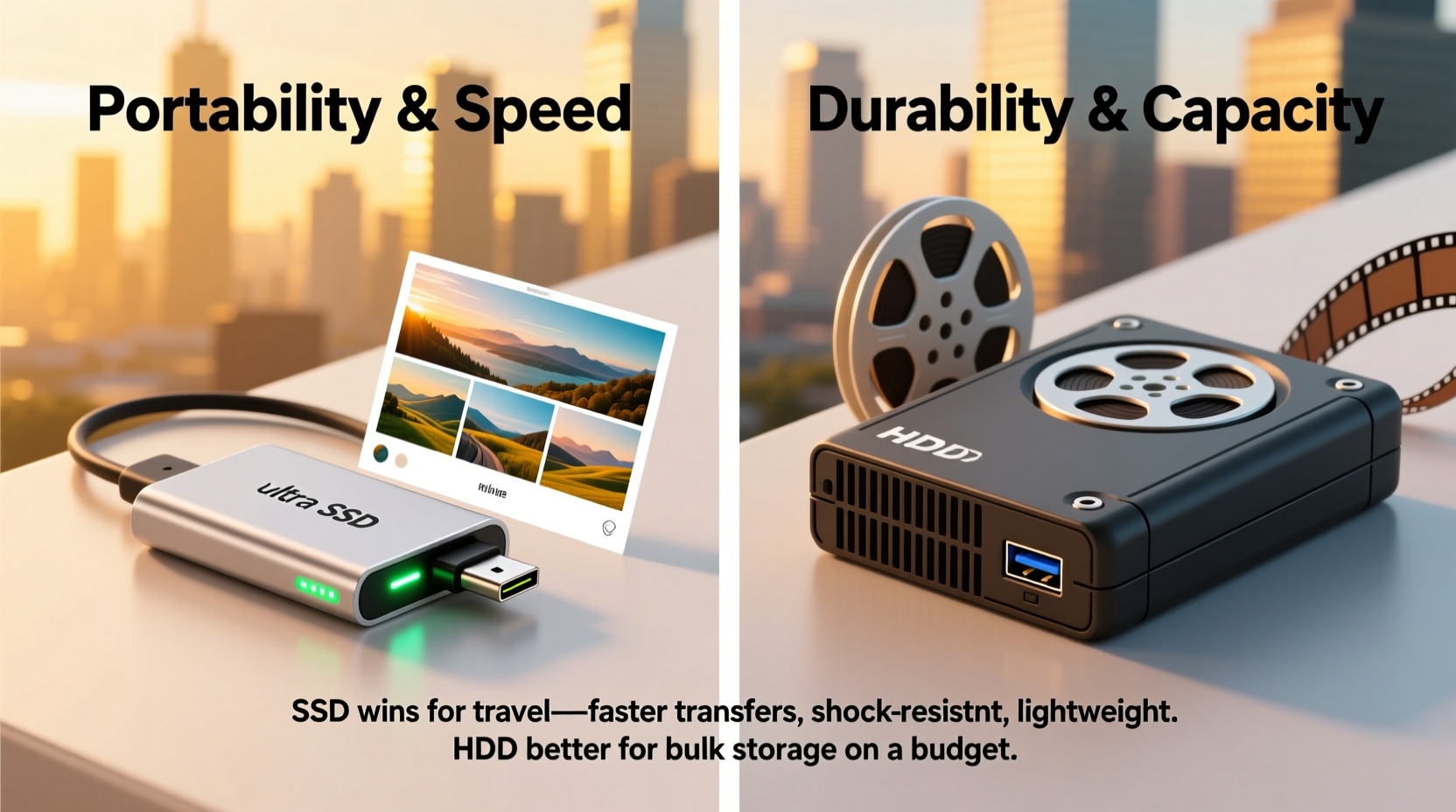
The most immediate difference between portable SSDs and external HDDs is transfer speed. Solid-state drives (SSDs) use flash memory with no moving parts, allowing them to read and write data significantly faster than traditional hard disk drives (HDDs), which rely on spinning platters and mechanical arms.
A typical portable SSD delivers sustained read/write speeds between 400 MB/s and over 2,000 MB/s, depending on the model and interface (USB 3.2 Gen 2x2 or Thunderbolt). In contrast, most external HDDs max out around 100–150 MB/s. For photographers working with high-resolution RAW files—especially from modern mirrorless cameras that produce 50+ MB per image—this gap becomes critical.
Consider a wedding photographer capturing 1,500 RAW images in a day. At an average file size of 60 MB, that’s roughly 90 GB of data. Backing up this volume to an HDD could take over 10 minutes. With a fast SSD, the same transfer completes in under 2 minutes. That time adds up during long shoots or multi-day events where rapid offloading is necessary.
Durability and Environmental Resistance
On-location photography often means unpredictable environments—dusty deserts, humid jungles, bumpy car rides, or accidental drops. This is where SSDs shine due to their lack of moving components.
External HDDs are inherently more fragile. Their spinning disks and read/write heads are sensitive to shock, vibration, and orientation. A sudden jolt while the drive is active can cause permanent damage or data loss. While many rugged HDD models include rubber bumpers or shock-absorbing casings, they still carry inherent mechanical risks.
Portable SSDs, by design, are far more resilient. Most are rated to withstand drops from 2–3 meters, operate in extreme temperatures, and resist water and dust ingress. Models like the Samsung T7 Shield or SanDisk Extreme Pro are built specifically for field use, making them ideal companions for adventure, wildlife, or documentary photographers.
“Photographers shouldn’t underestimate how often gear gets bumped, dropped, or exposed to elements. An SSD’s lack of moving parts makes it inherently safer for mobile workflows.” — Jordan Lee, Professional Travel Photographer & Digital Archivist
Capacity and Cost Comparison
While SSDs offer superior performance and durability, HDDs maintain a strong advantage in raw storage capacity and cost per gigabyte.
As of 2024, you can purchase a 5TB external HDD for under $100—a cost of just $0.02 per GB. The same capacity in SSD form would require multiple drives and cost upwards of $400–$500, pushing the price to $0.08–$0.10 per GB. Even mid-range SSDs (1–2TB) typically cost 3–4 times more per gigabyte than equivalent HDDs.
This makes HDDs attractive for photographers managing large archives or those shooting video alongside stills. However, for backup purposes during travel, total capacity may be less important than reliability and portability. Many professionals opt for a hybrid strategy: using SSDs for primary field backups and HDDs for long-term archival once back in the studio.
| Feature | Portable SSD | External HDD |
|---|---|---|
| Average Speed | 400–2000 MB/s | 100–150 MB/s |
| Durability | High (no moving parts) | Moderate to low (mechanical components) |
| Max Capacity (Single Unit) | 4TB (common), up to 8TB | 5TB–20TB |
| Cost per GB | $0.08–$0.12 | $0.015–$0.03 |
| Weight | 50–100g | 200–300g |
| Lifespan (Write Cycles) | 300–3000 cycles (varies by NAND type) | 3–5 years (mechanical wear) |
Portability and Power Efficiency
When traveling light is a priority—such as hiking to a mountain summit or navigating crowded city streets—every ounce counts. Portable SSDs are typically smaller than a credit card and weigh less than a smartphone. Most draw power directly from USB ports, eliminating the need for external power bricks or AC adapters.
External HDDs, especially larger-capacity models, tend to be bulkier and heavier. Some high-capacity drives even require dual USB connections or external power sources, reducing their convenience in the field. Additionally, HDDs consume more energy due to motorized components, which can drain laptop batteries faster during extended backup sessions.
For photographers relying on laptops, tablets, or smartphones in the field, the compact size and plug-and-play simplicity of SSDs make them a seamless addition to any kit. They’re also quieter—HDDs emit a faint whirring sound during operation, which can be distracting in quiet environments.
Real-World Use Case: Landscape Photography in Iceland
Take the example of Lena Torres, a landscape photographer documenting glacial regions in Iceland. She shoots with a Sony A7R V, producing 61MP RAW files averaging 80 MB each. Over a week-long expedition, she captures more than 4,000 images—over 300 GB of data.
Lena uses two 2TB portable SSDs as her primary backup solution. Each evening, she connects one SSD to her laptop via USB-C and transfers the day’s shots in under 5 minutes. The SSDs fit easily into her jacket pocket, survive sub-zero temperatures, and endure being tossed into her backpack alongside lenses and filters.
She previously tried using a 4TB external HDD but abandoned it after three months. “It was too bulky, took forever to copy files, and made me nervous every time I moved camp,” she recalls. “Once, I heard a weird clicking noise after a fall. I didn’t lose data, but I didn’t want to risk it again.”
Back home, Lena copies all SSD contents to a pair of encrypted 8TB HDDs stored in separate locations for long-term archival. Her field-to-archive pipeline combines the strengths of both technologies: SSDs for mobility and safety, HDDs for economical mass storage.
Step-by-Step: Building a Reliable On-the-Go Backup System
Creating a robust photo backup strategy doesn’t have to be complicated. Follow this sequence to ensure your images stay safe while traveling:
- Assess your daily data output. Calculate average file size × number of shots per day to estimate required storage.
- Choose your primary backup drive. For speed and durability, select a portable SSD (minimum 1TB). For budget-heavy needs, consider a rugged HDD.
- Add redundancy. Carry at least two backup drives and rotate them daily. Never keep only one copy in the field.
- Use checksum verification. Tools like GoodSync, ChronoSync, or rsync ensure copied files match originals bit-for-bit.
- Label and organize. Name drives clearly (e.g., “Backup Day 1 – Iceland”) and maintain a simple folder structure by date/location.
- Verify backups regularly. Open random folders and preview thumbnails to confirm accessibility.
- Secure storage. Keep drives in padded cases, away from magnets, moisture, and extreme heat.
Checklist: Choosing the Right Drive for Photo Backups
- ✅ Does the drive support USB-C with backward compatibility?
- ✅ Is it rated for shock, water, or dust resistance?
- ✅ Does it offer hardware encryption for security?
- ✅ Is the transfer speed sufficient for your file sizes?
- ✅ Can you afford multiple units for redundancy?
- ✅ Is the warranty at least 3 years?
- ✅ Does your computer have compatible ports (USB 3.2, Thunderbolt)?
Frequently Asked Questions
Can I use an external HDD for photo backups if I’m careful?
Yes, provided you handle it responsibly. Avoid movement during use, store it in a protective case, and limit its role to lower-risk scenarios like studio work or short trips. Just remember: mechanical drives fail more often under stress than SSDs.
Do portable SSDs wear out faster than HDDs?
SSDs have a finite number of write cycles, but modern drives use wear-leveling algorithms and over-provisioning to extend lifespan. For typical photo backup use—where you write once and rarely rewrite—most SSDs will last 5–10 years or longer. HDDs degrade gradually due to mechanical wear, often failing without warning.
Is cloud backup enough for on-the-go photos?
Not yet. While services like Google Photos or Dropbox offer convenience, uploading hundreds of GBs requires stable, high-speed internet—rare in remote areas. Relying solely on the cloud creates a dangerous single point of failure. Physical drives remain the gold standard for immediate, offline redundancy.
Conclusion: Matching Technology to Your Needs
The choice between portable SSD and external HDD for photo backups ultimately depends on your priorities. If speed, durability, and peace of mind are paramount, the portable SSD is the clear winner. It’s the preferred tool for professionals and enthusiasts who value efficiency and reliability in unpredictable conditions.
However, if you’re managing vast libraries on a tight budget and don’t require rapid transfers or extreme portability, an external HDD remains a viable, cost-effective option—especially when used cautiously and paired with redundant copies.
Many photographers now adopt a tiered approach: SSDs for active field backups, HDDs for post-trip archiving. This hybrid model leverages the strengths of both technologies without compromising safety or scalability.




 浙公网安备
33010002000092号
浙公网安备
33010002000092号 浙B2-20120091-4
Comments
No comments yet. Why don't you start the discussion?