
Nothing disrupts productivity quite like a wireless printer suddenly going offline. You click \"Print,\" only to be met with an error message: “Printer is offline.” It’s frustrating—especially when you’re in a rush or working from home. The good news? Most wireless printer offline errors are not permanent hardware failures. They’re usually caused by minor network hiccups, configuration oversights, or temporary communication breakdowns between your device and the printer.
With the right approach, you can diagnose and fix the issue quickly—often in under 15 minutes. This guide walks through proven, step-by-step solutions that work across major brands like HP, Canon, Epson, Brother, and others. Whether you're a beginner or tech-savvy user, these methods will help you get your printer back online and functioning reliably.
Understanding Why Your Wireless Printer Goes Offline
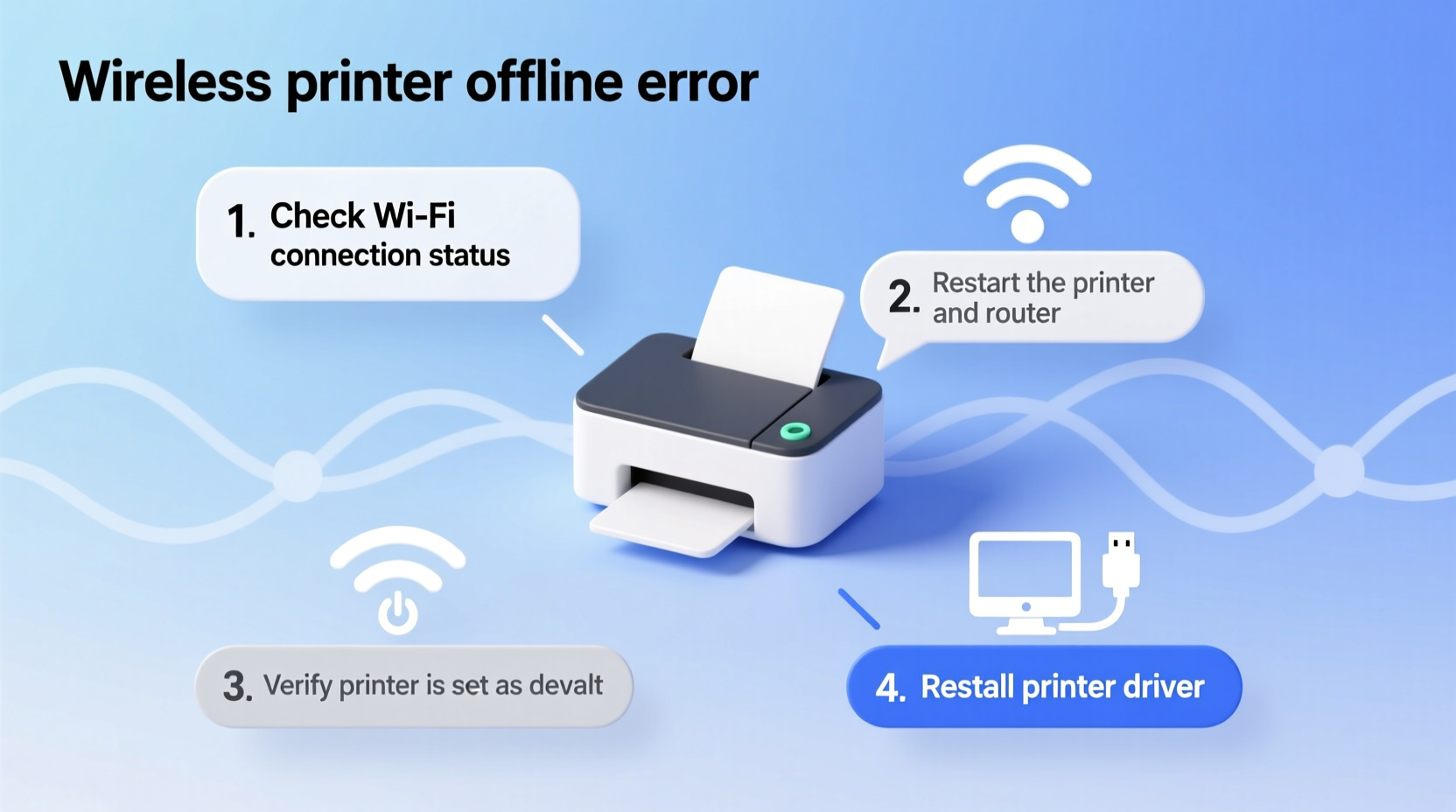
A wireless printer labeled as \"offline\" doesn’t necessarily mean it’s powered down. Instead, it indicates that your computer, smartphone, or tablet cannot communicate with the printer over the network. Common causes include:
- Wi-Fi signal drops or weak connection
- Incorrect printer settings on your device
- Router interference or IP address conflicts
- Outdated printer drivers or firmware
- Accidental offline mode enabled in system preferences
- Firewall or antivirus blocking communication
Unlike USB-connected printers, wireless models rely on stable two-way communication. Any disruption in this chain can trigger the offline status—even if the printer itself appears ready and has paper and ink.
“Over 70% of ‘printer offline’ issues stem from network miscommunication, not hardware failure.” — IT Support Team, NexusTech Solutions
Step-by-Step Guide to Restore Your Printer Online
Follow this structured troubleshooting sequence. Start at Step 1 and move forward only if the previous step didn’t resolve the issue. Skipping ahead may waste time or overlook simple fixes.
- Check Physical Status
Ensure the printer is powered on, has paper loaded, and shows no error lights (e.g., blinking orange, paper jam indicators). If the display shows network issues, note the exact message—it could point to Wi-Fi authentication problems. - Restart All Devices
Power cycle your printer, computer, and router. Turn off each device completely, wait 30 seconds, then power them back on in this order: router → printer → computer. This clears temporary glitches and refreshes network handshakes. - Verify Wi-Fi Connection
On the printer’s control panel, navigate to Network > Wireless Settings > Network Configuration. Confirm it’s connected to the correct Wi-Fi network and has a valid IP address (not 169.x.x.x, which indicates no network access). - Set Printer as Default (Windows/macOS)
Go to System Settings > Printers & Scanners. Select your printer and set it as default. Right-click (or Ctrl+click) and ensure “Use Printer Offline” is unchecked. - Reconnect to Network (if needed)
If the printer lost its Wi-Fi connection, reconfigure it using WPS (press WPS button on router and printer within 2 minutes), or manually enter the network name and password via the printer menu. - Update or Reinstall Drivers
Visit the manufacturer’s website (HP, Epson, etc.), download the latest driver for your model and OS, then install it. Avoid third-party driver tools—they often introduce more issues. - Clear Print Queue
Stalled jobs can cause the system to mark the printer as offline. Open Printers & Scanners, open the queue, cancel all pending jobs, then restart the Print Spooler service (on Windows: Services > Print Spooler > Restart).
Troubleshooting Checklist: Quick Reference
Keep this checklist handy when diagnosing offline issues:
- ✅ Printer is powered on and not displaying error codes
- ✅ Connected to the same Wi-Fi network as your device
- ✅ “Use Printer Offline” mode is disabled
- ✅ No firewall or security software blocking printer access
- ✅ Printer appears in the list of available devices
- ✅ Latest drivers installed from official manufacturer site
- ✅ Print spooler restarted after clearing stuck jobs
- ✅ Router firmware is up to date
Checking these boxes systematically eliminates guesswork and ensures no small detail is overlooked.
Common Mistakes That Trigger Offline Errors
Even experienced users make preventable errors that lead to recurring offline states. Here are the most common ones—and how to avoid them:
| Mistake | Consequence | Solution |
|---|---|---|
| Using guest network for printer | Guest networks often block device-to-device communication | Connect printer to main network, not guest or IoT-only bands |
| Changing Wi-Fi password without reconfiguring printer | Printer loses connection and fails silently | Always reconnect printer after changing network credentials |
| Ignoring firmware updates | Security flaws or compatibility issues accumulate | Enable automatic updates or check monthly via printer menu |
| Placing printer far from router or behind metal objects | Weak signal leads to intermittent disconnections | Position printer within 15 feet of router, avoiding obstructions |
Real Example: Fixing an HP Envy Offline Issue
Consider Sarah, a freelance graphic designer who relies on her HP Envy 6055 for client proofs. One morning, she tried printing a project and received: “Printer is offline.” She checked the printer—it was on, with full ink and paper. Restarting her laptop didn’t help.
She followed the troubleshooting steps:
- First, she confirmed both her MacBook and printer were on the same 2.4GHz Wi-Fi band (her router uses dual-band).
- She opened System Preferences > Printers & Scanners, right-clicked the HP Envy, and noticed “Use Printer Offline” was accidentally checked—possibly triggered during a recent update.
- She unchecked it, clicked “Resume,” then tested a print job. The document printed successfully.
The root cause? A software glitch had toggled the offline setting. No driver reinstall or network reset was needed—just a quick toggle in system preferences. This example shows how a small oversight can create big frustration, but also how easily it can be resolved with targeted checks.
Advanced Tips for Persistent Offline Problems
If basic steps fail, consider these deeper interventions:
Assign a Static IP Address
Dynamic IP addresses (assigned by DHCP) can change every time the printer reconnects. This breaks existing connections stored in your computer’s printer list. To fix this:
- Access your router’s admin page (usually http://192.168.1.1)
- Find the DHCP reservation or static IP section
- Locate your printer by MAC address and assign a fixed IP (e.g., 192.168.1.50)
- Re-add the printer using this new IP address
This ensures consistent identification across reboots.
Use WEP/WPA2 Consistently
Some older printers don’t support WPA3 encryption. If your router auto-upgrades to WPA3, the printer may disconnect. Set your network to WPA2-Personal (AES) for broader compatibility.
Try Manual Printer Setup via IP
If the printer isn’t showing up automatically:
- Find the printer’s current IP address from its network settings page
- On Windows: Go to Settings > Devices > Printers & scanners > Add device > “The printer I want isn’t listed” > “Add using TCP/IP address”
- Enter the IP address, select protocol (usually RAW), and install the correct driver
This method bypassesBonjour/mDNS discovery issues common in mixed-network environments.
“Static IPs and manual TCP/IP setup reduce offline incidents by over 90% in office environments.” — David Lin, Network Infrastructure Consultant
Frequently Asked Questions
Why does my printer keep going offline randomly?
Random offline status is often due to Wi-Fi interference, power-saving modes on the printer, or IP address changes. Ensure the printer is set to stay awake, connected to a stable network, and assigned a static IP. Also, disable any “auto-offline” features in printer utility software.
Can antivirus software block my wireless printer?
Yes. Some security suites include network monitoring that flags printer communication as suspicious. Temporarily disable the firewall to test—if printing works, adjust settings to allow the printer’s IP address and ports (typically port 9100 for printing).
I see my printer in the list, but it still says offline. What now?
This usually means the system recognizes the printer exists but can’t send data. Try removing and re-adding the printer. Also, check if multiple instances of the same printer exist—delete duplicates. Finally, run the built-in printer troubleshooter (Windows: Settings > Update & Security > Troubleshoot > Printer; macOS: Apple Menu > System Settings > Network > Assist me).
Prevent Future Offline Errors: Best Practices
Once you’ve restored connectivity, take proactive steps to minimize recurrence:
- Schedule monthly maintenance: Restart router and printer together once a month.
- Monitor firmware: Enable notifications from the printer app (e.g., HP Smart, Epson Connect) for updates.
- Label your printer’s IP: Write the static IP on a sticker attached to the printer for quick reference.
- Limit network congestion: Avoid streaming 4K video or large downloads while printing critical documents.
- Use Ethernet when possible: For stationary printers, use a Wi-Fi-to-Ethernet bridge or direct cable connection for maximum reliability.
Consistent habits prevent most wireless issues before they start.
Conclusion: Regain Control Over Your Printing Workflow
A wireless printer going offline is rarely a dead end. More often, it’s a solvable puzzle involving network signals, settings, and communication paths. By applying structured troubleshooting—from checking physical status to configuring static IPs—you can resolve most issues without calling support or buying new equipment.
The key is patience and process. Don’t jump to conclusions. Follow each step deliberately, verify results, and document what works. Over time, you’ll build confidence in managing your home or office network ecosystem.




 浙公网安备
33010002000092号
浙公网安备
33010002000092号 浙B2-20120091-4
Comments
No comments yet. Why don't you start the discussion?