
Digital photography has made capturing life’s moments easier than ever. But with convenience comes a hidden cost: an overwhelming accumulation of unorganized, redundant, and often forgotten images scattered across smartphones, tablets, computers, and cloud storage. The average smartphone user takes over 1,000 photos a year, and many never revisit more than a fraction of them. Over time, this leads to digital clutter that not only consumes valuable storage space but also makes it harder to find meaningful memories when you want them most.
Decluttering your digital photo library isn’t just about freeing up gigabytes—it’s about restoring clarity, emotional value, and accessibility to your visual history. Unlike physical clutter, digital clutter is invisible until it becomes a problem. By applying structured, proven strategies, you can streamline your collection, preserve what matters, and eliminate the noise.
Assess Your Current Photo Ecosystem
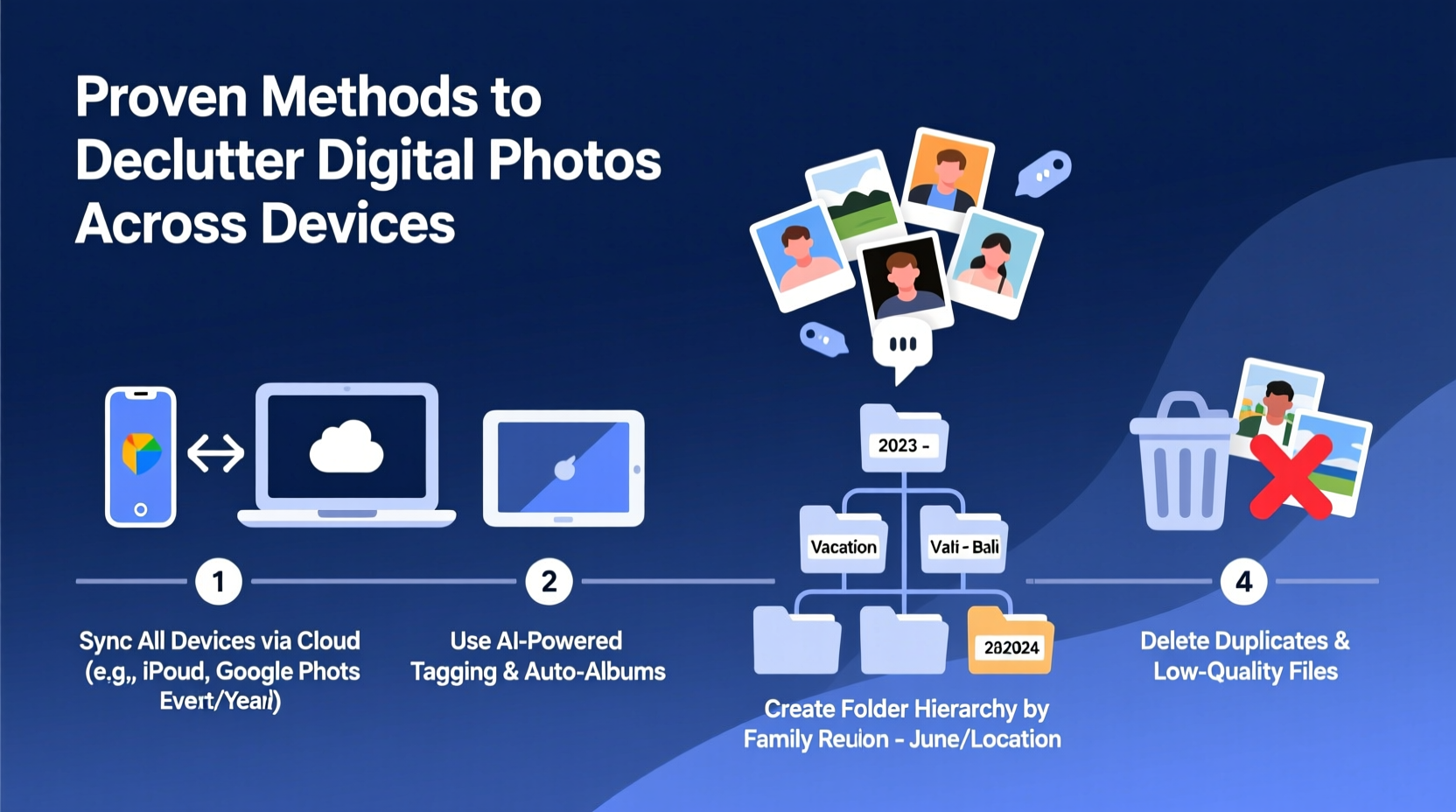
Before diving into deletion or organization, take stock of where your photos live. Most people unknowingly maintain duplicates across multiple platforms—iPhone camera roll, Google Photos, desktop folders, external drives, and social media backups. This fragmentation leads to confusion and inefficiency.
Start by mapping out every device and service where photos are stored. Common locations include:
- Smartphones (iOS and Android)
- Tablets
- Laptops and desktops
- Cloud services (iCloud, Google Photos, Dropbox, OneDrive)
- External hard drives or NAS devices
- Social media archives (Facebook, Instagram)
Once you’ve identified all sources, estimate the volume of photos in each location. Many cloud platforms provide analytics—Google Photos, for example, shows total photo count and storage used. On macOS, use Photos.app; on Windows, explore File Explorer under “Pictures.” Awareness is the first step toward control.
Create a Unified Backup Strategy
One of the biggest obstacles to effective photo management is the fear of losing something irreplaceable. That anxiety often prevents decisive action. To overcome this, establish a reliable backup system before making any deletions.
A robust backup strategy follows the 3-2-1 rule: keep three copies of your data, on two different media types, with one copy offsite. For photos, this typically means:
- Main device: Your primary phone or computer.
- Secondary storage: An external hard drive or NAS.
- Offsite/cloud copy: iCloud, Google Photos, or another encrypted cloud service.
Automate backups wherever possible. Enable iCloud Photos on Apple devices or Google Photos sync on Android. Set your computer to back up to an external drive weekly using tools like Time Machine (macOS) or File History (Windows). Once backups are verified, you gain the confidence to edit and delete without risk.
“People don’t need more storage—they need better systems. A consistent backup removes the emotional barrier to deleting bad or duplicate photos.” — Dr. Lena Patel, Digital Archivist & UX Researcher at MIT Media Lab
Apply the Four-Step Decluttering Framework
With backups in place, begin the actual cleanup using a repeatable, four-phase process: Sort, Select, Store, Sync. This method ensures thoroughness while minimizing decision fatigue.
1. Sort by Date and Event
Chronological sorting is the most intuitive way to navigate large libraries. Group photos into meaningful clusters—vacations, birthdays, family gatherings, seasonal changes. Most photo apps support automatic album creation based on date, location, or facial recognition.
On iOS, use the “Years,” “Months,” and “Days” views in the Photos app. On Android, Google Photos offers “Memories” and timeline filtering. Desktop users can create dated folders (e.g., “2023-07_Japan_Trip”) for manual organization.
2. Select What to Keep
This is the core of decluttering. Be ruthless but thoughtful. Ask yourself:
- Is this photo clear and well-composed?
- Does it capture a unique moment, or is it a near-duplicate?
- Would I want to share or print this in five years?
- Does it evoke emotion or tell a story?
Delete blurry shots, accidental triggers (like pocket dials), screen captures not needed, and multiple nearly identical frames from burst mode. Retain only the best 1–3 images per scene.
3. Store with Consistent Naming and Structure
After selection, move final photos into a centralized, well-structured archive. Avoid generic names like “IMG_1234.jpg.” Instead, adopt a naming convention such as:
YYYY-MM-DD_Event_Description.jpg
Example: 2023-08-15_Sarah_Birthday_Park.jpg
Create top-level folders by year, then subfolders by month or event. This structure works across operating systems and simplifies future searches. For advanced users, consider metadata tagging using software like Adobe Bridge or Daminion.
4. Sync Across Devices
Ensure your curated collection is accessible where you need it. Use selective syncing to avoid bloating mobile storage. For instance, keep full-resolution originals on desktop and cloud, but sync only thumbnails or compressed versions to your phone.
Google Photos allows high-quality (compressed) syncing for free, preserving originals in the cloud while saving device space. iCloud offers “Optimize Mac Storage” to automatically manage local copies. Third-party tools like Syncthing enable peer-to-peer syncing without cloud dependency.
Real Example: How Maria Reclaimed Her Photo Library
Maria, a freelance photographer and mother of two, found her iPhone storage constantly full despite having 256GB. She avoided backing up because she didn’t trust automated systems and dreaded sifting through 40,000+ photos accumulated over seven years.
She began by connecting her phone to her MacBook and exporting all camera roll images to an external SSD using Image Capture. She then enabled Google Photos sync on her phone, set it to “High Quality” (free unlimited storage for non-original quality), and deleted the local copies after confirmation.
Over four weekends, she reviewed photos in batches by year. Using the “Select Best, Delete Rest” rule, she reduced her active library from 40,000 to under 6,000 curated images. She created annual folders, renamed key photos, and added keywords like “family,” “travel,” and “holidays.”
The result? Her phone now has consistent free space, her favorite memories are easy to find, and she prints a themed photo book every December without stress.
Do’s and Don’ts of Digital Photo Management
| Do’s | Don’ts |
|---|---|
| DO back up before deleting anything. | DON’T rely solely on one device or cloud provider. |
| DO use consistent folder and file naming. | DON’T leave photos scattered in “Downloads” or “Camera Roll.” |
| DO delete duplicates aggressively. | DON’T keep 20 similar sunset shots—pick the best one. |
| DO leverage facial recognition and AI tagging. | DON’T assume your cloud app organizes everything perfectly. |
| DO schedule annual photo reviews. | DON’T wait more than 12 months to clean up. |
Essential Checklist for Digital Photo Decluttering
Follow this checklist to ensure a comprehensive and sustainable cleanup:
- Inventory all devices and cloud accounts containing photos.
- Verify automatic backups are active and functioning.
- Export photos from mobile devices to a central location if needed.
- Sort images chronologically or by event.
- Review and delete blurry, duplicate, or irrelevant photos.
- Select 1–3 best images per moment or scene.
- Rename important files using a standard format (YYYY-MM-DD_Description).
- Organize into dated folders with descriptive names.
- Store master copies on external drive and cloud.
- Sync optimized versions to mobile devices.
- Set a calendar reminder for next year’s review.
Frequently Asked Questions
How do I find duplicate photos across devices?
Duplicate detection requires specialized tools. On desktop, use Duplicate Photo Cleaner (Windows), Gemini Photos (Mac/iOS), or VisiPics (free). These scan by visual similarity, not just filename, catching duplicates even if resized or edited. Cloud services like Google Photos flag obvious duplicates but may miss subtle ones.
Should I keep original RAW files or just JPEGs?
If you shoot in RAW, keep originals only if you edit photos professionally or plan future adjustments. For casual snapshots, JPEGs are sufficient. Store RAW files in a separate “RAW” subfolder to avoid cluttering your main library. Compress them using lossless formats like DNG if space is limited.
What’s the best cloud service for photo storage?
It depends on your ecosystem. iCloud Photos integrates seamlessly with Apple devices but charges for extra storage. Google Photos offers free high-quality uploads (non-original) and powerful search, ideal for Android users. Amazon Prime Photos gives unlimited full-resolution storage for Prime members. For privacy-focused users, pCloud or iDrive offer encrypted, paid plans with lifetime options.
Take Control of Your Digital Memories
Decluttering digital photos isn’t a one-time chore—it’s an ongoing practice of intentionality. Just as we tidy our homes to reduce stress and improve function, organizing our digital lives brings mental clarity and deeper appreciation for the moments that matter. The methods outlined here—assessment, backup, systematic sorting, and consistent storage—are proven to work across thousands of users, from busy parents to professional creators.
You don’t need to do it all at once. Start small: dedicate 30 minutes this week to review last month’s photos, delete duplicates, and back up your keepers. Build momentum over time. Within a year, you’ll have transformed chaos into a curated, accessible archive—one that reflects your life with purpose, not just volume.




 浙公网安备
33010002000092号
浙公网安备
33010002000092号 浙B2-20120091-4
Comments
No comments yet. Why don't you start the discussion?