
When your PlayStation 4 won’t turn on, freezes during startup, or refuses to read discs, it can feel like a major setback—especially if you're in the middle of an intense gaming session or hosting friends for multiplayer night. But before you assume the worst or rush to replace your console, most PS4 problems have simple, do-it-yourself solutions. This guide walks through proven troubleshooting methods that address the most frequent causes of PS4 malfunctions, from power failures to software glitches. With clear steps and expert-backed insights, you’ll be equipped to diagnose and resolve the issue quickly.
Check the Power Supply First
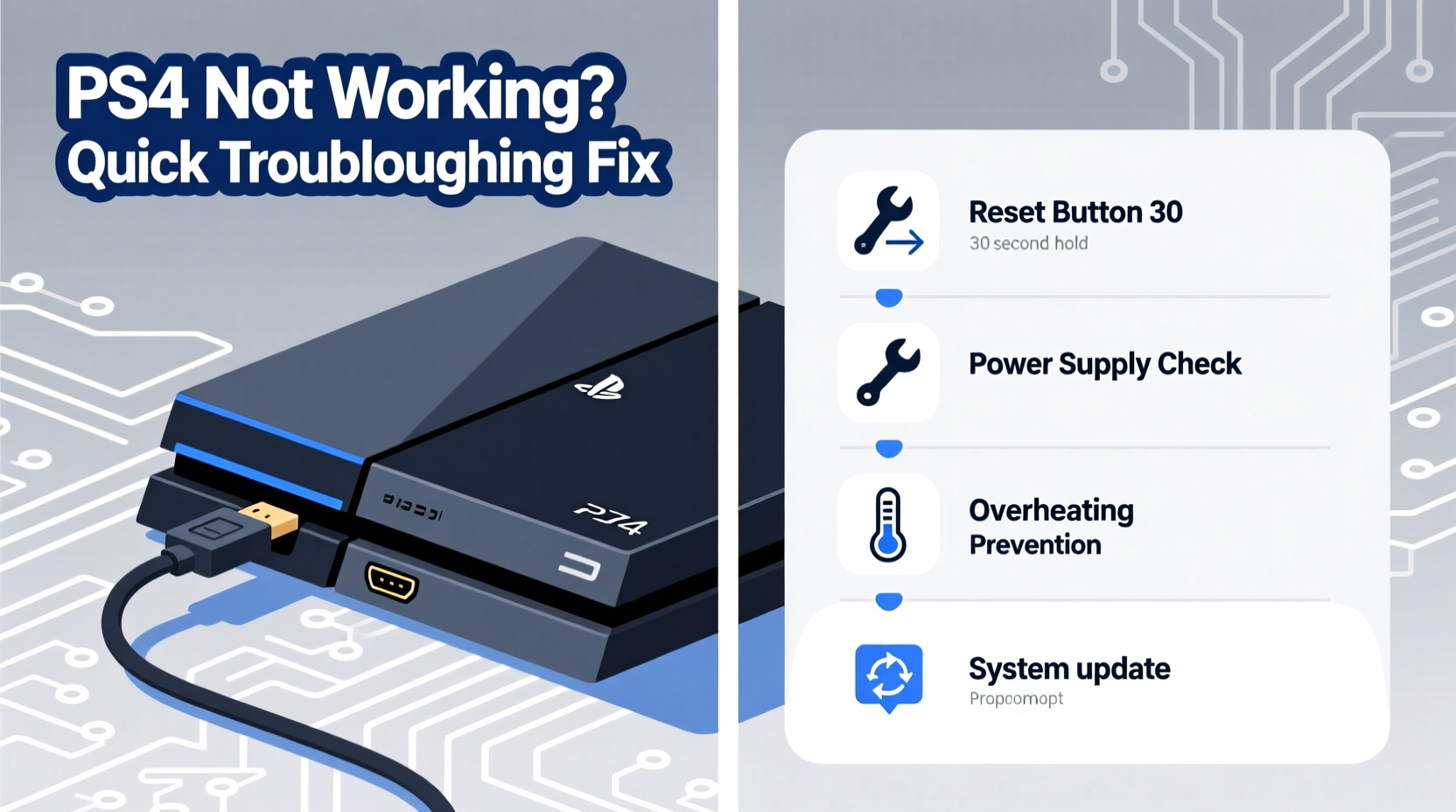
One of the most common reasons a PS4 appears “not working” is a faulty power connection. Before diving into complex fixes, verify the basics:
- Ensure the power cable is securely plugged into both the console and the wall outlet.
- Test the outlet with another device to confirm it’s delivering power.
- Inspect the power cord for visible damage—frayed wires or bent connectors can interrupt electricity flow.
- If using a surge protector or power strip, bypass it temporarily by plugging directly into the wall.
If the console still doesn’t respond, press and hold the power button on the front of the PS4 for at least 7 seconds. You should hear a single beep. If nothing happens, the issue may lie within the power supply unit (PSU) or motherboard.
Diagnose Startup Issues with Safe Mode
When the PS4 powers on but gets stuck on a black screen, displays error codes, or loops during boot-up, entering Safe Mode can help isolate software-related problems. Safe Mode allows you to perform system-level repairs without losing all your data.
- Turn off the PS4 completely (unplug if necessary).
- Press and hold the power button until you hear two consecutive beeps—one after about 5 seconds, and another after 7–8 seconds.
- Connect your DualShock 4 controller via USB and press the PS button.
- A menu will appear on-screen with several options.
| Safe Mode Option | Purpose |
|---|---|
| Restart PS4 | Soft reboot; resolves temporary glitches. |
| Change Resolution | Fixes display issues when TV compatibility is suspect. |
| Update System Software | Installs latest firmware over USB or internet. |
| Rebuild Database | Scans storage and fixes corrupted file indexing. |
| Initialize PS4 (Reinstall System) | Full reset—use only as last resort. |
The “Rebuild Database” option is particularly effective for slow performance or games failing to launch. It doesn’t delete user data but reorganizes how files are accessed, often restoring normal function.
“Over 60% of PS4 boot issues stem from corrupted databases or outdated firmware. Safe Mode tools resolve most without requiring hardware intervention.” — Carlos Mendez, Senior Console Technician at GameFix Labs
Address Overheating and Hardware Failures
Excessive heat is a leading cause of long-term PS4 failure. Dust buildup, poor ventilation, or prolonged use can trigger thermal shutdowns, red light blinking, or even permanent damage.
Signs of overheating include:
- Fan running louder than usual
- Console shutting down unexpectedly
- Red light on the power indicator (in older models)
- Burning smell near vents
To prevent or correct overheating:
- Power down the console and unplug it.
- Clean air vents using compressed air—do not use vacuum cleaners, which generate static.
- Place the PS4 vertically or horizontally in a well-ventilated area, away from walls or enclosed shelves.
- Consider applying new thermal paste to the CPU/GPU every 2–3 years, especially if the console is heavily used.
Mini Case Study: Recovering from a Yellow Light of Death
Mark, a college student in Austin, noticed his PS4 Slim wouldn’t power past a flickering yellow light. After checking cables and trying a different outlet, he suspected hardware failure. Instead of replacing it, he opened the side panel and found thick dust clogging the fan and heatsink. Using compressed air and a soft brush, he cleaned the internals thoroughly. Upon reassembly, the console booted normally. He now cleans it every six months and uses a cooling stand—no further issues in over a year.
Fix Disc Reading and HDMI Output Problems
Two frustrating but common PS4 issues involve disc recognition and video output. A disc that spins but isn’t read, or a blank screen despite the console appearing on, often has straightforward fixes.
Disc Drive Troubleshooting
- Clean the game disc with a microfiber cloth, wiping from center to edge.
- Try a different disc to rule out media-specific issues.
- Use Safe Mode > Rebuild Database to refresh disc access permissions.
- If no disc is recognized, the laser lens may need cleaning or replacement.
HDMI and Display Fixes
- Swap HDMI cables with a known-working one (preferably high-speed).
- Connect directly to the TV—avoid HDMI switchers or soundbars initially.
- Boot in Safe Mode and select \"Change Resolution\" to force a lower setting compatible with older TVs.
- Update your TV’s firmware—some models have known handshake issues with PS4.
If the screen remains black but audio plays through the TV, the resolution mismatch is likely the culprit. Starting in Safe Mode and choosing the lowest resolution (e.g., 480p) often restores visibility.
Essential Troubleshooting Checklist
Before seeking professional repair, go through this step-by-step checklist:
- ✅ Confirm the power outlet works with another device
- ✅ Check that the power cable is fully inserted and undamaged
- ✅ Try a different HDMI cable and port on the TV
- ✅ Press and hold the power button for 7+ seconds to force restart
- ✅ Enter Safe Mode (double beep) and attempt a system restart
- ✅ Clean dust from vents and ensure proper airflow
- ✅ Rebuild database via Safe Mode if console boots partially
- ✅ Update system software using a USB drive if internet fails
- ✅ Test with a different controller to rule out input device errors
- ✅ Reset display settings using Safe Mode if screen stays black
Frequently Asked Questions
Why does my PS4 turn on but show no screen?
This is typically due to an HDMI connection issue, incorrect TV input selection, or incompatible resolution. Try changing the HDMI cable, switching TV inputs, or booting into Safe Mode to reset the display output.
Can I fix a PS4 that makes a loud grinding noise?
A grinding or clicking sound often indicates a failing disc drive or damaged fan. Turn off the console immediately. If the noise comes from the fan, clean or replace it. If it's from the disc drive, consider replacing the optical drive or using digital games only.
What does initializing the PS4 do?
Initializing (factory resetting) erases all data, including accounts, games, and settings. It reinstalls the operating system and can fix deep software corruption. Always back up saved data to cloud (via PS Plus) or external drive before proceeding.
Conclusion: Take Control of Your Console’s Health
Your PS4 is more resilient than it seems. Most failures aren’t terminal—they’re symptoms of avoidable issues like dust accumulation, outdated software, or loose connections. By applying these troubleshooting techniques methodically, you can restore functionality in minutes, not days. Regular maintenance, such as cleaning and timely updates, goes a long way in extending your console’s lifespan. Don’t let a glitch disrupt your gameplay. With the right knowledge, you’re already halfway to a fix.




 浙公网安备
33010002000092号
浙公网安备
33010002000092号 浙B2-20120091-4
Comments
No comments yet. Why don't you start the discussion?