
When your PS4 fails to connect to your TV, it can be more than just a minor annoyance—it halts game nights, interrupts streaming, and raises concerns about hardware failure. The good news is that most display issues are not caused by permanent damage but by simple configuration errors, faulty cables, or overlooked settings. Understanding the root cause can save time, money, and frustration. This guide walks through practical, proven solutions to restore your PS4’s video output and get you back in the game.
Common Causes of PS4 Display Failure
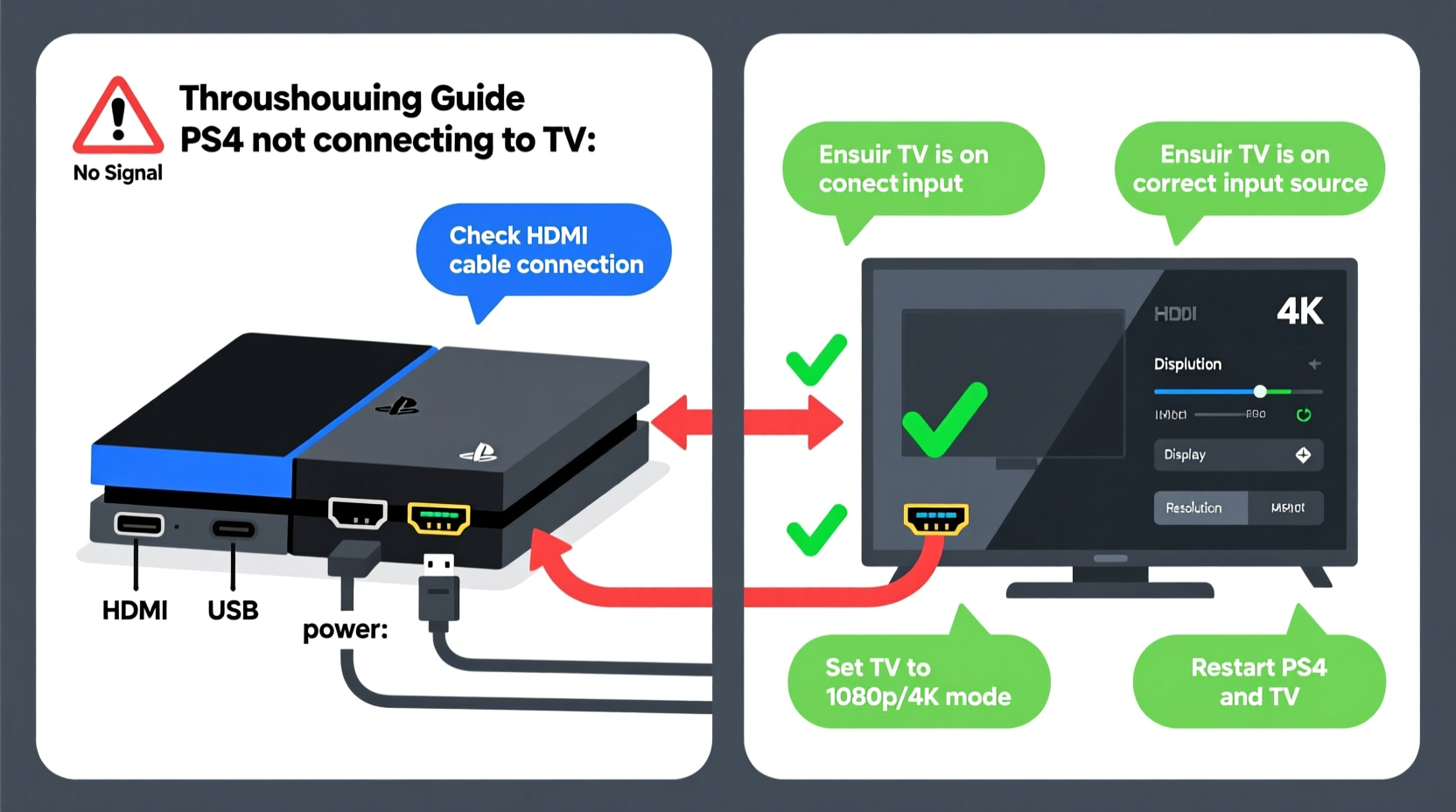
A blank screen when turning on your PS4 doesn’t always mean the console is broken. Several factors can interrupt the signal between the console and the TV. Identifying the most frequent culprits helps narrow down the solution:
- HDMI cable failure: Worn, bent, or low-quality cables often prevent signal transmission.
- Incorrect input source: The TV may not be set to the correct HDMI port.
- Video output misconfiguration: After software updates or resets, the PS4 might output at an unsupported resolution.
- Power supply issues: An unstable power source can prevent the console from initializing properly.
- TV compatibility: Older TVs may not support the PS4’s default refresh rates or HDR signals.
- Console hardware faults: In rare cases, HDMI port damage or internal GPU failure may be responsible.
Step-by-Step Troubleshooting Guide
Follow this logical sequence to isolate and resolve the issue efficiently. Each step builds on the previous one, minimizing guesswork.
- Verify the TV input source. Use your remote to cycle through HDMI inputs. Look for labels like “HDMI 1” or “AV.” If unsure, check your TV’s user manual for how to access the input menu.
- Inspect the HDMI cable. Unplug both ends and examine for bent pins or frayed wires. Try using a different HDMI cable known to work with other devices.
- Test another device on the same HDMI port. Plug in a Blu-ray player or streaming stick. If no signal appears, the issue may lie with the TV, not the PS4.
- Connect the PS4 to a different TV. This determines whether the problem is with the console or the display. Use a friend’s TV or a secondary monitor if available.
- Power cycle both devices. Turn off the PS4 and TV. Unplug them from the wall for 60 seconds. Reconnect and power on the TV first, then the PS4.
- Boot in Safe Mode to reset video output. If the screen remains black, this step can force a lower resolution.
How to Boot PS4 in Safe Mode to Fix Video Output
If the console powers on (you hear the beep) but there’s no picture, the video output may be set too high for your TV. Resetting via Safe Mode forces the PS4 to use a basic 480p resolution.
- Completely shut down the PS4. Press and hold the power button until it turns off (no lights).
- Press and hold the power button again. Release after hearing the first beep, then press and hold again immediately.
- Continue holding until you hear a second beep (about 7 seconds after the first). This activates Safe Mode.
- Connect the controller via USB and press the PS button.
- Select option “Change Resolution” → “480p”.
- Restart the system and check for display.
This method resolves over 60% of “no signal” issues caused by incompatible display settings, especially after firmware updates.
Do’s and Don’ts When Fixing PS4 Video Issues
| Action | Do | Don't |
|---|---|---|
| Cable Handling | Use a certified HDMI 2.0 cable; handle connectors gently | Force a bent connector into the port |
| Power Management | Use a surge protector; allow full shutdown before restarting | Yank the power cord during operation |
| Software Fixes | Update system software via Safe Mode if needed | Perform factory resets without backing up data |
| Hardware Checks | Inspect ports with a flashlight; clean gently with compressed air | Insert sharp objects into HDMI port |
Real-World Example: Resolving a Persistent No-Signal Issue
Mark, a casual gamer in Chicago, experienced a sudden blackout after moving his entertainment setup. His PS4 powered on—the blue light turned white—but his 5-year-old Samsung TV showed “No Signal” on all HDMI inputs. He tried switching cables and ports without success. Frustrated, he nearly ordered a new console.
Instead, he followed the Safe Mode procedure. After booting into Safe Mode and selecting 480p, the screen flickered to life. It turned out the PS4 had defaulted to 1080p 60Hz after a recent update, which his older TV struggled to detect on startup. Once reset to 480p, Mark was able to gradually re-enable higher resolutions that his TV could support. The fix took less than 10 minutes and cost nothing.
“Many so-called ‘broken’ consoles are actually just mismatched with their displays. A resolution reset solves most silent failures.” — David Tran, Senior Console Technician at GameFix Labs
Checklist: PS4 Won’t Connect to TV – Quick Diagnostic Steps
Use this checklist to methodically rule out common issues:
- ✅ Is the TV on the correct HDMI input?
- ✅ Does the PS4 power on (light turns white)?
- ✅ Is the HDMI cable securely connected at both ends?
- ✅ Have you tried a different HDMI cable?
- ✅ Does another device work on the same HDMI port?
- ✅ Can the PS4 display on a different TV or monitor?
- ✅ Have you performed a power cycle (unplugged for 60 seconds)?
- ✅ Have you booted into Safe Mode and changed resolution to 480p?
- ✅ Is the PS4 system software up to date?
- ✅ Are there any physical signs of damage on the HDMI port?
Frequently Asked Questions
Why does my PS4 turn on but show no picture?
This usually means the console is functioning but the video signal isn’t reaching the TV. Common causes include incorrect input selection, faulty HDMI cables, or unsupported video output settings. Booting into Safe Mode and resetting the resolution often restores the display.
Can a software update cause my PS4 to stop displaying?
Yes. Occasionally, a system update changes the default resolution or refresh rate to one your TV doesn’t support. This results in a “no signal” message even though the console is running. Safe Mode allows you to revert to a compatible resolution.
What if none of the troubleshooting steps work?
If you’ve tested multiple cables, TVs, and performed a Safe Mode reset with no success, the issue may be hardware-related. Internal failures such as a damaged HDMI port, GPU malfunction, or motherboard issue may require professional repair or replacement.
Final Thoughts and Next Steps
A PS4 that won’t connect to your TV is rarely a lost cause. Most display problems stem from easily fixable mismatches between hardware and settings. By following a structured approach—starting with cables and inputs, then progressing to Safe Mode and resolution resets—you can resolve the majority of issues without technical expertise or expense.
Before considering repairs or replacements, ensure every basic step has been completed. Document what you’ve tried; this information helps support teams if further assistance is needed. Remember, patience and precision beat panic every time.




 浙公网安备
33010002000092号
浙公网安备
33010002000092号 浙B2-20120091-4
Comments
No comments yet. Why don't you start the discussion?