
Choosing the right controller for PC gaming can significantly impact your experience—whether you're navigating an open-world RPG or competing in a fast-paced shooter. Two of the most popular options are the PlayStation 5's DualSense and Microsoft’s Xbox Wireless Controller (Series X|S). While both deliver high-quality performance, they differ in design, connectivity, software integration, and ergonomics. Understanding these differences helps gamers make an informed decision based on their priorities: seamless compatibility, long-term comfort, or feature-rich functionality.
Compatibility with PC: Out-of-the-Box vs Setup Required
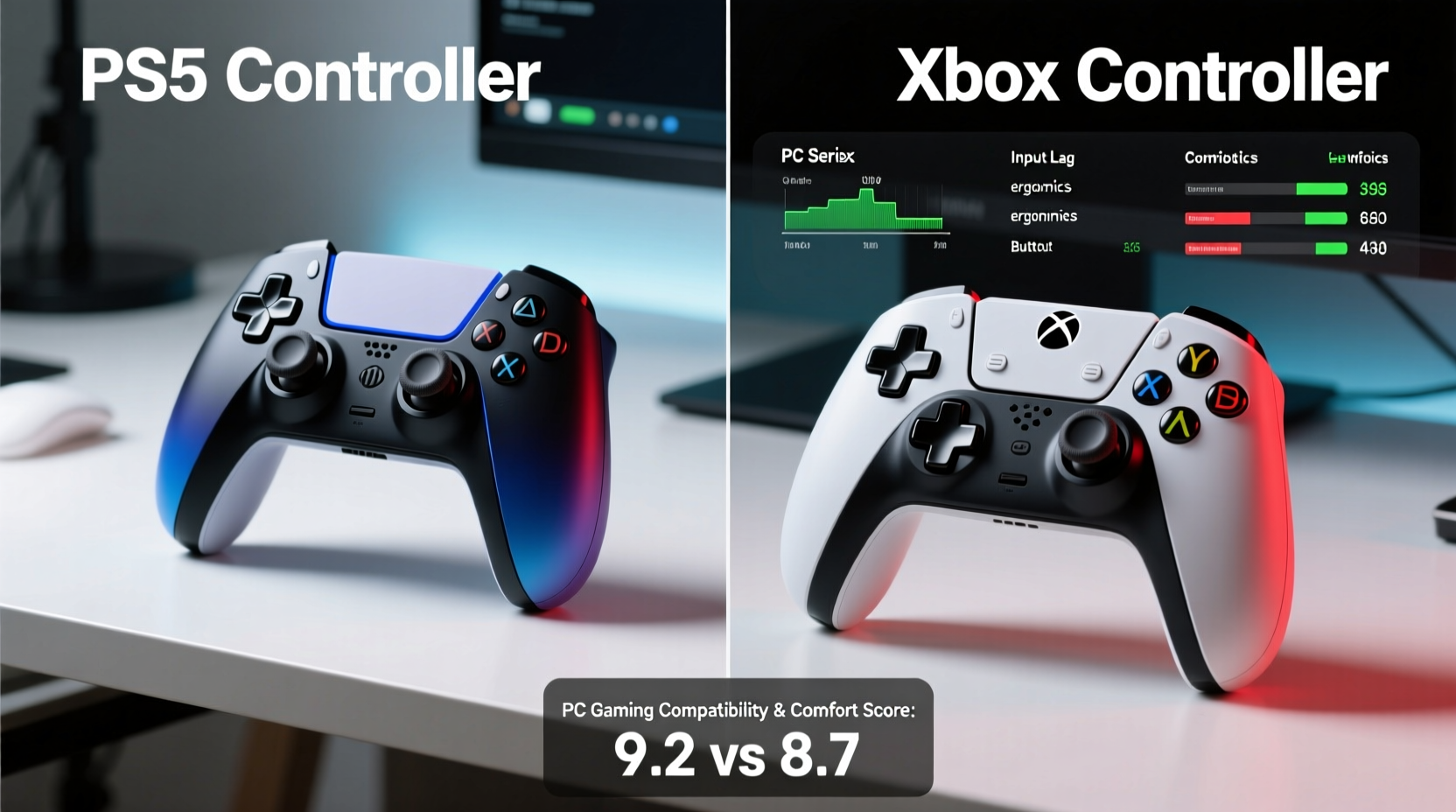
The Xbox Wireless Controller has long been considered the gold standard for plug-and-play PC gaming. Thanks to its native support through Windows’ built-in Xbox driver, connecting it via USB or Bluetooth typically requires no additional software. Simply plug it in, and Windows recognizes it as an Xbox 360 or Xbox One controller—ensuring broad compatibility across Steam, Epic Games, and other platforms.
In contrast, the PS5’s DualSense controller does not enjoy the same level of native support. While it connects easily over Bluetooth, full functionality—including haptic feedback, adaptive triggers, and proper button mapping—often requires third-party tools like DS4Windows or InputMapper. These applications bridge the gap by emulating a virtual Xbox controller, but introduce complexity and potential latency issues.
Microsoft also offers the Xbox Accessories app for Windows, allowing users to update firmware, remap buttons, and fine-tune sensitivity—all officially supported. Sony lacks a dedicated PC application for the DualSense, meaning customization remains limited unless relying on community-driven tools.
Ergonomic Design and Long-Term Comfort
Comfort during extended gaming sessions depends heavily on grip shape, weight distribution, and button layout. The Xbox controller maintains a symmetrical stick layout with slightly concave analog sticks, while the DualSense features a more contoured body and convex stick caps—an aesthetic and functional divergence rooted in each company’s design philosophy.
The Xbox controller weighs approximately 220 grams, offering a balanced feel that fits comfortably in medium to large hands. Its textured grips and gently curved back provide secure handling, reducing hand fatigue over hours of play. Many professional PC gamers favor this design due to its familiarity and consistent performance across titles.
The DualSense, at around 280 grams, feels noticeably heavier. This added mass comes from internal components powering haptics and adaptive triggers. While some appreciate the premium build quality, others report quicker onset of wrist strain during marathon sessions—especially when using wired connections that add cable tension.
“Ergonomics isn’t just about initial comfort—it’s about sustainability. A controller should feel invisible after two hours of play.” — Lena Torres, Human Factors Engineer at GameInput Labs
The trigger and bumper placement also varies. The Xbox controller places bumpers higher on the chassis, which some find easier to reach quickly in shooters. The DualSense’s lower-set bumpers suit certain hand sizes better but may require more finger movement. Ultimately, personal anatomy plays a major role; trying both controllers is the only way to determine true comfort.
Advanced Features: Haptics, Triggers, and Audio
Where the DualSense truly shines is in its next-gen sensory feedback. Unlike traditional rumble motors, it uses advanced haptic actuators capable of simulating textures—like walking on sand versus ice—or directional vibrations within the controller itself. Combined with adaptive triggers that dynamically resist input (e.g., drawing a bowstring or braking in a racing game), the immersion factor increases dramatically.
However, PC game support for these features remains inconsistent. Titles like *Returnal*, *Deathloop*, and select indie games leverage them effectively, but many mainstream releases either ignore or poorly implement haptics and trigger resistance. Without widespread adoption, these innovations often go underutilized.
The Xbox controller, by comparison, relies on standard impulse triggers and basic vibration. It lacks dynamic resistance or nuanced haptics, but delivers reliable tactile feedback across all genres. Its simplicity ensures predictable behavior, making it ideal for competitive players who prioritize responsiveness over immersion.
| Feature | DualSense (PS5) | Xbox Controller (Series X|S) |
|---|---|---|
| Native PC Support | No (requires third-party tools) | Yes (built-in driver) |
| Haptic Feedback | Advanced dual actuators | Standard vibration motors |
| Adaptive Triggers | Yes (L2/R2 variable resistance) | No |
| Battery Life | ~8–10 hours | ~30+ hours (AA batteries) |
| Connectivity | USB-C, Bluetooth | USB-C, Bluetooth, Xbox Wireless |
| Onboard Controls | Create, Options, Touchpad | View, Menu, Share |
| Weight | 280g | 220g |
| Customization Software | None official on PC | Xbox Accessories App |
Real-World Use Case: Competitive FPS Player Adapts to Both Controllers
Jamal Reed, a semi-professional *Apex Legends* player who streams on Twitch, experimented with both controllers over six months to improve his aim consistency on PC. Initially drawn to the DualSense for its immersive feedback, he found the adaptive triggers disrupted muscle memory during rapid firing sequences. “When R2 resists even slightly, my finger hesitates,” he explained. “In a split-second decision, that lag costs kills.”
He switched to the Xbox controller and immediately noticed smoother trigger response. After configuring thumbstick sensitivity via the Xbox Accessories app, his accuracy improved. However, he missed the precision haptics when playing single-player titles like *God of War: Ragnarök* via Remote Play. His solution? Dual setup—one controller for competitive multiplayer, another for narrative-driven experiences.
This hybrid approach reflects a growing trend among versatile PC gamers: matching the tool to the task rather than committing to one universal device.
Step-by-Step Guide to Setting Up Each Controller on PC
Follow these steps to get either controller fully operational on your Windows system.
Setting Up the Xbox Controller
- Connect via USB-C cable or pair via Bluetooth (Settings > Devices > Bluetooth & other devices).
- Windows automatically installs the Xbox wireless driver.
- Open the Xbox Accessories app (downloadable from Microsoft Store).
- Update firmware if prompted.
- Remap buttons or adjust dead zones as needed.
- Launch Steam and enable Xbox Configuration Support under Settings > Controller.
Setting Up the DualSense Controller
- Enable Bluetooth on your PC and put the DualSense in pairing mode (hold PS + Share until light flashes).
- Pair via Bluetooth settings. The controller will connect but may lack full functionality.
- Download DS4Windows from the official GitHub repository.
- Install and run the application; follow setup wizard to emulate an Xbox controller.
- Map touchpad functions and assign output profiles.
- Ensure \"Use DInput Only\" is unchecked to retain access to motion controls and LEDs.
- Test in-game and adjust sensitivity curves if necessary.
Checklist: Choosing the Right Controller for Your Needs
- ☐ Do you want plug-and-play functionality? → Choose Xbox controller
- ☐ Are you playing mostly AAA single-player games with haptic support? → Consider DualSense
- ☐ Prioritizing low-latency, consistent inputs for esports? → Lean toward Xbox
- ☐ Need customizable layouts and official software? → Xbox wins
- ☐ Already invested in PlayStation ecosystem (PS Plus, Remote Play)? → DualSense integrates better
- ☐ Concerned about battery longevity? → Xbox (replaceable AAs) outperforms DualSense’s internal battery
- ☐ Want maximum immersion in supported titles? → DualSense offers superior sensory feedback
Frequently Asked Questions
Can I use a PS5 controller on PC without any software?
Yes, but with limitations. You can connect the DualSense via Bluetooth, and it will function as a basic controller. However, advanced features like haptics, adaptive triggers, and proper button mapping usually require third-party tools such as DS4Windows.
Does the Xbox controller work better in Steam?
Generally, yes. Steam natively supports Xbox input layouts and provides built-in configuration templates. The Big Picture Mode and Steam Input recognize Xbox controllers instantly, enabling seamless navigation and gameplay. While Steam also supports the DualSense, optimal performance still often involves additional setup.
Which controller lasts longer on a single charge?
The Xbox controller technically doesn’t have a rechargeable battery in the traditional sense—it runs on two AA batteries, giving up to 30+ hours depending on usage. The DualSense has a built-in 1000mAh battery lasting 8–10 hours per charge. Though less convenient, replaceable batteries mean uninterrupted playtime with spares on hand.
Conclusion: Match the Controller to Your Gaming Lifestyle
The battle between the PS5 DualSense and Xbox controller for PC gaming isn’t about declaring a single winner—it’s about alignment with your habits, preferences, and technical expectations. If seamless integration, lightweight ergonomics, and competitive readiness matter most, the Xbox controller remains the pragmatic leader. But if you seek deeper immersion in story-rich games and don’t mind a bit of tinkering, the DualSense brings next-gen interactivity to your desktop.
Many gamers now maintain both—a testament to how specialized each controller has become. Rather than forcing one-size-fits-all solutions, modern PC gaming allows flexibility. Test what feels natural, optimize for your favorite genres, and remember: the best controller is the one that disappears into your hands during gameplay.




 浙公网安备
33010002000092号
浙公网安备
33010002000092号 浙B2-20120091-4
Comments
No comments yet. Why don't you start the discussion?