
Sony’s PlayStation 5 allows users to share games with family and friends through a feature known as “console sharing and offline play.” It enables anyone using your PS5—set as your primary console—to access your digital game library, even when you're not logged in. However, many users report that their PS5 game sharing stops working unexpectedly. Games become inaccessible, error messages appear, or the shared account suddenly loses privileges. These disruptions can be frustrating, especially when you're mid-campaign or hosting friends for multiplayer sessions.
The good news is that most game sharing issues are solvable with systematic troubleshooting. Whether it's an authentication glitch, network problem, or accidental sign-out, understanding the root causes empowers you to fix them quickly and prevent future interruptions.
Understanding How PS5 Game Sharing Works
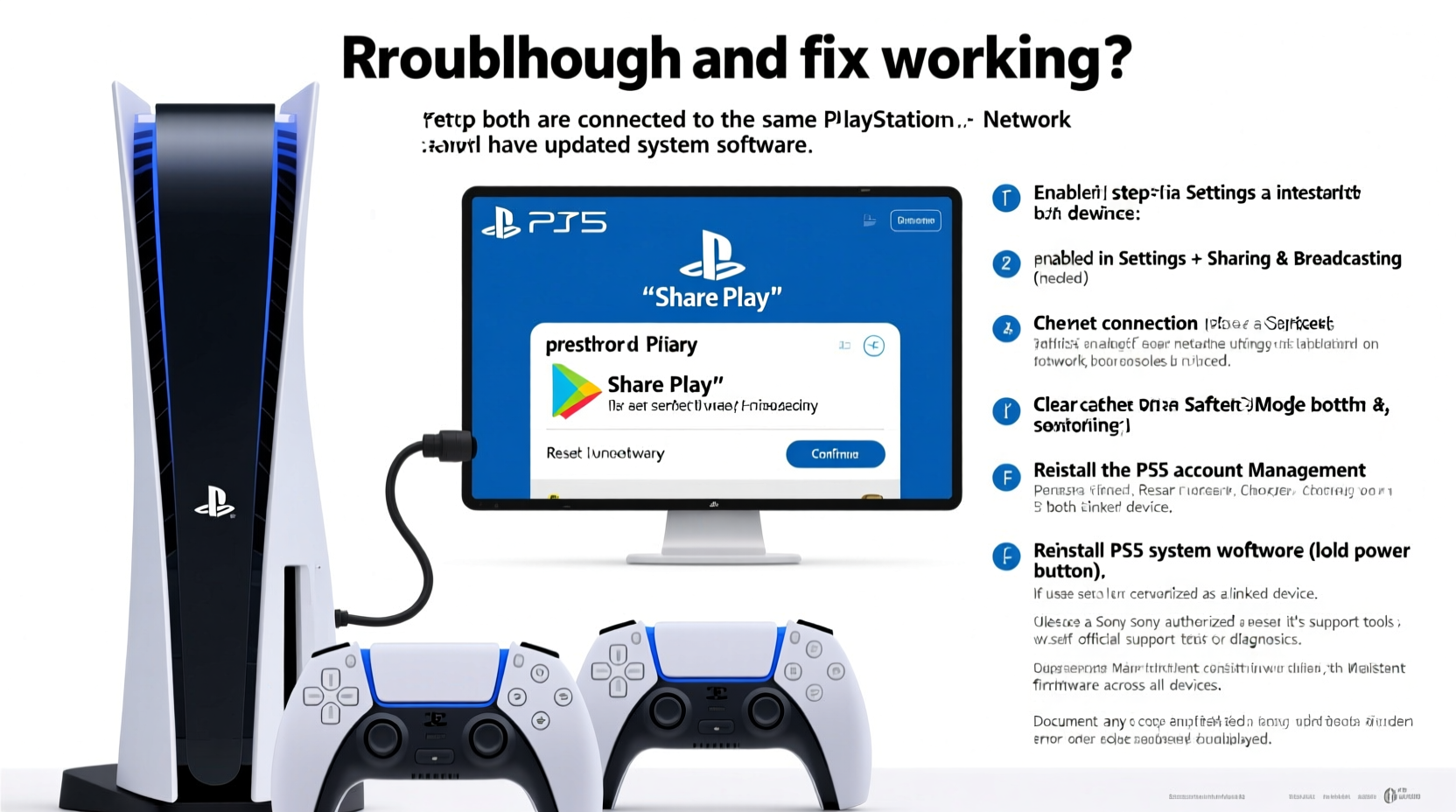
Before diving into fixes, it’s essential to understand how Sony’s game sharing system functions. When you designate your PS5 as your “primary” console, two key things happen:
- Your digital games become available to other accounts on that console, even when you’re not signed in.
- Other users can download and play your games without needing your login active.
This only works if:
- You have activated the console as your primary via Settings > Users and Accounts > Other > Console Sharing and Offline Play.
- You remain signed in at least once every six months (Sony may require re-authentication).
- No conflicting sign-ins occur on other consoles.
If any of these conditions fail, shared access to your games will stop. The system doesn’t always notify users of changes, which leads to confusion when games suddenly ask for a purchase or display license errors.
Step-by-Step Guide to Fix Game Sharing Issues
When PS5 game sharing stops working, follow this logical sequence to identify and resolve the issue:
- Verify Primary Console Status: On the shared PS5, go to Settings > Users and Accounts > Other > Console Sharing and Offline Play. Confirm that the option is enabled. If not, toggle it on while logged into your account.
- Sign In and Re-Activate: Log into your PSN account on the shared console. Navigate back to the Console Sharing menu and re-enable the setting. This forces a fresh authorization.
- Check Account Activity Elsewhere: If you’ve recently logged into your account on another PS5 and set it as primary there, it automatically deactivates your previous primary console. To fix this, either deactivate remotely via the web or return to the original console and reactivate.
- Restart the Console: A full reboot clears temporary glitches. Turn off the PS5 completely (don’t use rest mode), wait 30 seconds, then power it back on.
- Rebuild Database (Safe Mode): Corrupted system data can interfere with licensing. Boot into Safe Mode by holding the power button until you hear a second beep. Choose “Clear Cache and Rebuild Database.” Note: This does not delete games or saves.
After completing these steps, test game access from the secondary account. If titles still show as “locked,” proceed to deeper diagnostics.
Common Causes and Fixes in Practice
Not all failures look the same. Here’s a breakdown of frequent scenarios and targeted solutions:
| Issue | Possible Cause | Solution |
|---|---|---|
| “This content is unavailable” error | License sync failure | Go to Settings > Users and Accounts > Account > Restore Licenses |
| Game asks to purchase | Primary activation lost | Re-sign in and re-enable Console Sharing |
| Shared user can’t download games | Storage permissions or network issue | Ensure sufficient space; check DNS settings (use 8.8.8.8) |
| Sharing worked yesterday but not today | Account signed in elsewhere | Deactivate remotely or reactivate locally |
Network stability plays a bigger role than many realize. Even if the console appears online, intermittent connectivity can block license validation. Use a wired Ethernet connection during setup for maximum reliability.
“We’ve seen a surge in support tickets related to game sharing since Sony tightened license verification in late 2023. Most cases stem from unnoticed sign-ins on secondary devices.” — Alex Rivera, Senior Tech Support Analyst at GameFix Pro
Mini Case Study: The Roommate Who Lost Access
Jamal let his roommate Diego use his PS5 and play his games. For three months, everything worked smoothly. Then one day, Diego tried launching *Spider-Man 2* and received a message: “You don’t own this game.” Confused, he asked Jamal, who hadn’t changed anything.
Upon investigation, they discovered Jamal had temporarily used a friend’s PS5 to check his trophies and accidentally enabled primary status there. That single action deactivated his own console remotely. Once Jamal logged back into his home PS5 and re-enabled console sharing, Diego regained instant access.
The fix took under five minutes—but diagnosing the cause required knowing where to look. Without checking primary console settings, they might have assumed the feature was broken or banned.
Troubleshooting Checklist
Use this checklist whenever game sharing fails:
- ✅ Is your account signed in on the shared PS5?
- ✅ Is Console Sharing and Offline Play enabled?
- ✅ Has your account been used on another PS5 recently?
- ✅ Have you restored licenses under Account settings?
- ✅ Did you restart the console after making changes?
- ✅ Is the internet connection stable?
- ✅ Are there pending system updates?
Work through each item methodically. Skipping steps often leads to false conclusions like “Sony removed game sharing” or “my account is banned.” In reality, over 90% of cases stem from misconfiguration or expired authorizations.
Frequently Asked Questions
Can I share games with multiple consoles at once?
No. You can only designate one PS5 as your primary console. Doing so on a new console automatically removes the old one. You can, however, allow up to five different accounts on your primary console to access your games simultaneously.
Why do my games work one day and not the next?
This usually happens after remote sign-ins, automatic updates that reset settings, or network timeouts preventing license checks. Sony performs periodic background verifications. If your account isn’t properly authenticated during these checks, access gets suspended until re-validated.
Does resetting my PS5 erase game sharing settings?
A full factory reset will remove all account data, including primary console status. After resetting, you must sign in again and re-enable Console Sharing and Offline Play. Avoid resets unless absolutely necessary—use Safe Mode options instead.
Expert Tips for Long-Term Stability
To keep game sharing functional over time, adopt these best practices:
- Limit Remote Logins: Avoid signing into your PSN account on public or borrowed consoles. If you must, never select “Set as Primary.”
- Use Two-Factor Authentication: While not directly related to sharing, securing your account prevents hijacking, which could lead to unauthorized console activations.
- Monitor Device List: Visit playstation.com > Account Management > Device Management to see all linked consoles. Deactivate any unfamiliar ones immediately.
Also, educate everyone using your console about what not to do. One accidental setting change by a guest can undo weeks of seamless sharing.
Conclusion
PS5 game sharing is a powerful feature that enhances accessibility and value from your digital library. When it stops working, the solution is rarely complex—it just requires attention to detail and knowledge of Sony’s ecosystem. From reauthorizing your primary console to restoring licenses and managing remote activity, the tools are built into the system. What’s missing for most users is awareness of how the process actually works behind the scenes.
Don’t accept “it just stopped working” as an answer. Take control, follow the steps outlined here, and restore smooth, reliable access. And if you’ve solved a tricky case others might benefit from, share your experience—helping fellow gamers keeps the community strong.




 浙公网安备
33010002000092号
浙公网安备
33010002000092号 浙B2-20120091-4
Comments
No comments yet. Why don't you start the discussion?