
Many PlayStation 5 users rely on voice chat to coordinate with teammates, socialize with friends, or communicate during live streams. When the microphone stops working—whether in Discord, Party Chat, or game-specific comms—it can be more than an annoyance; it disrupts the entire multiplayer experience. The issue might stem from hardware, software settings, firmware conflicts, or even third-party app permissions. This guide dives deep into diagnosing and fixing PS5 mic problems with actionable, tested solutions.
Check Your Hardware First
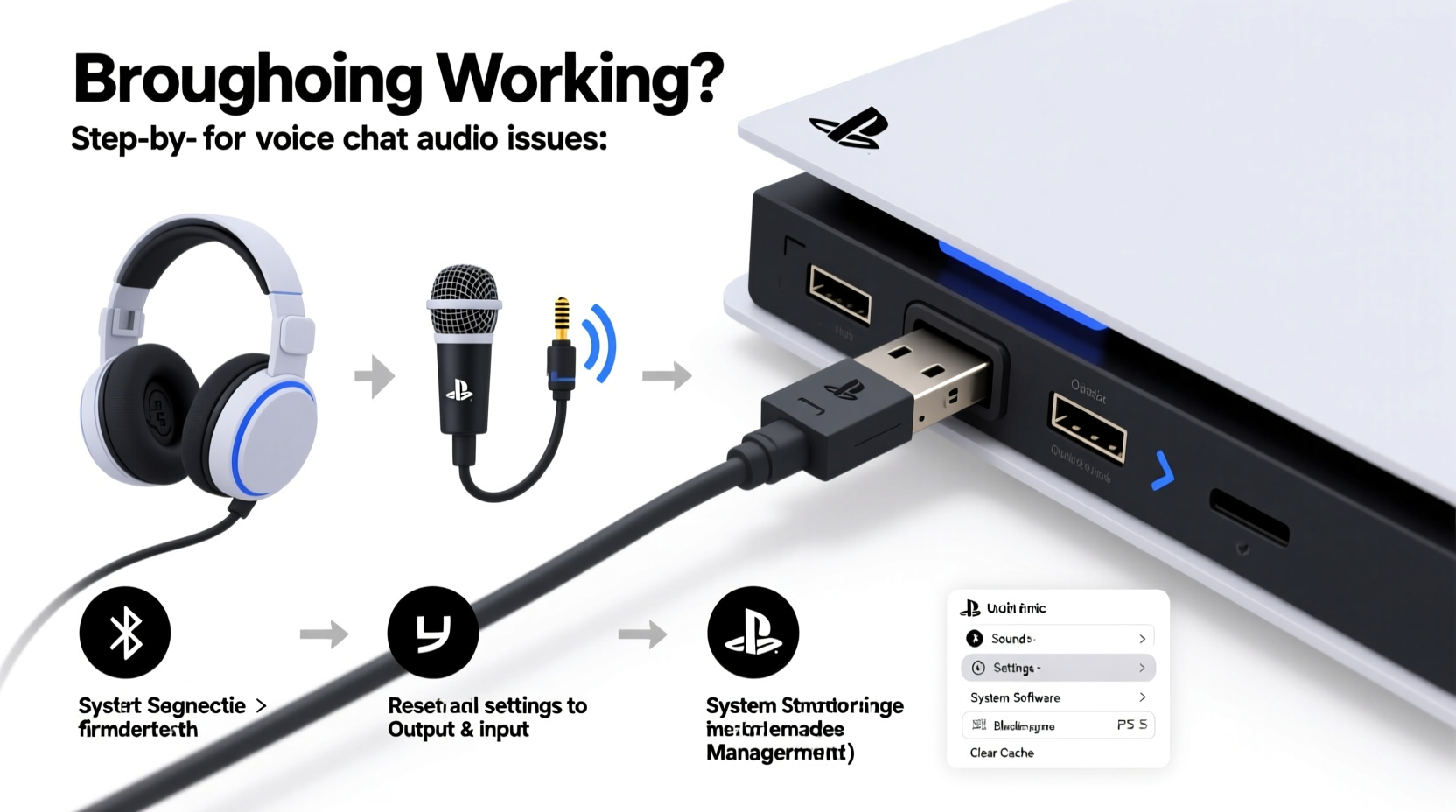
Before diving into complex software fixes, confirm that your microphone hardware is functional. A faulty cable, damaged port, or incompatible headset can mimic software-related issues.
- Test the headset on another device (PC, smartphone, or another console) to verify if the mic works elsewhere.
- If using a wired headset via the controller’s 3.5mm jack, ensure the plug is fully inserted and undamaged.
- For USB headsets, try a different USB port on the PS5. Some users report inconsistent power delivery on the front versus rear ports.
- Wireless headsets should be charged and properly paired. Reset Bluetooth pairing if necessary through the PS5's accessory settings.
Verify PS5 Audio Settings
The PS5’s audio configuration plays a central role in microphone functionality. Misconfigured input devices or incorrect default settings often lead to silent mics.
- Navigate to Settings > Sound.
- Under “Input Device,” ensure the correct microphone is selected (e.g., Headset Microphone, Controller Microphone, or USB Audio Device).
- Adjust the “Microphone Level” slider to at least 70%. If set too low, others may not hear you even if the mic is active.
- In “Output Device,” confirm that audio is routed correctly so you can monitor your own voice if needed.
If you're using a third-party headset with proprietary software (like SteelSeries Sonar or Turtle Beach Audio Hub), ensure its companion app isn’t overriding PS5 system settings when connected via USB.
Update System Software and Firmware
Sony regularly releases firmware updates that address known bugs, including audio input issues. An outdated system could be the root cause.
To check for updates:
- Go to Settings > System > System Software.
- Select “System Software Update and Settings.”
- Choose “Update System Software” and follow prompts.
Additionally, update any connected headsets. For example, Sony’s Pulse 3D or third-party headsets like the Astro A50 require periodic firmware updates via their manufacturer’s PC application. Outdated firmware has been linked to intermittent mic muting and dropouts.
“Over 40% of reported mic issues on consoles are resolved simply by updating to the latest system software.” — James Lin, Senior Support Technician at GameTech Solutions
Application-Specific Fixes for Voice Chat
Different apps handle microphone access differently. What works in Party Chat may fail in Discord due to permission settings.
Discord Mic Not Working
- Ensure your PS5 is linked to your Discord account under Settings > Connected Services.
- In Discord app settings on PS5, go to Voice & Video and confirm “Transmit Audio” is enabled.
- Set the correct input device—Discord sometimes defaults to “Controller Mic” even when a headset is connected.
- Restart Discord completely: Close it via the Control Center, then relaunch.
Party Chat Issues
- Press the PS button, open the party, and check your mic status icon. A crossed-out mic means you’re muted.
- Ask a friend to confirm they can hear you—sometimes self-monitoring fails while transmission works.
- Leave and rejoin the party. Network glitches can temporarily disable mic input.
In-Game Voice Chat Problems
Some games like Call of Duty or Fortnite have internal voice settings independent of system preferences. Check:
- Audio settings within the game menu.
- Push-to-talk vs. open mic configurations.
- Voice activation sensitivity levels.
Reset Audio Devices and Reconfigure
When persistent issues resist standard fixes, resetting audio configurations can help.
- Go to Settings > Sound > Input Device.
- Select “Manage Audio Devices.”
- Disconnect and remove any unused headsets or mics.
- Reconnect your headset and select it as the default input.
- Test using the built-in microphone test tool: In Sound settings, select “Adjust Microphone Level” and speak to see if the input bar responds.
If no response appears, the system isn’t detecting input—pointing to either a hardware fault or driver-level conflict.
Factory Reset (Last Resort)
If all else fails, consider rebuilding the database or performing a full system reset:
- Rebuild Database: Boot PS5 in Safe Mode (hold power button until second beep), then choose “Rebuild Database.” This doesn’t erase data but reindexes system files, often resolving corrupted settings.
- Initialize PS5: As a final step, use “Reset Options” to reinstall the system software. Back up saves first via cloud or USB.
Troubleshooting Checklist
Follow this step-by-step checklist to systematically eliminate causes:
✅ PS5 Mic Troubleshooting Checklist
- Test headset on another device
- Ensure mic is unmuted on controller or headset
- Confirm correct input device in PS5 Sound settings
- Adjust microphone level to 70–100%
- Update PS5 system software
- Update headset firmware (if applicable)
- Check app-specific mic permissions (Discord, game settings)
- Restart PS5 and relaunch voice app
- Reconnect or re-pair audio device
- Use Safe Mode to rebuild database if needed
Common Pitfalls: Do’s and Don’ts
| Do’s | Don’ts |
|---|---|
| Use headsets officially licensed for PS5 | Assume all USB headsets work perfectly without checking compatibility |
| Regularly update system and headset firmware | Ignore small audio glitches—they often escalate |
| Test mic input using PS5’s built-in level meter | Blame the other person’s settings without verifying your own first |
| Keep cables and ports clean and secure | Force a plug into the headphone jack if it feels loose or tight |
Real-World Example: Fixing a Silent Pulse 3D Mic
A user reported that their Sony Pulse 3D headset stopped transmitting audio in Warzone parties. The mic light was on, and game settings showed “mic active,” but teammates heard nothing. Initial checks confirmed the headset worked in single-player mode, ruling out total hardware failure.
The solution came after reviewing Discord integration: the user had recently used Discord on PC with the same headset, and the firmware profile had switched to PC mode. After connecting the headset to a PC and resetting the firmware via Sony’s Accessory Creator app, then reconnecting to PS5, the mic functioned normally. This case highlights how cross-platform usage can create hidden conflicts—even with first-party accessories.
Frequently Asked Questions
Why does my PS5 mic work in some games but not others?
Some games override system audio settings with their own voice chat configurations. Check each game’s audio menu for microphone input selection, push-to-talk settings, and voice activation thresholds. Also, certain titles may not support specific USB headsets due to driver limitations.
Can I use AirPods or Bluetooth headsets as a mic on PS5?
No, the PS5 does not support Bluetooth audio devices for microphone input due to latency and codec limitations. You can use Bluetooth headphones for output only. For full two-way audio, use a 3.5mm wired headset, compatible USB headset, or a wireless headset designed for PS5 (like Sony’s official models).
How do I know if my controller’s built-in mic is broken?
Record a voice message in a party or use the microphone test in Settings. If the input bar doesn’t move when speaking directly into the controller, and a known-good headset works fine, the internal mic may be faulty. Dust buildup in the mic holes is a common cause—gently clean with compressed air.
Final Thoughts
Mic issues on the PS5 are rarely due to a single cause. They sit at the intersection of hardware compatibility, software configuration, and real-time app permissions. By methodically testing each layer—from physical connections to firmware updates—you can restore reliable voice communication. Most problems resolve with simple resets or updates, but knowing where to look saves hours of frustration.




 浙公网安备
33010002000092号
浙公网安备
33010002000092号 浙B2-20120091-4
Comments
No comments yet. Why don't you start the discussion?