
When your PS5 fails to connect properly to your TV—resulting in no picture, distorted visuals, or missing audio—it can be incredibly frustrating. You've powered up the console, but the screen stays black or flickers briefly before going dark. The controller connects, but there's no sign of life from your display. This issue affects many users, especially after a system update, relocation, or new TV setup. Fortunately, most problems are solvable without professional repair. By systematically checking connections, settings, and hardware compatibility, you can restore full functionality to your gaming experience.
Check Physical Connections First
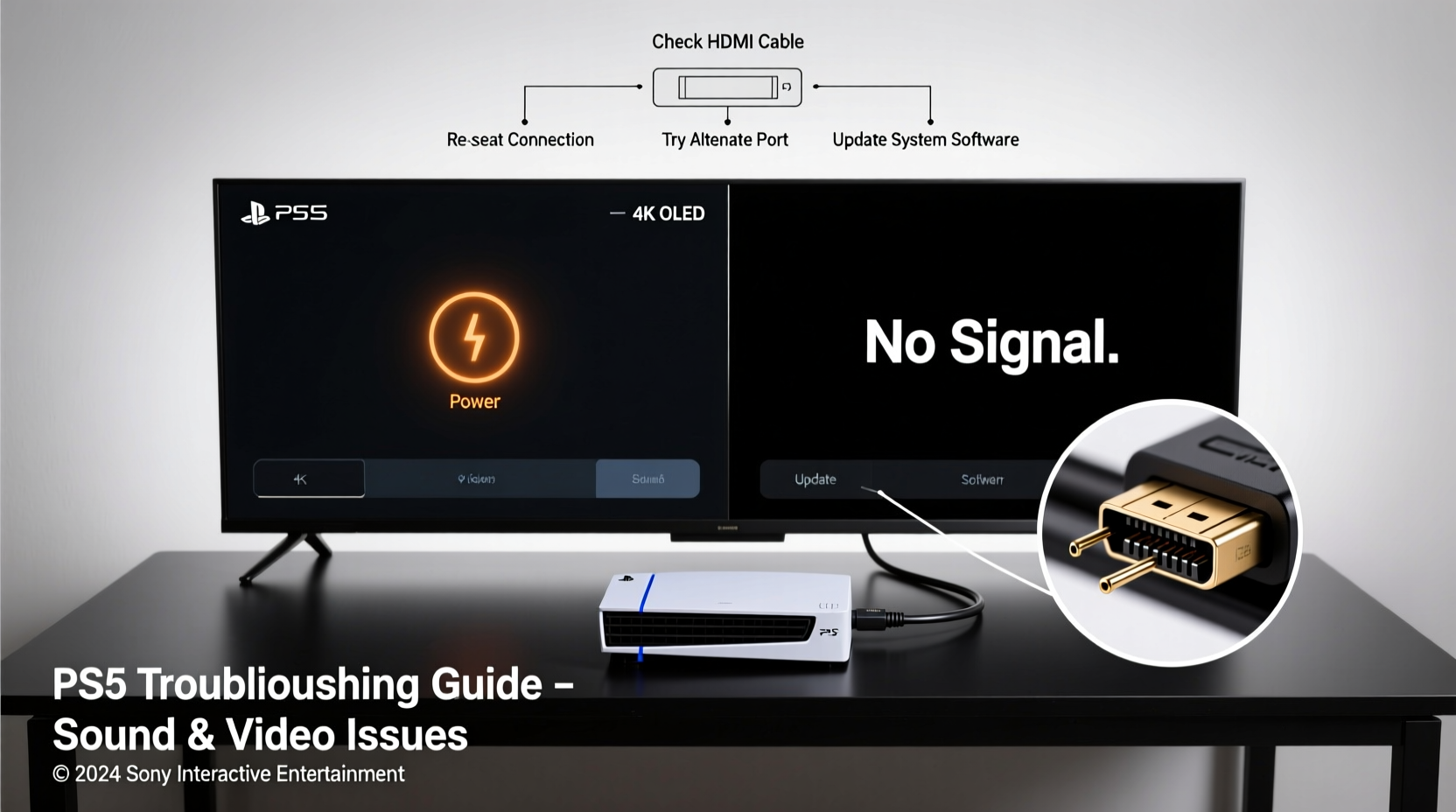
The foundation of any successful AV setup is a solid physical connection. Before diving into complex diagnostics, verify that all cables are securely connected and undamaged.
- Ensure the HDMI cable is firmly plugged into both the PS5 and the TV.
- Confirm you’re using the HDMI port labeled “HDMI 2” or “HDMI ARC” on your TV—this is typically optimized for high-bandwidth devices like the PS5.
- Inspect the HDMI cable for visible damage such as bent pins, fraying, or kinks.
- Try switching HDMI ports on your TV and update the input source accordingly.
Restart and Reset: The First Line of Defense
Many PS5 connection issues resolve after a simple reboot sequence. A power cycle clears temporary glitches in both the console and TV.
- Turn off the PS5 completely by holding the power button until it beeps twice.
- Unplug the power cord from the back of the console for at least one minute.
- Disconnect the HDMI cable from both ends.
- Power off your TV and unplug it from the wall outlet for 30 seconds.
- Reconnect everything, plug both devices back in, and power them on in this order: TV first, then PS5.
This process resets the HDMI handshake—the communication protocol between devices that establishes video and audio transmission. If the screen lights up after this, the issue was likely a transient signal failure.
HDMI Port and Cable Compatibility Issues
The PS5 requires an HDMI 2.1-compatible connection to deliver its full performance, including 4K resolution at high refresh rates. Not all TVs or HDMI cables support this standard, which can lead to blank screens or unstable signals.
Older HDMI cables (such as those rated for 1.4 or 2.0) may not handle the data throughput needed for modern consoles. Similarly, some budget TVs lack full HDMI 2.1 implementation despite marketing claims.
| HDMI Version | Max Bandwidth | Supports PS5 Features? | Common Issues if Used |
|---|---|---|---|
| HDMI 1.4 | 10.2 Gbps | No | No 4K@60Hz+, limited HDR, frequent dropouts |
| HDMI 2.0 | 18 Gbps | Limited | May work at 4K@60Hz but no 120Hz; possible audio sync issues |
| HDMI 2.1 (Certified) | 48 Gbps | Yes | Fully supports 4K@120Hz, VRR, ALLM, HDR |
Safe Mode Boot and Display Settings Reset
If the screen remains black even after checking cables and restarting, boot your PS5 in Safe Mode to adjust display settings manually.
- Completely turn off the PS5 by holding the power button until it shuts down.
- Press and hold the power button again. Release after hearing the first beep, then press and hold once more after about five seconds until you hear a second beep (~7 seconds total).
- Connect your DualSense controller via USB cable and press the PS button.
- Select “Change Video Output” from the Safe Mode menu.
- Choose lower resolution options like 1080p or even 720p to test compatibility.
This forces the PS5 to output a basic signal that most TVs can interpret. If the screen appears, gradually increase resolution and re-enable HDR or VRR through Settings > Screen and Video.
“Over half of reported ‘no signal’ cases stem from mismatched HDMI capabilities or incorrect output settings. Starting low and scaling up resolves most.” — Alex Tran, Senior Console Technician at GameFix Labs
Audio Troubleshooting: No Sound Despite Picture
Sometimes the image appears, but there’s no sound. This often relates to audio format mismatches or incorrect TV/audio system configurations.
- Navigate to Settings > Sound > Audio Output and ensure the format is set to something your TV supports (e.g., LPCM for simplicity).
- If using a soundbar or AV receiver, disable passthrough formats like Bitstream (Dolby) temporarily.
- Check that the TV’s volume isn’t muted and that external speakers aren’t disconnected.
- Test with headphones connected directly to the DualSense controller to isolate whether the issue is with the console or display device.
Mini Case Study: Sarah’s 4-Year-Old TV Struggles with PS5
Sarah purchased a PS5 during the holiday season and connected it to her four-year-old 4K TV. The screen stayed black, though the console booted normally. After trying multiple restarts, she used the Safe Mode method and reset the video output to 1080p. The system loaded. She discovered her TV only supported HDMI 2.0 on one port—and she had plugged into the wrong one. Switching ports and using the included Ultra High Speed HDMI cable resolved the issue. HDR and 4K@60Hz now work flawlessly.
Preventive Checklist for Future Stability
To avoid recurring connection problems, follow this actionable checklist regularly:
- ✅ Use the original or certified Ultra High Speed HDMI cable
- ✅ Plug into the correct HDMI port (usually HDMI 2 or ARC)
- ✅ Keep system software updated
- ✅ Disable HDR temporarily if troubleshooting
- ✅ Perform monthly power cycles to clear cache
- ✅ Verify TV firmware is up to date
Frequently Asked Questions
Why does my PS5 show a blue light but no picture?
A steady blue light means the console is powered on and attempting to communicate with the TV. No picture usually indicates a failed HDMI handshake, incompatible cable, or incorrect input selection. Try changing the HDMI port, using a different cable, or resetting video output via Safe Mode.
Can a faulty HDMI port on the PS5 cause no display?
Yes. While rare, physical damage or manufacturing defects can affect the HDMI port. If all other troubleshooting steps fail—including testing with another TV or monitor—it may require Sony service center repair.
Does turning off HDR help fix connection issues?
Yes. Some older or mid-tier TVs struggle with automatic HDR negotiation. Disabling HDR in Settings > Screen and Video > Video Output can stabilize the connection. Re-enable it once the base signal is working.
Conclusion: Regain Control Over Your Gaming Setup
Dealing with a PS5 that won’t connect to your TV doesn’t have to mean a trip to customer support or replacing hardware prematurely. Most issues stem from overlooked details—like using the wrong HDMI port, an outdated cable, or misconfigured display settings. By methodically testing each component and leveraging built-in tools like Safe Mode, you can diagnose and resolve the problem efficiently. Understanding your equipment’s limitations and ensuring compatibility goes a long way toward preventing future disruptions.




 浙公网安备
33010002000092号
浙公网安备
33010002000092号 浙B2-20120091-4
Comments
No comments yet. Why don't you start the discussion?