
If your Razer mouse has suddenly stopped moving or is responding erratically, it can disrupt everything from gaming sessions to daily productivity. While Razer devices are known for their precision and durability, even the best peripherals can run into technical hiccups. The good news is that most issues causing a non-responsive or frozen mouse cursor are fixable—often without needing professional repair or replacement.
This guide walks through the most common causes behind a Razer mouse not moving and provides detailed, step-by-step solutions. Whether the problem lies in software, hardware, or environmental factors, you’ll find actionable advice to restore smooth tracking and reliable performance.
Check Physical Connections and Power Source
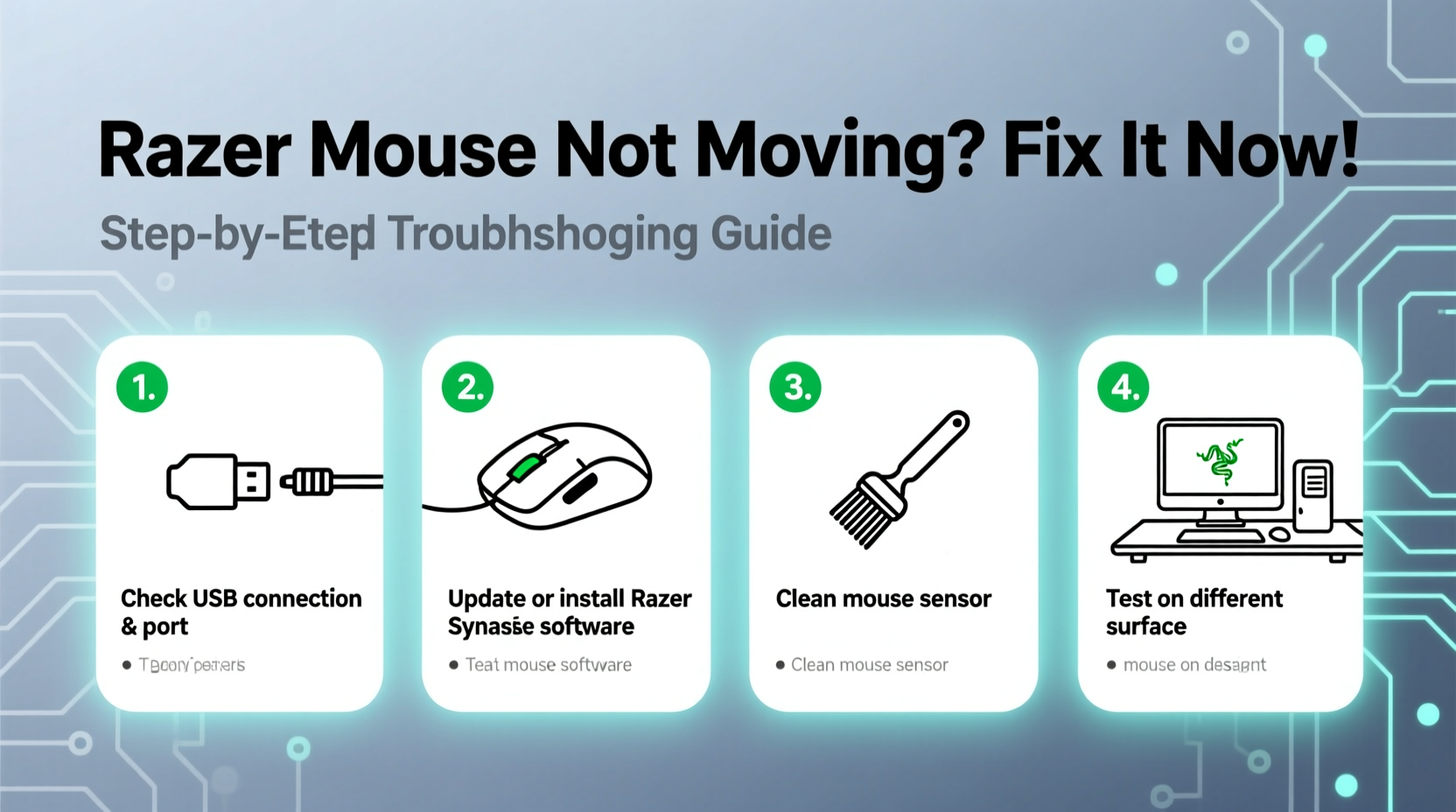
The first step in diagnosing a non-moving Razer mouse is verifying its physical condition and connectivity. Even high-end mice depend on stable power and communication links with your computer.
For wired models, ensure the USB cable is securely plugged into both the mouse and the computer. Try a different USB port—preferably one directly on the motherboard rather than a hub or extension. Loose connections or faulty ports can interrupt data flow, making the mouse appear unresponsive.
Wireless Razer mice require extra attention to battery levels and signal stability. If using Bluetooth, confirm the connection is active in your system settings. For models using a wireless dongle (like the Razer HyperSpeed), make sure the receiver is properly inserted and not obstructed.
Verify Surface and Sensor Performance
Razer mice use optical or laser sensors that rely on consistent surface feedback. A dirty sensor or unsuitable mousepad can cause erratic behavior or complete lack of movement.
Inspect the sensor lens located beneath the mouse. Use a soft, dry cloth or compressed air to gently remove dust, hair, or debris. Avoid using liquids or abrasive materials that could damage the lens coating.
Test the mouse on a plain, non-reflective surface. Glass, glossy tables, or patterned mousepads often interfere with sensor tracking. Razer recommends using their official mousepads for optimal performance, but any matte, neutral-colored surface works well.
“Even minor smudges on the sensor can throw off DPI accuracy. Cleaning should be part of regular maintenance.” — Jordan Lee, Peripheral Hardware Engineer
Update or Reinstall Drivers and Razer Synapse
Outdated or corrupted drivers are among the top causes of mouse malfunctions. Razer devices depend heavily on proper driver integration and the Razer Synapse software suite for full functionality.
To resolve this:
- Visit the Razer Support website.
- Navigate to your specific mouse model.
- Download and install the latest firmware and driver updates.
If Synapse isn’t detecting your mouse, uninstall it completely using the official Razer Cleanup Tool (available on their support page), then reinstall the latest version. This clears configuration conflicts and registry errors that may prevent proper recognition.
Additionally, check Windows Device Manager:
- Press Win + X and select Device Manager.
- Expand Mice and other pointing devices.
- Right-click your Razer mouse and choose Update driver.
- Select Search automatically for updated driver software.
If the device shows an error icon, uninstall it from Device Manager and reconnect the mouse to trigger a fresh driver installation.
Step-by-Step Troubleshooting Timeline
Follow this logical sequence to efficiently diagnose and fix a non-moving Razer mouse:
- 0–5 minutes: Inspect physical connections and clean the sensor.
- 5–10 minutes: Test the mouse on another surface and computer.
- 10–15 minutes: Restart your PC with the mouse unplugged, then reconnect.
- 15–25 minutes: Update or reinstall Razer Synapse and device drivers.
- 25–35 minutes: Disable conflicting software (e.g., third-party mouse utilities).
- 35–45 minutes: Reset the mouse to factory settings via Synapse or hardware reset (if supported).
This timeline ensures no critical step is skipped and prevents redundant efforts. Most users resolve the issue within the first 20 minutes by addressing driver or surface-related problems.
Common Software Conflicts and Fixes
Third-party applications can interfere with Razer device operation. Mouse acceleration tools, macro programs, or competing RGB control software may override input signals or block device access.
Temporarily disable or uninstall such programs to test mouse responsiveness. Also, check Windows settings:
- Go to Settings > Devices > Mouse.
- Ensure “Additional mouse options” aren’t enabling pointer trails or enhanced pointer precision, which can affect perceived movement.
- Disable any active accessibility features like Mouse Keys.
Running too many background processes can also delay USB polling rates. Close unnecessary apps and consider switching to High-Performance power mode in Windows to maintain consistent USB power delivery.
Troubleshooting Checklist
- ✅ Clean the sensor lens with a dry microfiber cloth
- ✅ Plug into a different USB port (avoid hubs)
- ✅ Test on a non-reflective, flat surface
- ✅ Charge or replace batteries (wireless models)
- ✅ Update Razer Synapse and device drivers
- ✅ Uninstall and reinstall Synapse using cleanup tool
- ✅ Check Device Manager for driver errors
- ✅ Disable conflicting mouse or input software
- ✅ Restart your computer with the mouse disconnected
- ✅ Test the mouse on another system
Do’s and Don’ts When Fixing Mouse Movement Issues
| Do’s | Don’ts |
|---|---|
| Use a soft cloth to clean the sensor | Use alcohol or cleaning sprays on the sensor |
| Update firmware via official Razer sources | Ignore outdated Synapse notifications |
| Test on multiple surfaces | Assume the mouse is broken after one failed test |
| Restart your PC after driver changes | Overlook power-saving USB settings |
| Use Razer-certified accessories | Force firmware updates from unverified sites |
Real Example: Resolving a Frozen Basilisk V3
A user reported that their Razer Basilisk V3 stopped moving mid-game. The cursor was frozen, though button clicks still registered. Initial checks showed the sensor glowing red, indicating power, but no tracking.
After testing on another PC with no success, they inspected the sensor and found a small thread lodged inside. Removing it restored partial movement, but tracking remained jittery. They then uninstalled Synapse using the cleanup tool, reinstalled the latest version, and updated the firmware. Upon reboot, the mouse worked flawlessly.
This case highlights how multiple factors—physical obstruction and software misconfiguration—can combine to create a complex-seeming issue that’s actually solvable with systematic troubleshooting.
Frequently Asked Questions
Why does my Razer mouse turn on but not move?
The LED lighting indicates power, but movement depends on the sensor and driver communication. A dirty sensor, incompatible surface, or driver crash can allow power while disabling tracking. Follow cleaning and update procedures to restore function.
Can I use my Razer mouse without Synapse?
Yes, basic movement and clicking work without Synapse. However, advanced features like DPI adjustment, button remapping, and RGB lighting require the software. If Synapse causes instability, use the device in default mode while troubleshooting.
How do I reset my Razer mouse to factory settings?
Some models support hardware resets. For example, hold the left and right buttons plus the scroll wheel for 10 seconds while plugging in the mouse. Otherwise, resetting within Synapse or reinstalling drivers achieves a similar effect.
Final Steps and When to Seek Help
In most cases, combining sensor maintenance, driver updates, and environment adjustments resolves a Razer mouse not moving. Persistence pays off—many users give up after one failed attempt, missing simple fixes just a few steps away.
If all troubleshooting fails and the mouse doesn’t work on multiple systems, contact Razer Support. Registered devices under warranty may qualify for replacement or repair. Keep proof of purchase handy and provide detailed descriptions of the steps you’ve already taken.




 浙公网安备
33010002000092号
浙公网安备
33010002000092号 浙B2-20120091-4
Comments
No comments yet. Why don't you start the discussion?