
ReCAPTCHA is a critical tool used across millions of websites to distinguish human users from bots. Whether you're logging into an account, submitting a form, or signing up for a service, encountering a malfunctioning ReCAPTCHA can be frustrating. It may appear as a blank box, fail to verify despite correct interaction, or simply refuse to load. These issues often stem from browser settings, connectivity problems, or interference from privacy tools. Understanding the root causes and knowing how to address them systematically can save time and restore access quickly.
Why ReCAPTCHA Fails: Common Technical Causes
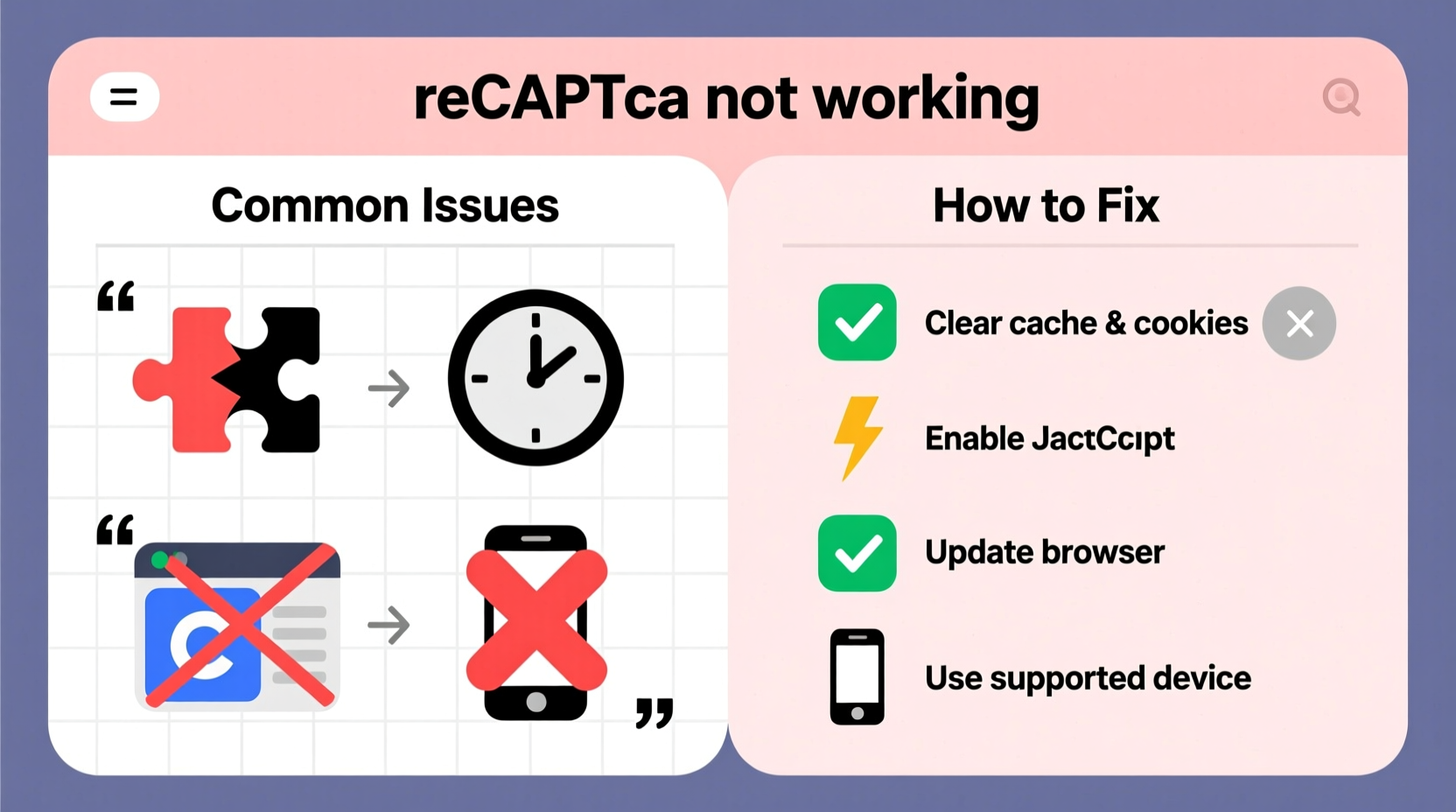
Google's reCAPTCHA relies on JavaScript, cookies, and secure connections to function properly. When any part of this system breaks down, the verification process stalls. The most frequent technical culprits include:
- Disabled JavaScript: ReCAPTCHA requires JavaScript to run. If it’s turned off in your browser, the widget won’t load.
- Browser extensions blocking scripts: Ad blockers, anti-tracking tools, or privacy add-ons like uBlock Origin or Privacy Badger may interfere with Google’s reCAPTCHA domain.
- Outdated browser version: Older browsers may lack support for modern web standards needed by reCAPTCHA v2 or v3.
- DNS or network filtering: Some networks (especially corporate or school networks) block external domains, including Google’s reCAPTCHA servers.
- Incorrect system date and time: SSL certificates depend on accurate timestamps. A misconfigured clock can prevent secure connections to reCAPTCHA services.
Step-by-Step Guide to Fix ReCAPTCHA Issues
Follow this structured troubleshooting sequence to identify and resolve the issue efficiently.
- Refresh the page – Sometimes, a temporary glitch prevents loading. A simple refresh may resolve it.
- Check your internet connection – Ensure you have stable connectivity. Try loading other Google services (like Gmail or YouTube) to confirm.
- Clear browser cache and cookies – Corrupted or outdated cache data can break script execution. Clear both and reload the page.
- Disable browser extensions temporarily – Turn off ad blockers, script blockers, and privacy tools one by one to isolate the culprit.
- Enable JavaScript – Confirm JavaScript is enabled in your browser settings. Most modern sites depend on it.
- Verify system date and time – Incorrect time settings disrupt HTTPS connections. Set your device to update time automatically.
- Try a different browser – Test the same site using Chrome, Firefox, or Edge to determine if the problem is browser-specific.
- Restart your router – Network-level filtering or DNS issues may require a reset.
- Change DNS servers – Switch to Google DNS (8.8.8.8 or 8.8.4.4) or Cloudflare (1.1.1.1) to bypass restrictive DNS filtering.
- Use Google’s official troubleshooting tool – Visit Google's reCAPTCHA demo page to test functionality independently.
Do’s and Don’ts When Troubleshooting reCAPTCHA
| Do’s | Don’ts |
|---|---|
| Test reCAPTCHA on Google’s demo page | Ignore error messages like “Invalid Mimetype” or “Error loading widget” |
| Use incognito mode to rule out extension interference | Assume the website is broken without testing alternatives |
| Update your browser to the latest version | Disable JavaScript permanently to avoid future issues |
| Check firewall or antivirus settings if on a managed network | Share personal login details while seeking help online |
Ensure cookies are allowed for the site and www.google.com |
Use public Wi-Fi with untrusted filters for sensitive tasks |
Real-World Example: Solving ReCAPTCHA Failure at Work
Sarah, a remote employee, couldn't submit her daily timesheet due to a persistent “reCAPTCHA verification failed” message. She tried multiple times across Chrome and Firefox, but the checkbox remained unresponsive. After ruling out local issues—clearing cache, disabling extensions, and verifying her internet connection—she realized she was on her company’s VPN. Her organization’s firewall was blocking third-party scripts, including Google’s reCAPTCHA endpoints. By contacting IT and requesting an exception for www.google.com/recaptcha and www.gstatic.com, she restored functionality within 20 minutes. This case highlights how enterprise environments can silently interfere with seemingly user-side problems.
“Many reCAPTCHA failures aren’t user errors—they’re environmental. The key is isolating variables: browser, network, and policy.” — David Lin, Senior Web Security Analyst at NetSecure Labs
Advanced Fixes for Persistent Problems
If basic steps don’t resolve the issue, consider deeper configurations:
Modify Hosts File (Windows/macOS)
In rare cases, malware or misconfigurations can redirect Google domains. Check your hosts file for entries like:
127.0.0.1 www.google.com/recaptcha
If present, remove them. On Windows, the file is located at C:\\Windows\\System32\\drivers\\etc\\hosts. On macOS/Linux, it’s /etc/hosts.
Flush DNS Cache
Stale DNS records can prevent reaching Google’s servers. Run these commands in your terminal or command prompt:
- Windows:
ipconfig /flushdns - macOS:
sudo dscacheutil -flushcacheorsudo killall -HUP mDNSResponder - Linux:
sudo systemd-resolve --flush-caches(varies by distro)
Check Antivirus or Firewall Settings
Some security suites actively block tracking scripts. Temporarily disable real-time scanning to test. If reCAPTCHA works afterward, adjust the software to allow Google’s domains instead of disabling protection entirely.
www.google.com,
www.gstatic.com, and
recaptcha.google.com in your firewall or antivirus to prevent future blocks.
FAQ: Common Questions About reCAPTCHA Failures
Why does reCAPTCHA say “Are you a robot?” even after I check the box?
This usually happens when background behavioral analysis detects suspicious patterns—such as rapid clicks, automation tools, or IP addresses associated with spam. Wait a few minutes, avoid automated scripts, and try again from a clean session.
Can a slow internet connection cause reCAPTCHA to fail?
Yes. ReCAPTCHA loads external resources from Google’s servers. If your connection is unstable or throttled, the widget may time out or fail to initialize. Use a speed test to confirm bandwidth and latency.
Does incognito mode affect reCAPTCHA performance?
Incognito mode itself doesn’t break reCAPTCHA, but it disables extensions and clears session data, which often resolves conflicts. If it works in incognito, the issue likely stems from cached data or an extension.
Essential Checklist: Fix reCAPTCHA in 5 Minutes
- ✅ Refresh the page and ensure internet is active
- ✅ Open an incognito/private window and test
- ✅ Disable all browser extensions (especially ad blockers)
- ✅ Clear cache and cookies for the site and Google domains
- ✅ Confirm JavaScript and cookies are enabled
- ✅ Verify system date, time, and timezone accuracy
- ✅ Try a different browser or device
- ✅ Test on another network (e.g., mobile hotspot)
- ✅ Visit Google’s demo page to isolate the issue
- ✅ Contact network administrator if behind a firewall
Conclusion: Regain Access with Confidence
ReCAPTCHA not working is a common but solvable issue. Most problems arise from preventable technical mismatches—misconfigured privacy tools, outdated settings, or restrictive networks. By following a methodical approach, you can quickly identify the source and restore functionality. Remember, the solution often lies in small adjustments: enabling a script, clearing a cache, or switching networks. Don’t assume the website is at fault. Take control of your browsing environment, apply these fixes proactively, and minimize disruptions in your daily online tasks.




 浙公网安备
33010002000092号
浙公网安备
33010002000092号 浙B2-20120091-4
Comments
No comments yet. Why don't you start the discussion?