
A solid red light on your broadband router is more than just a visual alert—it’s a signal that something has gone wrong with your internet connection. Unlike blinking or amber lights, a steady red indicator typically means a critical failure: no internet access, hardware malfunction, or service interruption. For remote workers, students, or households relying on constant connectivity, this can be disruptive. The good news? Most red light issues are fixable at home with systematic troubleshooting. This guide walks you through practical, expert-backed steps to diagnose and resolve the problem—fast.
Understanding What the Red Light Means
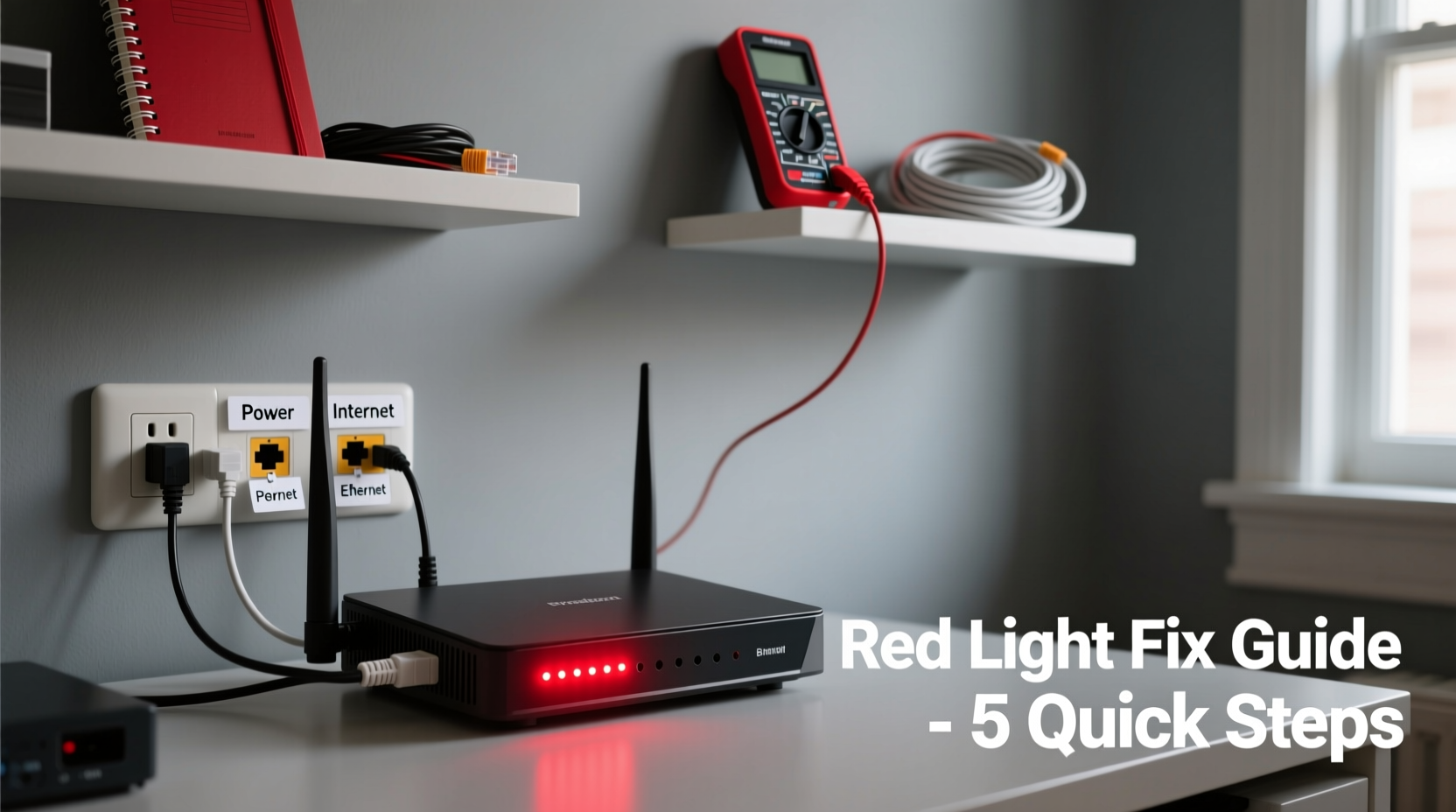
Routers use LED indicators to communicate their status. While colors and patterns vary slightly between brands (such as BT, Virgin Media, Sky, or TalkTalk), a red light almost universally signals an error. Common meanings include:
- No connection to the internet (downstream failure)
- Physical line fault (damaged cable or poor signal)
- Router firmware crash or boot failure
- Service outage from the ISP (Internet Service Provider)
- Authentication failure with the provider
Before assuming hardware failure, rule out simple causes. Many users panic at the sight of red, but in over 70% of cases, the issue resolves with basic checks and resets.
Step-by-Step Troubleshooting Guide
Follow this logical sequence to identify and fix the root cause efficiently. Skipping steps may lead to temporary fixes or missed diagnoses.
- Check for ISP Outages
Visit your provider’s service status page (e.g., BT Status, Virgin Media Service Status). Enter your landline number or postcode to see if there’s a known outage in your area. If so, no local action will restore service until it’s resolved. - Power Cycle the Router
Unplug the router and modem from power. Wait 60 seconds—this allows capacitors to discharge and clears memory caches. Plug back in and wait 3–5 minutes for full reboot. Observe whether the red light changes to green or amber during startup. - Inspect Physical Connections
Ensure all cables are securely connected:- Phone line to microfilter (if using ADSL)
- Microfilter to router’s DSL port
- Power adapter firmly seated
- Ethernet cables not damaged
- Test with a Different Microfilter or Cable
Faulty microfilters are a common culprit. Swap in a known-working one. Similarly, replace the phone cable between the wall socket and router if frayed or bent. - Try a Different Phone Socket
Plug the router into a different master socket (the main telephone outlet, usually near the entry point of the line). Avoid extension sockets—they degrade signal quality. - Perform a Factory Reset (Last Resort)
If all else fails, reset the router using the pinhole button. Hold for 10–15 seconds. Note: This erases custom settings like Wi-Fi names and passwords.
Common Causes and Solutions Table
| Possible Cause | Symptoms | Solution |
|---|---|---|
| ISP Service Outage | Red light, no internet, others in area affected | Wait for provider update; check status page |
| Loose or Damaged Cable | Intermittent light, flickering, sudden drop | Replace cable, ensure tight connections |
| Failed Microfilter | No DSL sync, red broadband light | Swap with working filter |
| Router Firmware Crash | Red light after surge or long uptime | Power cycle or factory reset |
| Line Interference | Noisy phone line, slow speeds before failure | Use master socket, remove extensions |
Mini Case Study: Resolving a Persistent Red Light
Sarah, a freelance graphic designer in Manchester, woke up to a red broadband light and lost internet—critical with client deadlines due. Her initial attempts failed: restarting didn’t help, and her phone worked fine, ruling out total line failure. She checked Virgin Media’s status page—no outages reported. Then she noticed the router was plugged into a secondary socket via a 10-meter extension cord. On advice from a tech-savvy friend, she moved the router directly to the master socket, bypassing the extension. Within two minutes, the red light turned green, and the internet returned. The issue? Signal degradation from the extension cable. Sarah now keeps her router on the master socket and uses Wi-Fi extenders instead.
Expert Insight: What Technicians Recommend
“Over 50% of red light calls we handle are due to incorrect setup—using extension sockets, daisy-chained filters, or outdated firmware. Always start with the basics: master socket, clean line, and a proper reboot.” — James Reed, Senior Network Technician at UK Broadband Support Group
Professionals emphasize that modern routers are reliable, but external factors—especially cabling and placement—remain weak links. Even high-end equipment can’t compensate for poor line conditions.
Troubleshooting Checklist
- ☑ Check ISP service status online
- ☑ Power cycle router (unplug for 60 seconds)
- ☑ Verify all cables are secure and undamaged
- ☑ Test with a different microfilter
- ☑ Connect directly to the master phone socket
- ☑ Listen for dial tone on a landline phone (indicates line health)
- ☑ Update router firmware if accessible
- ☑ Perform factory reset if all else fails
Frequently Asked Questions
Why is my broadband light red but my phone works?
It’s possible. Voice and data travel differently over the same line. Your phone may work because it uses analog signals, while broadband relies on stable DSL synchronization. A red light often means the router can’t establish a data handshake with the exchange—even if voice lines are intact.
Can weather affect my broadband connection and cause a red light?
Yes. Severe weather—especially thunderstorms or flooding—can damage underground cabling or cause moisture ingress in junction boxes. This disrupts signal integrity, leading to sync loss and red lights. If the issue coincides with heavy rain or storms, contact your ISP for a line test.
Does a red light mean I need a new router?
Not necessarily. While hardware failure can cause a permanent red light, most cases stem from line issues, configuration errors, or temporary glitches. Only consider replacement if:
- The router fails to power on
- All troubleshooting steps fail
- Your ISP confirms the device is defective
Conclusion: Take Control of Your Connection
A red broadband light doesn’t have to mean hours without internet or an expensive technician visit. With methodical troubleshooting, most issues can be resolved in under 30 minutes. Start simple: check for outages, reboot the system, and verify physical connections. Move to advanced steps only when necessary. Remember, your router is designed to communicate problems through its lights—learn to read them, and you’ll spend less time frustrated and more time connected.




 浙公网安备
33010002000092号
浙公网安备
33010002000092号 浙B2-20120091-4
Comments
No comments yet. Why don't you start the discussion?