
In an era where digital files grow larger and work becomes increasingly mobile, having a dependable external storage solution is no longer optional—it’s essential. Whether you're transferring 4K video footage, backing up critical documents, or carrying your entire software suite between offices, a reliable and fast USB SSD drive offers the speed, durability, and portability modern professionals need. Unlike traditional hard drives, solid-state drives (SSDs) have no moving parts, making them more resistant to drops, shocks, and wear over time. This article explores what makes a USB SSD truly suitable for daily use, highlights top models, and provides practical guidance for choosing and maintaining one.
Why USB SSDs Outperform Traditional Drives
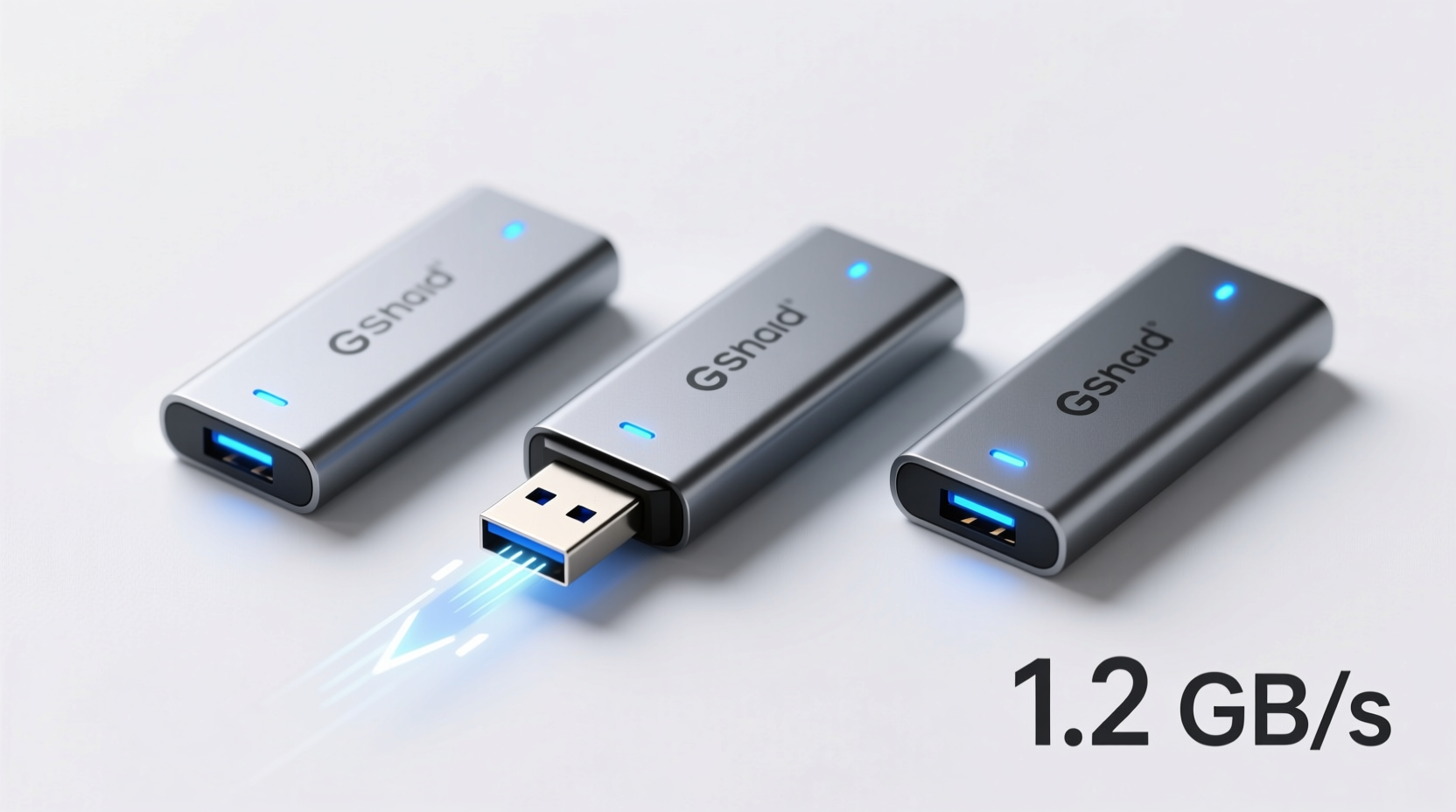
For everyday users, the shift from mechanical hard disk drives (HDDs) to USB SSDs represents a significant leap in performance and reliability. HDDs rely on spinning platters and read/write heads, which are prone to failure from physical shock or prolonged use. In contrast, USB SSDs use flash memory, enabling faster data access, quieter operation, and greater resilience.
A typical external HDD might offer transfer speeds of 100–150 MB/s under ideal conditions. Modern USB SSDs, however, can exceed 1,000 MB/s when connected via USB 3.2 Gen 2x2 or Thunderbolt 3—making file transfers nearly instantaneous. For example, copying a 20GB project folder takes under 20 seconds on a high-speed SSD versus several minutes on an HDD.
“USB SSDs are now the standard for mobile professionals who value both speed and data integrity.” — David Lin, Senior Storage Engineer at TechFront Labs
Key Features to Look for in Everyday USB SSDs
Not all USB SSDs are created equal. When selecting a drive for regular use, consider these five core attributes:
- Speed: Look for drives with sequential read speeds above 500 MB/s. Models supporting USB 3.2 Gen 2 (10 Gbps) or Thunderbolt 3/4 will deliver optimal performance.
- Durability: A rugged design with shock resistance, dustproofing, or water resistance enhances longevity, especially for travelers.
- Portability: Compact size and lightweight construction make the drive easy to carry on keys or in pockets.
- Compatibility: Ensure the drive works across operating systems (Windows, macOS, Linux) and devices (PCs, Macs, Android phones, some smart TVs).
- Security: Hardware encryption and password protection add a layer of safety for sensitive data.
Top 5 Reliable & Fast USB SSDs for Daily Use
The market is flooded with options, but only a few balance speed, reliability, and value consistently. Here's a comparison of standout models ideal for everyday tasks:
| Model | Max Read Speed | Interface | Durability | Price Range (1TB) |
|---|---|---|---|---|
| Samsung T7 Shield | 1,050 MB/s | USB 3.2 Gen 2 | Water/dust/shock-resistant | $130–$150 |
| SanDisk Extreme Pro | 1,050 MB/s | USB 3.2 Gen 2 | IP55-rated (water/dust) | $120–$140 |
| WD_BLACK P50 Game Drive | 2,000 MB/s | USB 3.2 Gen 2x2 | Rugged aluminum casing | $200–$230 |
| Crucial X9 | 2,000 MB/s | USB 3.2 Gen 2x2 | Lightweight, minimal design | $100–$120 |
| LaCie Rugged SSD | 510 MB/s | USB-C (backward compatible) | Drop-tested up to 2m, IP67 | $140–$160 |
The Samsung T7 Shield stands out for its robust build and consistent performance across environments. Meanwhile, the Crucial X9 offers exceptional value with blistering speeds at a competitive price. Gamers and video editors may prefer the WD_BLACK P50 for its ultra-fast throughput, while creatives who frequently work outdoors should consider the LaCie Rugged for its extreme durability.
Real-World Example: A Freelancer’s Workflow Upgrade
Consider Maria, a freelance video editor based in Lisbon. She used to rely on a 1TB external HDD to store client projects and move footage between her home studio and co-working spaces. After dropping the drive during a train commute—resulting in corrupted files and a week of lost progress—she switched to the SanDisk Extreme Pro USB SSD.
Since then, her workflow has transformed. She now backs up raw footage directly from her camera to the SSD in under three minutes per card. Editing proxies are transferred instantly to her laptop, and she’s confident that even if the drive slips from her bag, the IP55 rating will protect her data. The peace of mind, combined with time saved on transfers, has improved her turnaround times and client satisfaction.
Step-by-Step Guide to Maximizing Your USB SSD’s Lifespan
To get the most out of your investment, follow this routine maintenance sequence every few months:
- Check connection integrity: Inspect the USB-C or USB-A connector for debris or bending. Clean gently with compressed air if needed.
- Monitor health status: Use tools like CrystalDiskInfo (Windows) or DriveDx (macOS) to review SSD health and temperature.
- Update firmware: Visit the manufacturer’s website periodically to check for firmware updates that improve stability or performance.
- Eject properly: Always use “Safely Remove Hardware” or the eject function before unplugging to prevent file corruption.
- Store wisely: Keep the drive in a protective case away from magnets, moisture, and extreme temperatures.
Frequently Asked Questions
Can I boot an operating system from a USB SSD?
Yes. Many users run portable versions of Windows, Linux, or macOS from high-speed USB SSDs. Ensure the drive supports sustained write speeds above 300 MB/s and is formatted correctly. Boot times will be significantly faster than with USB HDDs.
Are all USB SSDs compatible with smartphones and tablets?
Most modern Android devices support OTG (On-The-Go), allowing direct connection via USB-C. iPhones require a Lightning-to-USB adapter and apps like Apple’s Files app to access external drives. Check device specifications before purchasing.
Do USB SSDs lose data when not in use?
Flash memory can retain data for up to 10 years without power, depending on quality and storage conditions. However, for long-term archival, periodic power-up (every 12–18 months) helps maintain charge levels in memory cells.
Essential Checklist Before Buying a USB SSD
- ✅ Confirm interface compatibility (USB-C vs. USB-A, Thunderbolt support)
- ✅ Verify OS compatibility (NTFS pre-formatted drives may need reformatting for macOS)
- ✅ Check warranty length (3–5 years is standard for reputable brands)
- ✅ Assess included software (backup tools, encryption utilities)
- ✅ Evaluate real-world reviews for consistency in speed claims
Final Thoughts: Make Speed and Reliability a Daily Standard
A reliable and fast USB SSD isn’t just a storage accessory—it’s a productivity multiplier. From safeguarding irreplaceable memories to streamlining professional workflows, the right drive pays for itself in time saved and stress avoided. With prices continuing to drop and performance rising, there’s never been a better moment to upgrade from older drives or unreliable sticks.
Choose a model that aligns with how you work, prioritize build quality alongside speed, and adopt simple habits to preserve its life. Whether you're a student, creative, or remote worker, integrating a high-performance USB SSD into your daily toolkit is a small change with lasting impact.




 浙公网安备
33010002000092号
浙公网安备
33010002000092号 浙B2-20120091-4
Comments
No comments yet. Why don't you start the discussion?