
Working from home has become a permanent fixture for millions. While the flexibility is unmatched, many remote workers unknowingly compromise their long-term health by neglecting ergonomics. Poor monitor positioning and improper wrist alignment are two of the most common culprits behind neck strain, back pain, and repetitive stress injuries like carpal tunnel syndrome. A well-designed workspace isn’t a luxury—it’s essential for sustained focus, physical well-being, and professional longevity.
This guide breaks down the science-backed principles of proper monitor height and wrist placement. You’ll learn how to configure your desk setup for optimal posture, reduce fatigue, and prevent injury—all without needing expensive equipment.
The Science Behind Monitor Height
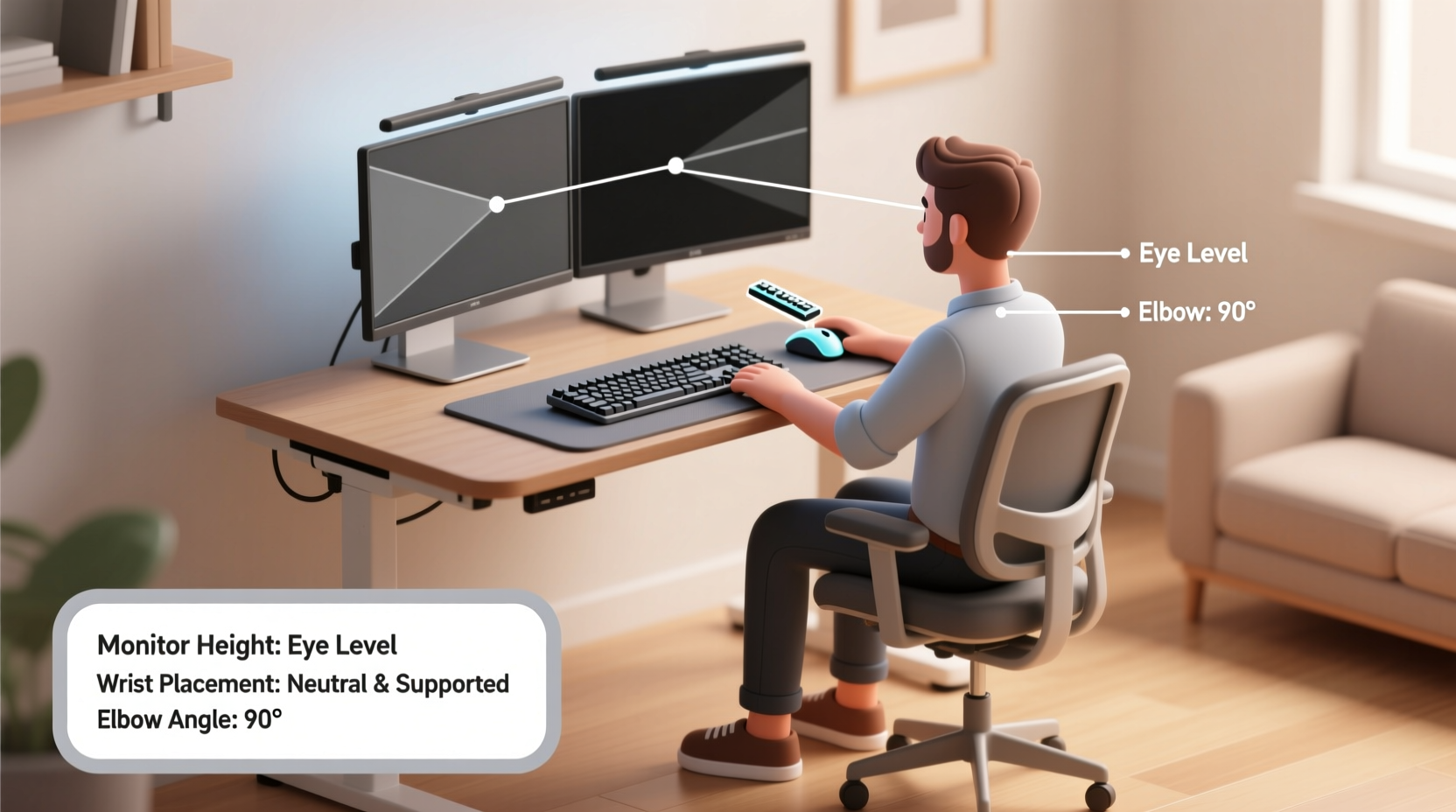
Your eyes naturally look slightly downward when at rest. When your monitor is too low or too high, your neck compensates by tilting forward, backward, or to the side. Over hours, this misalignment leads to cervical spine strain—a condition often referred to as “tech neck.” According to the Occupational Safety and Health Administration (OSHA), prolonged awkward postures increase the risk of musculoskeletal disorders by up to 60%.
The ideal monitor height ensures that the top third of your screen aligns with your natural eye level. This allows you to view the screen with only a slight downward gaze of about 10 to 15 degrees. Sitting upright with your head balanced over your spine reduces pressure on the cervical vertebrae and helps maintain neutral posture.
How to Adjust Your Monitor Height Correctly
- Sit in your chair with feet flat on the floor and back supported.
- Look straight ahead—this defines your natural eye line.
- Position the top edge of your monitor at or just below this line.
- If using a laptop, elevate it with a stand or stack of books and connect an external keyboard and mouse.
- Ensure the screen is about an arm’s length (20–30 inches) away.
For dual-monitor setups, place the primary screen directly in front of you and angle the secondary monitor inward so both fall within your central field of vision. Avoid twisting your neck repeatedly throughout the day.
Wrist Placement: The Key to Preventing Repetitive Strain
Your wrists bear constant load during typing and mousing. Improper positioning—even minor deviations—can lead to inflammation of tendons and nerves over time. The goal is to keep your wrists in a neutral, straight alignment: not bent upward (extension), downward (flexion), or sideways (deviation).
A neutral wrist means the hand forms a straight line with the forearm. Think of holding a hammer—the tool rests naturally along the same axis as your forearm. That’s the position your hands should mimic while typing.
Key factors influencing wrist alignment include keyboard height, tilt, and palm support. Resting your palms on a hard surface while typing creates pressure on the carpal tunnel. Instead, allow your hands to float lightly over the keys, returning to a relaxed position between phrases.
“Maintaining a neutral wrist posture reduces median nerve compression, which is critical in preventing carpal tunnel syndrome.” — Dr. Lena Torres, Occupational Therapist and Ergonomic Consultant
Keyboard Positioning Guidelines
- Place the keyboard directly in front of you, centered with your body—not off to one side.
- Keep it at elbow height (typically 26–28 inches from the floor for standard desks).
- Use a negative tilt (front edge slightly higher than the back) or a flat surface if possible.
- Leave 4–6 inches between the keyboard and the edge of the desk to allow wrist clearance.
- Avoid extended use of laptop keyboards without an external setup.
Ergonomic Setup Checklist
Use this checklist to audit and refine your current workstation. Go through each item systematically to ensure full-body alignment.
✅ Remote Work Ergonomic Checklist
- Monitor top is at or slightly below eye level
- Screen is 20–30 inches from eyes
- Chair provides lumbar support and allows 90° knee angle
- Feet are flat on the floor or on a footrest
- Elbows are at 90° and close to the body
- Keyboard is at elbow height with minimal tilt
- Wrists remain straight and floating during typing
- No shoulder shrugging or forward head posture
- Mouse is within easy reach, same height as keyboard
- Regular posture checks every 30 minutes
Common Mistakes and How to Fix Them
Even with good intentions, subtle errors can undermine an otherwise solid setup. Below are frequent issues and practical fixes.
| Problem | Why It’s Harmful | Solution |
|---|---|---|
| Laptop used at desk level | Forces neck down and wrists up | Use a laptop stand + external keyboard/mouse |
| Wrist resting on sharp desk edge | Compresses nerves and blood flow | Add a padded wrist rest *only* during pauses |
| Monitor too far or angled away | Causes neck rotation and eye strain | Center screen and move closer if needed |
| Chair too high without foot support | Leads to leg swelling and poor circulation | Use a footrest so feet lie flat |
| Typing with bent wrists | Increases risk of tendonitis | Adjust keyboard height and sit deeper in chair |
Real-World Example: From Pain to Productivity
Jamal, a software developer based in Denver, transitioned to full-time remote work in 2020. Initially thrilled by the freedom, he set up his workstation on a kitchen table using his laptop. Within six months, he developed persistent tingling in his right hand and chronic neck stiffness. His doctor diagnosed early signs of ulnar nerve irritation and recommended an ergonomic evaluation.
After assessing his space, Jamal made three key changes: he elevated his laptop with a stand, added a compact mechanical keyboard and vertical mouse, and adjusted his chair so his elbows stayed at 90 degrees. He also began using a timer to check his posture hourly. Within four weeks, his symptoms diminished significantly. Today, he credits these adjustments not only with eliminating pain but also improving his coding accuracy and daily energy levels.
His experience underscores a vital truth: small changes yield outsized results when applied consistently.
Step-by-Step: Building Your Ideal Workstation
You don’t need a full office renovation to create an ergonomic setup. Follow this sequence to optimize your current environment efficiently.
- Choose the Right Chair: Adjust seat height so thighs are parallel to the floor and feet rest flat. Ensure lumbar support fits the curve of your lower back.
- Set Keyboard and Mouse Height: Use an adjustable tray or modify desk height so forearms are horizontal and wrists neutral.
- Elevate Your Monitor: Use a monitor arm, stand, or sturdy books to raise the screen until the top third aligns with eye level.
- Position Input Devices: Keep the mouse adjacent to the keyboard at the same height. Avoid reaching or crossing midline.
- Test and Tweak: Sit in your normal working posture. Check for any tension in shoulders, neck, or hands. Make micro-adjustments as needed.
- Build Habits: Set reminders to stretch, blink, and re-center your posture every 30–45 minutes.
Remember, ergonomics isn’t about perfection—it’s about consistent alignment. Even elite athletes tweak their form over time. Your workspace should evolve with your needs.
Frequently Asked Questions
Can I use a TV as my monitor for work?
Yes, but only if it can be positioned at the correct height and distance. Most TVs are mounted too high or too far away, leading to neck strain and reduced readability. If used, pair it with a standing desk or seated riser to achieve proper eye alignment, and ensure text remains sharp at typical viewing distances.
Is a wrist rest necessary?
A wrist rest can help during pauses between typing, but should never be used while actively typing. Continuous contact increases pressure on the carpal tunnel. Opt for a soft, padded rest and use it only when your hands are idle. For best results, keep wrists suspended over the keyboard during input.
What if I switch between sitting and standing?
With a sit-stand desk, adjust your monitor height dynamically. In standing mode, the top of the screen should still align with your eye level—this usually means raising the monitor 6–12 inches higher than in seated mode. Use a motorized lift or adjustable arm for smooth transitions. Always reset your keyboard and mouse height accordingly to maintain 90-degree elbows.
Final Thoughts: Invest in Your Long-Term Well-Being
Your workspace shapes your health more than you realize. The way you position your monitor and support your wrists today will influence your comfort, performance, and physical resilience years from now. Remote work offers freedom, but that freedom comes with responsibility—to design a setup that supports, rather than undermines, your body.
You don’t need the most expensive gear to get it right. Start with what you have: stack books under your laptop, roll a towel for lumbar support, use timers to stay mindful. Small, deliberate actions compound into lasting benefits. Prioritize ergonomics not as an occasional fix, but as a daily practice.




 浙公网安备
33010002000092号
浙公网安备
33010002000092号 浙B2-20120091-4
Comments
No comments yet. Why don't you start the discussion?