
Nothing disrupts the seamless Apple experience quite like one AirPod refusing to connect. When your right AirPod fails to sync while the left works perfectly, it’s more than an annoyance—it breaks immersion, affects call clarity, and undermines the true wireless promise. The good news: in most cases, this issue is fixable without replacing hardware. Whether the problem stems from a software glitch, Bluetooth interference, or a minor hardware fault, systematic troubleshooting can restore balance to your stereo sound.
Understanding the Common Causes
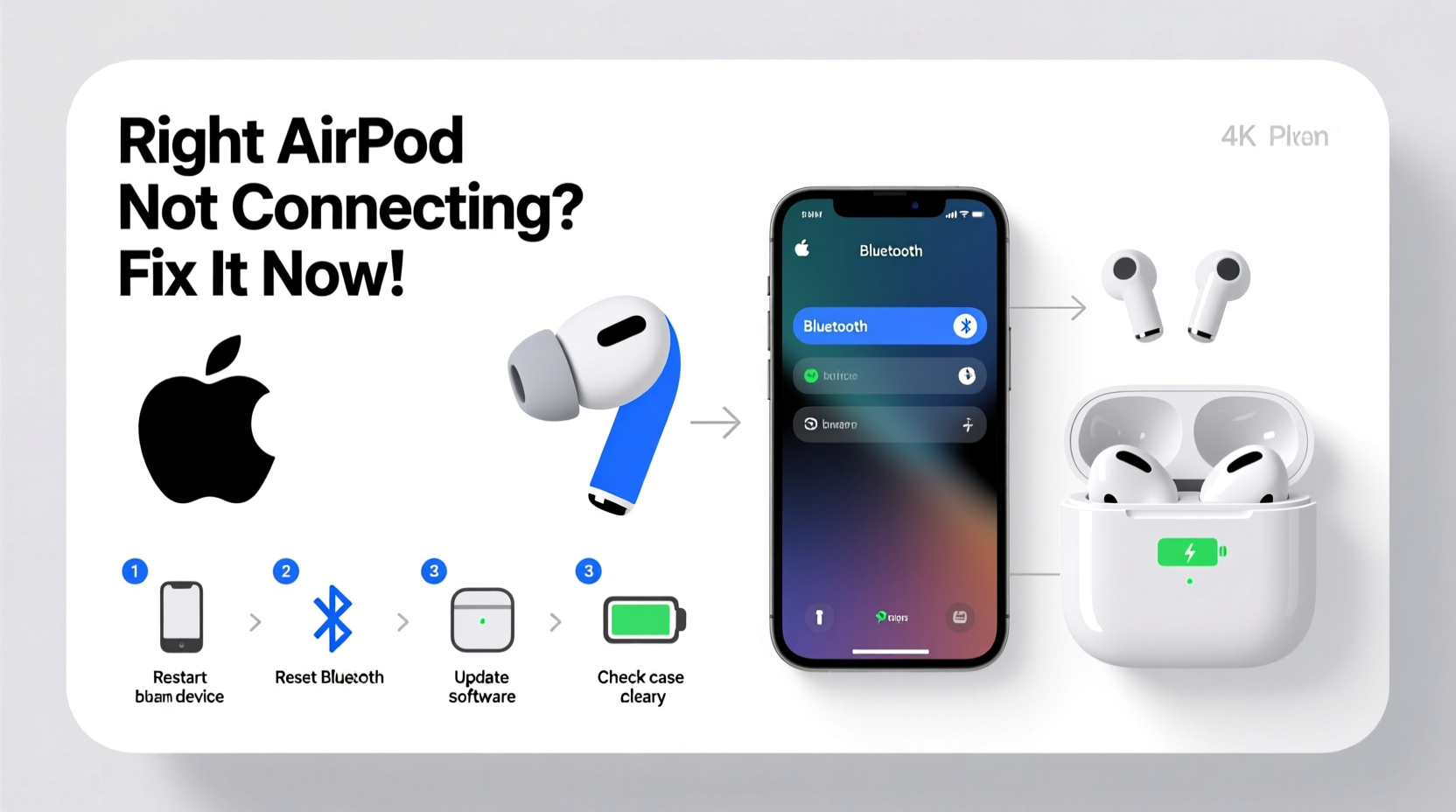
The root of a single AirPod failing to connect often lies in communication breakdowns between the earbud, the charging case, and the connected device. While AirPods are engineered for reliability, several factors can interfere:
- Bluetooth pairing corruption – A corrupted or outdated connection profile on your iPhone or iPad.
- Firmware sync issues – One AirPod may not receive the latest firmware update, causing connectivity lag.
- Dirt or debris – Earwax, pocket lint, or moisture blocking sensors or charging contacts.
- Low or uneven battery – The right AirPod may be completely drained while the case shows partial charge.
- Hardware malfunction – Internal speaker damage, sensor failure, or water exposure.
Before assuming hardware failure, eliminate software and environmental causes through methodical testing.
Step-by-Step Troubleshooting Guide
Follow this sequence to diagnose and resolve the issue efficiently. Most users find success within the first three steps.
- Check Battery Status
Open the AirPods case near your iPhone with Bluetooth enabled. Wait for the popup. If only the left AirPod shows battery, the right may be powered down or disconnected. Charge both for at least 15 minutes. - Clean the Right AirPod and Case
Use a dry, soft-bristled brush (like a clean toothbrush) to gently remove debris from the stem, mesh speaker, and charging contacts. Inspect the case’s right-side charging pin for lint buildup. - Forget and Re-pair the Device
Go to Settings > Bluetooth, tap the “i” next to your AirPods, and select “Forget This Device.” Close the case, wait 10 seconds, then re-pair by opening the lid near your phone. - Reset the AirPods
Place both AirPods in the case, close the lid for 30 seconds, then open. Press and hold the setup button on the back for 15 seconds until the status light flashes amber, then white. This clears internal pairing data. - Update Firmware
Firmware updates happen automatically when AirPods are in the case, charged, and near an iOS device. Ensure your iPhone is updated to iOS 16 or later. Leave the case plugged in overnight near your phone to trigger any pending updates. - Test with Another Device
Pair your AirPods with a different iPhone, iPad, or Android phone. If the right AirPod still doesn’t connect, the issue is likely with the AirPod itself, not your original device.
Do’s and Don’ts: Handling Your AirPods Correctly
| Do’s | Don’ts |
|---|---|
| Store in a dry, cool place away from direct sunlight | Leave them in humid environments like bathrooms |
| Clean weekly with a dry microfiber cloth | Use alcohol, soap, or liquid cleaners directly on the AirPods |
| Keep the case closed when not in use | Drop the case frequently—internal magnets and sensors are sensitive |
| Update your iOS device regularly | Ignore persistent blinking lights or pairing failures |
Real-World Example: Sarah’s AirPod Recovery
Sarah, a graphic designer, noticed her right AirPod stopped working during a Zoom call. The left bud played audio clearly, but the right remained silent. She tried restarting her iPhone and reinserting the AirPod—no change. After reading online forums, she checked the battery popup: only the left showed 78%. Suspecting a sync issue, she forgot the device in Bluetooth settings and re-paired. The right AirPod appeared with 42% charge and immediately synced. Later, she realized lint had partially blocked the charging contact. A gentle cleaning with a toothpick resolved the recurring charge drop.
This case illustrates how a combination of software reset and physical maintenance can solve what seems like a hardware flaw.
“Many ‘dead’ AirPods are actually just out of sync or suffering from preventable blockages. 80% of single-bud failures are resolved with a proper reset and cleaning.” — Jordan Lee, Apple Support Technician (5 years)
Troubleshooting Checklist
✅ Right AirPod Not Connecting? Follow This Checklist:
- ✔ Check battery status via iPhone popup
- ✔ Clean the right AirPod and charging case contacts
- ✔ Forget AirPods in Bluetooth settings and re-pair
- ✔ Reset AirPods using the setup button
- ✔ Update iPhone to latest iOS version
- ✔ Test with a second device (iPad, friend’s phone)
- ✔ Leave AirPods in case overnight near iPhone for firmware update
- ✔ Contact Apple Support if under warranty
When to Seek Professional Help
If all troubleshooting steps fail, the issue may be internal. Common hardware problems include:
- Failed driver or speaker coil in the right bud
- Damaged internal antenna affecting Bluetooth signal
- Water damage (even if not submerged—sweat and humidity accumulate over time)
Apple offers repair or replacement services under warranty or AppleCare+. For out-of-warranty units, a single AirPod replacement costs $69 (as of 2024). Before paying, confirm the issue isn’t with the case—if the right AirPod charges poorly in its slot, the case’s charging pin may be faulty. In such cases, replacing the case ($59) may be more cost-effective.
FAQ
Why does only my right AirPod disconnect randomly?
Random disconnections often stem from Bluetooth interference (Wi-Fi routers, microwaves) or low battery. It could also indicate firmware desync. Resetting the AirPods and ensuring iOS is up to date usually resolves this.
Can I use just the left AirPod if the right won’t connect?
Yes. AirPods function independently. You can use the left bud alone for calls and audio. However, stereo balance will shift, and spatial audio features may not work properly.
Will resetting my AirPods delete my settings?
Resetting removes saved connections but preserves core functionality. Customizations like double-tap actions or automatic ear detection will need to be reconfigured after re-pairing.
Conclusion: Take Action Now
A non-connecting right AirPod doesn’t have to mean a trip to the store or a new pair. With careful cleaning, proper resets, and attention to software updates, most issues are reversible. Start with the simplest fixes—charging and re-pairing—and progress systematically. Your AirPods are designed for longevity, and many early signs of failure are just hiccups in an otherwise robust system.




 浙公网安备
33010002000092号
浙公网安备
33010002000092号 浙B2-20120091-4
Comments
No comments yet. Why don't you start the discussion?