
When one side of your AirPods stops functioning, it can be more than just an inconvenience—it disrupts your listening experience, affects call clarity, and may signal deeper hardware or software issues. The most common complaint? The right AirPod not working. Whether you're using first-gen AirPods, AirPods Pro, or the latest models, audio imbalance is a frequent issue reported by users. Fortunately, in many cases, the problem isn’t permanent. With systematic troubleshooting, you can often restore full functionality without needing a replacement.
This guide walks through practical, tested solutions—from simple resets to advanced diagnostics—to help you fix a silent or unresponsive right AirPod quickly and effectively.
Check Basic Connections and Battery Status
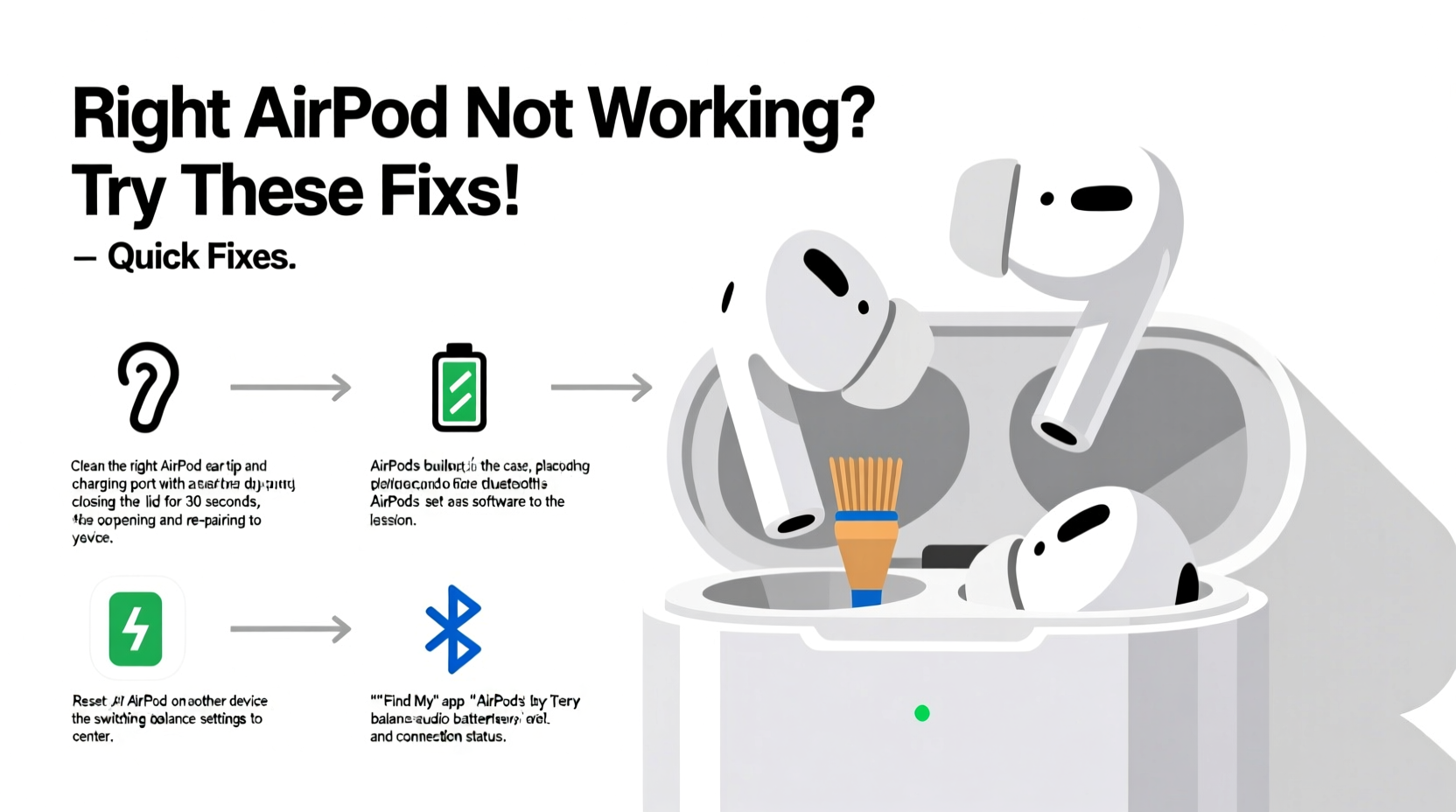
Before diving into complex fixes, rule out the simplest causes. A non-working right AirPod might simply be disconnected or out of power.
- Place both AirPods in the charging case and wait 15 seconds. Check if the status light flashes white (indicating readiness to pair).
- Open the case near your iPhone or iPad and verify that both AirPods show charge levels in the popup window.
- If only one AirPod appears charged, clean the charging contacts (more on this later) or try a different cable and power source.
- Ensure Bluetooth is enabled on your device and that your AirPods are selected as the audio output.
Reset Your AirPods Completely
A factory reset clears corrupted pairing data and forces your AirPods to reconnect like new. This resolves many connection glitches affecting one earbud.
- Place both AirPods in their charging case and close the lid.
- Wait 30 seconds, then open the lid.
- On the back of the case, press and hold the setup button (the small circular button) for about 15 seconds.
- Watch the status light: it will flash amber, then white. When it flashes white, release the button.
- Now, re-pair your AirPods to your device via Bluetooth settings.
After resetting, play stereo audio and check if both sides now work. If the right AirPod remains silent, proceed to deeper diagnostics.
Clean Your AirPods Properly
Dirt, earwax, and debris are leading causes of muffled or absent sound—especially in the speaker mesh of the right AirPod. Over time, buildup can block sound output or interfere with sensors.
To clean safely:
- Use a dry, soft, lint-free cloth to wipe the exterior.
- Gently brush the speaker grille (located at the bottom tip of the AirPod) with a clean toothbrush or soft-bristled brush.
- For stubborn debris, wrap a small piece of adhesive tape (sticky side out) around the tip of a toothpick and lightly dab the mesh—do not insert anything inside.
- Never use liquids, compressed air, or sharp objects.
“Over 40% of ‘faulty’ AirPods brought in for service were simply clogged with wax or dust.” — Jordan Lee, Apple Authorized Service Technician
Balance Audio Between Left and Right Channels
Sometimes, the issue isn’t the AirPod itself but how your device routes audio. iOS allows manual adjustment of left-right volume balance, which may have been accidentally shifted.
To check and correct:
- Go to Settings > Accessibility > Audio/Visual.
- Look for the “Balance” slider under “Mono Audio.”
- Ensure the slider is centered between the left (L) and right (R) channels.
- If it’s skewed to the left, the right AirPod may receive little or no audio.
Moving the slider back to center often restores sound instantly. Test with music or a video to confirm both sides are active.
Advanced Diagnostics: Sensor and Firmware Checks
Modern AirPods rely on optical sensors and motion accelerometers to detect when they’re in your ears and which one to activate. If the sensor in the right AirPod is blocked or malfunctioning, it won’t play audio even if connected.
Try this test:
- Play audio with both AirPods in.
- Remove only the right AirPod—audio should automatically switch to mono or pause.
- Reinsert it—sound should resume on both sides.
If removing the right AirPod doesn’t change playback, the sensor may be dirty or faulty.
Firmware issues can also cause one-sided failure. AirPods update firmware automatically when connected to an iPhone and charging. To encourage an update:
- Leave both AirPods in the case, connected to power.
- Keep the case near your iPhone (iOS updated to latest version).
- Wait several hours. Firmware updates typically occur during idle periods.
You cannot manually check firmware version without third-party tools, but consistent connectivity and recent iOS updates support proper firmware syncing.
Do’s and Don’ts When Troubleshooting Silent AirPods
| Do’s | Don’ts |
|---|---|
| Reset the AirPods using the setup button | Use water or cleaning solutions directly on the AirPods |
| Clean grilles gently with a dry brush | Insert pins, needles, or sharp tools into the mesh |
| Check audio balance in Accessibility settings | Assume hardware failure without testing software fixes |
| Test with multiple devices (iPhone, iPad, Mac) | Ignore battery health signs (e.g., one AirPod dies faster) |
Mini Case Study: Recovering a \"Dead\" Right AirPod
Sophie, a college student, noticed her right AirPod stopped working after two months of daily use. She tried restarting her phone and re-pairing, but the issue persisted. Frustrated, she considered buying a replacement. Instead, she followed a step-by-step cleanup process: she brushed the speaker mesh and used adhesive tape to lift debris. After resetting the AirPods and checking her audio balance (which had drifted right due to accidental touch), both AirPods worked again. The entire fix took less than 20 minutes and cost nothing.
Sophie’s case highlights how physical maintenance and overlooked settings often resolve what seems like a hardware failure.
When to Seek Replacement or Repair
If all troubleshooting fails, the right AirPod may have a hardware defect. Consider these scenarios:
- No sound even after cleaning, resetting, and testing on multiple devices.
- The AirPod isn’t recognized in the Bluetooth menu or Find My app.
- You hear crackling, intermittent cuts, or no charging indication.
If your AirPods are under warranty (one year from purchase) or covered by AppleCare+, contact Apple Support. They may offer a free single-bud replacement. Out of warranty, a replacement typically costs $79–$99 per AirPod, depending on model.
Frequently Asked Questions
Can I use a single AirPod while the other is being repaired?
Yes. You can use either the left or right AirPod independently. Just place the working one in your ear and connect it to your device. Mono audio will play through that side.
Why does my right AirPod die faster than the left?
This can happen due to uneven usage (e.g., taking calls mostly on one side) or slight battery degradation. Resetting and calibrating usage by alternating sides can help balance wear over time.
Will updating my iPhone fix AirPod connectivity issues?
Often, yes. iOS updates include Bluetooth stack improvements and firmware compatibility fixes. Always ensure your iPhone runs the latest iOS version before concluding AirPods are faulty.
Final Checklist: Quick Fixes for Right AirPod Not Working
- Verify both AirPods are charged and properly seated in the case.
- Check the audio balance in Settings > Accessibility > Audio/Visual.
- Clean the right AirPod’s speaker mesh gently.
- Reset your AirPods using the setup button on the case.
- Reconnect (re-pair) to your device.
- Test with another Apple device or smartphone.
- Leave AirPods charging near iPhone overnight to trigger firmware update.
- Contact Apple Support if none of the above works.
Conclusion
A non-working right AirPod doesn’t always mean replacement. In most cases, simple fixes—cleaning, resetting, and adjusting settings—can restore full function. By understanding how AirPods connect, sense placement, and deliver sound, you gain control over common failures. Don’t rush to buy new ones. Try these proven steps first. Most users regain full stereo sound within minutes.




 浙公网安备
33010002000092号
浙公网安备
33010002000092号 浙B2-20120091-4
Comments
No comments yet. Why don't you start the discussion?