
When the Roku app fails to connect to your TV, it disrupts everything from voice control to private listening and screen mirroring. While the issue can be frustrating, most connection failures stem from predictable causes—Wi-Fi mismatches, outdated apps, or misconfigured settings. The good news: nearly every problem has a straightforward fix. This guide walks through actionable steps to restore communication between your mobile device and Roku TV, whether you're on iOS or Android.
Why the Roku App Fails to Connect
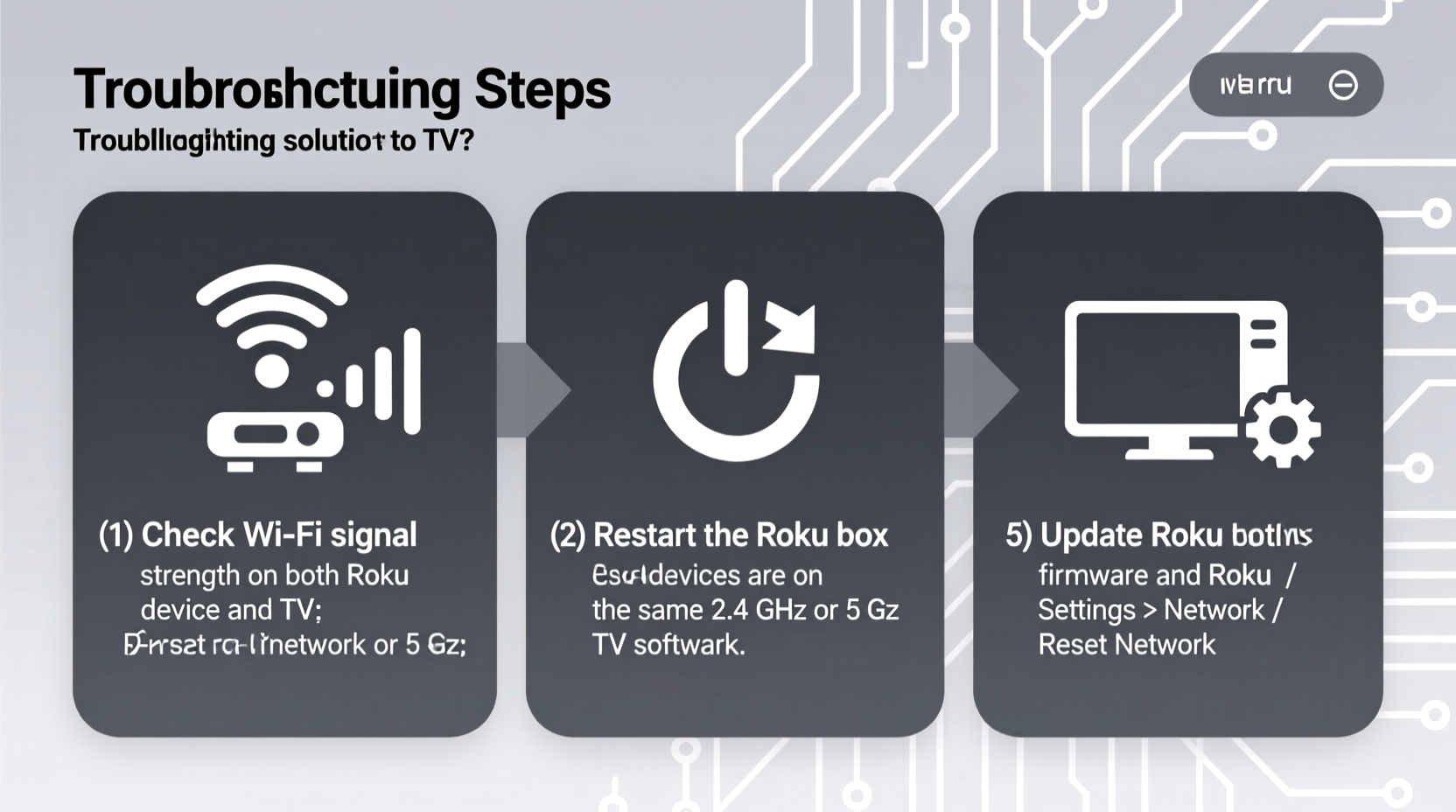
The Roku mobile app relies on a stable local network to communicate with your streaming device. For the connection to work, both your phone and Roku TV must be on the same Wi-Fi network. When they’re not aligned—or when software glitches interfere—the app displays errors like “Couldn’t connect to your Roku player” or simply shows no devices available.
Common root causes include:
- Phone and TV connected to different Wi-Fi bands (e.g., 2.4 GHz vs. 5 GHz)
- Roku app out of date
- Router interference or weak signal strength
- Firewall or guest network restrictions
- Device-specific bugs (especially after OS updates)
Before diving into complex fixes, rule out the basics. A surprising number of users resolve the issue in under five minutes by ensuring both devices are on the same network.
Step-by-Step Connection Fix Guide
Follow this logical sequence to diagnose and repair the connection. Each step builds on the previous one, minimizing guesswork.
- Verify Wi-Fi Network Match
On your phone, go to Settings > Wi-Fi and confirm the network name matches exactly what your Roku TV is using. If your router broadcasts separate 2.4 GHz and 5 GHz networks, connect both devices to the 2.4 GHz band, which offers better range and compatibility. - Restart Devices
Turn off your phone and Roku TV. Unplug the Roku device from power for 30 seconds, then plug it back in. Wait for it to fully reboot. Power on your phone and relaunch the Roku app. - Update the Roku App
Visit the App Store (iOS) or Google Play Store (Android) and check for updates. An outdated app version may lack support for newer Roku firmware. - Reconnect the App
In the Roku app, tap the menu icon, select \"Devices,\" then choose \"Set up a new device.\" Follow the prompts to reconnect. This forces a fresh handshake. - Check Router Settings
Log into your router’s admin panel (usually via 192.168.1.1). Ensure that AP isolation (also called client isolation) is disabled. This setting blocks devices on the same network from communicating—a common culprit. - Forget and Rejoin Wi-Fi
On your phone, forget the current Wi-Fi network and rejoin it. This refreshes the IP address and DNS configuration, often resolving silent network conflicts.
Do’s and Don’ts: Network Configuration Table
| Action | Do | Don't |
|---|---|---|
| Wi-Fi Band | Use 2.4 GHz for broader compatibility | Assume 5 GHz is always better for app control |
| Network Type | Connect both devices to the main home network | Use a guest network or hotspot |
| Router Features | Disable AP/client isolation | Enable firewall rules that block local traffic |
| App Management | Keep the app updated monthly | Ignore update notifications for weeks |
Real-World Case: Sarah’s Weekend Streaming Failure
Sarah planned a movie night but couldn’t use her Roku app to adjust volume or search titles. Her iPhone showed “No Roku devices found,” even though the TV was on and streaming Netflix. She confirmed both were on the same Wi-Fi network—“HomeWiFi”—but still no connection.
After checking updates and restarting both devices without success, she opened her router settings and discovered AP isolation was enabled. She turned it off, restarted the Roku box, and reopened the app. Within seconds, her TV appeared in the device list. The fix took less than three minutes once she identified the real cause: an overzealous security feature blocking local communication.
This case highlights how router-level settings, often overlooked, can silently prevent app functionality—even when everything else seems correct.
Expert Insight on Home Network Health
“The biggest misconception is that being on Wi-Fi means full connectivity. Devices must also be allowed to talk to each other. Many modern routers default to isolating clients for ‘security,’ but that breaks smart home and media apps.” — Daniel Ruiz, Network Infrastructure Consultant
Troubleshooting Checklist
Use this checklist to methodically resolve connection issues:
- ✅ Both phone and Roku on the same Wi-Fi network
- ✅ Connected to 2.4 GHz instead of 5 GHz if bands are split
- ✅ Roku app updated to latest version
- ✅ Phone and Roku restarted recently
- ✅ AP isolation disabled on router
- ✅ Not using a guest network or mobile hotspot
- ✅ Firewall isn’t blocking local UDP traffic
- ✅ Location services enabled (required for discovery on iOS)
Frequently Asked Questions
Can I use the Roku app on a different network than my TV?
No. The app uses local network discovery to find your Roku device. If your phone is on cellular data or a guest network, it won’t see the TV. Always connect both to the same primary Wi-Fi network.
Why does the app connect sometimes but not others?
Intermittent connections often point to Wi-Fi instability or band steering. Routers that automatically switch devices between 2.4 GHz and 5 GHz can break the link. Assign static bands in your router settings or disable band steering.
Does restarting my router help?
Yes. A router restart clears cached connections and resets DHCP assignments. Unplug it for 30 seconds, then power it back on. Wait two minutes for all devices to reconnect before testing the app again.
Conclusion: Regain Control of Your Roku Experience
Losing access to the Roku app doesn’t mean replacing hardware or abandoning convenience features. Most issues stem from simple network mismatches or overlooked settings that take minutes to correct. By following structured troubleshooting—starting with Wi-Fi alignment and progressing to router configuration—you can restore seamless control over your entertainment system.
Don’t let a temporary glitch diminish your viewing experience. Apply these solutions today, and reclaim the full functionality of your Roku setup. Whether you're adjusting volume privately, typing faster with your phone, or casting content effortlessly, a working app enhances every interaction.




 浙公网安备
33010002000092号
浙公网安备
33010002000092号 浙B2-20120091-4
Comments
No comments yet. Why don't you start the discussion?