
If your Roku device powers down unexpectedly, interrupts your favorite show, or shuts off during playback, you're not alone. Many users report recurring issues with their Roku devices turning off without warning. While frustrating, most of these problems stem from easily fixable causes—ranging from power supply issues to overheating or software glitches. This guide walks through the most effective troubleshooting steps to diagnose and resolve why your Roku keeps shutting down.
Common Causes of Unexpected Roku Shutdowns
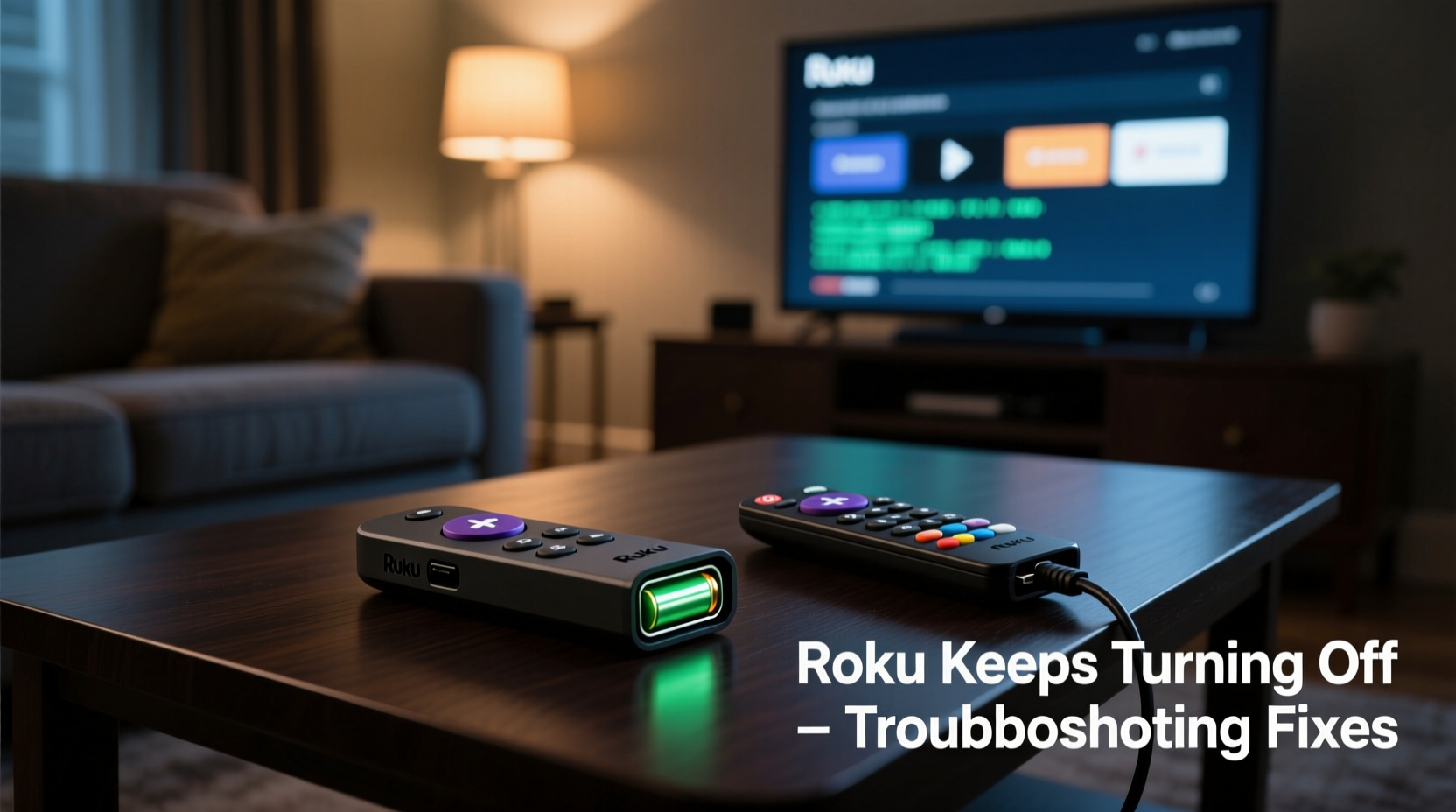
Roku devices are designed for reliability, but several factors can trigger automatic or repeated shutdowns. Understanding the root cause is the first step toward a lasting solution. The most frequent culprits include:
- Unstable power source: Using underpowered or faulty adapters can cause intermittent power loss.
- Overheating: Poor ventilation or placement in enclosed spaces may force the device to shut down automatically.
- Firmware bugs: Outdated or corrupted software can lead to instability.
- HDMI handshake failures: Communication errors between your TV and Roku can mimic power-off behavior.
- TV power settings: Features like HDMI-CEC or auto-sleep modes may inadvertently turn off your Roku.
Before replacing hardware, systematically eliminate each potential issue using the fixes below.
Step-by-Step Troubleshooting Guide
Follow this logical sequence to identify and resolve the problem efficiently. Start with basic checks and progress to advanced solutions.
- Check the power adapter and cable. Use only the official Roku power supply. Third-party chargers may deliver inconsistent voltage, leading to shutdowns.
- Plug directly into a wall outlet. Avoid power strips or surge protectors that could be failing or limiting current.
- Inspect the power LED. If it flickers or turns orange/red intermittently, the power connection is unstable.
- Restart the Roku device. Press and hold the reset button (if available) or unplug for 60 seconds before reconnecting.
- Update the firmware. Navigate to Settings > System > System Update and check for updates manually.
- Disable HDMI-CEC features. On your TV, turn off settings like \"Anynet+,\" \"BRAVIA Sync,\" or \"Simplink\" that may interfere with power control.
- Test with a different HDMI port. A faulty port can disrupt signal and power negotiation.
- Factory reset the device. As a last resort, go to Settings > System > Advanced System Settings > Factory Reset.
Real Example: Sarah’s Persistent Shutdown Issue
Sarah had been using her Roku Streaming Stick+ for six months when it began turning off every 10–15 minutes. She assumed the device was defective and considered buying a replacement. After testing the power adapter and confirming it wasn’t the original, she switched to the official Roku charger. The shutdowns stopped immediately. Her third-party USB adapter was delivering insufficient power, especially during high-bandwidth streaming. This common oversight underscores the importance of using manufacturer-approved accessories.
Do’s and Don’ts When Fixing Roku Power Issues
| Do’s | Don’ts |
|---|---|
| Use the original Roku power adapter and cable | Use phone chargers or generic USB cables |
| Place the Roku in a well-ventilated area | Install it behind closed cabinets or near heat sources |
| Keep firmware updated regularly | Ignore system update notifications |
| Enable auto-power on for HDMI | Leave HDMI-CEC enabled if causing conflicts |
| Reboot the device weekly for optimal performance | Assume hardware failure without checking settings |
“Most Roku shutdown issues aren’t hardware-related. Over 70% of cases we see stem from power delivery or HDMI communication problems.” — James Lin, Senior Support Technician at Roku Community Forums
Advanced Fixes for Recurring Problems
If basic troubleshooting fails, consider deeper technical adjustments:
Adjust Power Settings on Your TV
Many modern TVs have energy-saving features that disable HDMI ports after inactivity. To prevent this:
- Go to your TV’s settings menu.
- Navigate to Eco Mode, Power Saving, or similar options.
- Set it to Off or Normal.
- Look for “HDMI Deep Sleep” or “Auto Idle Standby” and disable those as well.
Reset Network and Reconnect
A weak or unstable Wi-Fi connection can cause the Roku to reboot or freeze, which may appear as a shutdown. To refresh the network:
- Go to Settings > Network > Wireless > Set up new connection.
- Select your network and re-enter the password.
- After reconnecting, run a speed test via Settings > Network > Test Connection.
Check for Overheating Signs
Roku devices have built-in thermal protection. If internal temperatures rise too high, the system shuts down automatically. Signs of overheating include:
- The device feels hot to the touch.
- Shutdowns occur during long streaming sessions.
- Video stutters or freezes before powering off.
To mitigate heat buildup:
- Remove any protective casing blocking airflow.
- Avoid placing the Roku in direct sunlight.
- Use an HDMI extender to move the device away from the TV’s heat output.
FAQ: Common Questions About Roku Turning Off
Why does my Roku turn off when I turn off my TV?
This is usually due to HDMI-CEC (also called “One Touch Play” or “Device Control”). When enabled, your TV sends a signal to connected devices to power down together. To stop this, disable HDMI-CEC in your TV’s settings under External Inputs or BRAVIA Sync.
Can a bad HDMI cable cause my Roku to shut off?
Yes. A damaged or low-quality HDMI cable can interrupt the data and power handshake between your Roku and TV, triggering false shutdowns or black screens. Replace the cable with a certified high-speed version to rule this out.
Does Roku have a sleep timer that turns it off automatically?
No, Roku does not have a default sleep timer that powers off the device. However, some third-party channels may include idle timeouts. You can check Settings > Display > Screen Saver to manage inactivity behaviors, but full shutdowns are not standard.
Final Checklist: Quick Actions to Try Now
When your Roku keeps turning off, run through this concise checklist to save time and effort:
- ✅ Use the original Roku power adapter (not a phone charger).
- ✅ Plug directly into a wall outlet.
- ✅ Ensure the Roku is cool and well-ventilated.
- ✅ Disable HDMI-CEC on your TV.
- ✅ Update Roku firmware manually.
- ✅ Test with a different HDMI port or cable.
- ✅ Restart or factory reset if issues persist.
Conclusion: Regain Control of Your Streaming Experience
Unexpected Roku shutdowns disrupt more than just your viewing—they undermine trust in a device meant to simplify entertainment. But in nearly all cases, the solution lies within simple adjustments to power, settings, or environment. By methodically applying the fixes outlined here, you can restore stability and enjoy seamless streaming without costly replacements. Take action today: inspect your setup, apply the checklist, and reclaim uninterrupted access to your favorite content.




 浙公网安备
33010002000092号
浙公网安备
33010002000092号 浙B2-20120091-4
Comments
No comments yet. Why don't you start the discussion?