
As more older adults transition from traditional cable to streaming services, choosing the right device becomes essential. Two of the most popular options—Roku Streaming Stick and Amazon Fire TV Stick—are both compact, affordable, and widely available. But when it comes to ease of use for seniors, the differences in interface, navigation, remote control design, and voice assistance can make a significant impact on daily viewing experience. For someone who values simplicity over advanced features, the choice between Roku and Firestick may come down to how intuitive each system feels during regular use.
Seniors often prioritize clarity, consistency, and minimal steps when using technology. A cluttered menu, confusing icons, or an unintuitive layout can lead to frustration and disengagement. This article compares Roku and Firestick not just by technical specs, but through the lens of user-friendliness for older adults—focusing on interface design, remote functionality, accessibility tools, setup process, and real-world usability.
Interface Design: Clarity and Navigation Flow
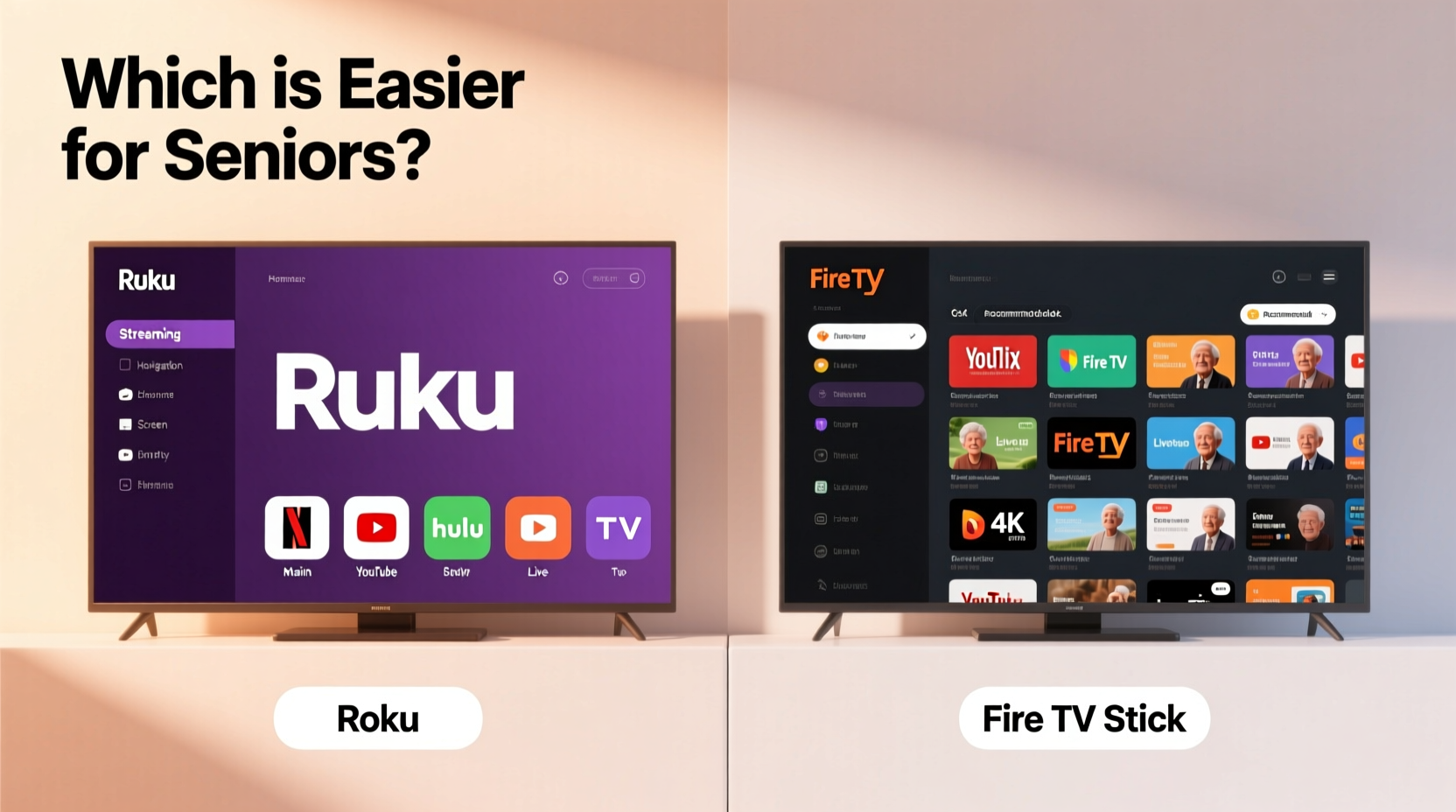
The home screen is where users spend most of their time, so its organization directly affects how easily someone can find what they want. Roku’s interface has long been praised for its clean, grid-based layout. Apps are displayed as large, clearly labeled icons arranged in horizontal rows. There’s no algorithm-driven content mixing apps with recommendations, which keeps things predictable. Once a senior learns where Netflix or YouTube is located, it stays in the same place every time.
In contrast, Fire TV’s interface uses a more dynamic, content-heavy approach. The home screen blends app shortcuts with personalized content suggestions—sometimes placing a movie recommendation directly between two frequently used apps. While this might appeal to younger users who enjoy discovery, it can be disorienting for seniors who prefer consistency. Navigating back to a familiar app may require scrolling past unfamiliar banners and promotional tiles.
Roku also separates live TV, streaming channels, and personal collections more distinctly. Its “Home” tab shows recently used apps, while the “Streaming Channels” section opens a categorized directory of all available apps—from news and sports to faith-based content. This structure allows users to explore new services without altering their main screen.
Firestick integrates tightly with Amazon’s ecosystem. Prime Video content dominates the home screen, and discovering non-Amazon content often requires extra steps. While powerful for Amazon loyalists, this emphasis can feel overwhelming or biased to those simply looking for PBS, Hallmark, or religious programming.
Remote Control: Simplicity Meets Functionality
The remote is the primary tool for interaction, and its design plays a critical role in accessibility. Both devices include remotes with voice control, but their physical layouts differ significantly.
Roku’s standard remote (included with the Streaming Stick+) features generously spaced buttons, high-contrast labeling, and dedicated shortcuts for major services like Netflix and Disney+. The power and volume controls are built into the remote, allowing it to manage TV functions even without HDMI-CEC enabled. This means seniors can turn the TV on/off and adjust volume directly from the Roku remote—eliminating the need to juggle multiple remotes.
The Firestick remote, while sleek, has smaller, flush-mounted buttons that can be harder to distinguish by touch. It lacks physical power and volume keys unless you upgrade to the Firestick 4K Max with the new \"Voice Remote Pro,\" which includes TV controls. Even then, pairing requires additional setup steps that may challenge less tech-savvy users.
Both remotes include voice search buttons, but Roku’s implementation feels more straightforward. Pressing the microphone button brings up a simple search bar where users can speak the name of a show or movie. Results are cleanly organized by service. Firestick’s voice search is deeper—integrating across live TV, streaming platforms, and even web results—but this depth can create confusion when multiple versions of the same title appear across different apps.
“Simplicity in hardware design reduces cognitive load. For seniors, fewer buttons and clear labels mean greater independence.” — Dr. Linda Chen, Human-Computer Interaction Researcher at MIT AgeLab
Accessibility Features for Aging Eyes and Ears
As vision and hearing decline with age, accessibility tools become vital. Both Roku and Firestick support closed captioning, screen readers, and audio enhancements, but their execution varies.
Roku offers a feature called “High Contrast Text” in its accessibility settings, which increases font weight and improves readability on-screen. It also supports keyboard navigation via mobile app, useful for users with limited dexterity. The Roku mobile app doubles as a remote with on-screen keyboard input, making text entry much easier than using a remote to cursor through letters.
Firestick leverages Amazon’s Alexa Voice Remote capabilities. Seniors comfortable with voice commands can say, “Watch Wheel of Fortune on ABC,” and the system will launch the correct app and episode. However, this depends heavily on clear speech and quiet environments. Background noise or mild speech impairments can lead to misinterpretations, resulting in repeated attempts and frustration.
For hearing assistance, both platforms support Bluetooth headphones pairing. Roku allows direct connection of wireless headphones through its private listening feature, letting users listen privately without disturbing others. Firestick supports similar functionality, but setup involves navigating deeper menus, which may deter some older users.
| Feature | Roku Streaming Stick | Amazon Firestick |
|---|---|---|
| On-Screen Text Size | Moderate; adjustable contrast | Smaller default fonts |
| Voice Assistant Accuracy | Good; focused on media search | Strong; broader command range |
| Closed Captioning Controls | Simple toggle in settings | Available but nested in menus |
| Remote Power/Volume Keys | Yes (on most models) | No (unless upgraded model) |
| Private Listening via App | Yes, seamless integration | Yes, requires Alexa app |
Setup and Daily Use: Real-Life Experience
Setting up a streaming device should be simple, but small hurdles can add up. Both Roku and Firestick guide users through Wi-Fi connection and account login, but Roku’s onboarding process is slightly more forgiving. It provides larger text prompts and clearer error messages if the network fails to connect. During initial setup, Roku asks only for email and password—no ecosystem lock-in.
Firestick requires an Amazon account, which some seniors may not have. Creating one introduces an extra layer of complexity, including two-factor authentication and privacy settings. Once logged in, the device syncs with other Amazon services, which can be helpful for shopping or voice routines—but irrelevant for users who only want to watch TV.
A real-world example illustrates the difference: Margaret, a 78-year-old widow living alone, received a Firestick from her grandson. Despite his careful instructions, she struggled after a power outage reset the device. Reconnecting to Wi-Fi required re-entering the password using the tiny on-screen keyboard—a tedious process involving hundreds of button presses. When she later got a Roku Streaming Stick as a gift, she found the reconnection process faster and the interface easier to navigate independently.
Daily usage patterns further highlight usability gaps. On Roku, launching a favorite channel typically takes three steps: press Home, scroll to app icon, press Select. On Firestick, due to content-heavy home screens, the same action sometimes requires additional scrolling or filtering. Over weeks and months, these micro-interactions accumulate into meaningful differences in user satisfaction.
Step-by-Step Guide: Helping a Senior Get Started
Whether you're setting up the device for a parent, grandparent, or client, following a structured approach ensures long-term success. Here’s a proven sequence:
- Choose the Right Model: Opt for Roku Streaming Stick+ or Firestick 4K Max depending on preference for simplicity (Roku) or Alexa integration (Firestick).
- Connect Hardware: Plug the device into the TV’s HDMI port and power source. Use the included USB cable and wall adapter for stable power.
- Select Input: Use the TV remote to switch to the correct HDMI input. Look for on-screen setup wizard.
- Connect to Wi-Fi: Choose the home network and enter the password. Consider saving the password on a sticker near the router for future reference.
- Create or Log In: For Roku, create a free account. For Firestick, sign in to Amazon (or create one with help).
- Add Key Channels: Install Netflix, YouTube, Hulu, PBS, and any faith-based or news apps the user enjoys.
- Teach Basic Navigation: Demonstrate how to return to Home (press Home button), launch apps, and use the back button.
- Set Up Voice Search: Show how to press the microphone button and say a show title. Practice with common requests like “I Love Lucy” or “Fox News.”
- Enable Accessibility: Turn on closed captions, increase text contrast (Roku), or pair Bluetooth headphones.
- Leave Simple Instructions: Write a one-page cheat sheet with illustrations: “Press Red Button → Pick Show → Press Green Button to Play.”
Frequently Asked Questions
Which is better for someone with poor eyesight?
Roku generally performs better due to its high-contrast interface, larger icons, and option for high-contrast text mode. The cleaner layout reduces visual clutter, making it easier to focus on individual apps.
Can either device work without a smartphone?
Yes—both operate fully with just the remote and TV. However, the Roku mobile app can assist with text entry and private listening, offering added convenience if a family member helps set it up initially.
Do I need an Amazon account to use Firestick?
Yes. An active Amazon account is required to activate and use any Fire TV device. This includes agreeing to terms, enabling parental controls if needed, and managing subscriptions.
Final Recommendation: Prioritizing Usability Over Features
While Amazon Firestick offers deep integration with Alexa, smart home control, and expansive content reach, its interface complexity and reliance on the Amazon ecosystem can overwhelm older users. Roku, by contrast, emphasizes consistency, clarity, and independence. Its design philosophy aligns closely with the needs of seniors: predictable navigation, accessible remote controls, and minimal distractions.
That said, if a senior already uses Alexa at home—for lights, thermostats, or routine reminders—the continuity of voice commands across devices may justify choosing Firestick. But for most older adults, especially those new to streaming, Roku provides a gentler learning curve and more sustainable daily experience.
Ultimately, the best device isn’t the one with the most features—it’s the one that gets used regularly without frustration. For peace of mind and long-term engagement, Roku Streaming Stick emerges as the more senior-friendly choice.




 浙公网安备
33010002000092号
浙公网安备
33010002000092号 浙B2-20120091-4
Comments
No comments yet. Why don't you start the discussion?