
Safari is the default web browser for all Apple devices, known for its speed, privacy features, and seamless integration across macOS and iOS. Yet, even the most reliable software can run into problems. Pages may fail to load, tabs might crash unexpectedly, or the browser could become sluggish over time. When Safari stops working properly, it disrupts everything from casual browsing to critical work tasks. The good news is that most issues have straightforward fixes. Understanding the root causes—and knowing how to address them efficiently—can save time and frustration.
Common Symptoms of Safari Issues
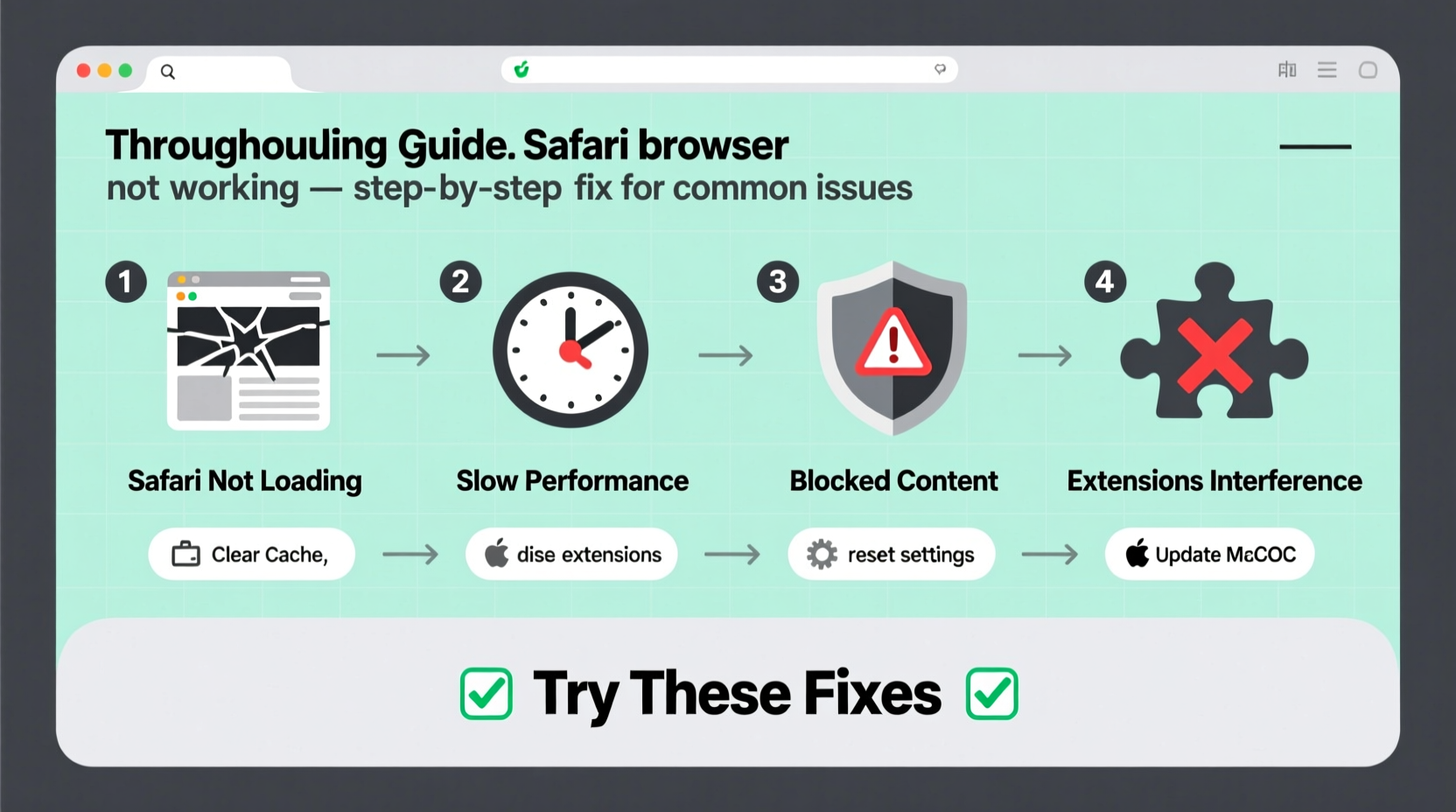
Before diving into solutions, it's important to recognize the signs that indicate a problem with Safari:
- Web pages fail to load or get stuck on a blank screen
- Safari freezes or becomes unresponsive
- Tabs crash frequently or reload automatically
- Search bars don’t respond or auto-complete incorrectly
- Safari uses excessive battery or CPU resources
- Bookmarks, history, or passwords don’t sync across devices
These symptoms often stem from corrupted caches, outdated software, conflicting extensions, or network misconfigurations. Identifying the exact cause helps narrow down the solution path.
Step-by-Step Troubleshooting Guide
When Safari isn't working as expected, follow this logical sequence of checks and fixes. Start with the simplest solutions before moving to more advanced steps.
- Check Your Internet Connection
Ensure your Wi-Fi or Ethernet connection is active. Test connectivity by opening another app (e.g., Mail or Messages) or using a different device on the same network. If other apps also lack internet access, restart your router or switch networks temporarily. - Force Quit and Relaunch Safari
On Mac: Press Command + Option + Esc, select Safari, and click “Force Quit.” Reopen it from the Dock.
On iPhone/iPad: Swipe up from the bottom (or double-click Home button), find Safari in the app switcher, and swipe it away. Reopen the app. - Clear History and Website Data
Over time, accumulated cache and cookies can interfere with page rendering. In Safari, go to Settings > Safari > Clear History and Website Data (iOS) or Safari > Settings > Privacy > Manage Website Data > Remove All (Mac). - Disable Extensions Temporarily
Some third-party extensions may conflict with website functionality. Go to Safari > Settings > Extensions and uncheck all. Re-enable one at a time to identify problematic ones. - Update Your Operating System
Outdated versions of iOS or macOS may contain bugs affecting Safari. Check for updates via System Settings > General > Software Update.
Do’s and Don’ts When Fixing Safari Problems
| Do’s | Don’ts |
|---|---|
| Regularly clear cache and browsing data | Ignore persistent crashes without investigating |
| Keep macOS and iOS updated | Install too many browser extensions |
| Use Private Browsing for testing issues | Delete bookmarks or reading lists without backing up |
| Check parental controls or content blockers | Reset all settings unless absolutely necessary |
| Verify iCloud Sync settings for continuity | Assume hardware failure immediately |
Real Example: Recovering from Sudden Browser Crashes
Jamie, a freelance graphic designer using a MacBook Pro, noticed Safari began crashing every few minutes when accessing design inspiration sites. Initially assuming it was a site-specific issue, she tried multiple URLs with similar results. After ruling out internet problems, she followed the standard reboot procedure—but the crashes persisted.
She then opened Safari in Private Browsing mode, where pages loaded smoothly. This indicated an extension or stored data was causing instability. Jamie disabled her ad blocker and script manager extensions one by one. She discovered that an outdated version of a privacy tool was incompatible with recent JavaScript frameworks used on modern websites. Updating the extension resolved the issue completely.
This case illustrates how isolating variables—like browsing modes and add-ons—can pinpoint otherwise elusive problems.
Advanced Fixes for Persistent Problems
If basic troubleshooting doesn’t resolve the issue, consider these deeper interventions:
- Reset Safari Entirely: On Mac, go to Safari > Settings > Advanced and check “Show Develop menu in menu bar.” Then use Develop > Empty Caches. You can also reset preferences by deleting
com.apple.Safari.plistfrom ~/Library/Preferences/. - Turn Off Content Blockers: While useful for privacy, some content blockers break page layouts or prevent scripts from running. Disable them under Settings > Safari > Extensions or Content Blockers.
- Check Date & Time Settings: Incorrect system time can interfere with SSL certificates, preventing secure sites from loading. Ensure “Set date and time automatically” is enabled.
- Inspect Network Settings: On Mac, go to Network Preferences and verify DNS configuration. Try switching to Google DNS (
8.8.8.8) or Cloudflare (1.1.1.1) if websites fail to resolve.
“Over 70% of reported Safari issues are resolved by clearing website data or disabling problematic extensions. Users often overlook simple fixes while jumping to drastic measures.” — Carlos Mendez, Apple Support Specialist
Checklist: Quick Safari Recovery Plan
Use this checklist whenever Safari behaves unexpectedly:
- ✅ Confirm internet connection is stable
- ✅ Force quit and relaunch Safari
- ✅ Restart your device
- ✅ Clear history and website data
- ✅ Disable all extensions temporarily
- ✅ Test in Private Browsing mode
- ✅ Check for OS updates
- ✅ Reset network settings if needed
- ✅ Verify iCloud and Keychain syncing status
- ✅ Contact Apple Support if issue persists
Frequently Asked Questions
Why does Safari say \"Safari Can’t Open the Page\"?
This error usually appears due to poor connectivity, incorrect URL input, or server-side issues. First, confirm you're online. If so, try loading the page in another browser. If it works elsewhere, clear Safari’s cache or disable content blockers that may be interfering.
How do I stop Safari from reloading tabs?
Tab discarding happens when memory is low. To reduce this, close unused tabs, avoid running too many apps simultaneously, and upgrade your device’s RAM if possible. On newer systems, ensure \"Close tabs to free up memory\" is configured appropriately in Safari > Settings > Tabs.
Can malware affect Safari performance?
While rare on iOS due to strict sandboxing, Macs can occasionally encounter adware that hijacks browser behavior. Signs include unwanted redirects, pop-ups, or new homepages. Use trusted antivirus tools like Malwarebytes for Mac to scan and remove threats.
Conclusion: Take Control of Your Browsing Experience
Safari remains one of the most efficient and secure browsers available, but no software is immune to glitches. Most issues arise from manageable factors like outdated configurations, overloaded caches, or incompatible plugins. By applying systematic troubleshooting—from restarting the app to reviewing extensions and system settings—you regain control quickly and effectively.




 浙公网安备
33010002000092号
浙公网安备
33010002000092号 浙B2-20120091-4
Comments
No comments yet. Why don't you start the discussion?