
When Safari stops working, it doesn’t just disrupt browsing—it can interfere with email, messaging, app integrations, and even system updates on macOS and iOS devices. Unlike third-party browsers, Safari is deeply integrated into Apple’s ecosystem, which means when it fails, the impact can be broader than expected. The good news is that most Safari problems are temporary and solvable without technical expertise. Whether pages won’t load, tabs freeze, or the browser won’t open at all, a structured approach can restore functionality in minutes.
Step 1: Verify Your Internet Connection
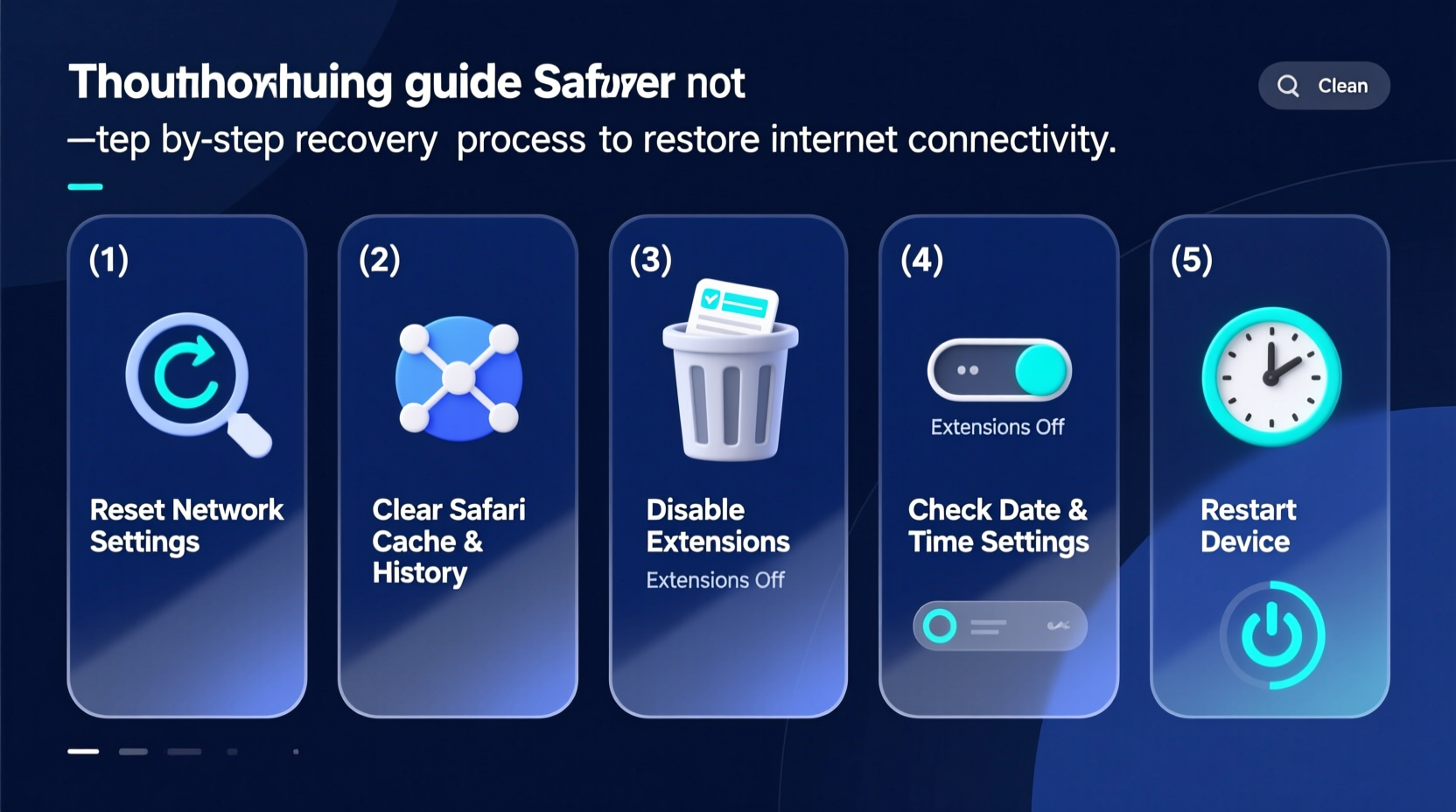
Before diving into browser-specific fixes, confirm that your device has a stable internet connection. A non-responsive Safari often stems from network issues rather than the browser itself.
- Open another app (e.g., Mail or Messages) to see if it syncs properly.
- Try loading a website in an alternative browser like Chrome or Firefox, if installed.
- Restart your router by unplugging it for 30 seconds and plugging it back in.
- On Wi-Fi, toggle Airplane Mode on and off to reset the wireless interface.
- For persistent network issues, renew your DHCP lease via System Settings > Network > Advanced > TCP/IP > Renew DHCP Lease.
Step 2: Force Quit and Relaunch Safari
A frozen or unresponsive Safari window is often caused by a single problematic tab or extension. Restarting the application clears temporary glitches.
On Mac:
- Press Command + Option + Esc to open the Force Quit Applications window.
- Select Safari and click “Force Quit.”
- Relaunch Safari from the Dock or Applications folder.
On iPhone or iPad:
- Swipe up from the bottom (or double-click Home button on older models) to open the App Switcher.
- Locate Safari, swipe it upward to close it.
- Reopen Safari from the home screen.
“Over 60% of Safari crashes are resolved simply by restarting the app. Memory leaks from long-running sessions are common.” — David Lin, Senior Support Engineer at Apple Authorized Service Provider
Step 3: Clear Cache and Website Data
Accumulated cache and cookies can corrupt page rendering or trigger security conflicts. Over time, stored data may become outdated or incompatible with updated websites.
To clear history and data on Mac:
- Open Safari and go to Safari > Settings (Preferences).
- Navigate to the Privacy tab.
- Click “Manage Website Data,” then “Remove All.”
- Go to the History menu and select “Clear History.” Choose “all history” from the dropdown.
On iOS:
- Go to Settings > Safari.
- Tap “Clear History and Website Data.”
- Confirm the action.
Step 4: Disable Extensions and Content Blockers
While extensions enhance functionality, they’re a leading cause of instability. Ad blockers, privacy tools, or outdated plugins can conflict with modern web standards.
On Mac:
- Open Safari > Settings > Extensions.
- Uncheck all extensions to disable them temporarily.
- Restart Safari and test browsing.
- If Safari works, re-enable extensions one at a time to identify the culprit.
On iOS:
- Settings > Safari > Extensions.
- Toggle off active extensions.
- Return to Safari and attempt to load a webpage.
| Extension Type | Common Issues | Solution |
|---|---|---|
| Ad Blockers | Breaks video players, login forms | Whitelist trusted sites or disable |
| Password Managers | Auto-fill freezes | Update extension or use built-in autofill |
| Dark Mode Tools | Causes rendering glitches | Disable or switch to system-level dark mode |
Step 5: Reset Network Settings and DNS
If Safari loads slowly or fails to resolve domains, the issue may lie in network configuration. Corrupted DNS caches or incorrect settings can prevent proper connectivity.
Flush DNS on Mac:
- Open Terminal (Applications > Utilities).
- Type
sudo dscacheutil -flushcache; sudo killall -HUP mDNSResponderand press Enter. - Enter your admin password when prompted.
Change DNS Server (Recommended):
- System Settings > Network > Wi-Fi > Details > TCP/IP.
- Set Configure IPv4 to “Manually” and enter:
- DNS Server:
8.8.8.8(Google DNS) - Alternate:
1.1.1.1(Cloudflare)
- DNS Server:
This bypasses ISP-level DNS bottlenecks and often resolves “Server Not Found” errors.
Mini Case Study: Resolving Persistent Safari Crashes
A freelance designer using a MacBook Pro reported that Safari would crash within seconds of launching, despite multiple restarts. Chrome worked fine, ruling out network issues. Initial checks confirmed no pending system updates and sufficient storage.
The troubleshooting path included:
- Force quitting and relaunching – failed.
- Clearing cache and history – temporary improvement, then crash resumed.
- Disabling all extensions – immediate stability returned.
Further investigation revealed an outdated “PDF Highlighter” extension was injecting scripts into every page load, causing memory overflow. After removing the extension and updating Safari, the browser operated normally. This case underscores how third-party tools, though useful, can destabilize core functions.
Advanced Fixes: Safe Mode and Reinstallation
If basic steps fail, escalate to system-level diagnostics.
Boot in Safe Mode (Mac)
Safe Mode disables startup items and caches, helping isolate software conflicts.
- Shut down your Mac.
- Turn it on and immediately hold Shift until the login screen appears.
- Log in and open Safari.
- If Safari works, the issue is likely due to a login item or corrupted preference file.
- Restart normally and manage login items via System Settings > General > Login Items.
Reinstall Safari (iOS)
While Safari cannot be uninstalled on iPhone or iPad, resetting all settings can resolve deep configuration issues.
- Settings > General > Transfer or Reset iPhone > Reset > Reset All Settings.
- Note: This does not erase data but resets Wi-Fi passwords, display settings, and privacy permissions.
FAQ
Why does Safari say “No Connection” when other apps work?
This typically indicates a DNS resolution failure or restrictive content blocker. Try changing your DNS to 8.8.8.8 or disabling content blockers under Settings > Safari > Extensions.
Can malware affect Safari on Mac?
Yes, though rare. Malicious profiles or adware can redirect searches or inject pop-ups. Check System Settings > Privacy & Security > Profiles. Remove any unrecognized entries. Run a scan using Malware Removal Tool (MRT), built into macOS.
Why does Safari keep reloading pages?
This often happens on devices with limited RAM. Safari may purge inactive tabs to free memory. Close unused tabs or consider upgrading your device’s memory if this occurs frequently.
Troubleshooting Checklist
- ✅ Confirm internet access with another app
- ✅ Restart Safari using Force Quit
- ✅ Clear history and website data
- ✅ Disable all extensions temporarily
- ✅ Flush DNS cache or change DNS server
- ✅ Update macOS or iOS to latest version
- ✅ Test in Safe Mode (Mac) or reset settings (iOS)
- ✅ Reset NVRAM/PRAM if boot issues persist (Mac: shut down, then power on while holding Option+Command+P+R)
Conclusion
Safari not working doesn’t have to mean hours of frustration or costly repairs. Most issues stem from manageable causes—network misconfigurations, bloated caches, or conflicting extensions. By following a logical sequence of checks, users can restore full functionality quickly and confidently. Regular maintenance, such as clearing data monthly and keeping software updated, prevents many problems before they start. Don’t wait for a crash to act—build these habits now to ensure seamless browsing across all your Apple devices.




 浙公网安备
33010002000092号
浙公网安备
33010002000092号 浙B2-20120091-4
Comments
No comments yet. Why don't you start the discussion?