
Android users have long enjoyed the freedom to choose how they manage their digital lives — from launchers to keyboards, browsers to email clients. Yet few debates spark as much passion as the one between Samsung Email and Gmail. On the surface, it's just two apps for checking messages. But dig deeper, and you'll find a clash of philosophies: Google’s cloud-first ecosystem versus Samsung’s hardware-integrated approach. This divide isn't arbitrary; it reflects real differences in design, functionality, privacy, and user expectations.
As Samsung continues refining its One UI and Google tightens its grip on Android’s core services, the choice between these two email clients has become more than preference — it's a statement about how users want to interact with their devices and data.
The Core Differences: Design Philosophy and Integration
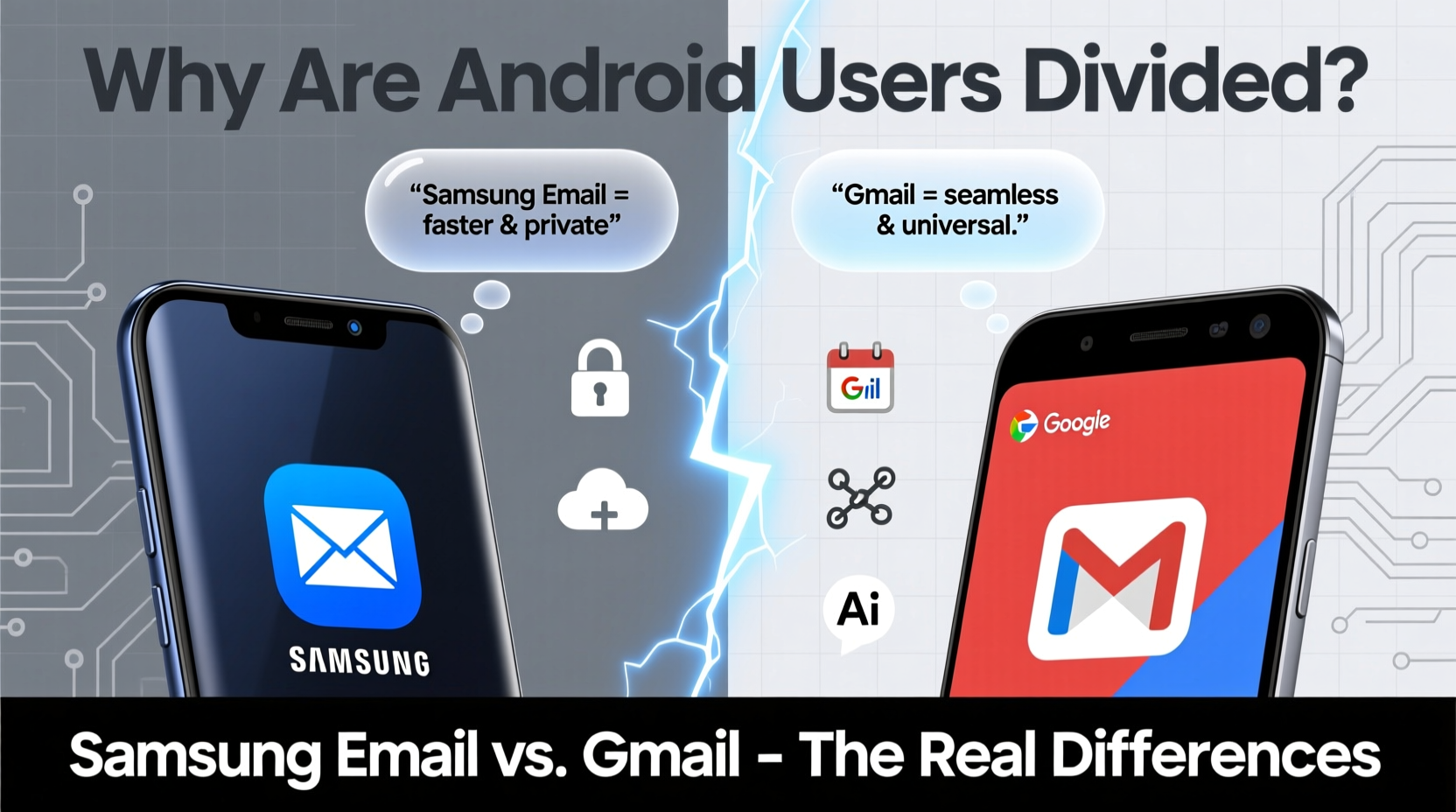
Samsung Email and Gmail represent two distinct visions for mobile communication. Gmail is built around artificial intelligence, cloud synchronization, and deep integration with Google Workspace. It prioritizes smart sorting (Primary, Social, Promotions), AI-powered replies, and seamless syncing across all devices logged into a Google account.
In contrast, Samsung Email takes a device-centric approach. It aggregates multiple accounts — including Gmail, Outlook, Yahoo, and corporate Exchange servers — under one interface, often without requiring full Google account access. This makes it appealing to users who value local control, especially those concerned about Google’s pervasive data collection.
Samsung’s app emphasizes clean, minimalist design with strong support for enterprise features like S/MIME encryption and Microsoft 365 integration. It also works seamlessly with Samsung DeX, Knox security, and other proprietary tools, making it a natural fit for Galaxy phone owners who use their phones as productivity hubs.
“Choosing between Samsung Email and Gmail isn’t just about inbox management — it’s about whether you trust your device maker or your service provider more with your communications.” — Lena Park, Mobile UX Analyst at TechInsight Group
Feature Comparison: Where Each App Excels
| Feature | Gmail | Samsung Email |
|---|---|---|
| AI Sorting | ✅ Advanced tabbing (Primary, Social, Promotions) | ❌ Basic folder categorization only |
| Offline Access | ✅ Limited cached access | ✅ Full offline message storage |
| Multiple Account Support | ✅ Yes, but separate inboxes unless using tabs | ✅ Unified inbox across all providers |
| Security & Encryption | ✅ TLS, basic phishing protection | ✅ S/MIME, Knox-backed encryption, secure boot |
| Search Capabilities | ✅ Powerful semantic search (“emails with PDFs from John last week”) | ❌ Keyword-only search within downloaded messages |
| Customization | ❌ Minimal UI changes | ✅ Themes, swipe actions, layout options |
| Google Ecosystem Sync | ✅ Full sync with Calendar, Drive, Meet | ❌ Partial sync; may miss real-time updates |
User Experience: Real-Life Scenarios
Mini Case Study: Priya, Freelance Designer
Priya uses her Galaxy S24 for both client work and personal emails. She initially used Gmail but switched to Samsung Email after noticing excessive battery drain and unwanted ad targeting based on her email content. With Samsung Email, she now keeps her Gmail account synced without enabling advertising personalization. She appreciates the ability to set different signature rules per account and the dark mode consistency across One UI. However, she misses Gmail’s “Undo Send” and smart reply suggestions during quick responses.
Mini Case Study: Marcus, IT Administrator
Marcus manages company email policies for a mid-sized firm using Microsoft 365. His team issued Galaxy phones to staff, but many defaulted to Gmail, causing compliance issues when emails were backed up to Google servers. By enforcing Samsung Email via Knox policies, Marcus ensured that all business correspondence stayed within encrypted containers, with enforced retention rules and remote wipe capabilities. The transition improved audit readiness and reduced shadow IT risks.
Privacy and Data Control: The Hidden Divide
This is where the ideological split becomes clearest. Gmail scans email content (unless using confidential mode) to serve targeted ads, improve AI features, and enhance spam detection. While Google argues this leads to better usability, critics point out it creates a surveillance layer even on personal accounts.
Samsung Email, by comparison, doesn’t scan message bodies for advertising. It accesses emails through standard protocols (IMAP/SMTP/Exchange ActiveSync), meaning content remains on-device or on the original server. For privacy-conscious users — particularly those in regulated industries or regions with strict GDPR-like laws — this is a decisive advantage.
However, this comes at a cost. Without cloud indexing, search is slower and less intelligent. Backups depend on Samsung Cloud or third-party solutions, not automatic Google sync. Users must manually configure retention settings to avoid filling up device storage.
Step-by-Step: Switching from Gmail to Samsung Email (Without Losing Data)
- Back up Gmail first: Ensure all labels and important emails are archived or starred.
- Add account in Samsung Email: Open the app, tap ‘Add Account’, select ‘Google’, and sign in.
- Choose sync settings: Select which folders to sync and limit message history to conserve space (e.g., 3 months).
- Disable Gmail notifications: Go to Gmail app settings and turn off alerts to prevent duplicates.
- Test sending and receiving: Send a test email from another account and reply from Samsung Email.
- Enable advanced features: Set up signatures, swipe gestures, and notification categories.
FAQ: Common Questions About Samsung Email vs Gmail
Can I use both Samsung Email and Gmail at the same time?
Yes, but doing so can lead to duplicate notifications and inconsistent read/unread status. To avoid conflicts, disable push notifications in one app or use them for different accounts (e.g., Gmail for personal, Samsung Email for work).
Does Samsung Email support Gmail-specific features like Labels and Filters?
Partially. Samsung Email can display Gmail labels as folders, but creating new filters must still be done via Gmail’s web interface or app. Rule-based sorting within Samsung Email applies only to incoming messages post-sync.
Which app saves more battery?
Samsung Email generally uses less background data because it allows finer control over sync frequency and disables non-essential cloud processing. However, if you have multiple large accounts syncing continuously, the difference diminishes.
Checklist: Choosing the Right Email App for You
- ☐ Do you prioritize AI-powered organization? → Choose Gmail
- ☐ Do you handle sensitive or work-related emails? → Lean toward Samsung Email for Knox security
- ☐ Are you deeply embedded in Google services (Calendar, Drive, Meet)? → Gmail integrates best
- ☐ Do you dislike ad targeting based on email content? → Samsung Email avoids scanning
- ☐ Want unified inbox for Gmail, Outlook, Yahoo? → Samsung Email excels here
- ☐ Prefer consistent UI with your device theme? → Samsung Email matches One UI perfectly
Conclusion: It’s Not Just About Features — It’s About Values
The division among Android users isn’t merely technical — it reflects deeper attitudes toward technology. Gmail champions convenience, intelligence, and ecosystem cohesion. Samsung Email stands for autonomy, privacy, and hardware synergy. Neither is universally superior. The best choice depends on what you value most: seamless cloud integration or greater local control.
For casual users who live in Google’s world, Gmail remains the default for good reason. But for professionals, privacy advocates, and power users on Galaxy devices, Samsung Email offers compelling advantages that go beyond aesthetics.




 浙公网安备
33010002000092号
浙公网安备
33010002000092号 浙B2-20120091-4
Comments
No comments yet. Why don't you start the discussion?