
Upgrading your computer’s storage can dramatically change how fast your system feels. For years, Samsung’s 870 EVO SATA SSD has been a go-to choice for users seeking reliable, high-performance storage at a reasonable price. But with NVMe M.2 drives now mainstream, many are asking: is upgrading from a Samsung EVO SSD to an NVMe M.2 drive truly worth it?
The answer isn’t as simple as “yes” or “no.” It depends on your hardware, workload, and expectations. This article breaks down real-world performance differences, compatibility considerations, cost implications, and practical benefits to help you decide whether making the switch will deliver meaningful gains—or just hype.
Understanding the Key Differences
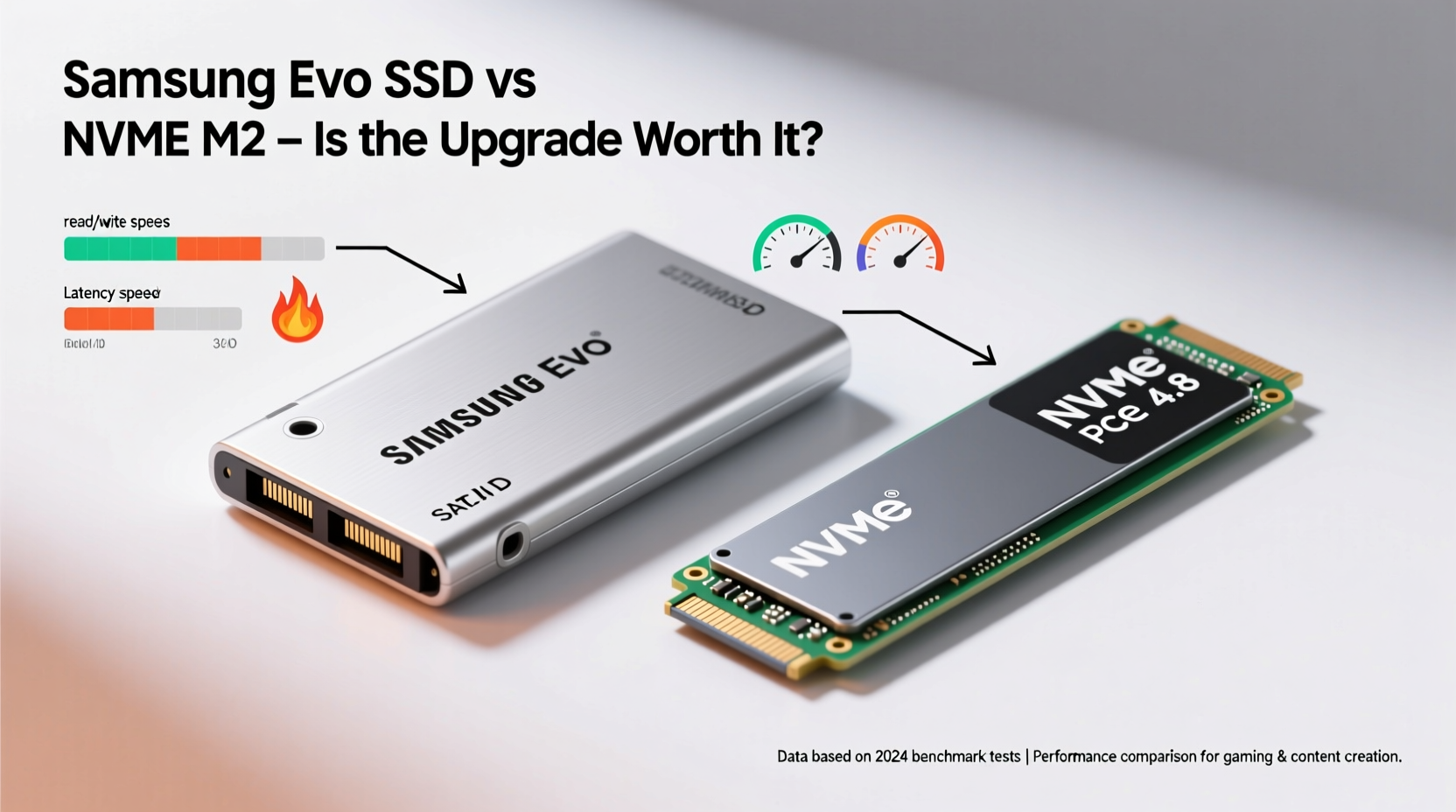
The most critical distinction between the Samsung 870 EVO and modern NVMe M.2 SSDs lies in the interface they use to communicate with your system.
- Samsung 870 EVO: A 2.5-inch SATA III SSD using the older AHCI protocol. Maximum theoretical bandwidth: ~600 MB/s.
- NVMe M.2 SSD (e.g., Samsung 980 Pro): Uses the PCIe interface (typically Gen3 or Gen4) and the faster NVMe protocol. Bandwidth can exceed 3,500 MB/s—up to 7,000 MB/s on Gen4 drives.
This fundamental difference means NVMe drives aren’t just slightly faster—they operate on a different technological tier. However, raw speed doesn’t always translate into noticeable daily improvements.
Performance Comparison: Real-World Gains
Benchmarks show NVMe drives outperform SATA SSDs by wide margins, but what does that mean when you're actually using your PC?
| Drive Type | Interface | Sequential Read | Sequential Write | Use Case Advantage |
|---|---|---|---|---|
| Samsung 870 EVO | SATA III | 560 MB/s | 530 MB/s | General computing, OS boot, light multitasking |
| Samsung 980 Pro (NVMe Gen4) | PCIe 4.0 x4 | 7,000 MB/s | 5,100 MB/s | Content creation, large file transfers, gaming load times |
In everyday tasks like opening applications, browsing the web, or launching Microsoft Office, both drives feel nearly identical. The operating system boots only marginally faster on NVMe—often just 1–2 seconds quicker. Where NVMe shines is in sustained workloads:
- Transferring a 20GB video project: ~40 seconds on SATA vs. ~8 seconds on Gen4 NVMe.
- Loading large games like Cyberpunk 2077 or Red Dead Redemption 2: up to 30% faster asset streaming.
- Running virtual machines or databases: lower latency and higher IOPS improve responsiveness.
“While SATA SSDs eliminated the mechanical bottleneck of HDDs, NVMe eliminates the interface bottleneck of SATA. The leap is real—but most users only feel it under heavy load.” — Dr. Alan Zhou, Storage Systems Engineer at TechInsight Labs
Compatibility and Installation Considerations
Before chasing speed, verify your system supports NVMe M.2 drives. Older motherboards, especially those from the Intel 8-series or earlier AMD chipsets, may not have M.2 slots or lack PCIe lane allocation for NVMe.
Additionally, consider:
- Physical space: M.2 drives are compact and don’t require cables, but laptops may have limited or proprietary mounting.
- Thermal throttling: High-speed NVMe drives generate heat. Without proper cooling (especially in small form factors), speeds can drop significantly during prolonged use.
- Boot support: Ensure your BIOS supports NVMe boot if you plan to install your OS on the new drive.
If you’re using a desktop with a modern motherboard (Intel 300-series or newer, AMD B450 and above), adding an NVMe drive is straightforward. Many systems even allow dual-boot setups—keep your EVO for storage and install Windows on the NVMe for peak responsiveness.
Cost vs. Value: Is the Premium Justified?
NVMe drives cost more per gigabyte than SATA SSDs. As of 2024, a 1TB Samsung 870 EVO sells for around $60, while a 1TB Samsung 980 Pro (Gen4 NVMe) costs about $90. That’s a 50% price increase for a specific performance profile.
Ask yourself: do you need that extra speed?
For casual users, students, or office workers, the EVO remains an excellent value. The NVMe upgrade offers diminishing returns unless you frequently handle large files, edit 4K video, or run intensive simulations.
However, for creators, developers, and power users, the investment pays off in time saved and smoother multitasking. Rendering a 10-minute 4K timeline in DaVinci Resolve? The NVMe cuts export times by minutes—a tangible productivity boost.
Step-by-Step Upgrade Guide
If you’ve decided to upgrade, follow this sequence to ensure a smooth transition:
- Check compatibility: Confirm your motherboard has an M.2 slot and supports NVMe (not just SATA M.2).
- Choose the right drive: Match PCIe generation (Gen3 vs Gen4). Don’t overspend on Gen4 if your board only supports Gen3.
- Back up your data: Use cloning software or cloud backup before starting.
- Install the drive: Insert the M.2 SSD at a 30-degree angle and secure it with the screw. No cables needed.
- Clone or reinstall OS: Use tools like Samsung Data Migration or Macrium Reflect to clone your current drive, or perform a clean OS install for optimal performance.
- Verify performance: Run CrystalDiskMark to confirm you’re getting expected read/write speeds.
Mini Case Study: From EVO to NVMe in a Creative Workflow
Jamal, a freelance video editor, used a 2018 laptop with a 1TB Samsung 870 EVO as his primary drive. While editing 1080p projects, he experienced frequent lag when scrubbing timelines and exporting took 12–15 minutes per 5-minute clip.
After upgrading to a Samsung 980 Pro NVMe via an external Thunderbolt 3 enclosure (his laptop lacked internal M.2 support), he noticed immediate improvements:
- Project load time dropped from 18 seconds to 6 seconds.
- Timeline playback became smoother, with fewer dropped frames.
- Export time reduced to 8 minutes—a 40% improvement.
Though the external setup wasn’t ideal, Jamal found the speed gain justified the cost. When he later upgraded to a desktop with native NVMe support, the gains were even more pronounced.
Frequently Asked Questions
Can I use both a Samsung EVO and an NVMe drive together?
Absolutely. Install your OS and apps on the NVMe for speed, and use the EVO for bulk storage, backups, or archival files. Most modern motherboards support multiple storage drives.
Will an NVMe upgrade make my old PC feel new?
It can, but only if your CPU, RAM, and GPU aren’t major bottlenecks. An NVMe drive improves storage responsiveness, but won’t fix a slow processor or insufficient memory.
Is there a lifespan difference between EVO and NVMe drives?
Both types have similar endurance ratings (e.g., 600 TBW for 1TB models). NVMe drives may wear slightly faster under constant heavy writes, but for typical use, lifespan differences are negligible.
Final Verdict: Who Should Upgrade?
The upgrade from a Samsung EVO SATA SSD to an NVMe M.2 drive is worth it—if you fall into one of these categories:
- You work with large media files (video, audio, 3D models).
- Your workflow involves frequent file transfers or multitasking across heavy applications.
- You want the fastest possible boot and load times in competitive gaming.
- Your system fully supports PCIe Gen3 or Gen4 NVMe without bottlenecks.
For everyone else—general users, casual gamers, and office professionals—the Samsung 870 EVO remains a top-tier performer. The NVMe advantage exists, but it’s often imperceptible in routine use.




 浙公网安备
33010002000092号
浙公网安备
33010002000092号 浙B2-20120091-4
Comments
No comments yet. Why don't you start the discussion?