
If your Samsung phone suddenly stops connecting to the network, it can feel like being cut off from the world. No calls, no texts, and spotty or nonexistent data—frustrating, especially when you rely on your device daily. The good news is that in most cases, this issue isn’t permanent or hardware-related. It’s often caused by simple glitches, misconfigurations, or environmental factors that can be resolved with a few targeted steps.
Before jumping to conclusions about faulty hardware or carrier issues, try diagnosing and fixing the problem systematically. This guide breaks down the most common reasons behind network connection failures on Samsung devices and provides practical, step-by-step solutions.
Common Causes of Network Connection Issues
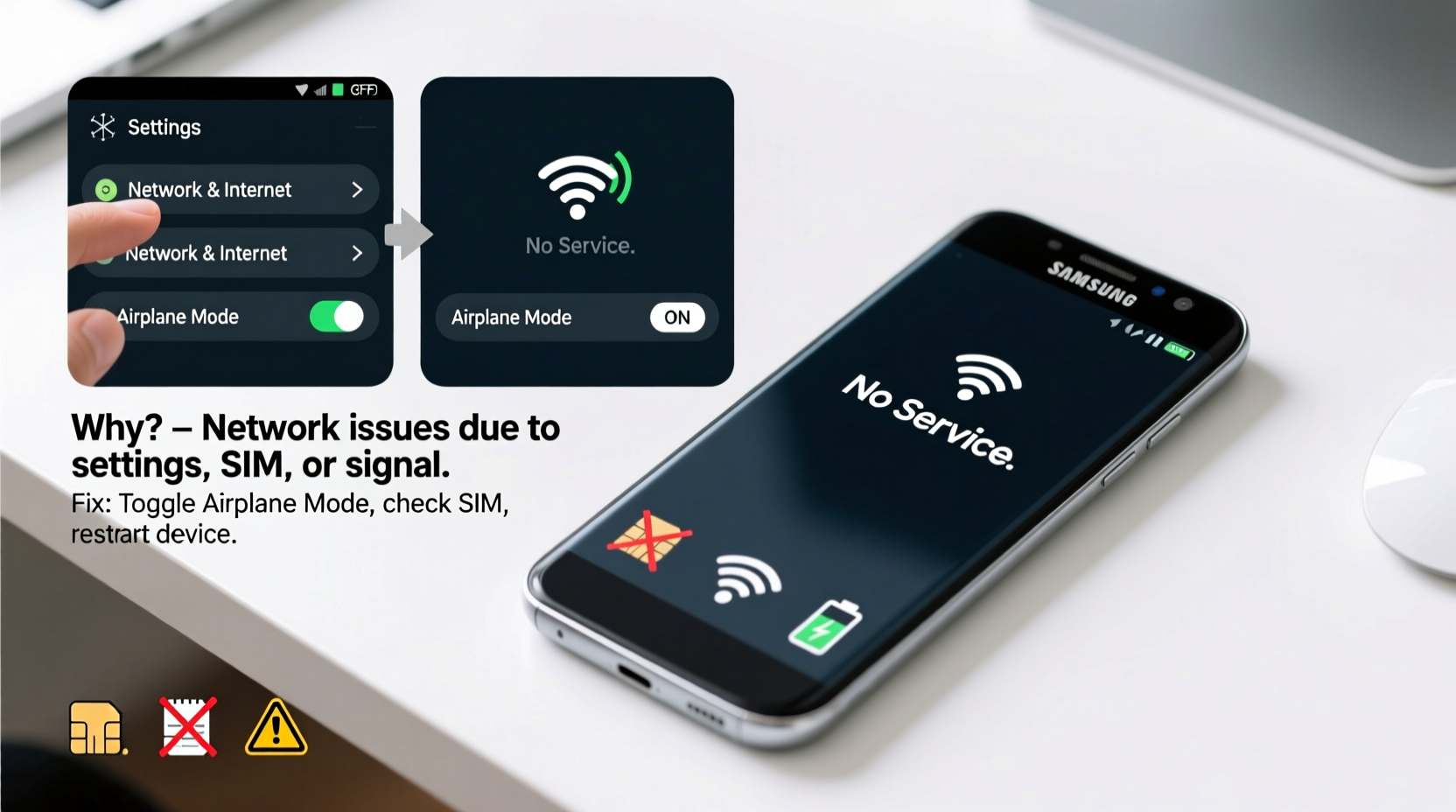
Understanding why your Samsung phone isn’t connecting to the network is the first step toward fixing it. Here are the most frequent culprits:
- Weak or unstable signal – Being in a basement, rural area, or building with thick walls can block cellular signals.
- Airplane mode accidentally enabled – A single toggle can disable all wireless functions.
- Outdated software or firmware – Bugs in older versions may interfere with radio communication.
- Corrupted APN settings – Access Point Names control how your phone connects to carrier data networks.
- Damaged or improperly inserted SIM card – Physical issues prevent authentication with the network.
- Carrier service outage – Temporary infrastructure problems affect entire regions.
- Network settings corruption – Settings can become misconfigured after updates or app installations.
Step-by-Step Troubleshooting Guide
Follow this logical sequence to identify and resolve the root cause without unnecessary risks or expenses.
- Check for Airplane Mode
Swipe down from the top of the screen and ensure the Airplane icon is off. You can also go to Settings > Connections > Airplane mode to verify. - Restart Your Phone
Powering off and back on clears temporary glitches affecting the modem or radio stack. Hold the power button, select “Restart,” and wait 30 seconds before turning it back on. - Verify Signal Strength
Look at the signal bars at the top. If you see “No Service” or only one bar, move to a different location—near a window or outdoors—to test reception. - Reinsert the SIM Card
Turn off the phone, remove the SIM tray using the ejector tool, inspect the card for damage or dirt, then reinsert it firmly. Make sure it's seated correctly and aligned. - Update Carrier Settings
Go to Settings > Software update > Download and install any pending carrier-specific updates. These often include network compatibility patches. - Reset Network Settings
Navigate to Settings > General management > Reset > Reset network settings. This clears Wi-Fi passwords, Bluetooth pairings, and mobile settings—but often resolves deep-seated connection issues. - Check for System Updates
Outdated OS versions can conflict with network protocols. Go to Settings > Software update > Download and install. - Test with Another SIM
Borrow a working SIM from another Samsung user (same carrier if possible) to determine if the issue lies with your SIM or phone.
Fix Corrupted APN Settings
APN (Access Point Name) settings tell your phone how to connect to your carrier’s internet and MMS services. If these are incorrect or missing, your phone may show signal but fail to send texts or use data.
To review or reset APN settings:
- Go to Settings > Connections > Mobile networks > Access Point Names.
- If the list is empty or shows custom entries, tap the three dots > Reset to default.
- Wait for the default configuration to load, then restart your phone.
If automatic reset doesn’t work, manually enter your carrier’s APN details. For example:
| Carrier | APN | MCC/MNC |
|---|---|---|
| AT&T | phone | 310/410 |
| T-Mobile | fast.tmobile.com | 310/260 |
| Verizon | VZWINTERNET | 311/480 |
Contact your carrier’s support line if unsure about the correct values. Never guess—incorrect APNs can block data entirely.
“Over 60% of reported ‘no network’ issues on Android devices stem from misconfigured APNs or outdated carrier profiles.” — Raj Mehta, Senior Network Engineer at T-Mobile Support Operations
When Hardware Might Be the Issue
If all software-based fixes fail, consider physical causes:
- Water damage: Even minor exposure can corrode internal antennas or connectors.
- Dropped phone: Impact can dislodge internal antenna cables, especially near the battery or frame.
- Faulty SIM reader: If multiple SIM cards fail to register, the tray sensor or reader may be damaged.
In such cases, professional repair is necessary. Visit an authorized Samsung service center rather than third-party shops to avoid voiding warranties or causing further damage.
Mini Case Study: Maria’s Weekend Connectivity Crisis
Maria, a freelance photographer in Colorado, traveled to a remote mountain cabin for a shoot. Her Galaxy S23 showed “Emergency Calls Only” despite full signal bars. She tried restarting and toggling airplane mode—no change.
Back home, she discovered her carrier had rolled out a new LTE band profile incompatible with her phone’s outdated PRL (Preferred Roaming List). After checking for software updates and resetting network settings, her phone reconnected automatically. The fix took less than ten minutes—and saved her from a costly repair appointment.
This case highlights how environmental changes combined with outdated software can trigger network issues—even on high-end devices.
Do’s and Don’ts: Quick Reference Table
| Action | Do | Don't |
|---|---|---|
| Signal Issues | Move to open areas or near windows | Assume the phone is broken immediately |
| SIM Handling | Power off before removing SIM | Touch gold contacts with fingers |
| Software Fixes | Reset network settings as last software step | Factory reset without backing up data |
| Repairs | Use Samsung-authorized technicians | Open the phone yourself |
FAQ
Why does my Samsung show signal but no service?
This usually means your phone detects a tower but can’t authenticate with your carrier. Possible causes include a deactivated SIM, expired account, or incorrect network settings. Contact your provider to confirm your line is active.
Can a software update fix network problems?
Yes. Manufacturers and carriers regularly release updates that improve radio performance, add support for new bands, and patch bugs. Always install available updates through Settings > Software update.
Will resetting network settings delete my photos or messages?
No. Resetting network settings only removes saved Wi-Fi networks, Bluetooth pairings, and mobile configurations. Your personal data remains intact.
Conclusion: Regain Control Over Your Connection
Losing network connectivity on your Samsung phone doesn’t have to mean a trip to the store or buying a new device. Most issues stem from simple, reversible causes—misconfigured settings, outdated software, or accidental toggles. By methodically testing each potential cause, you can often restore full functionality within minutes.
Start with basic checks: Airplane mode, signal strength, and restarts. Then progress to deeper fixes like APN resets and network setting restoration. Only consider hardware repairs if all else fails—and always back up your data first.




 浙公网安备
33010002000092号
浙公网安备
33010002000092号 浙B2-20120091-4
Comments
No comments yet. Why don't you start the discussion?