
Screen mirroring has become a daily necessity—whether you're sharing a presentation at work, streaming a movie from your phone to the TV, or playing mobile games on a bigger display. But when it fails, the experience can quickly turn frustrating. Connection drops, no signal detected, or devices not showing up are common issues that disrupt productivity and entertainment alike. The good news: most screen mirroring problems are fixable with systematic troubleshooting. This guide walks through practical, tested solutions across devices and platforms.
Common Causes of Screen Mirroring Failures
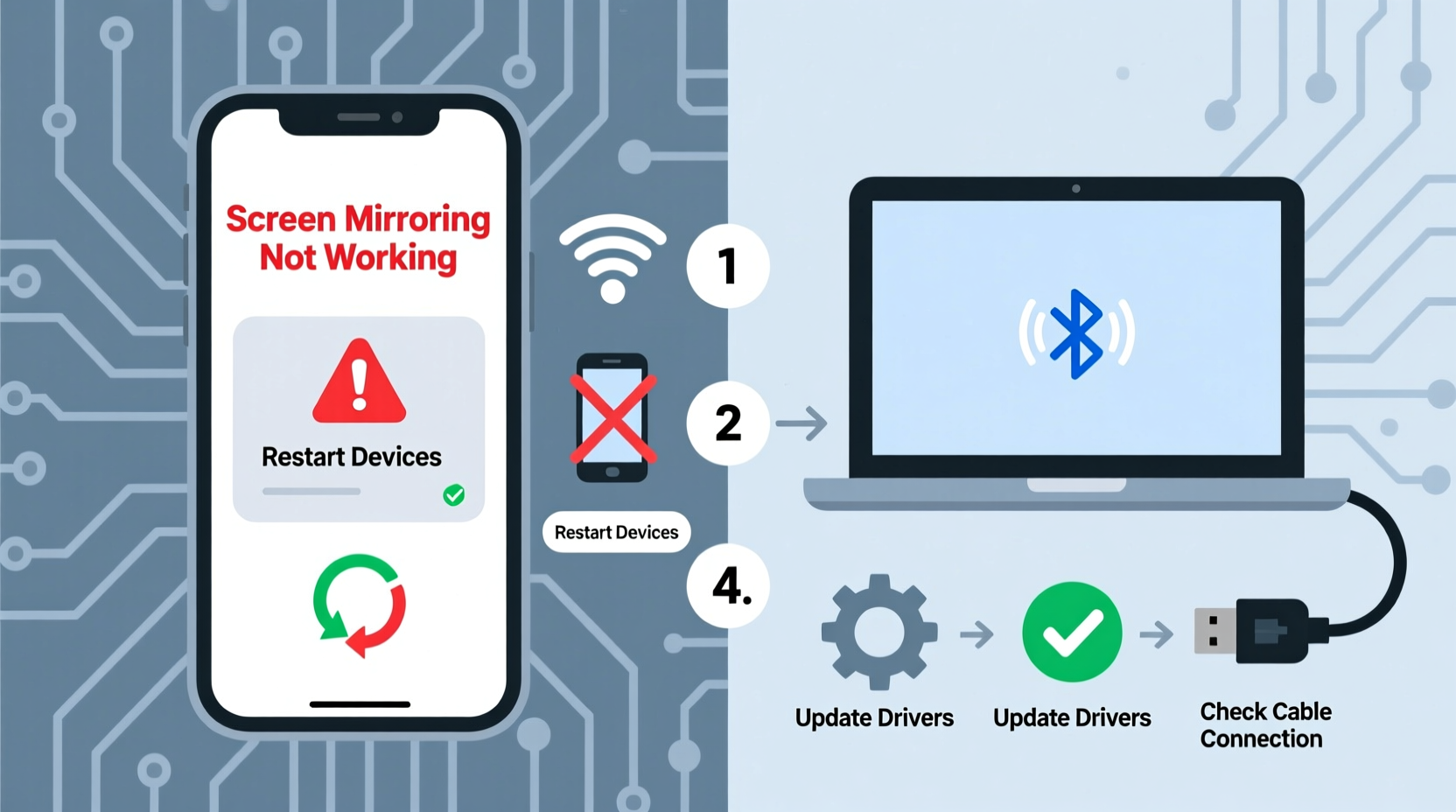
Before diving into fixes, it's important to understand what typically goes wrong. Screen mirroring relies on stable wireless communication between two devices, usually via Wi-Fi Direct, Miracast, AirPlay, or Chromecast protocols. Any disruption in this connection can prevent mirroring from working properly.
- Network interference: Overcrowded Wi-Fi channels or physical obstructions weaken signals.
- Incompatible devices: Not all screens support the same mirroring standards (e.g., Miracast vs. AirPlay).
- Outdated firmware or software: Older operating systems may lack updated drivers or security patches needed for compatibility.
- Firewall or security settings: Corporate networks or router configurations might block device discovery.
- Bluetooth or location services disabled: Some systems require these to be active for proper pairing.
Step-by-Step Troubleshooting Guide
Follow this logical sequence to diagnose and resolve screen mirroring issues efficiently.
- Verify device compatibility. Check if your source (phone, laptop) and receiver (TV, projector) support the same protocol. For example, iPhones use AirPlay; Android devices often use Miracast or Google Cast.
- Restart both devices. A simple reboot clears temporary glitches in network stacks and system processes.
- Ensure both devices are on the same Wi-Fi network. Even slight differences in network names (SSID) can prevent discovery.
- Check for software updates. Update the OS on both devices, including smart TV firmware and mobile OS versions.
- Disable battery saver or power-saving modes. These can restrict background services required for screen sharing.
- Reset network settings. On mobile devices, go to Settings > General > Reset > Reset Network Settings (iOS) or Settings > System > Reset Options > Reset Wi-Fi, mobile & Bluetooth (Android).
- Use an alternative method. If wireless isn’t working, try a wired connection using HDMI adapters or USB-C to HDMI cables.
Platform-Specific Fixes
Different ecosystems have unique quirks. Here’s how to handle major platforms:
iOS Devices (iPhone/iPad) with Apple TV or AirPlay-Compatible TVs
- Open Control Center, tap \"Screen Mirroring,\" and select your device.
- If nothing appears, make sure AirPlay is enabled on the receiving device under Settings > AirPlay & HomeKit.
- Enable “AirPlay Receiver” on Macs running macOS Monterey or later via System Settings > Sharing.
- Try toggling off and on Wi-Fi and Bluetooth on the iPhone—this often reinitializes discovery services.
Android Phones with Chromecast or Miracast TVs
- Go to Settings > Connected devices > Connection preferences > Screen sharing.
- Ensure “Wireless display” or “Smart View” is enabled (varies by brand).
- Some Samsung models require enabling “Allow HDMI-CEC” in TV settings for proper detection.
- Download the Google Home app to manage Chromecast-enabled displays directly.
Windows Laptops to Smart TVs or Projectors
- Press Win + K to open the Connect panel.
- If no devices appear, confirm that “Projecting to this PC” is turned on in Settings > System > Projecting to this PC.
- Install the latest graphics drivers—especially Intel WiDi or AMD Wireless Display software if applicable.
- Run the built-in “Video Playback” troubleshooter via Settings > System > Troubleshoot > Other troubleshooters.
“Over 70% of screen mirroring failures stem from mismatched network environments or outdated firmware.” — David Lin, Senior Network Engineer at TechSync Labs
Troubleshooting Checklist
Use this checklist to quickly verify key conditions before attempting to mirror:
- ✅ Both devices powered on and charged above 30%
- ✅ Connected to the same Wi-Fi network
- ✅ No active VPN or firewall blocking local connections
- ✅ Bluetooth and Location Services enabled (if required)
- ✅ Receiving device set to correct input mode (e.g., Screen Mirroring, Input Source: Wi-Fi Display)
- ✅ Operating systems and apps updated to latest version
- ✅ Previous failed attempts cleared—device restarted after error
Do’s and Don’ts When Setting Up Screen Mirroring
| Do’s | Don’ts |
|---|---|
| Keep devices within 15 feet of each other | Don’t place thick walls or metal objects between devices |
| Use 5 GHz Wi-Fi band for less interference | Don’t run large downloads during mirroring |
| Close unused apps consuming bandwidth | Don’t rely solely on public or guest Wi-Fi networks |
| Test with one device at a time in multi-device setups | Don’t ignore firmware update notifications on smart TVs |
Real-World Example: Fixing a Stubborn Office Presentation Setup
A marketing team in Austin struggled weekly with connecting laptops to their conference room TV for client pitches. Despite multiple attempts, Windows devices would either fail to detect the TV or disconnect mid-presentation. After investigation, they discovered three root causes: the TV was on a separate guest Wi-Fi network, the projector’s firmware hadn’t been updated in over a year, and employees were using outdated HDMI dongles.
The solution involved syncing all devices to the internal corporate network, updating the LG webOS firmware, and replacing old adapters with certified Miracast-compatible ones. They also created a quick-reference sheet posted near the TV listing the exact steps: restart both devices, press Win+K, wait 15 seconds, and select “ConferenceRoom_Display.” Since then, success rates improved from 40% to over 95%.
Frequently Asked Questions
Why does my phone find the TV but then fail to connect?
This often happens due to authentication timeouts or encryption mismatches. Try restarting both devices and ensuring no password prompts are pending on the TV side. Also, disable any active screen lock policies that may interfere with casting permissions.
Can I mirror without Wi-Fi?
Yes, but only through direct methods. Many Android devices support Wi-Fi Direct mirroring even without a router. iPhones require peer-to-peer AirPlay, which works when both devices support it and Wi-Fi/Bluetooth are enabled. Alternatively, use a physical cable like USB-C to HDMI or Lightning Digital AV Adapter.
Why is there lag or delay during screen mirroring?
Lag occurs when bandwidth is insufficient or encoding lags behind real-time output. Reduce video resolution temporarily, close background apps, and avoid streaming high-definition content while mirroring. Using the 5 GHz band instead of 2.4 GHz significantly reduces latency.
Final Thoughts and Next Steps
Screen mirroring should enhance, not hinder, your digital experience. While occasional hiccups are normal, recurring failures point to solvable technical gaps—often related to network alignment, device compatibility, or outdated software. By following structured diagnostics and maintaining your devices proactively, you can achieve seamless wireless display performance across home, office, and travel environments.




 浙公网安备
33010002000092号
浙公网安备
33010002000092号 浙B2-20120091-4
Comments
No comments yet. Why don't you start the discussion?