
Many users encounter frustration when their screen recording software fails to capture video from streaming platforms like Netflix, Disney+, or educational services such as Coursera. The screen may go black, display an error, or simply skip over certain segments. This isn’t a flaw in the software—it’s by design. Digital Rights Management (DRM) and content protection protocols actively prevent unauthorized copying of copyrighted material. Understanding why this happens—and what you can and cannot do about it—is essential for both legal compliance and technical troubleshooting.
How Content Protection Blocks Screen Recording
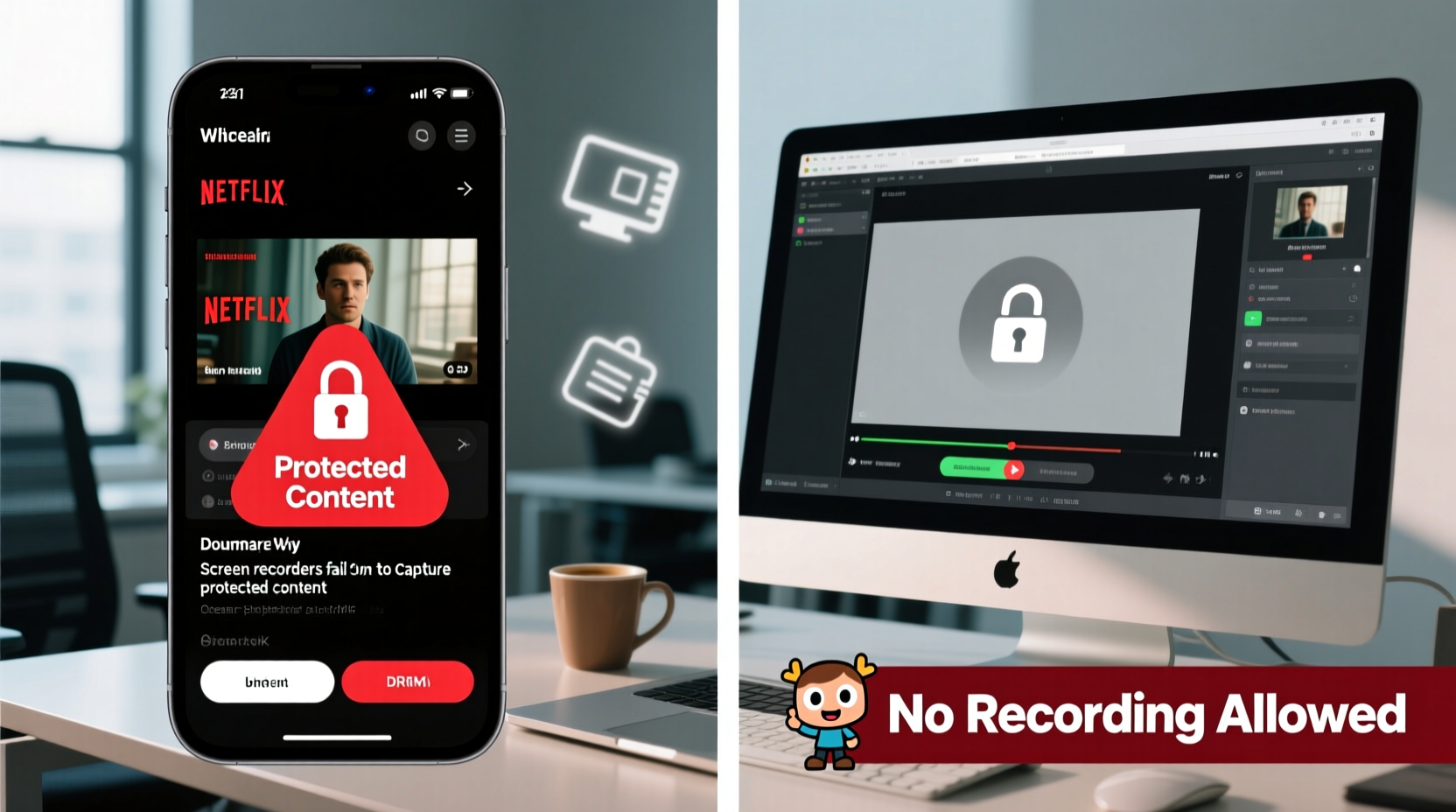
Modern digital content is often protected using encryption and access control technologies collectively known as Digital Rights Management (DRM). These systems are implemented by content providers to prevent piracy and unauthorized redistribution. When you attempt to record protected content, your operating system, graphics driver, or application intercepts the request and blocks it at a low level.
One of the most common protection mechanisms is High-bandwidth Digital Content Protection (HDCP), which secures the transmission path between devices—such as from your computer’s GPU to your monitor. If a screen recorder attempts to capture HDCP-protected video output, the signal is either degraded (e.g., black screen) or completely blocked.
This protection operates independently of your screen recording app. Even powerful tools like OBS Studio, Camtasia, or Windows Game Bar will fail to capture protected streams because they rely on system-level APIs that respect these restrictions.
“DRM exists to protect creators and distributors. Bypassing it undermines the ecosystem that funds content creation.” — Dr. Alan Reed, Cybersecurity & Digital Policy Researcher, MIT Media Lab
Common Scenarios Where Recording Fails
Understanding real-world situations helps identify whether content protection is the root cause:
- Streaming Services: Netflix, Hulu, Amazon Prime, and HBO Max block recording to prevent illegal distribution.
- Educational Platforms: Platforms like MasterClass or LinkedIn Learning restrict downloads and recordings to preserve subscription value.
- Webinars & Paid Events: Live sessions with paid access often include anti-recording measures.
- In-App Videos: Some mobile apps use secure playback surfaces that disable screen mirroring or recording.
Legal and Ethical Boundaries of Recording Protected Content
It’s important to distinguish between technical capability and legal permissibility. Just because a workaround exists doesn’t mean it should be used. Copyright laws in most countries—including the U.S. Digital Millennium Copyright Act (DMCA)—prohibit circumventing DRM protections, even for personal use.
Fair use exceptions exist but are narrowly defined. They typically allow limited use of copyrighted material for purposes such as criticism, commentary, teaching, or research. However, making a full copy of a movie or course for offline viewing does not qualify as fair use.
Attempting to bypass DRM through third-party tools or kernel-level drivers may also violate end-user license agreements (EULAs), void warranties, or expose your system to malware.
What You Can Legally Do
- Use official download features (e.g., Netflix’s offline viewing option).
- Contact content owners for permission to record educational material.
- Leverage screen recording for non-protected portions (e.g., your notes alongside a paused video).
- Use public domain or Creative Commons licensed content freely.
Troubleshooting: Is It Really Protection, or a Software Issue?
Before concluding that DRM is the culprit, rule out other common issues:
| Issue | Symptom | Solution |
|---|---|---|
| Outdated Graphics Driver | Recording crashes or lags | Update GPU drivers from manufacturer site |
| Incorrect Recording Source | No video captured at all | Select correct display or window source |
| App Running as Administrator | Black screen in some cases | Run recorder with matching privileges |
| Hardware Acceleration Enabled | Partial or missing capture | Disable in browser or app settings |
| DRM-Protected Playback | Black screen only during videos | Confirmed content protection; no workaround allowed |
Step-by-Step: Diagnose Recording Failures
- Test with unprotected content: Record YouTube videos (non-premium) or local files. If those work, the issue is likely content-specific.
- Check hardware acceleration: In Chrome or Edge, go to Settings > System and toggle off “Use hardware acceleration.” Restart the browser and test again.
- Try a different recorder: Use alternatives like VLC (for direct capture), OBS, or QuickTime (on Mac) to see if behavior persists.
- Monitor system logs: On Windows, check Event Viewer for errors related to WMDRM or PlayReady. On macOS, Console.app may show FairPlay-related messages.
- Verify HDCP status: On Windows, open Settings > System > Display > Advanced display and check if HDCP is enabled. Disabling it may help on external monitors but won’t bypass streaming service restrictions.
Real Example: A Student’s Dilemma
A graduate student enrolled in an online certification program needed to review lecture videos multiple times for exam preparation. She attempted to record the sessions using OBS so she could annotate them later. Each time, the video portion appeared black while audio played normally. After researching, she discovered the platform used Widevine L1 DRM, which actively blocks screen capture on desktop browsers.
Rather than seeking illicit methods, she contacted the course administrator and explained her learning needs. The instructor provided downloadable transcripts and permitted personal note-taking, including screenshots of static slides under fair use. While she couldn’t record full videos, this compromise supported her study goals within legal boundaries.
Alternatives to Recording Protected Content
You don’t always need a full recording to achieve your goal. Consider these practical, compliant alternatives:
- Take structured notes: Use bullet points, diagrams, or voice memos to summarize key concepts.
- Use platform-native tools: Many services offer bookmarks, timestamps, or clipping features.
- Request permissions: For educational or accessibility reasons, reach out to content providers for usage rights.
- Leverage subtitles: Export or screenshot subtitle text where available (check terms of use).
- Record your reaction, not the content: Film yourself commenting on a paused video—this often falls under fair use for critique or education.
FAQ: Common Questions About Screen Recording and Protected Content
Can I record Netflix or Disney+ for personal use?
No. Even for personal offline viewing, recording is prohibited by both DRM systems and the platform’s terms of service. Instead, use their built-in download feature for offline access on supported devices.
Why does audio sometimes still record when the video is black?
Some DRM systems apply stricter protection to video rendering than audio streams. Audio may pass through system mixers before being filtered, allowing partial capture—but this does not make it legal to retain or distribute.
Are there any legal tools that bypass DRM?
No legitimate consumer software allows circumvention of DRM on copyrighted streams. Tools claiming to do so often violate the DMCA and may carry security risks. Always assume such tools are illegal unless explicitly authorized by the copyright holder.
Conclusion: Respect Rights, Work Smarter
The inability to record protected content isn’t a glitch—it’s a safeguard designed to uphold intellectual property rights. While it may seem inconvenient, especially for learning or archival purposes, respecting these boundaries supports the creators and platforms that produce valuable media.
Instead of searching for ways around protection, focus on working within the rules: use official download options, enhance note-taking strategies, and communicate with content providers when special needs arise. Technology evolves, and so do access models—many services now offer offline modes, adjustable playback speeds, and accessibility features that reduce the need for recording.




 浙公网安备
33010002000092号
浙公网安备
33010002000092号 浙B2-20120091-4
Comments
No comments yet. Why don't you start the discussion?