
Location sharing is a core feature across smartphones, enabling real-time coordination between friends, family, and coworkers. Whether you're using Apple's Find My app or Google's Location Sharing, seeing the message “Share My Location Unavailable” can be frustrating — especially in urgent situations. The issue rarely stems from a single cause. Instead, it’s often the result of a combination of settings, permissions, connectivity problems, or device-specific glitches. Understanding the root causes and applying targeted fixes can restore functionality quickly and reliably.
Why Location Sharing Fails: Common Technical Causes
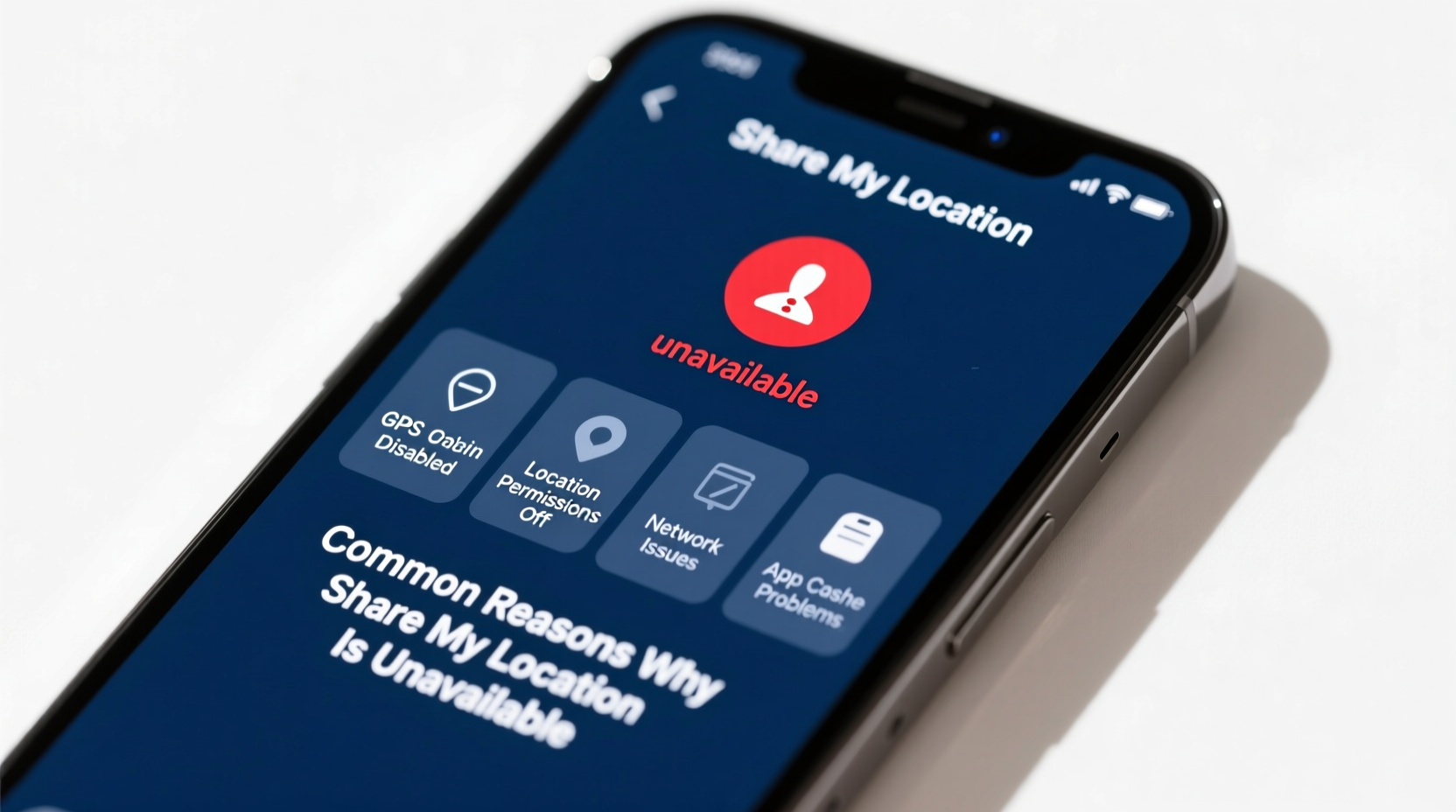
The inability to share your location isn’t always due to user error. Modern operating systems rely on multiple services working in harmony: GPS, Wi-Fi, cellular networks, background app refresh, battery optimization settings, and account authentication. When any one of these components fails or is misconfigured, location sharing breaks down.
One of the most frequent culprits is disabled location services. If Location Services are turned off at the system level, no app — including Find My or Google Maps — can access your position. Similarly, apps may have individual permissions denied, even if global settings are enabled. Background app refresh restrictions also prevent continuous tracking, leading to outdated or missing location data.
Another overlooked factor is network dependency. While GPS provides coordinates, transmitting that data requires an active internet connection. A phone with poor signal, disabled Wi-Fi, or airplane mode will struggle to send updates, resulting in the “unavailable” status for others trying to view your location.
Step-by-Step Guide to Restore Location Sharing
Follow this systematic approach to identify and resolve the problem efficiently. This guide applies to both iOS and Android devices with specific notes where applicable.
- Check Internet Connection
Ensure your device is connected to Wi-Fi or has strong cellular data. Test by loading a webpage. Without internet, location data cannot be transmitted. - Verify Location Services Are Enabled
- iOS: Go to Settings > Privacy & Security > Location Services > Ensure it’s ON.
- Android: Settings > Location > Toggle Location On.
- Confirm App-Specific Permissions
- For Find My (iOS): Settings > Privacy & Security > Location Services > Find My > Set to “While Using” or “Always.”
- For Google Maps (Android): Settings > Apps > Google Maps > Permissions > Location > Allow all the time.
- Enable Share My Location Feature
- iOS: Open Find My app > People tab > Tap your profile > Ensure “Share My Location” is toggled on.
- Android: Open Google Maps > Tap your profile picture > Location Sharing > Confirm active sharing session.
- Restart Your Device
Sometimes a simple reboot clears temporary software hiccups affecting GPS or background processes. - Update Software
Outdated OS versions may contain bugs. Check for updates under Settings > General > Software Update (iOS) or Settings > System > System Update (Android).
Do’s and Don’ts of Location Sharing
| Action | Do | Don’t |
|---|---|---|
| Permissions | Allow location access “Always” for Find My or Google Maps | Set location to “Never” or deny permission entirely |
| Battery Settings | Disable battery optimization for location apps | Let aggressive power-saving modes restrict background activity |
| Account Status | Stay signed into iCloud (iOS) or Google Account (Android) | Sign out or switch accounts frequently without syncing |
| Network | Use Wi-Fi when cellular signal is weak | Rely solely on GPS without data transmission capability |
| Sharing Duration | Select appropriate duration (e.g., 1 hour, until end of day) | Assume sharing continues indefinitely without verification |
Real-World Example: Sarah’s Commute Panic
Sarah regularly shares her location with her partner during her evening commute. One rainy Thursday, he opened Find My and saw “Sarah’s Location Is Unavailable.” Concerned, he called her — only to learn her iPhone had automatically disabled location sharing after a recent iOS update reset some preferences.
She followed a quick checklist: verified she was online via Wi-Fi at a coffee shop, checked that Location Services were active, and discovered the Find My app had reverted to “While Using” instead of “Always.” After adjusting the setting and restarting her phone, her location reappeared within two minutes. This incident highlighted how silent system updates can alter critical privacy settings without user awareness.
“Many users don’t realize that OS updates can reset app permissions. It’s wise to audit key settings like location access after every major upgrade.” — Marcus Tran, Mobile Systems Analyst at TechInsight Labs
Troubleshooting Advanced Scenarios
Sometimes basic steps don’t resolve the issue. Consider these less obvious but impactful factors:
- Family Sharing or Account Conflicts (iOS): If you’re part of a Family Sharing group, ensure you’re signed into the correct iCloud account. Switching accounts or having multiple Apple IDs active can disrupt location visibility.
- Google Account Sync Issues (Android): Go to Settings > Accounts > Google > Select your account > Sync Now. Delayed sync can cause stale location data.
- Low Power Mode Effects: On iPhones, Low Power Mode disables background app refresh, which halts location updates. Disable it temporarily to test.
- Time Zone & Date Mismatches: Incorrect device time can interfere with secure location transmission. Enable “Set Automatically” in Date & Time settings.
- Third-Party VPNs or Firewalls: Some security apps block location data transmission. Try disabling them briefly to check for conflicts.
Frequently Asked Questions
Why does my location show as “Unavailable” even when I’m online?
This typically occurs when the receiving device hasn’t granted permission to view your location, or your device hasn’t approved the request. Also, ensure the Find My network or Google Location Sharing is actively enabled and not paused.
Can someone see my location if my phone is off?
No. Location sharing requires the device to be powered on and connected to the internet. However, iOS offers “Find My” network assistance that may display the last known location for up to 24 hours after shutdown, provided the feature was enabled before powering off.
Does airplane mode disable location sharing?
Yes. Airplane mode disables Wi-Fi, cellular, and Bluetooth — all necessary for transmitting location data. Even if GPS detects your position, it cannot be shared without re-enabling connectivity.
Final Checklist Before Reaching Out for Support
Before contacting customer support or assuming hardware failure, confirm the following:
- ✅ Internet connection is stable (Wi-Fi or cellular)
- ✅ Location Services are globally enabled
- ✅ Specific app (Find My / Google Maps) has location permission set to “Always”
- ✅ You are signed into the correct iCloud or Google account
- ✅ Background App Refresh is enabled
- ✅ Device date, time, and time zone are set automatically
- ✅ No active battery saver or low power mode restricting background activity
- ✅ The sharing invitation has been accepted and not expired
Conclusion: Regain Control Over Your Digital Presence
“Share My Location Unavailable” is more than a minor annoyance — it disrupts trust, safety, and coordination in our hyper-connected lives. But in nearly every case, the solution lies within accessible settings and logical diagnostics. By understanding how location services integrate with connectivity, permissions, and account ecosystems, you regain control over your digital presence.




 浙公网安备
33010002000092号
浙公网安备
33010002000092号 浙B2-20120091-4
Comments
No comments yet. Why don't you start the discussion?