
For many PC gamers and performance enthusiasts, squeezing every last drop of performance from their hardware is a natural instinct. One of the most talked-about methods to achieve this is GPU overclocking — pushing your graphics card beyond its factory-set limits to gain higher frame rates and smoother gameplay. While the promise of improved performance is tempting, overclocking comes with trade-offs that can affect system stability, longevity, and even void warranties. Understanding both the potential benefits and real risks is essential before diving in.
Modern GPUs are engineered with headroom, meaning manufacturers often set conservative clock speeds to ensure reliability across thousands of units. This leaves room for users to safely increase performance — but only up to a point. Whether you're playing AAA titles at 4K or streaming competitive esports matches, the question remains: is overclocking worth it?
The Performance Promise: What Overclocking Can Deliver
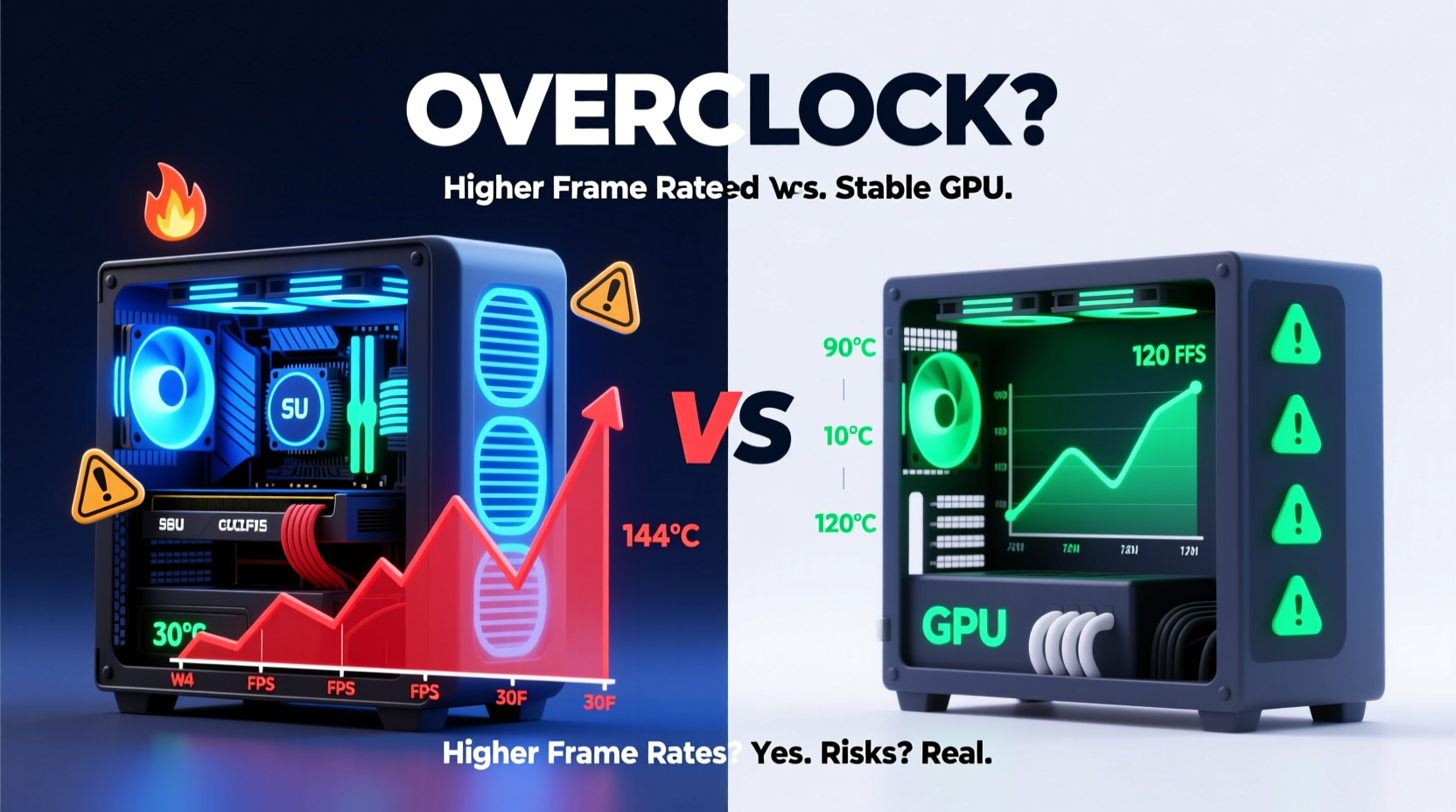
At its core, GPU overclocking involves increasing the core clock speed (how fast the GPU processes data) and sometimes the memory clock (how fast VRAM operates). The goal is simple: extract more frames per second (FPS) from games without upgrading hardware.
In practice, modest overclocks typically yield 5% to 15% performance gains depending on the card, cooling solution, and silicon quality. For example, a well-cooled NVIDIA RTX 4070 might go from averaging 90 FPS in Cyberpunk 2077 at max settings to around 100–103 FPS after a stable overclock. That difference can mean smoother motion, fewer stutters, and a competitive edge in fast-paced shooters.
However, returns diminish quickly. Pushing too far results in diminishing gains while exponentially increasing risk. Unlike CPU overclocking, which affects overall system responsiveness, GPU overclocking impacts only graphical workloads — making it highly situational.
Understanding the Risks: Why Overclocking Isn't Risk-Free
While modern safety mechanisms prevent immediate hardware destruction, overclocking still introduces several long-term concerns:
- Increased Heat Output: Higher clock speeds generate more heat. Without adequate cooling, thermal throttling kicks in, negating any performance gain.
- Reduced Lifespan: Sustained high temperatures and voltages accelerate electron migration within the GPU die, potentially shortening its usable life.
- System Instability: Crashes, artifacting (visual glitches), and driver timeouts become common if the overclock exceeds safe thresholds.
- Voided Warranty: Some manufacturers explicitly void warranties if voltage modifications are detected, though many offer \"overclocking-friendly\" models.
- Power Draw Surge: An overclocked GPU pulls more power, stressing the PSU and increasing electricity costs over time.
According to Dr. Linus Sebastian, founder of Linus Tech Tips and hardware analyst:
“Overclocking used to be a necessity in the early 2000s when margins were tighter. Today, it’s more about personal satisfaction than practical need. Most people won’t notice a 10% boost unless they’re benchmark chasing.” — Dr. Linus Sebastian, Hardware Performance Analyst
This shift reflects how far stock performance has come. High-end cards now deliver excellent out-of-the-box experiences, reducing the urgency to overclock.
Step-by-Step Guide to Safe GPU Overclocking
If you decide to proceed, follow a structured approach to minimize risk and maximize success. Here’s a proven method used by experienced tweakers:
- Prepare Your Tools
Download monitoring software like MSI Afterburner, HWInfo, or GPU-Z. These let you track temperature, usage, clock speeds, and voltage in real time. - Baseline Stability Test
Run a demanding game or stress test (e.g., FurMark or Unigine Heaven) for 30 minutes. Record peak temps and ensure no crashes occur under default settings. - Increase Core Clock Gradually
Using MSI Afterburner, raise the core clock by +10 MHz. Apply, then test with a game loop or benchmark. Repeat until visual artifacts appear or crashes occur. - Back Off for Safety Margin
Once instability appears, reduce the clock by 10–15 MHz to establish a stable, reliable setting. - Test Memory Clock (Optional)
If core overclocking is stable, cautiously increase memory clock (+50 to +100 MHz). Watch for texture corruption or stuttering, signs of VRAM instability. - Final Stress Test
Run extended tests (1–2 hours) across multiple titles. Monitor for overheating, throttling, or micro-stutters. - Monitor Long-Term Behavior
Use logging tools weekly to check for rising temps or declining performance—a sign of wear or dust buildup.
Never adjust voltage unless you fully understand the implications. Even slight increases can dramatically shorten GPU lifespan due to accelerated electromigration.
Do’s and Don’ts of GPU Overclocking
| Action | Do | Don't |
|---|---|---|
| Cooling Setup | Ensure good case airflow and clean fans/heatsinks regularly. | Rely on stock cooling in cramped or dusty enclosures. |
| Increment Size | Adjust clocks in small steps (5–10 MHz). | Jump +100 MHz at once hoping for instant gains. |
| Temperature Limits | Keep GPU below 80°C under load for sustained use. | Allow prolonged operation above 85°C. |
| Voltage Tweaking | Avoid manual voltage changes unless experienced. | Enable “unlock voltage control” just to see what happens. |
| Testing Method | Validate stability across games, not just one benchmark. | Assume stability after five minutes of casual browsing. |
Real Example: A Cautionary Tale from a Competitive Gamer
Mark, a 28-year-old streamer based in Austin, Texas, decided to overclock his AMD Radeon RX 6800 XT to gain an edge in Apex Legends. He followed online tutorials and managed to push core clocks from 2100 MHz to 2350 MHz using Afterburner. Initial benchmarks showed a 14% FPS jump in Far Cry 6, and he was thrilled.
But after three weeks of daily streaming sessions lasting 6+ hours, Mark began noticing occasional screen tearing and green speckles during intense fights. At first, he blamed drivers. After updating repeatedly with no fix, he ran deeper diagnostics and discovered persistent artifacting — a classic sign of GPU degradation from excessive voltage and heat.
He reset to default settings, but the damage was done. The card never returned to full stability. Eventually, he had to RMA it — only to learn that his provider flagged abnormal voltage logs and denied the claim. Mark lost $600 and six weeks of downtime.
His takeaway? “I thought I was being smart. But I skipped proper cooling upgrades and didn’t monitor long-term trends. It wasn’t worth it.”
When Overclocking Makes Sense — And When It Doesn’t
Not all users benefit equally from overclocking. Consider these scenarios:
- Enthusiast Benchmarkers: If you live for 3DMark scores or want to top community leaderboards, overclocking offers measurable bragging rights.
- Budget Gamers: Someone running a mid-tier GPU may gain meaningful improvements in older or less optimized games.
- Content Creators: Video rendering and 3D rendering tasks can see reduced export times with a stable OC.
Conversely, avoid overclocking if:
- You rely on your PC for critical work (editing, coding, remote access).
- Your case has poor ventilation or uses thermal paste older than two years.
- You play primarily online multiplayer titles where network latency matters more than FPS.
- You’re uncomfortable troubleshooting crashes or resetting BIOS-level settings.
Moreover, newer GPUs from NVIDIA and AMD include adaptive technologies like Boost Clocks and SmartShift that dynamically optimize performance. In many cases, these features already extract near-maximum efficiency without user intervention.
Frequently Asked Questions
Can overclocking permanently damage my GPU?
Yes, especially if combined with increased voltage and inadequate cooling. While modern GPUs have thermal shutdown protection, repeated exposure to high heat degrades internal components over time, leading to premature failure.
Does overclocking improve performance in all games?
No. Games that are CPU-bound (like Microsoft Flight Simulator or heavily modded Skyrim) won’t benefit much from GPU overclocking. The bottleneck lies elsewhere. Overclocking helps most in GPU-intensive titles such as Shadow of the Tomb Raider, Resident Evil Village, or ray-traced games.
Is GPU overclocking still relevant with modern auto-boost features?
Largely, no. Technologies like NVIDIA GPU Boost and AMD Precision Boost automatically raise clock speeds based on thermal headroom. Many users find these deliver 90% of possible gains without manual tuning. Manual overclocking mainly benefits those seeking marginal extra performance or testing hardware limits.
Checklist: Is Your System Ready to Overclock?
Before proceeding, verify each item below:
- ✅ GPU temperature stays under 75°C at stock settings during heavy loads
- ✅ Power supply has at least 15% headroom above total system draw
- ✅ Case has intake and exhaust fans with unobstructed airflow
- ✅ Monitoring tools installed and functioning (MSI Afterburner, HWInfo)
- ✅ You’ve backed up important data and know how to reset BIOS settings
- ✅ You’re prepared to accept potential warranty loss or hardware risk
Conclusion: Weighing Gains Against Responsibility
Overclocking your GPU for better frame rates is technically feasible and occasionally rewarding. With careful execution, some users achieve noticeable performance lifts without incident. However, the process demands respect for thermals, power delivery, and long-term reliability. For most average users, the risks outweigh the benefits — particularly when modern GPUs already deliver strong stock performance.
The truth is, consistent gains require consistent maintenance. An overclock isn’t a one-time setup; it’s an ongoing commitment to monitoring, cleaning, and adjusting as conditions change. If you’re passionate about hardware optimization and enjoy fine-tuning your rig, then overclocking can be a fulfilling hobby. But if you value stability, longevity, and hassle-free gaming, sticking to factory defaults is not only safer — it’s often smarter.




 浙公网安备
33010002000092号
浙公网安备
33010002000092号 浙B2-20120091-4
Comments
No comments yet. Why don't you start the discussion?